Prerequisites
- Before working on this lab, You must have
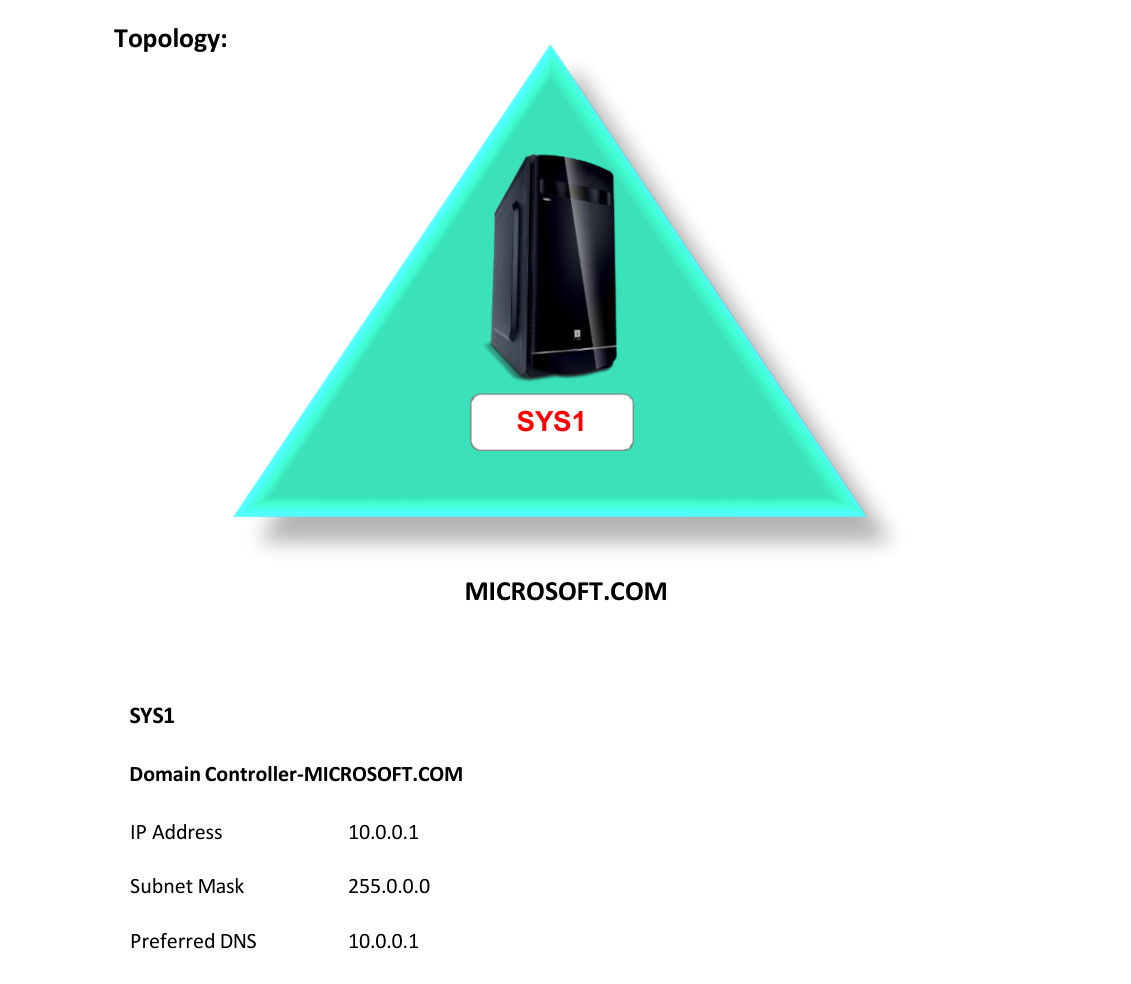
- A computer running window server 2022 Domain Controller.
Network Topology
Step-by-Step Instructions
Step 1
Log in as Administrator to the Domain Controller (SYS1).
Step 2
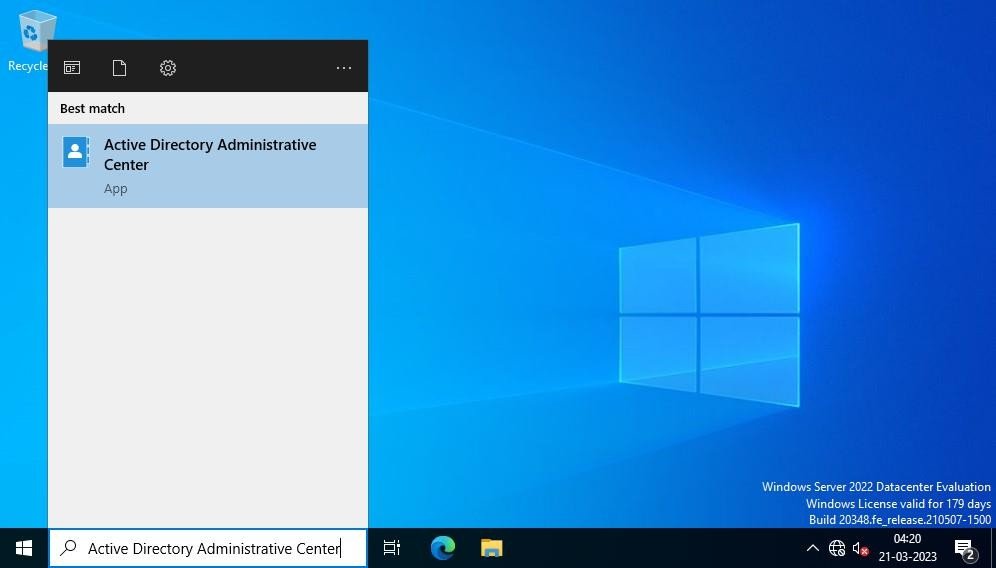
Go to Start, select Active Directory Administrative Center.
Step 3
In Active Directory Administrative Center, select Microsoft (Local), Click Raise Domain Functional Level, select Windows Server 2022.
Step 4
Click Raise Forest Functional Level, select Windows Server 2022 and refresh.
Step 5
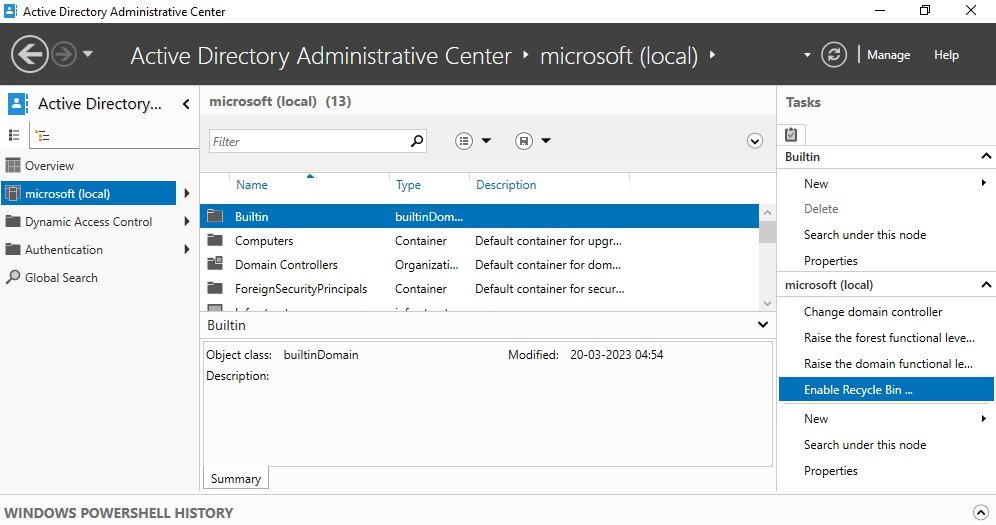
Click Enable Recycle Bin.
Step 6
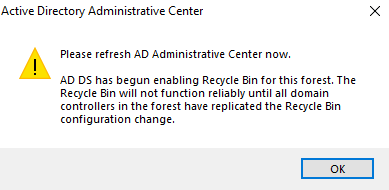
Click OK to confirm the Enable Recycle Bin feature.
Step 7
Click OK, and Refresh Active Directory Administrative Center now.
Step 8
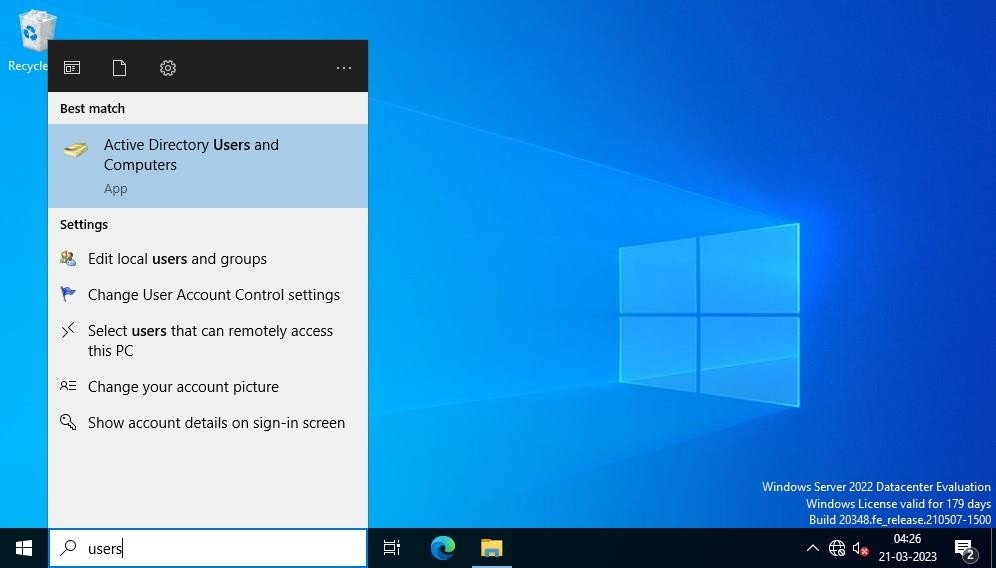
Go to Start, Select Active Directory Users and Computers.
Step 9
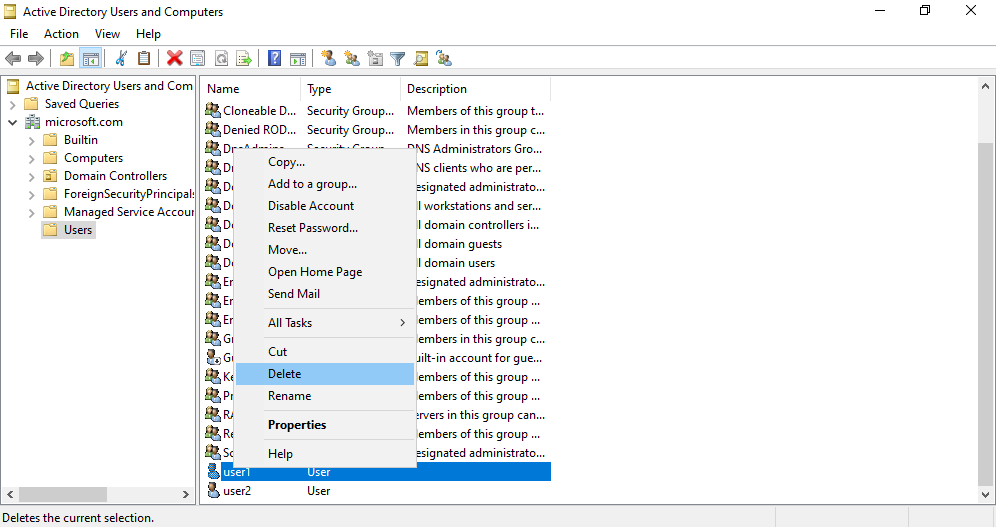
Right click User (User1) and select Delete, click Yes to confirm the deletion.
Step 10
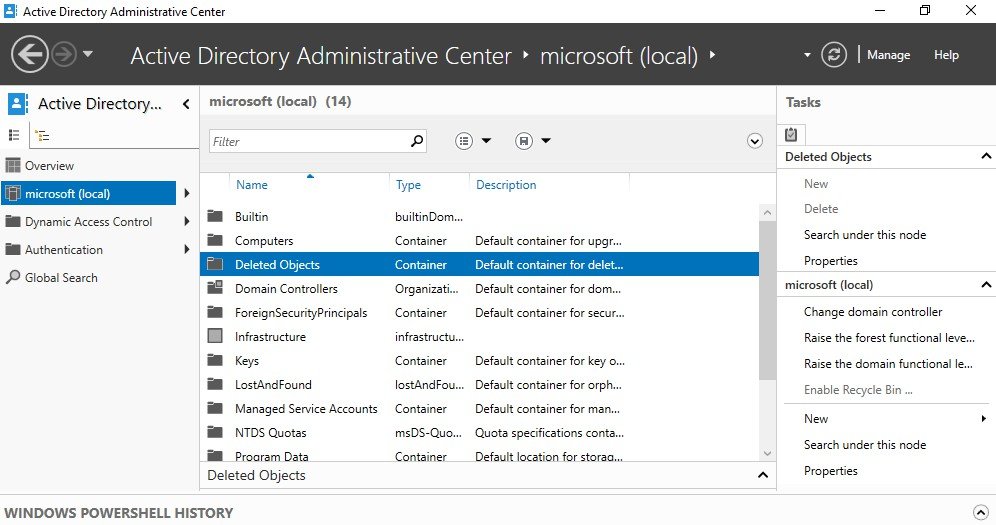
Go to Active Directory Administrative Center, select Microsoft (local), Deleted Objects Container
Step 11
Select the User account (User1) to be restored, right click and select Restore.
Verification
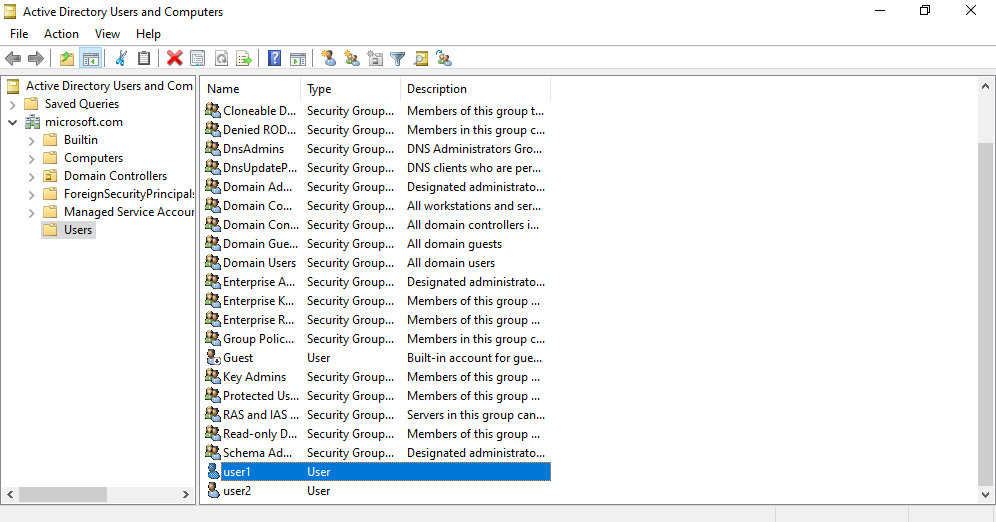
- 1. Go to Start, Select Active Directory Users and Computers, and verify for the restored
- user Account.