Prerequisites
- Before working on this lab, You must have
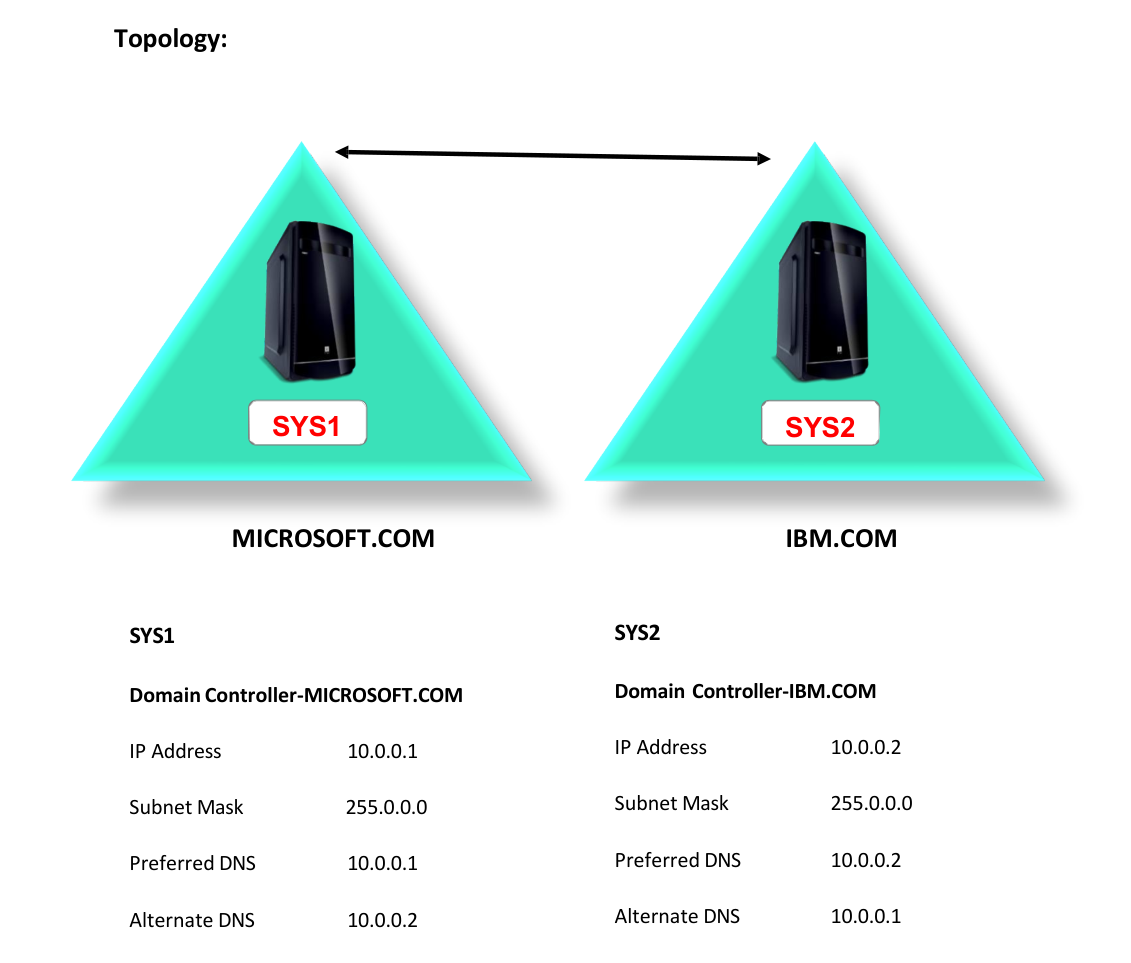
- A computer running windows server 2022 Domain Controller for Microsoft.com.
- A computer running windows server 2022 Domain Controller for IBM.com.
Network Topology
Step-by-Step Instructions
Step 1
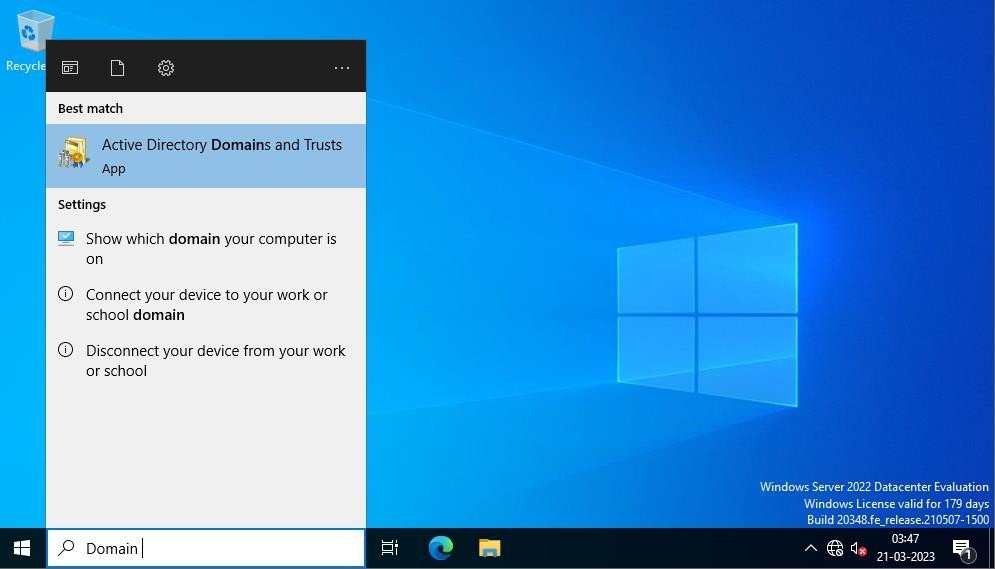
Go to Active Directory Domains and Trusts.
Step 2
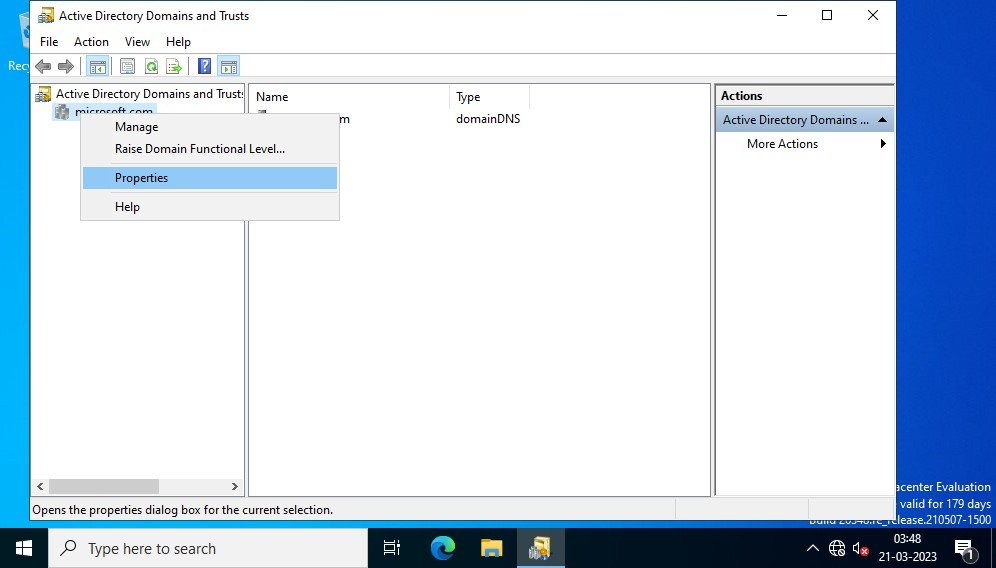
Right click the Domain name and select Properties.
Step 3
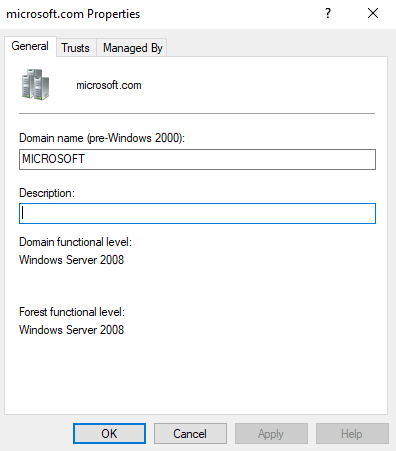
Verify Domain and Forest functional level to be Windows Server 2022.
Step 4
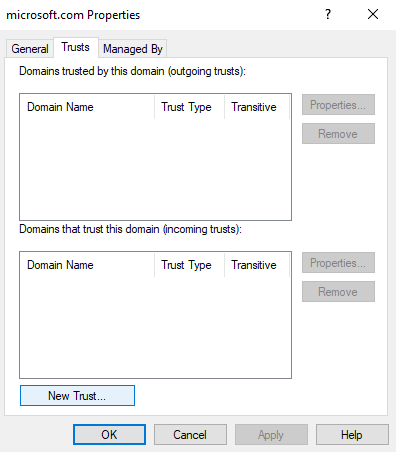
Select Trusts tab, Click New Trust.
Step 5
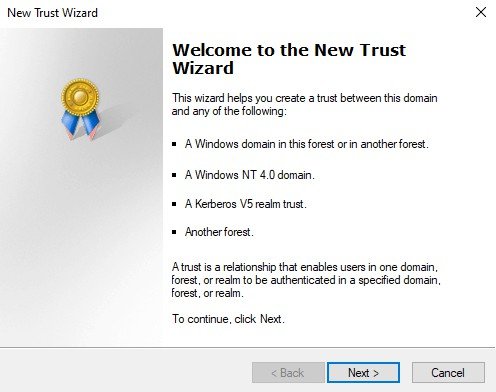
On Welcome wizard, click Next.
Step 6
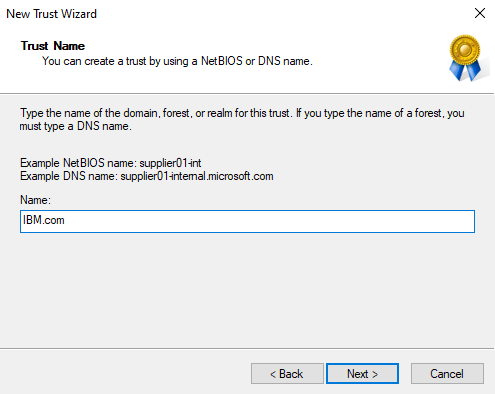
In Trust Name, enter name of other Forest IBM.COM and click Next.
Step 7
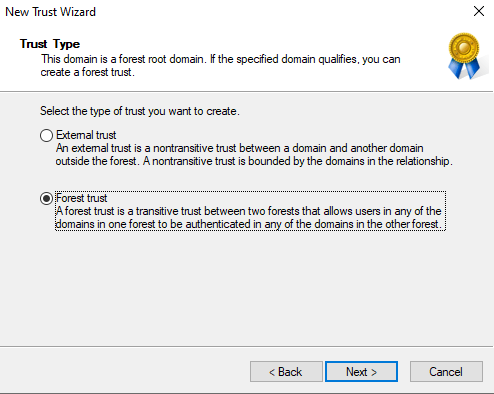
Select Forest trust and click Next
Step 8
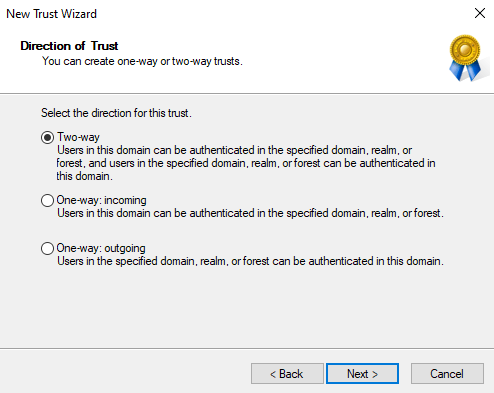
Select Two-way and click Next.
Step 9
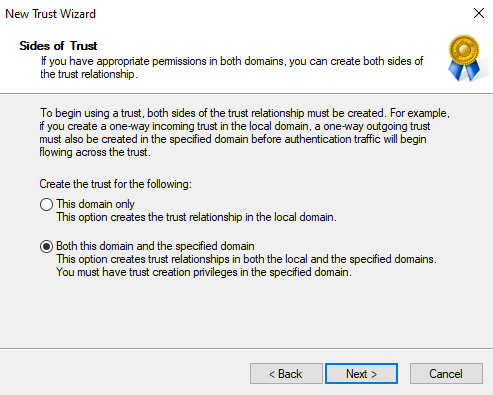
Select Both this domain and the specified domain and click Next.
Step 10
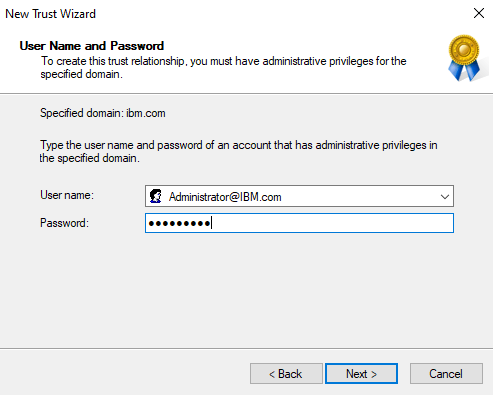
Enter Administrator and Password of Specified domain:IBM.COM and click Next
Step 11
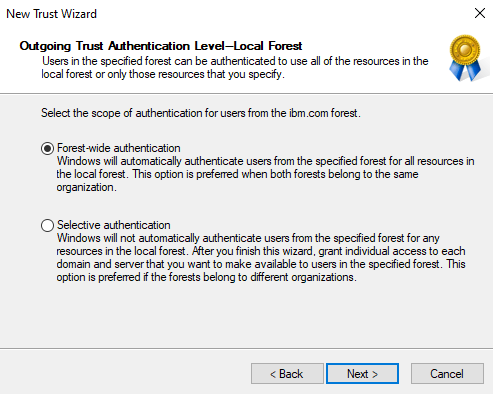
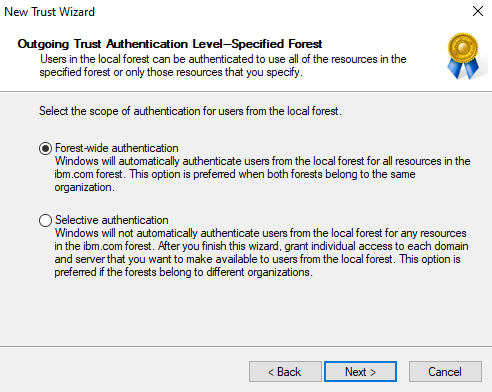
Select Forest-wide authentication for Local Forest and click Next.
Step 12
Select Forest-wide authentication for Specified Forest and click Next.
Step 13
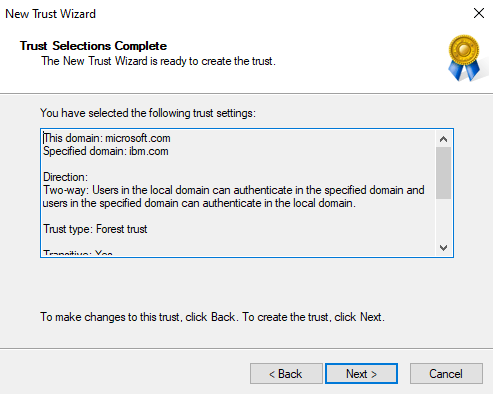
Verify the Trust Selections and click Next.
Step 14
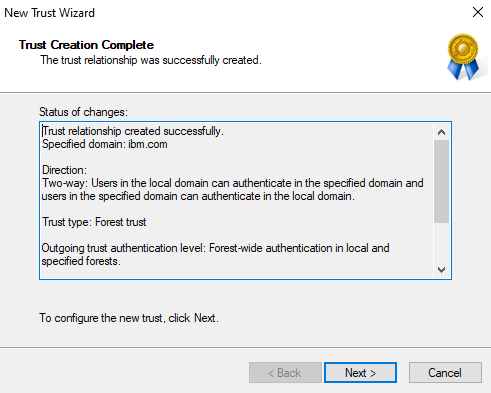
Verify the Summary and click Next.
Step 15
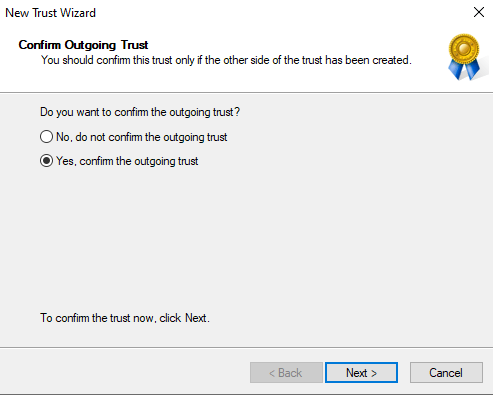
Select Yes, confirm the outgoing trust and click Next.
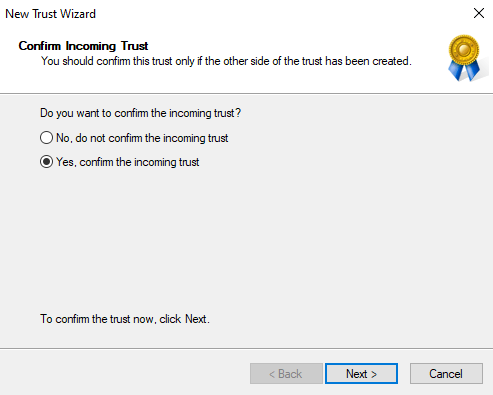
Step 16
Select Yes, confirm the incoming trust and click Next.
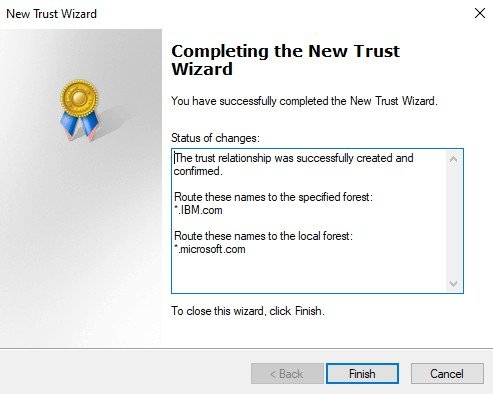
Step 17
click Finish.
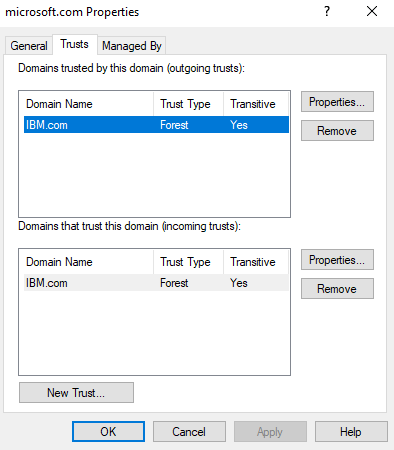
Step 18
Check Outgoing and Incoming Trusts and click OK.
Verification
- 1. Try to Logon on to MICROSOFT.COM domain computers or IBM.COM domain
- computers as other Domain Users.
- Note: By Default Users Cannot log on to D.C.
- 2. Log in as MICROSOFT Administrator to MICROSOFT.COM D.C and allow IBM users to
- log on to D.C using Domain Controller Security Policy in Group Policy
- Management.(Allow Logon Locally Policy)
- 3. Similarly allow MICROSOFT.COM users to log on to IBM.COM D.C using Domain
- Controller Security Policy of IBM.COM D.C.