Prerequisites
- Before working on this lab, You must have
- A computer running windows 2022 server Domain Controller.
- A computer running running windows 2022 or windows 10
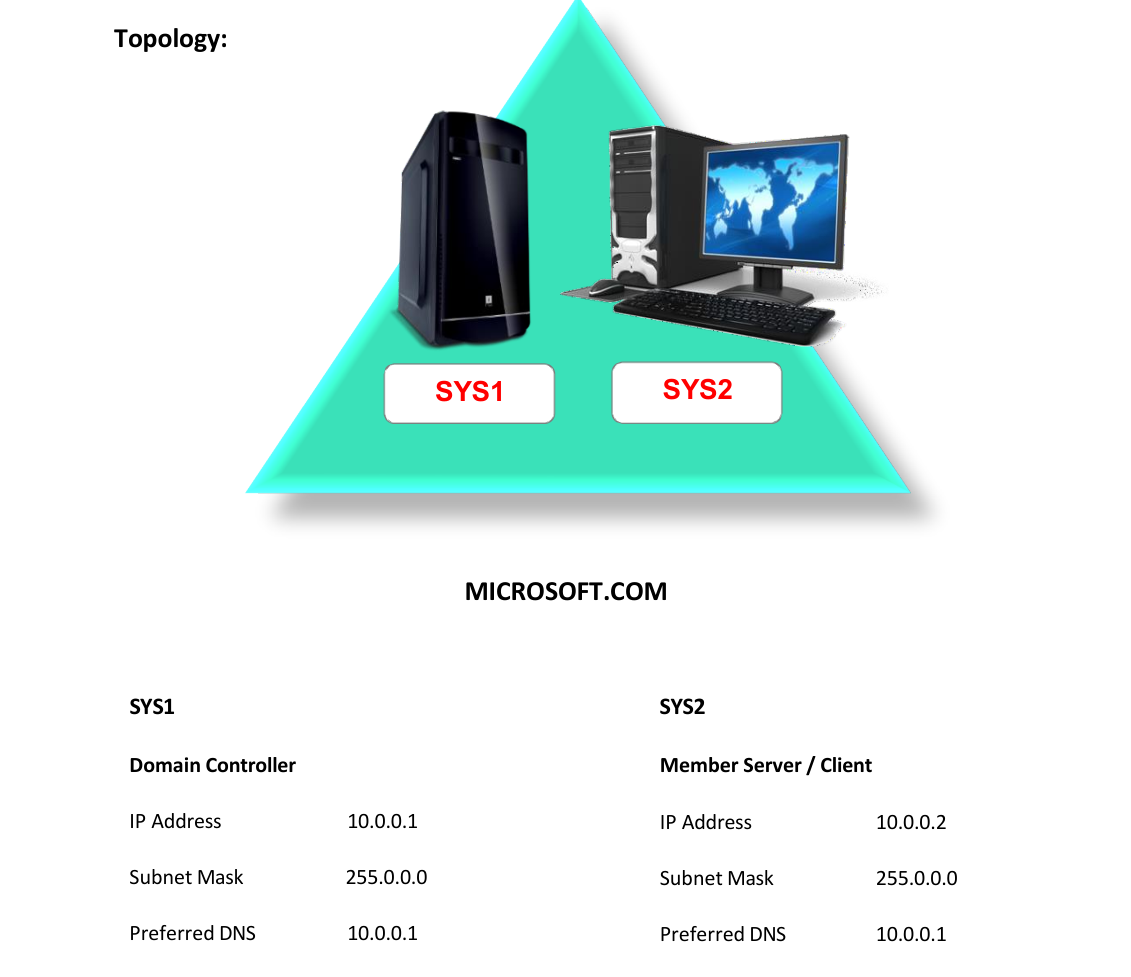
Network Topology
Step-by-Step Instructions
Step 1
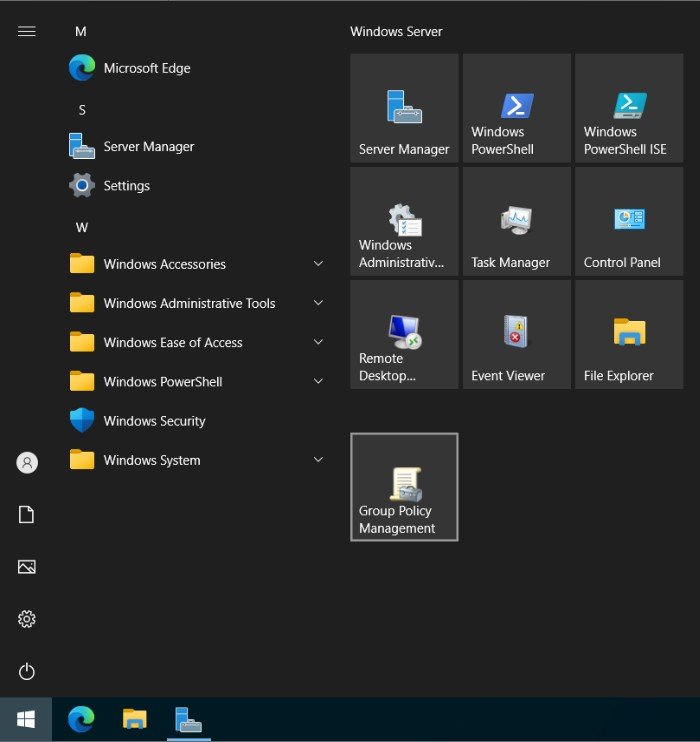
Press Windows Key to go to Start, select Group Policy Management.
Step 2
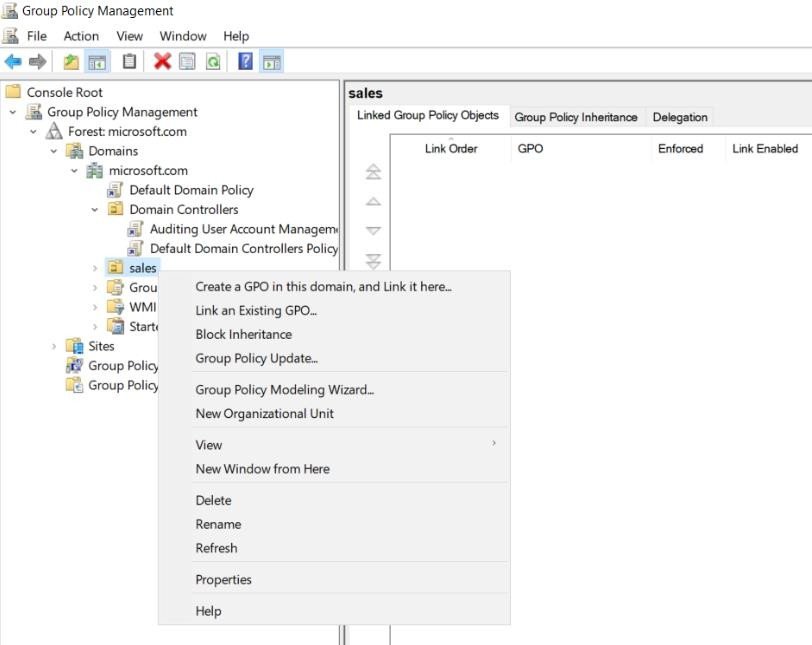
Right click Sales OU à Select Create a GPO...
Step 3
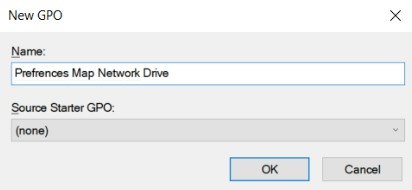
Enter name (Ex: Preferences Map Network Drive) and click OK.
Step 4
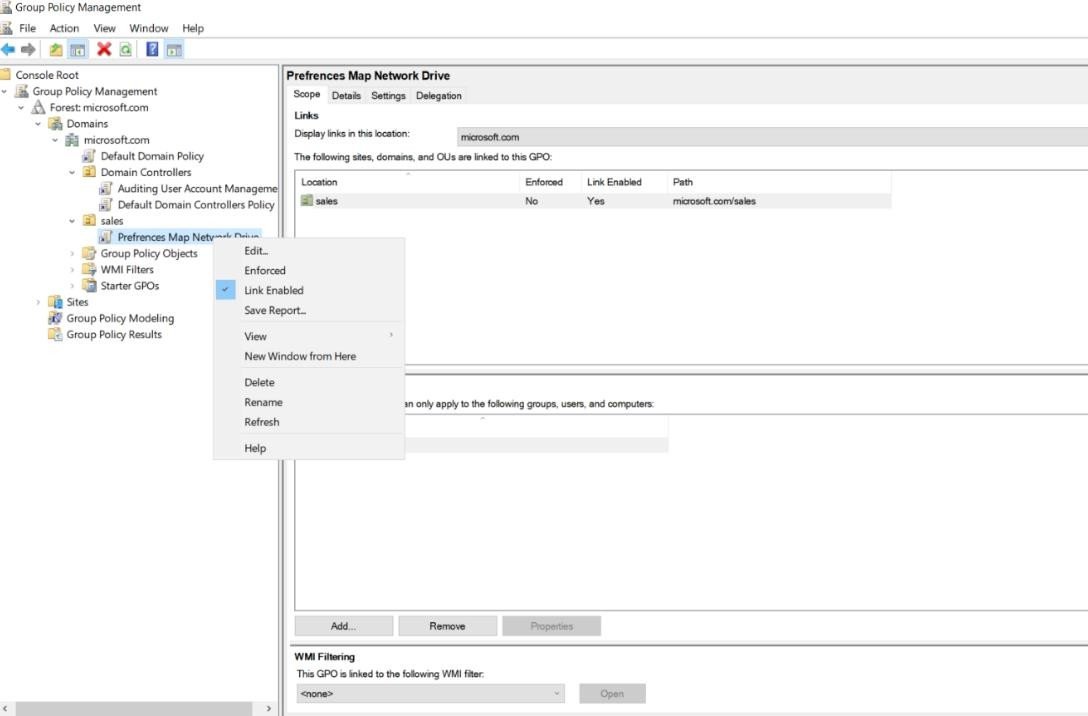
Right Click created GPO, select Edit.
Step 5
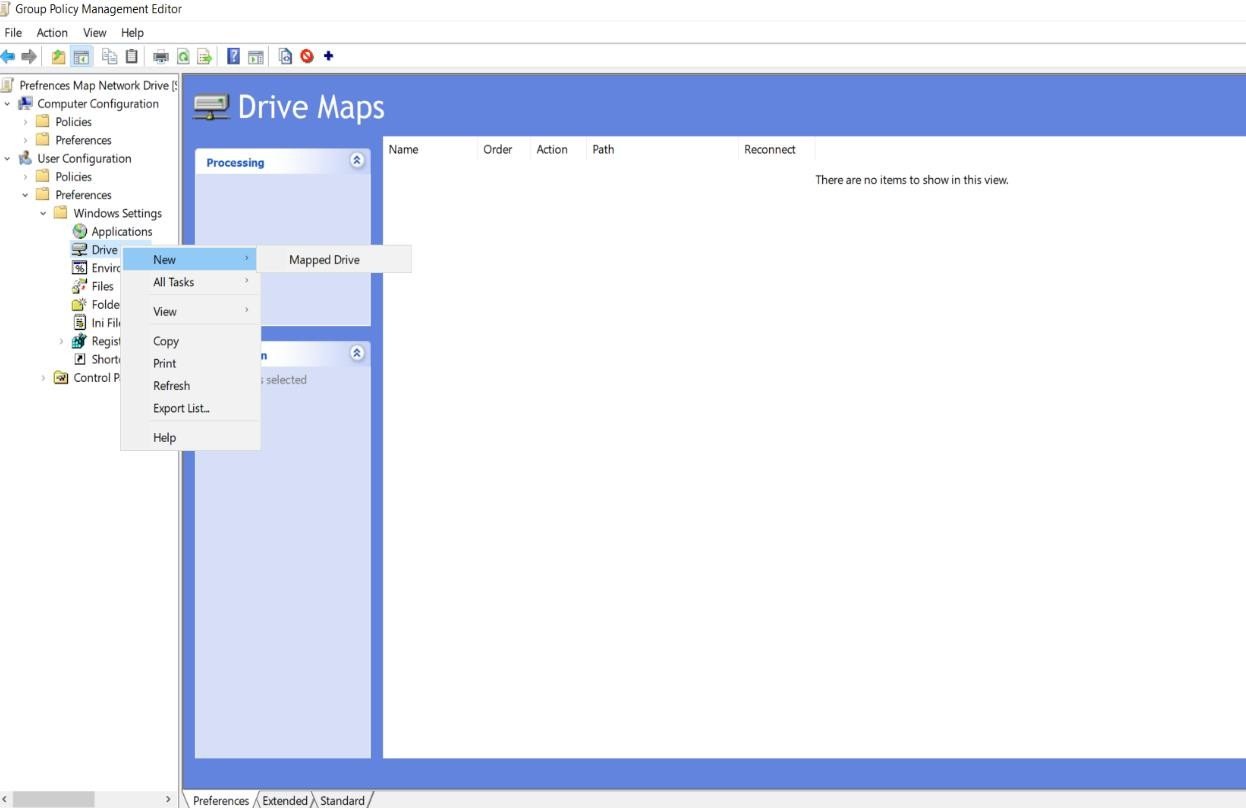
Expand User configuration à Preferencesà Windows Settings à Right click Drive Maps à Select New Mapped Drive
Step 6
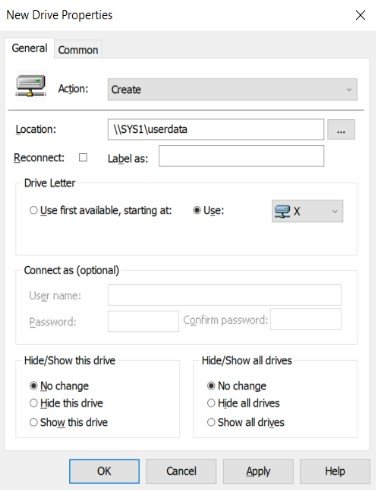
In Action select Create, Enter Location: (\\sys1\userdata), select Drive Letter X: à OK
Step 7
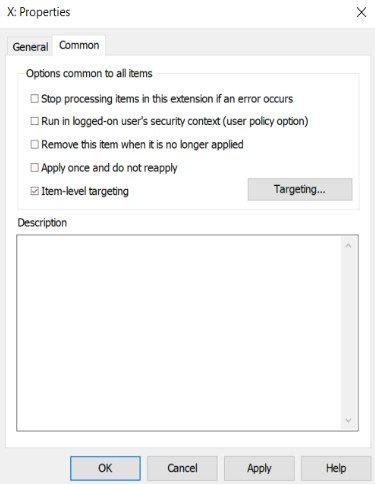
Select Common tab and check box Item-level targeting, click Targeting...
Step 8
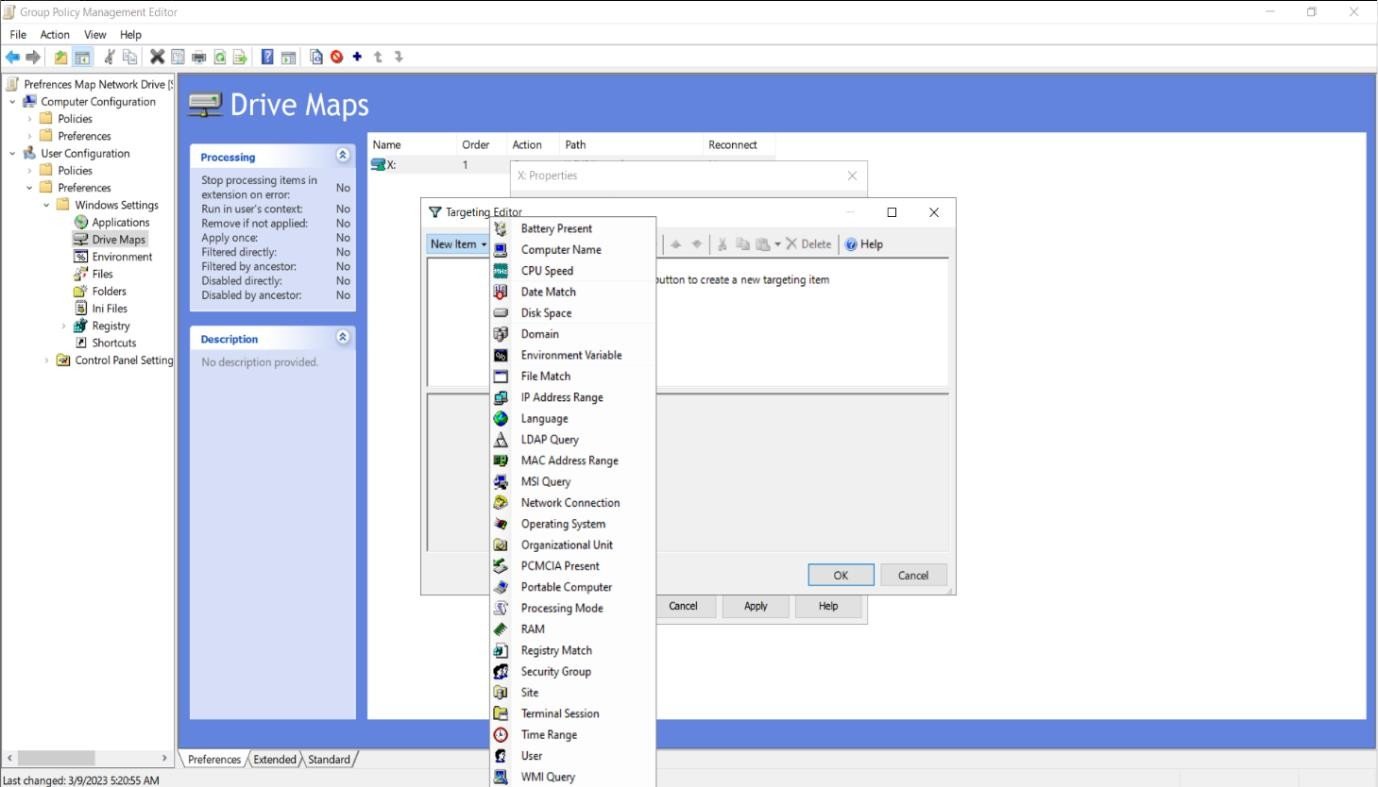
Select New Item à select Operating System
Step 9
Select Product: WindowsServer2022Family, Edition: Standard, Computer Role: Member Server, Click OK.
Verification
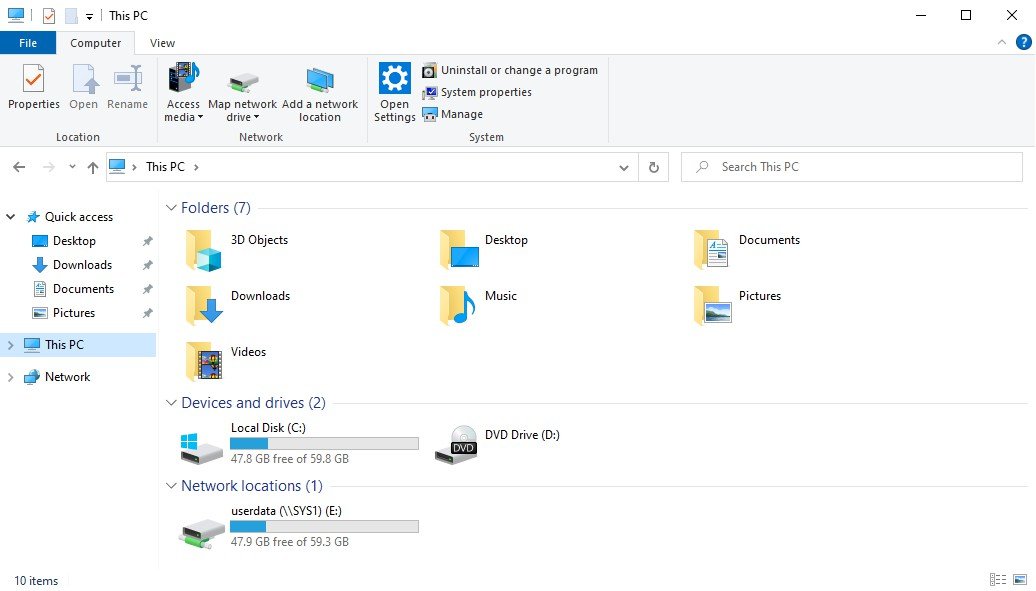
- 1. Login as user (51) to Member Server.