Prerequisites
- Before working on this lab, You must have
- A computer running windows server 2022 Operating System Hyper-V host.
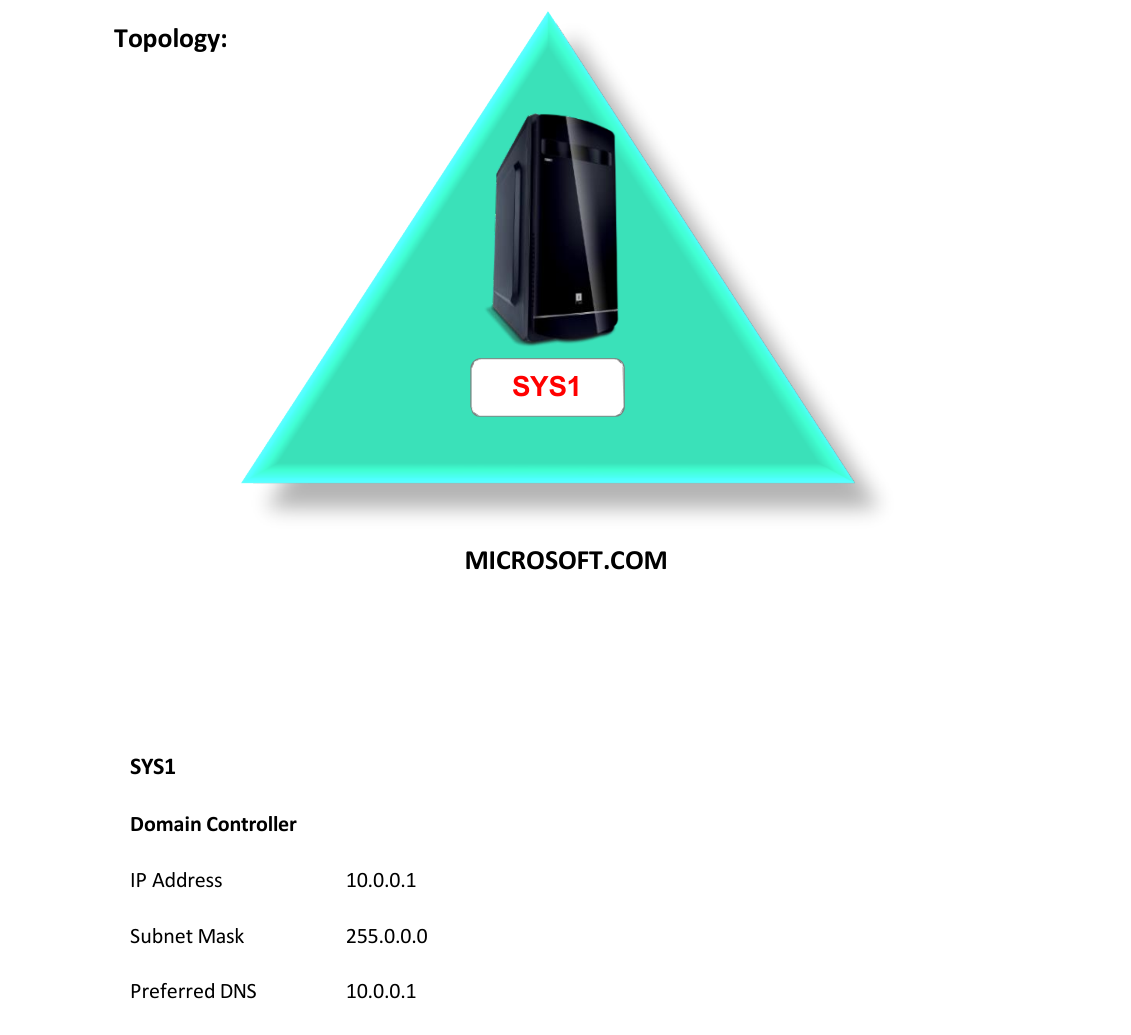
Network Topology
Step-by-Step Instructions
Step 1
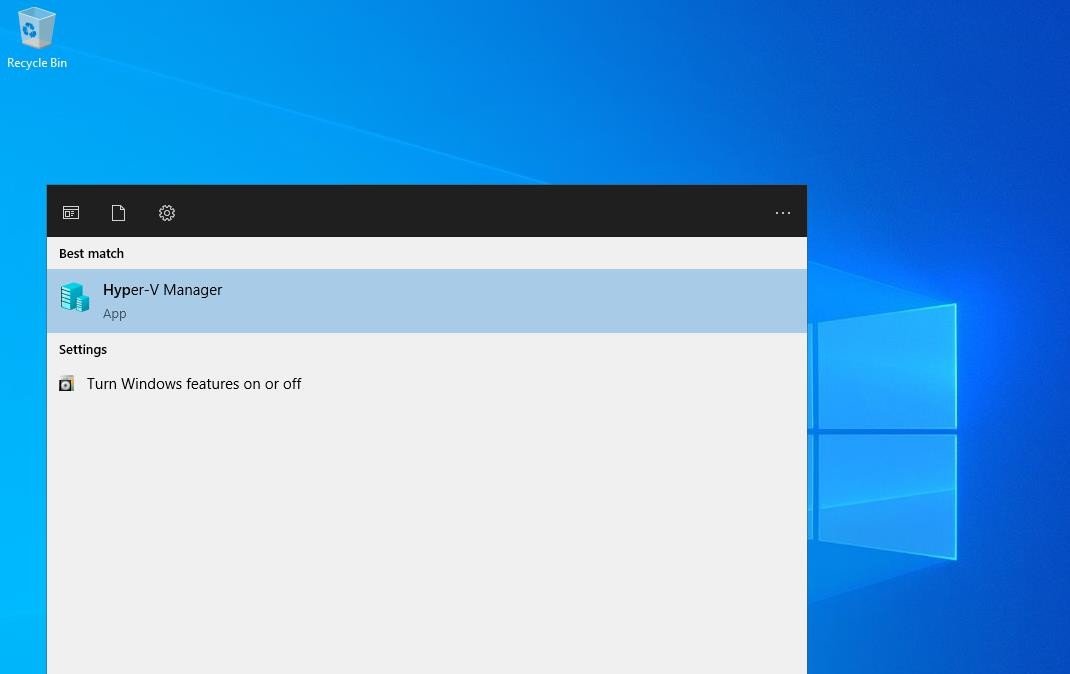
Go to Start, select Hyper-V Manager.
Step 2
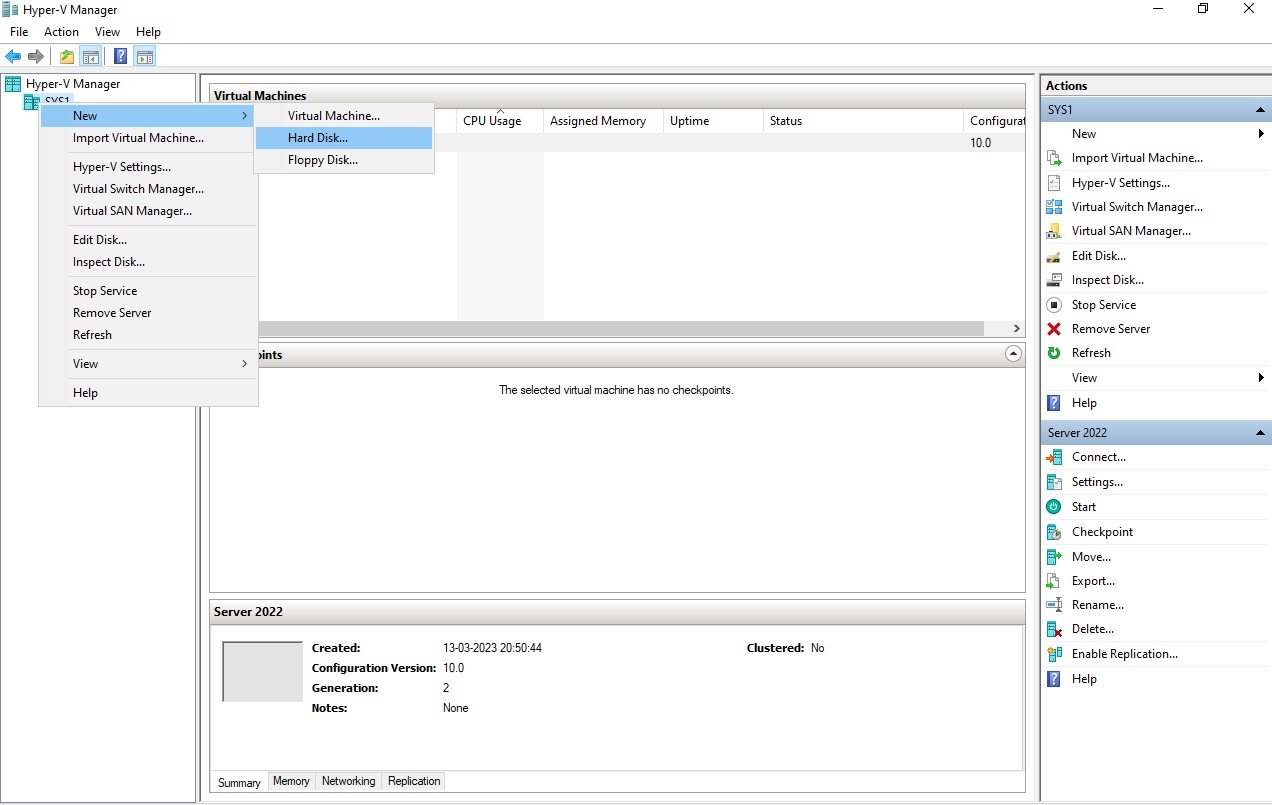
In Hyper-V Manager, Right click on server Name (SYS1) and select New Hard Disk.
Step 3
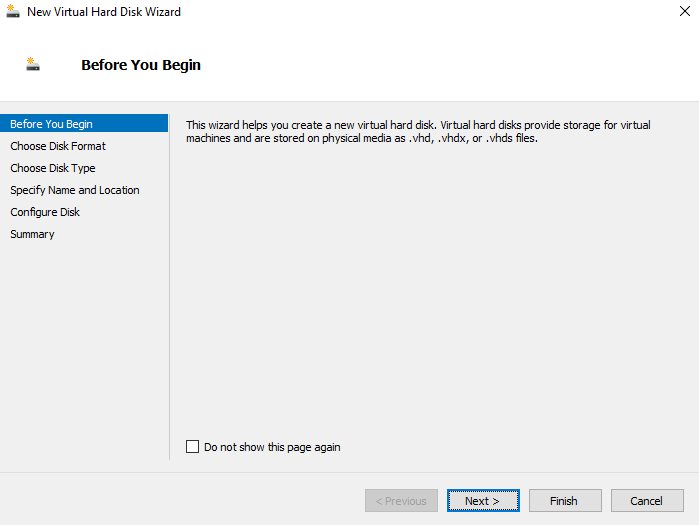
In Before you begin page, click Next.
Step 4
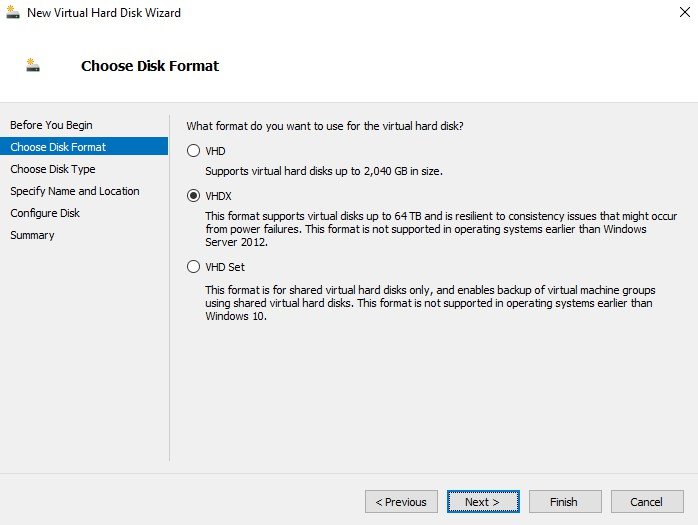
In Choose Disk Format Page, select VHDX and click Next.
Step 5
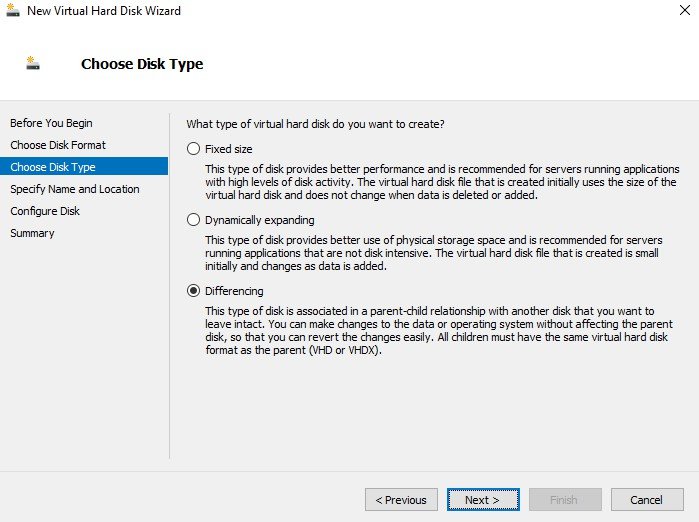
In Choose Disk Type, select Differencing and click Next.
Step 6
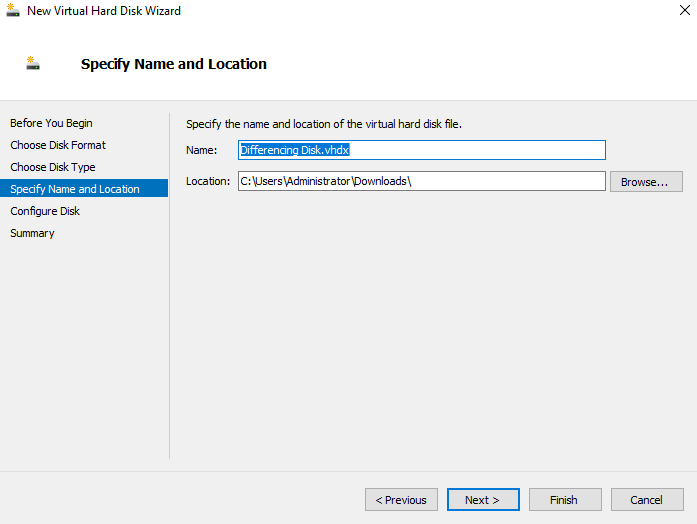
Enter Name, Browse and select Location for virtual hard disk, click Next.
Step 7
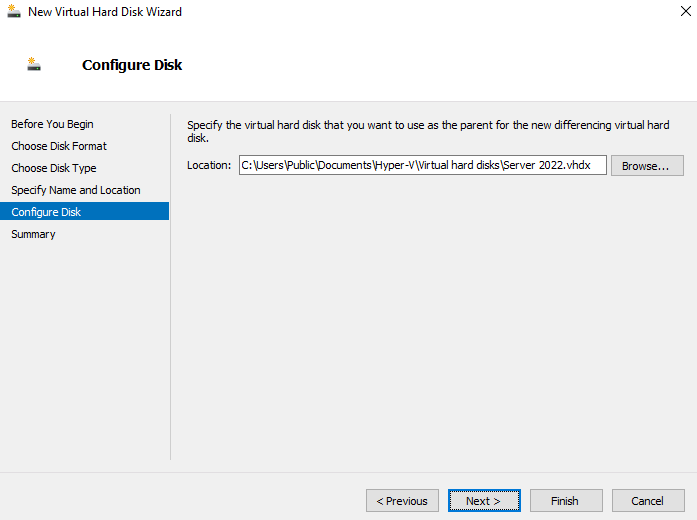
In Configure Disk Page, Browse and select the Parent Disk, click Next.
Step 8
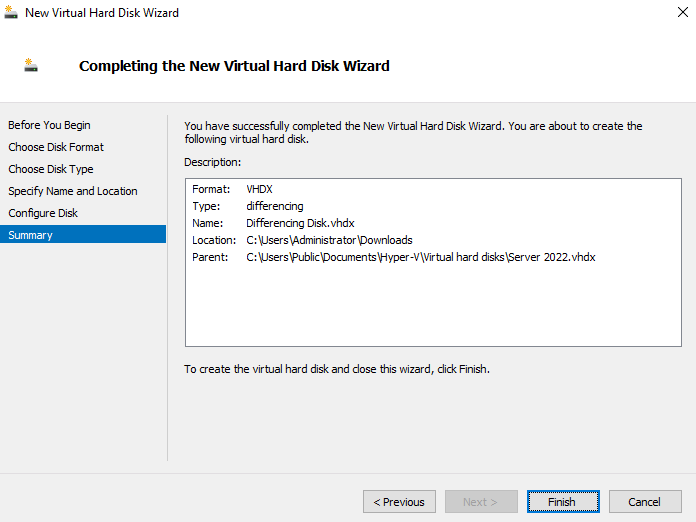
Click Finish to create the New Virtual Hard Disk.
Step 9
It creates a new Differencing virtual hard disk.
Verification
- 1. Go to Hyper-V Manger Console, right click Server, select Inspect Disk.
- 2. Browse and select the Differencing Disk from file Explorer.
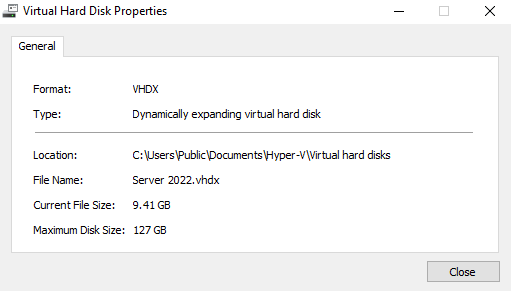
- 3. In Virtual Hard Disk Properties, select Inspect Parent.
- 4. Verify the Parent Virtual Hard Disk Properties and click Close.