Prerequisites
- Before working on this lab, You must have
- A computer running windows server 2022 Operating System Hyper-V host.
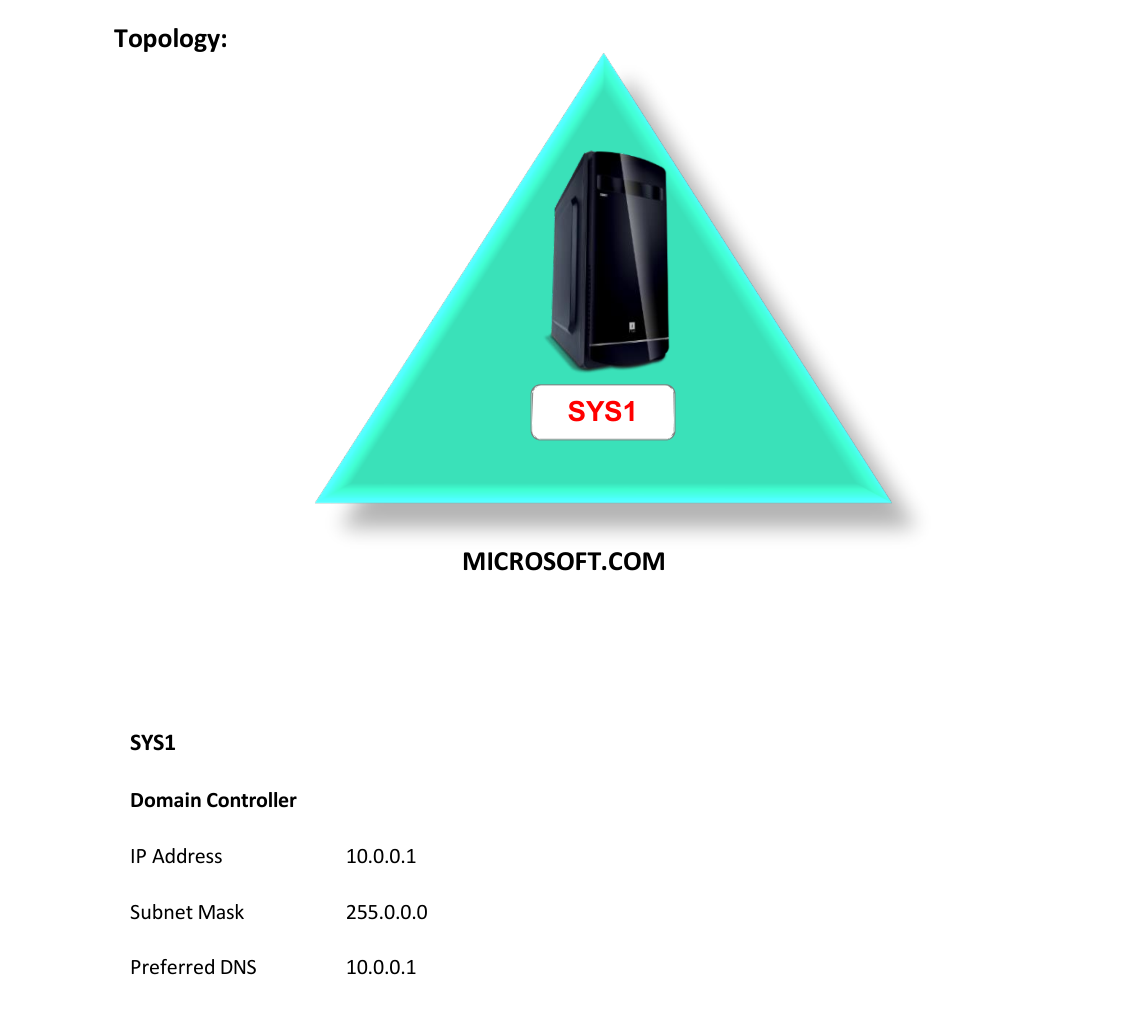
Network Topology
Step-by-Step Instructions
Step 1
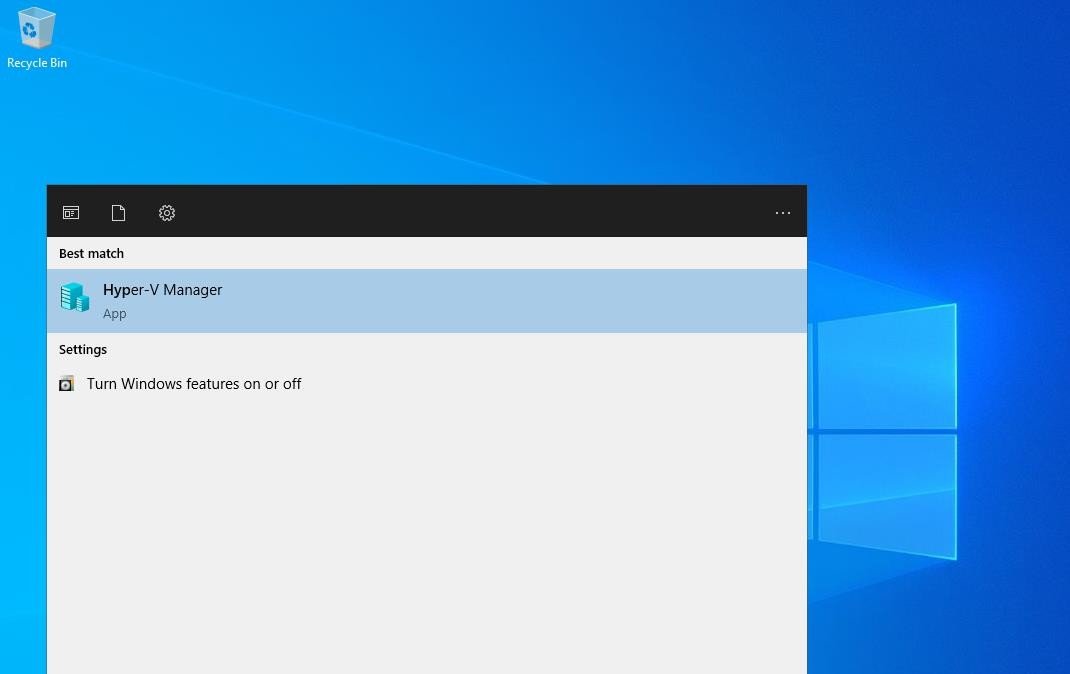
Go to Start, select Hyper-V Manager.
Step 2
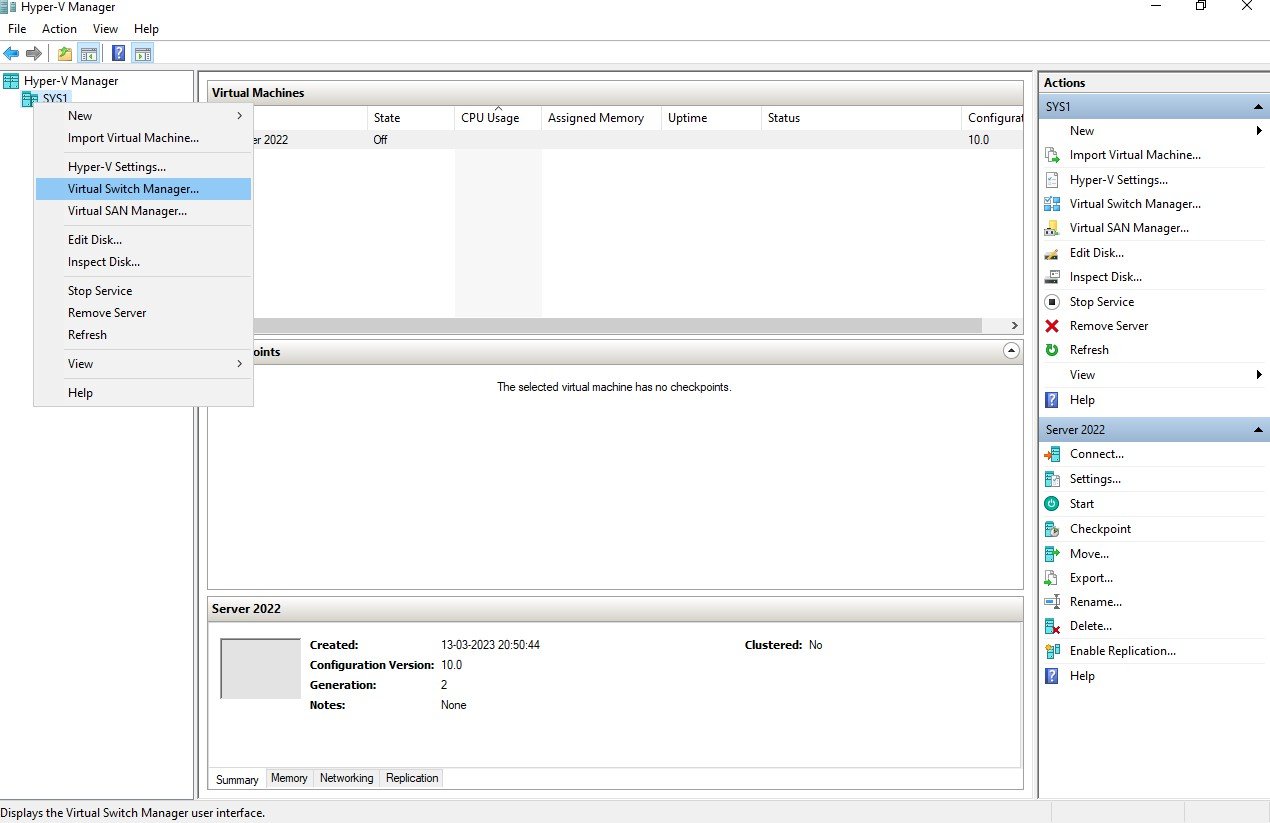
In Hyper-V Manager, right click Server(SYS1) and select Virtual Switch Manager.
Step 3
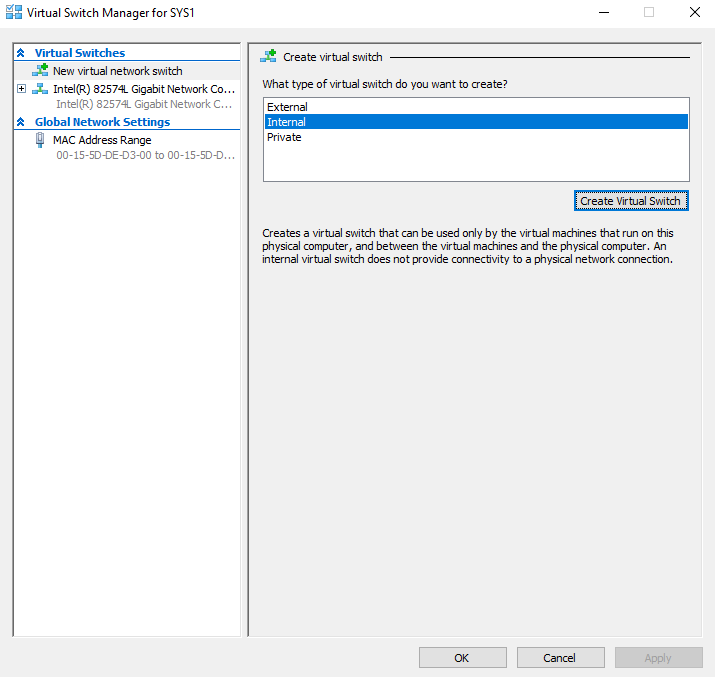
In Virtual Switch Manager Page, select New virtual network switch, select Internal, and click Create Virtual Switch.
Step 4
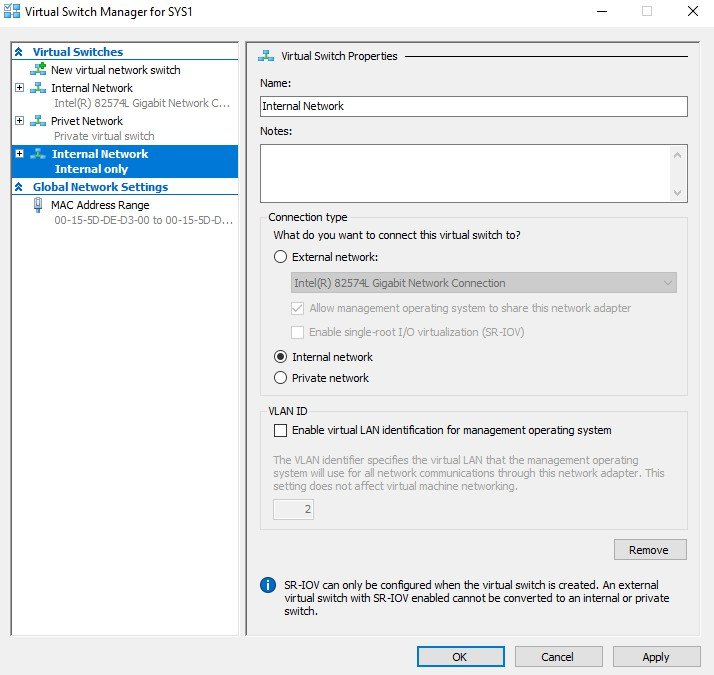
Select Internal Network, enter the Name (Ex: Internal Network) and in Connection type select Internal network, click OK.
Step 5
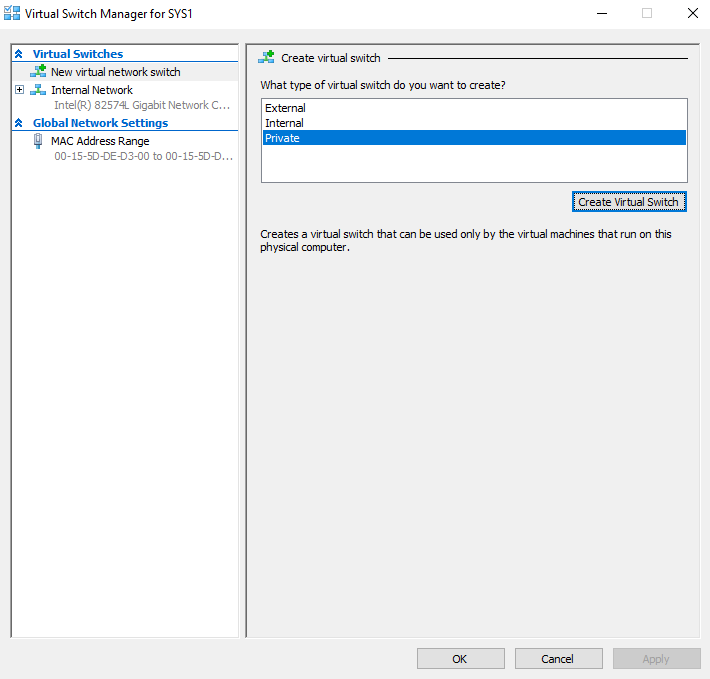
In Virtual Switch Manager Page, select New virtual network switch, select Private, and click Create Virtual Switch.
Step 6
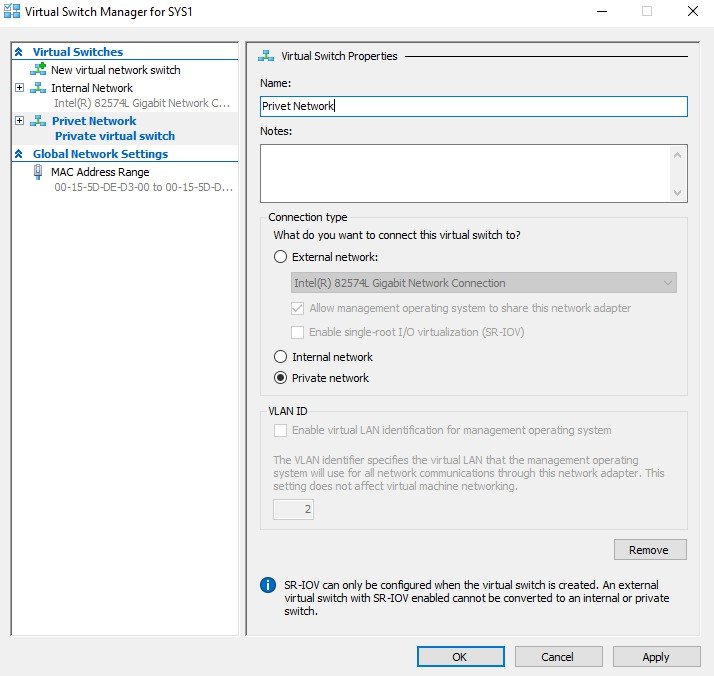
Select Private Virtual Network, enter the Name (Ex: Private Virtual Network) and in Connection type select Private network, click OK.
Step 7
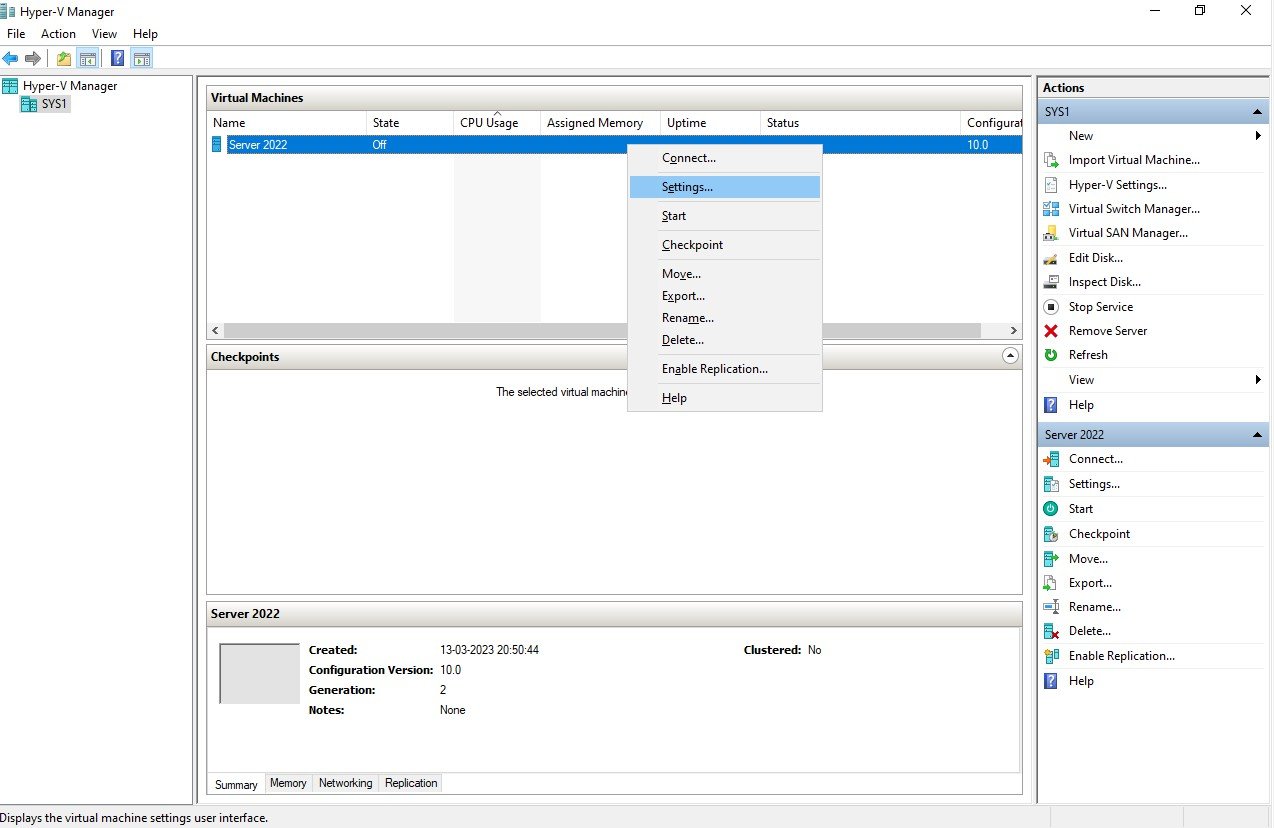
Go to Hyper-V Manager, right click Virtual Machine (Ex: win 2012) select Settings.
Step 8
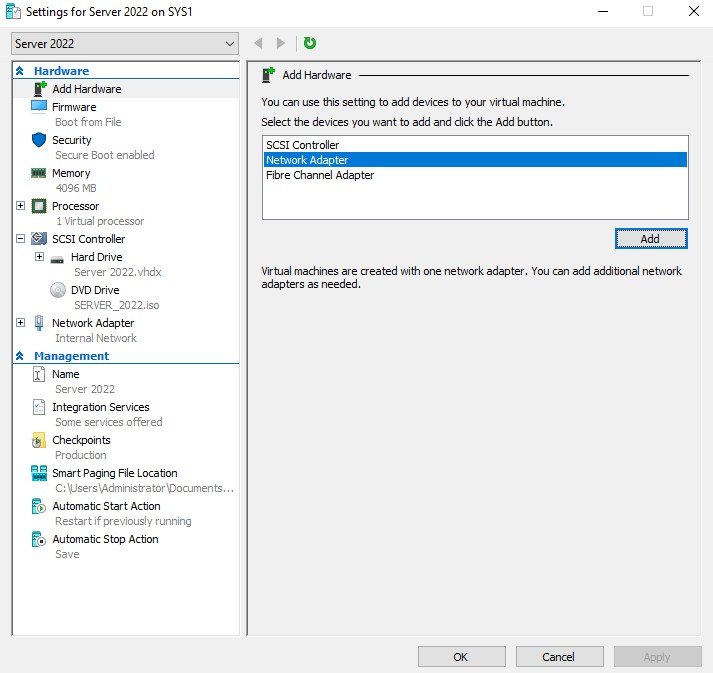
Select Add Hardware, select Network Adapter, and click Add.
Step 9
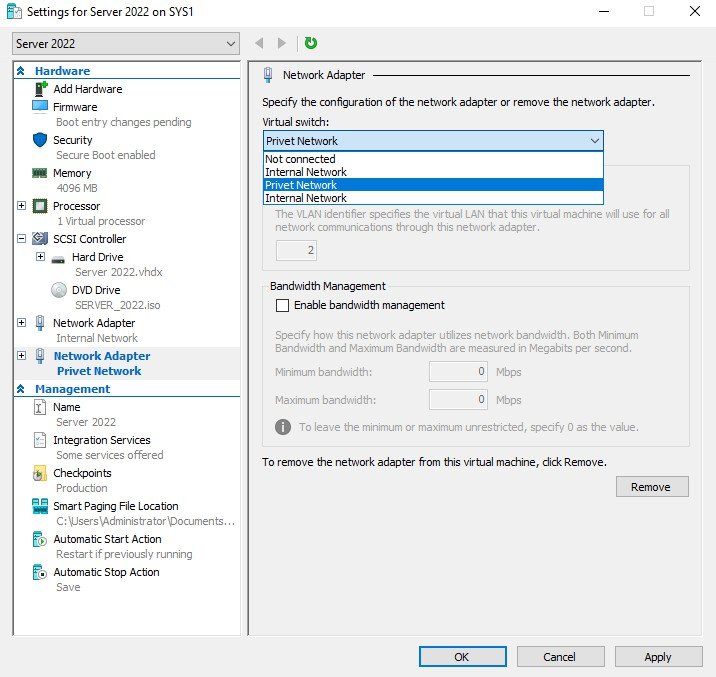
Select Network Adapter and select Internal Network.
Step 10
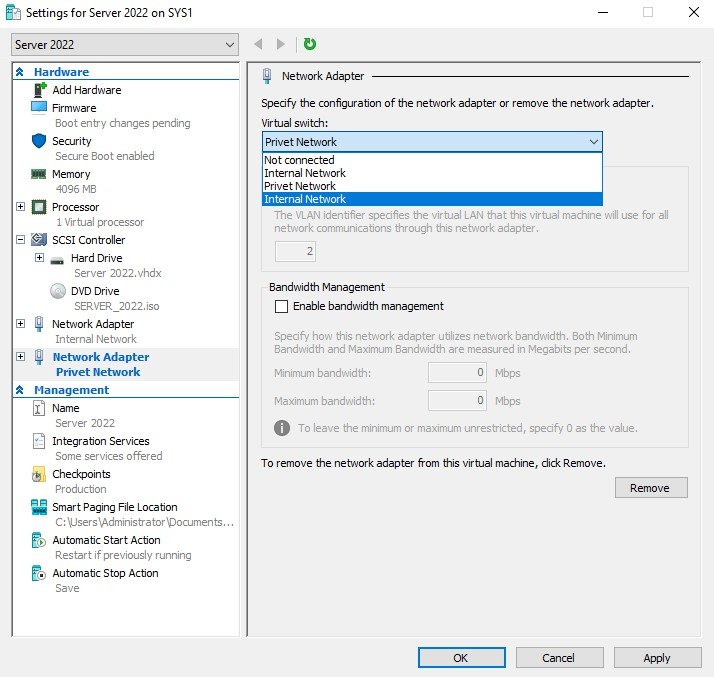
Select Network Adapter and select Private Virtual Network.
Verification
- 1. Log on to Virtual Machine, go to Network Connection and verify for 3 network
- adapters External, Internal and Private Virtual Networks respectively.
- 2. Go to Network connection on Host machine and verify 2 virtual network adapters
- connected to External and Internal networks respectively.