Prerequisites
- Before working on this lab, You must have
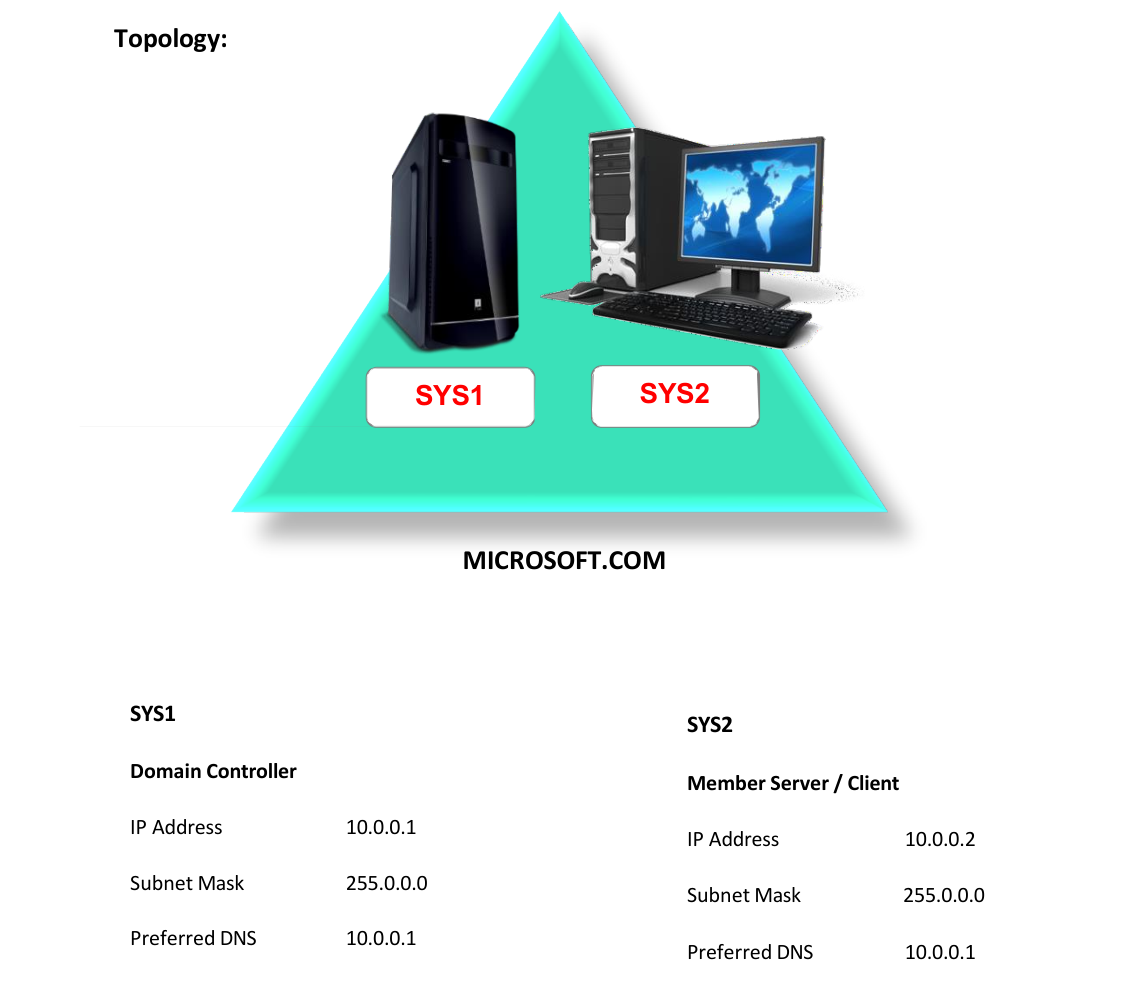
- A computer running windows server 2022 Domain Controller.
- A Member Server running windows server 2022 or Client Running Windows 10.
Network Topology
Step-by-Step Instructions
Step 1
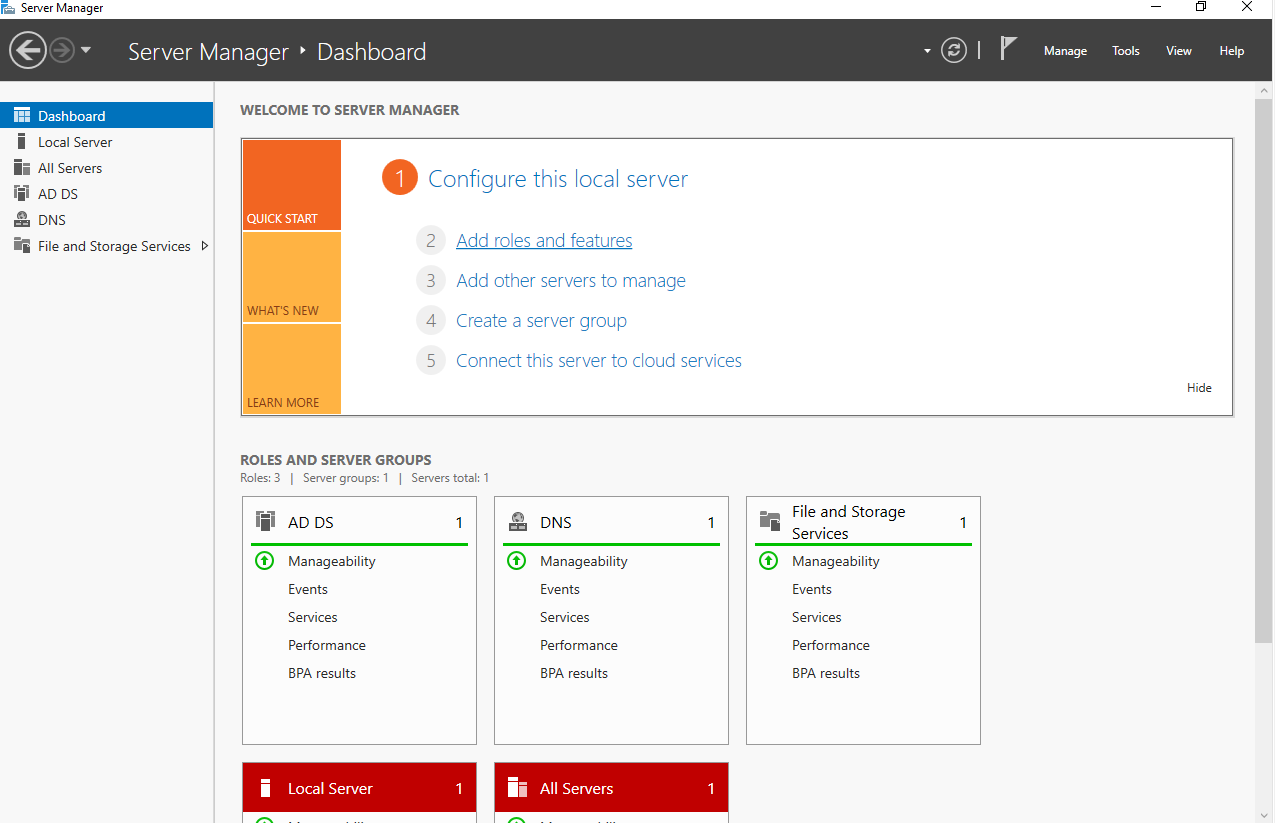
In Server Manager Dashboard, click Add roles and features.
Step 2
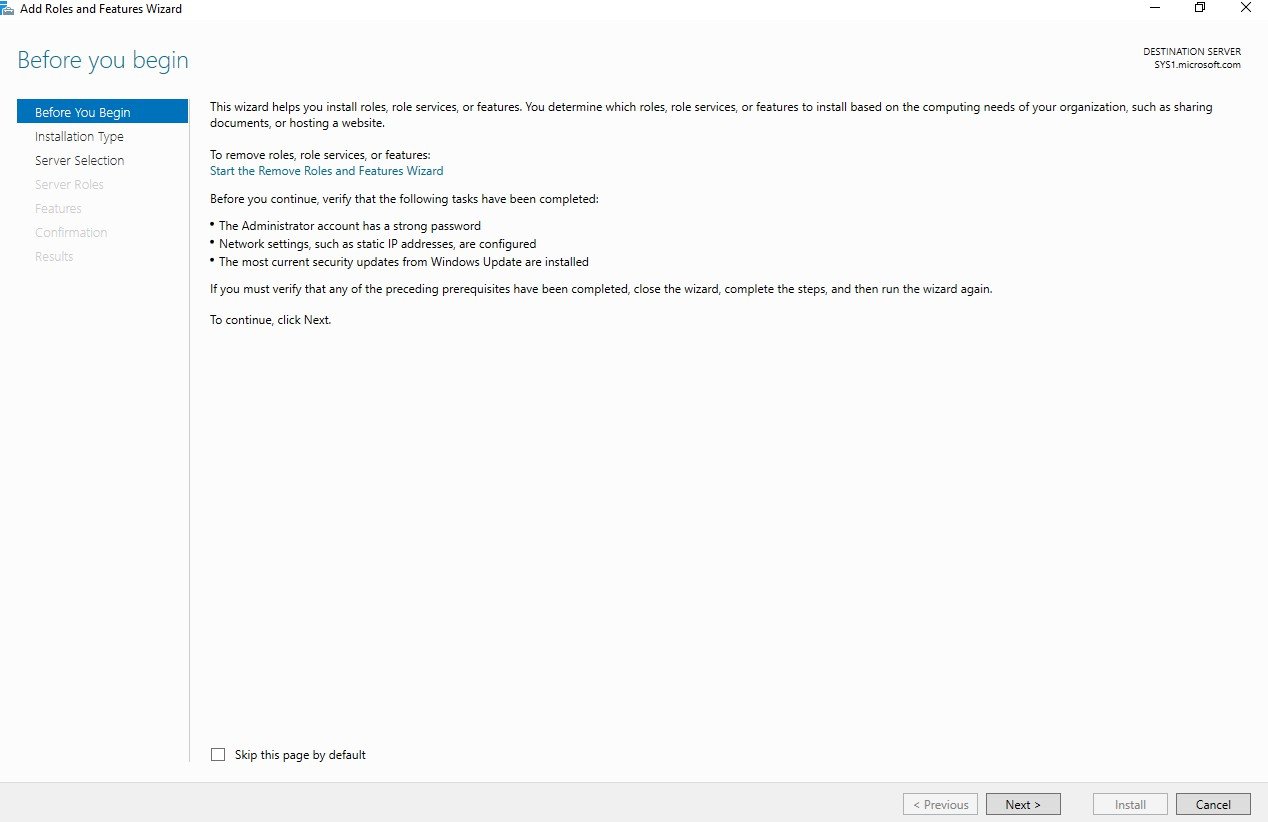
In Before you begin page, click Next.
Step 3
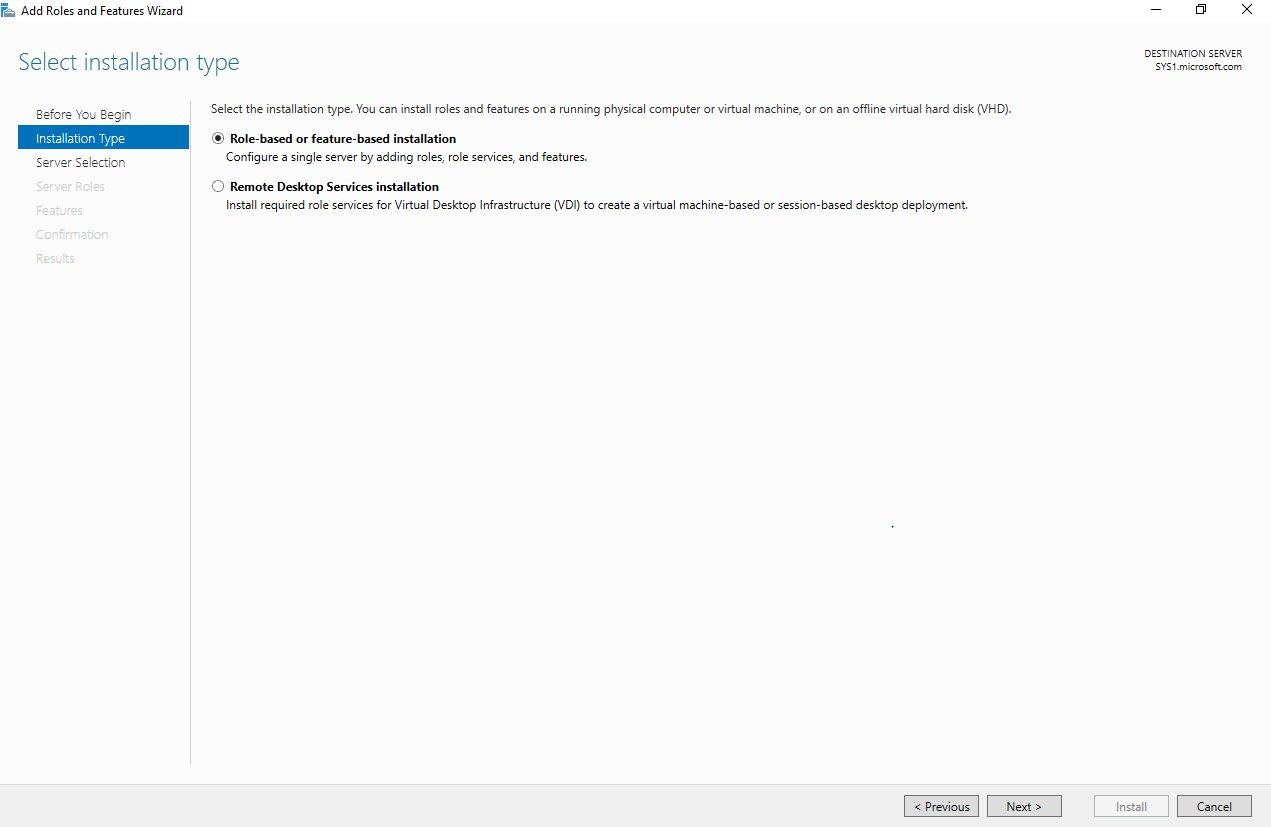
In Select installation type, select Role-based or feature-based installation, click Next.
Step 4
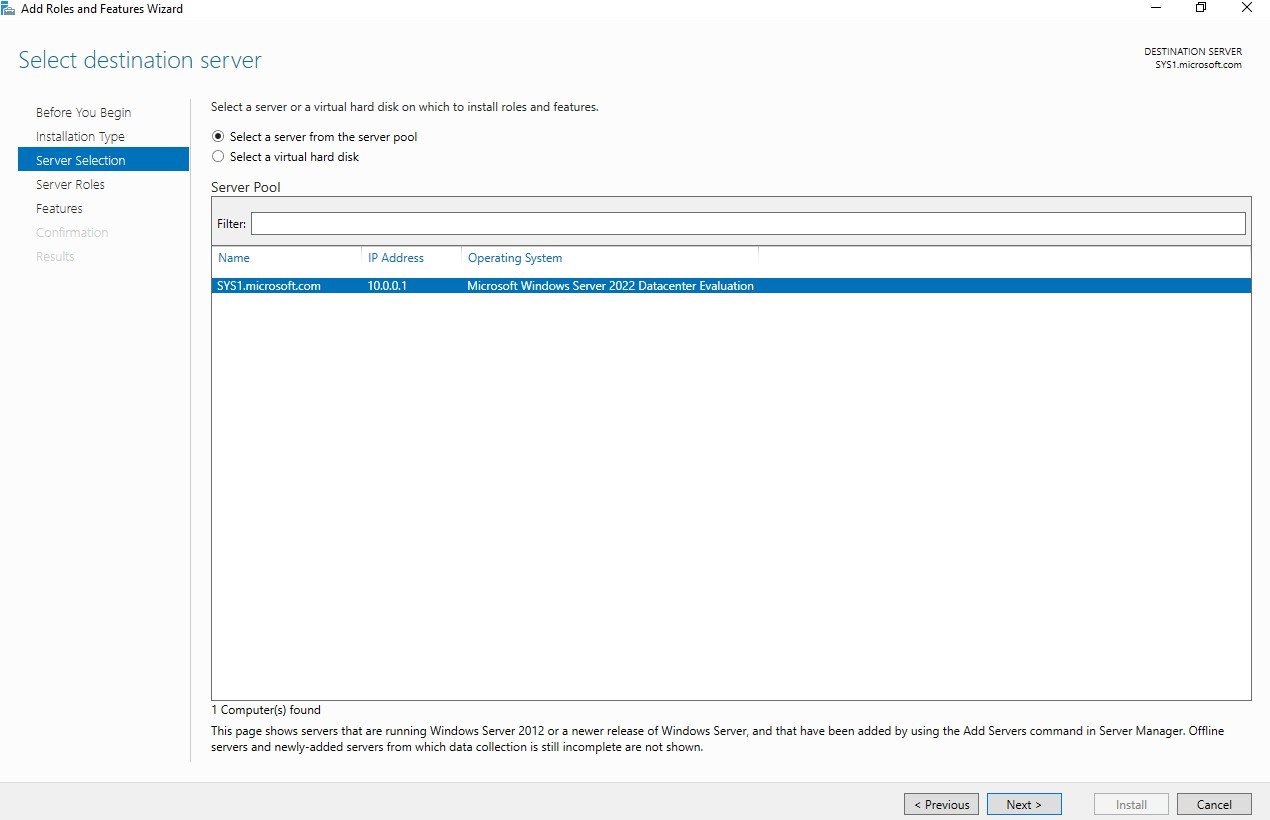
In Select destination server, from Server Pool select SYS1, click Next.
Step 5
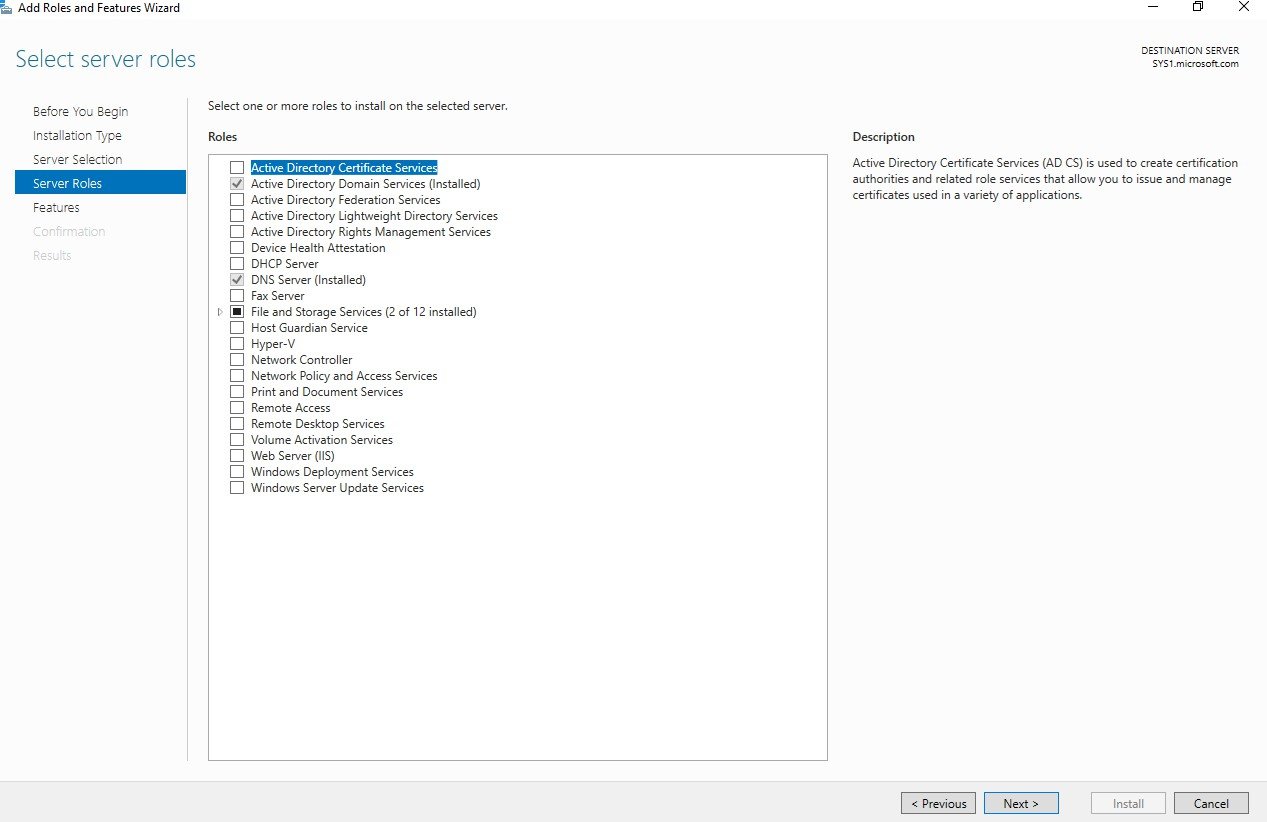
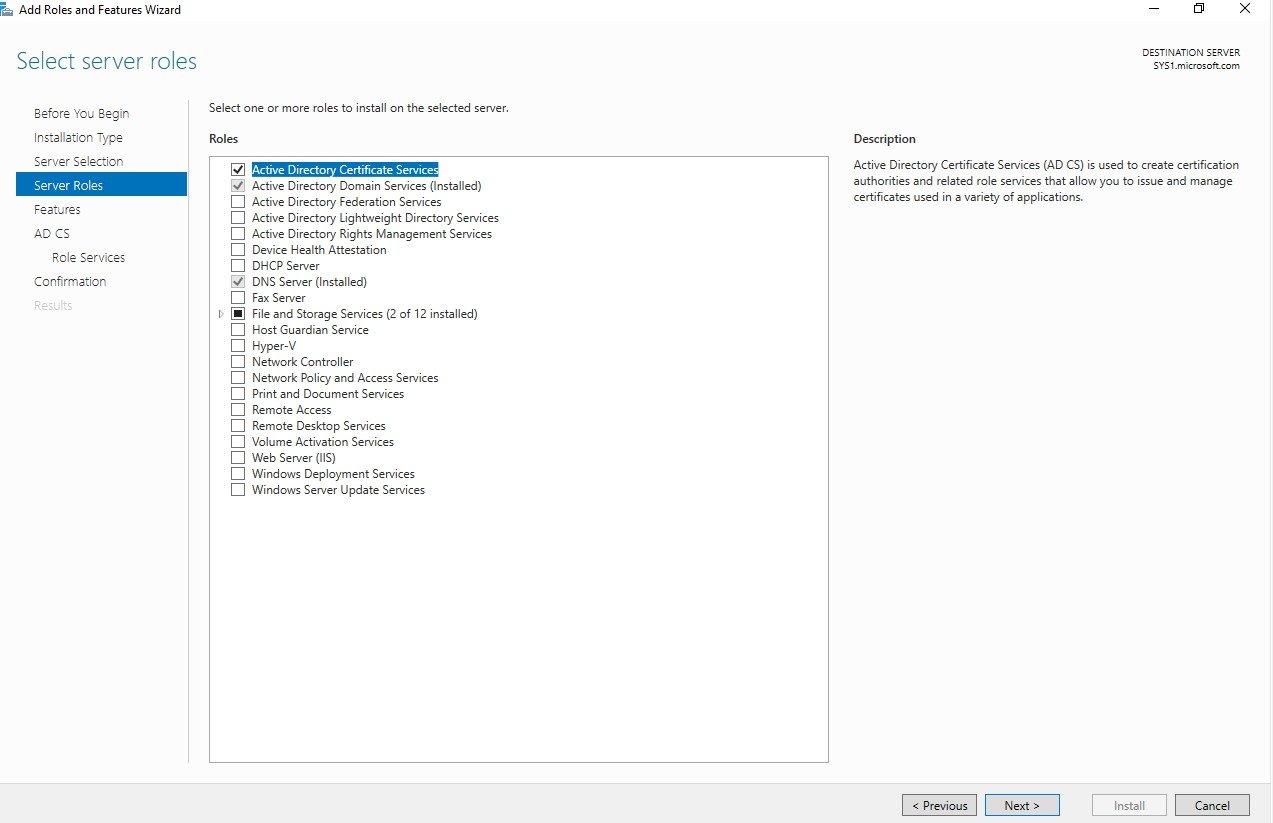
Check the box Active Directory Certificate Services
Step 6
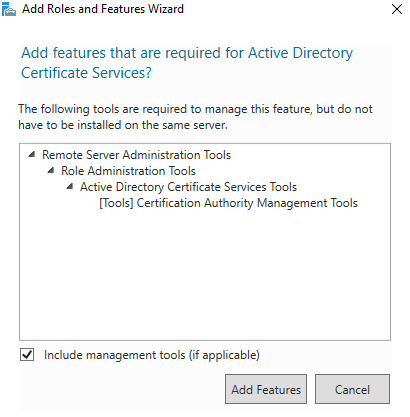
Click Add Features, to install the required Features for Active Directory Certificate Services à Click Next.
Step 7
Click Next.
Step 8
Click Next.
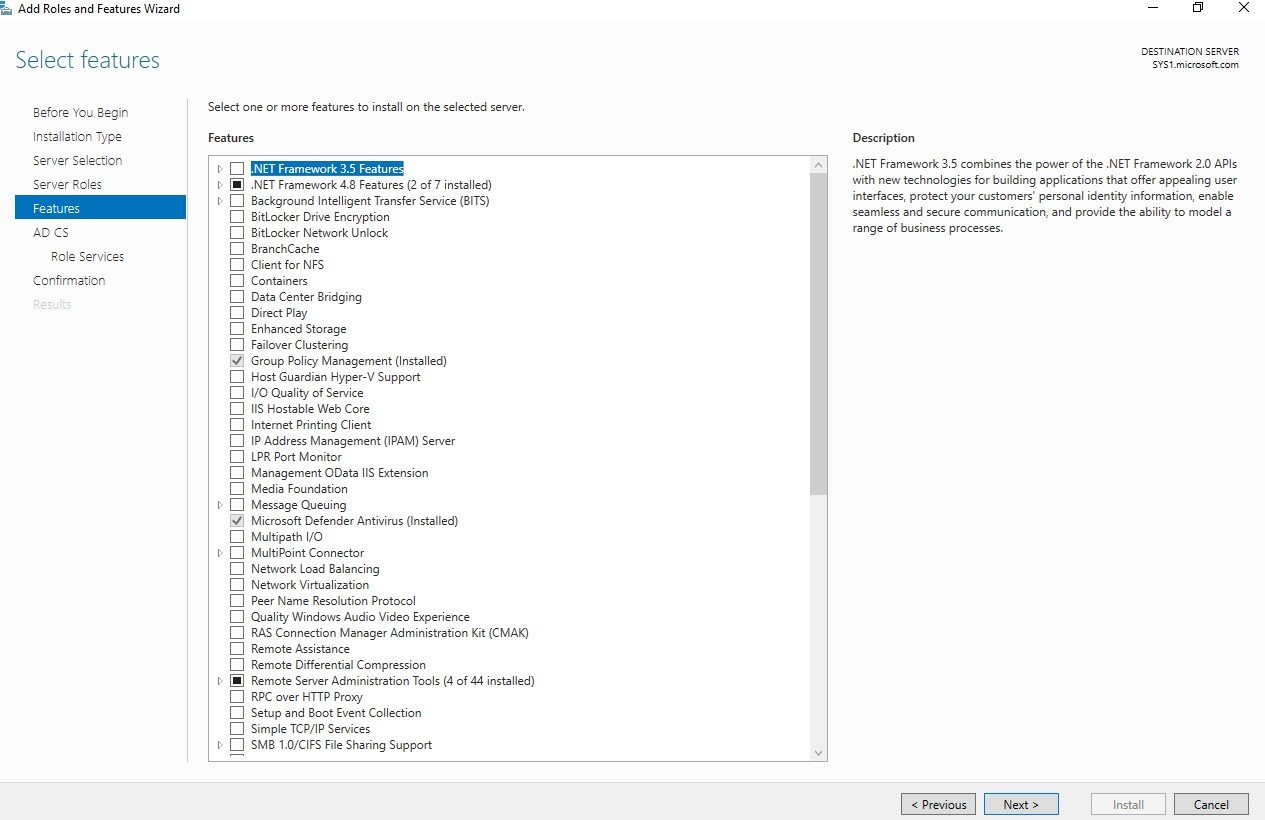
Step 9
Click Next
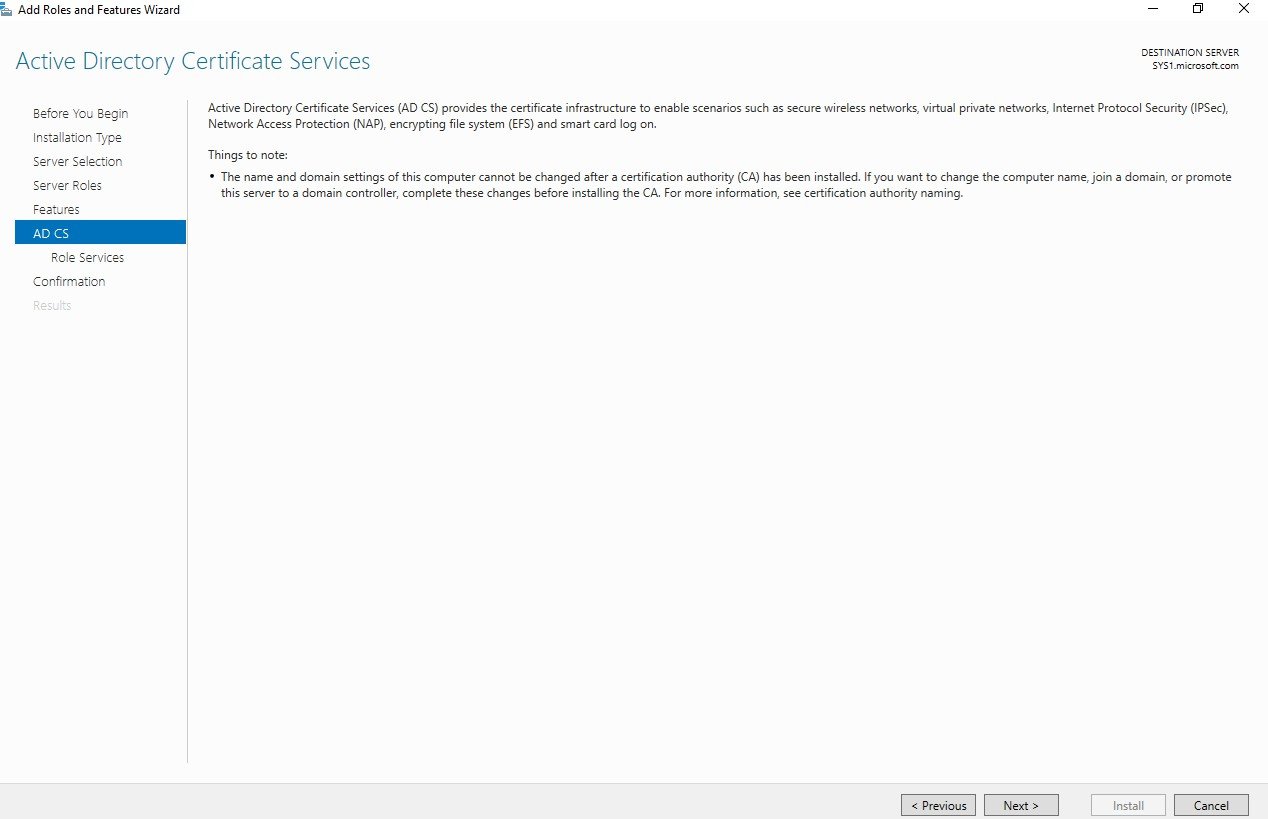
Step 10
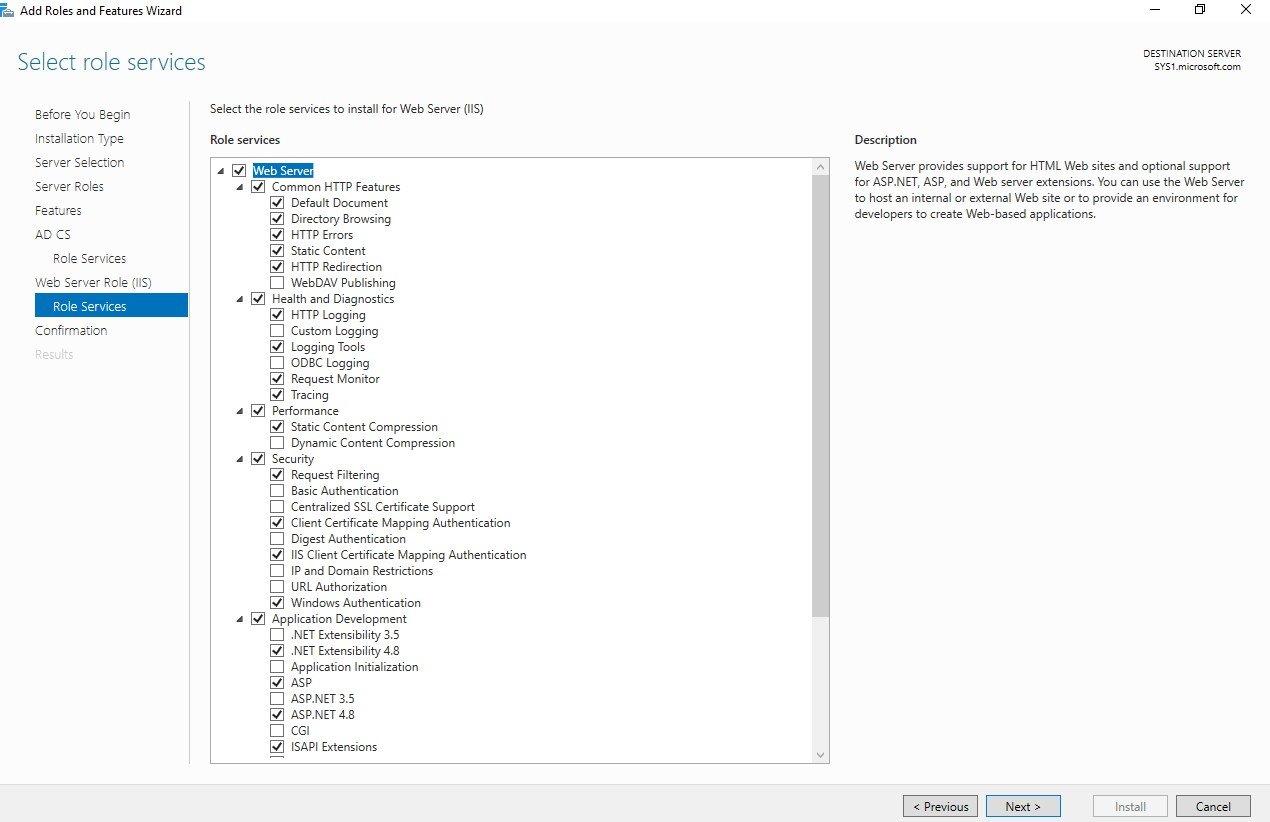
Check the boxes Certificate Authority, Certificate Enrollment Policy Web Service, Certificate Enrollment Web Service, Certification Authority Wen Enrollment, Network Device Enrollment Service & Online Responder à click Next
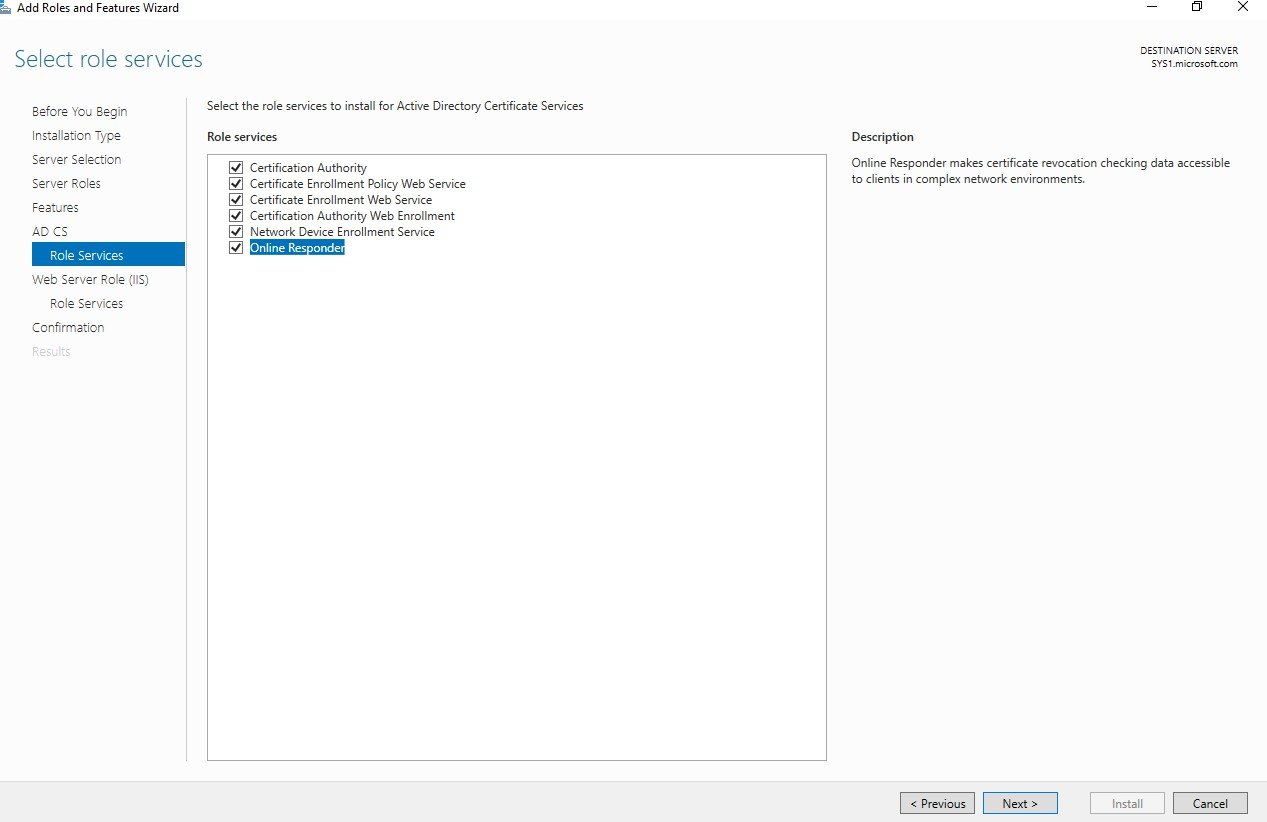
Step 11
Click Next
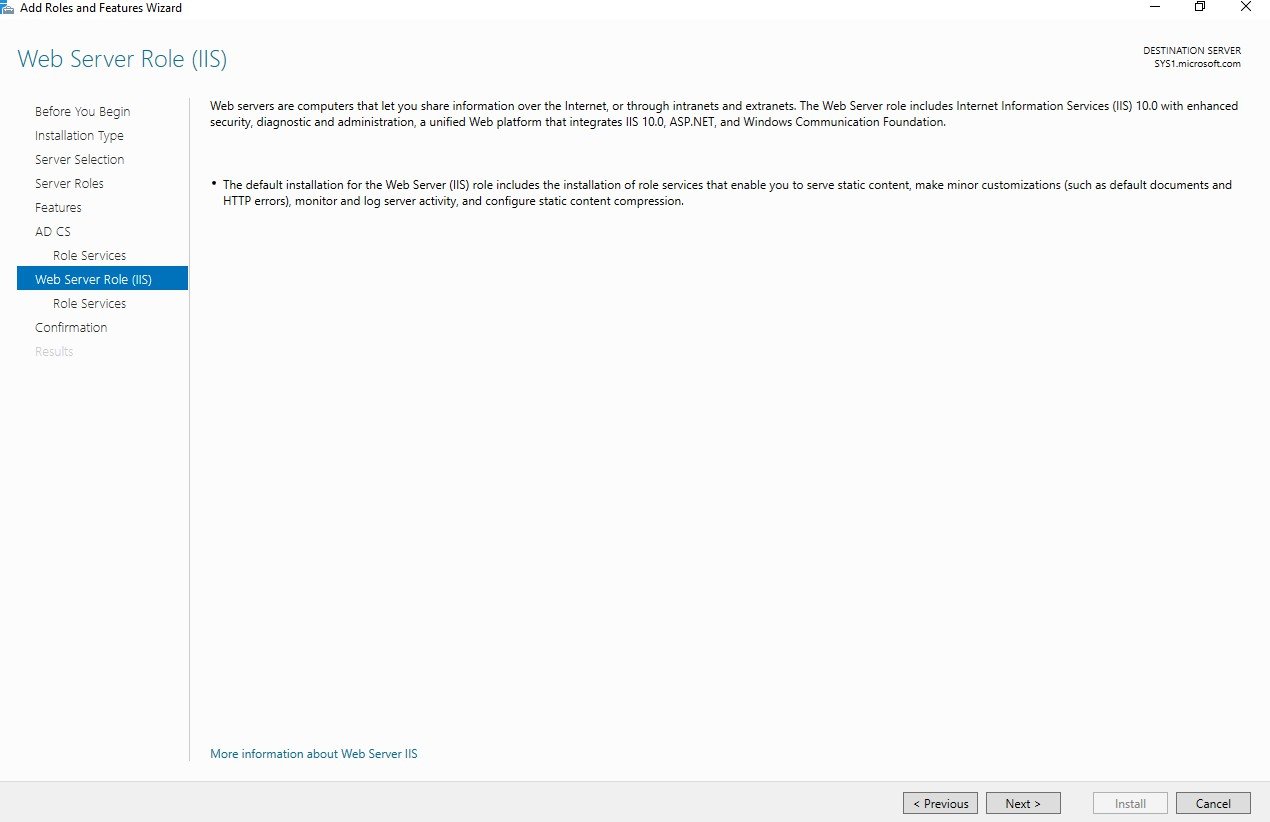
Step 12
Click Next
Step 13
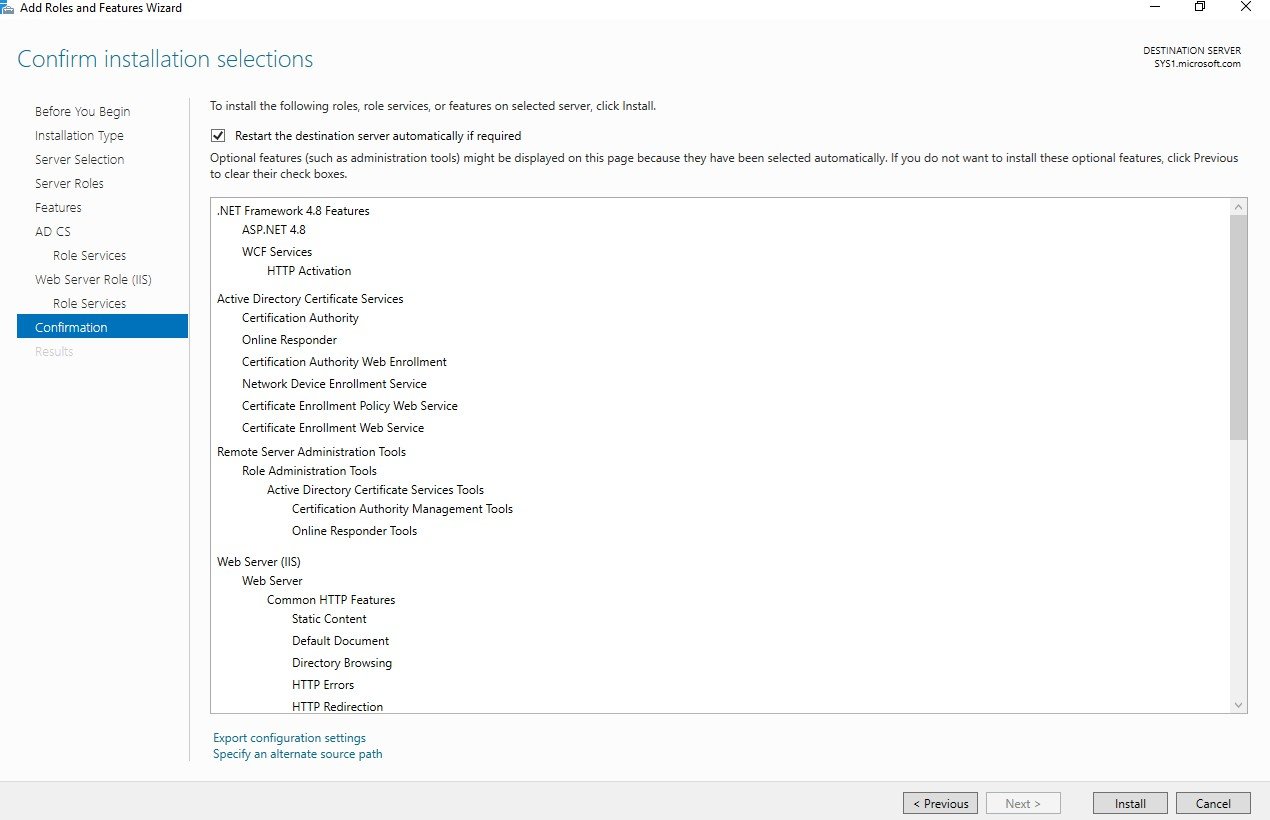
Check the box restart the destination server automatically if required à click Next
Step 14
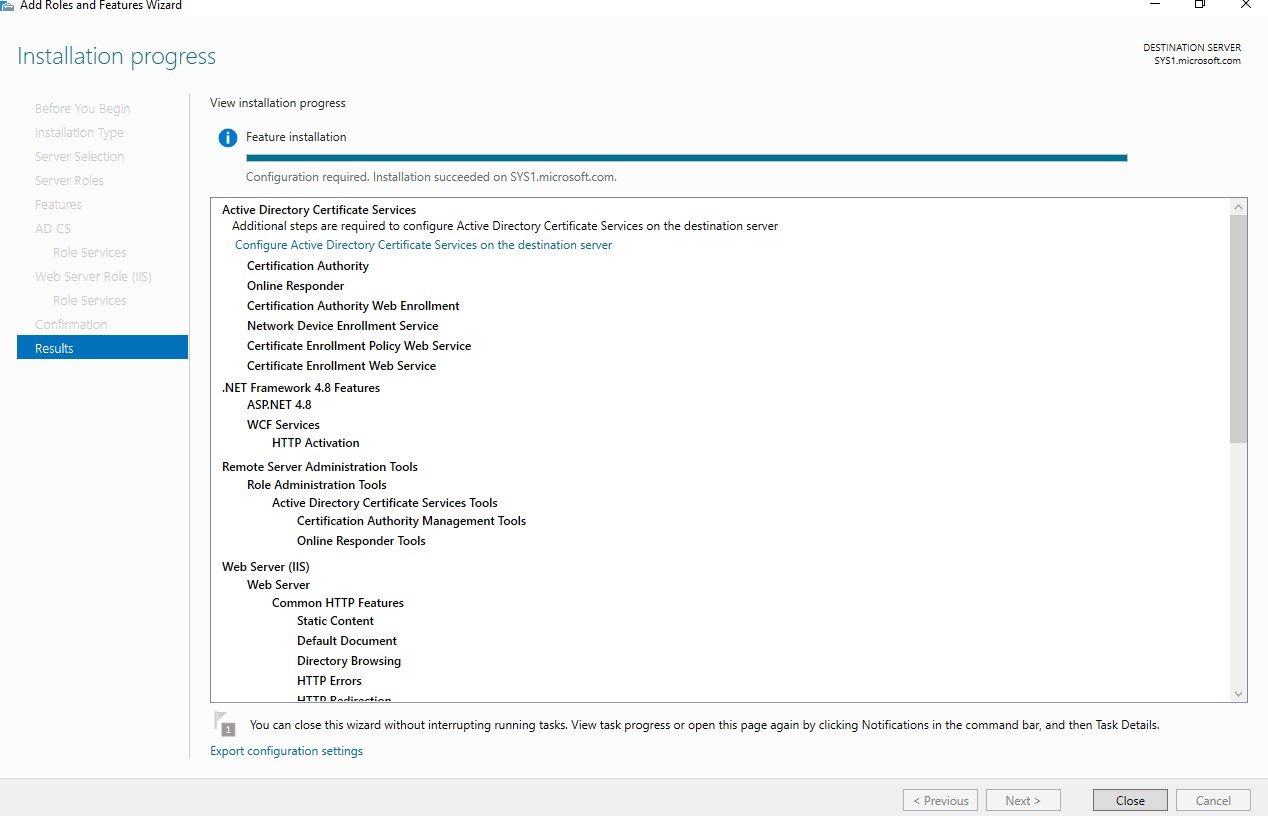
Click Configure Active Directory Services on the destination server
Step 15
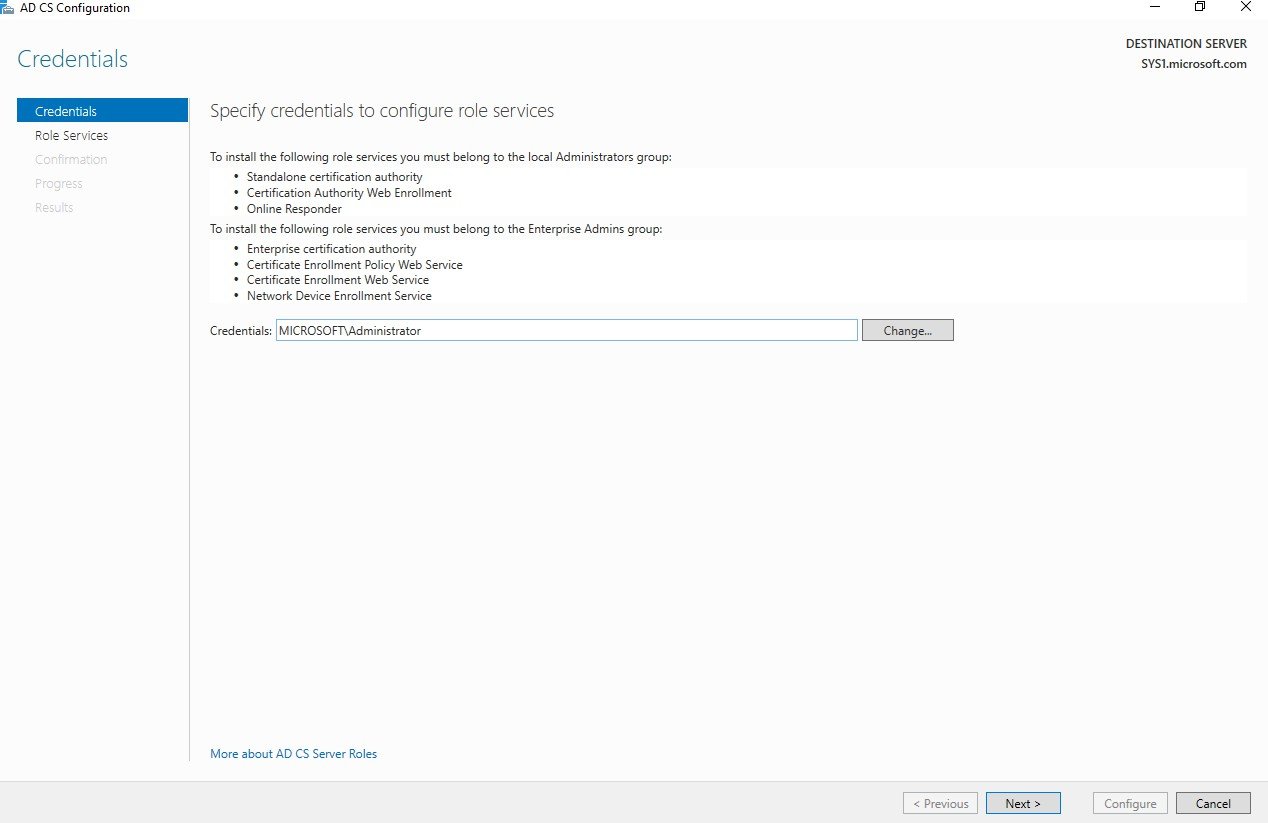
In Credentials ,Click Next
Step 16
Check the boxes Certificate Authority, Certification Authority Web Enrollment & Online Responder à click Next
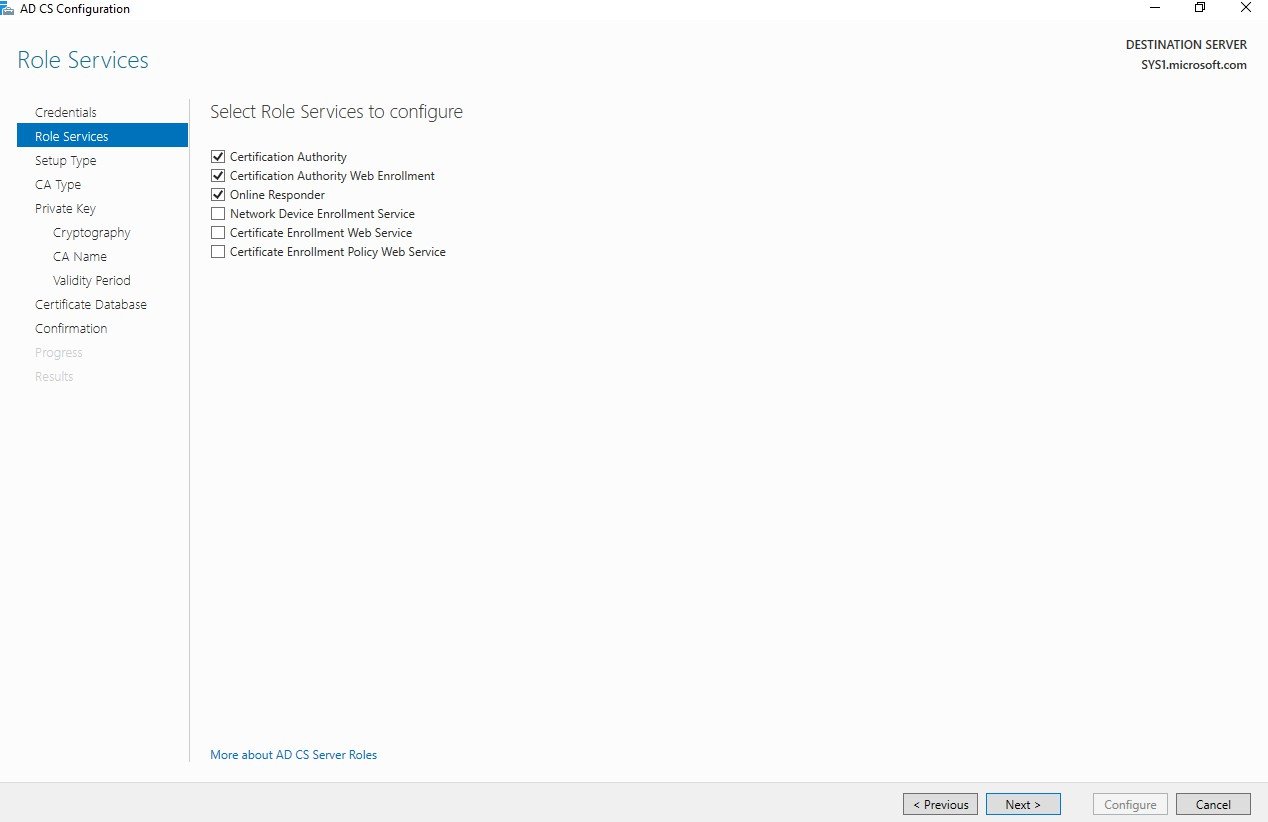
Step 17
In Setup Type Select Enterprise CA and Click Next
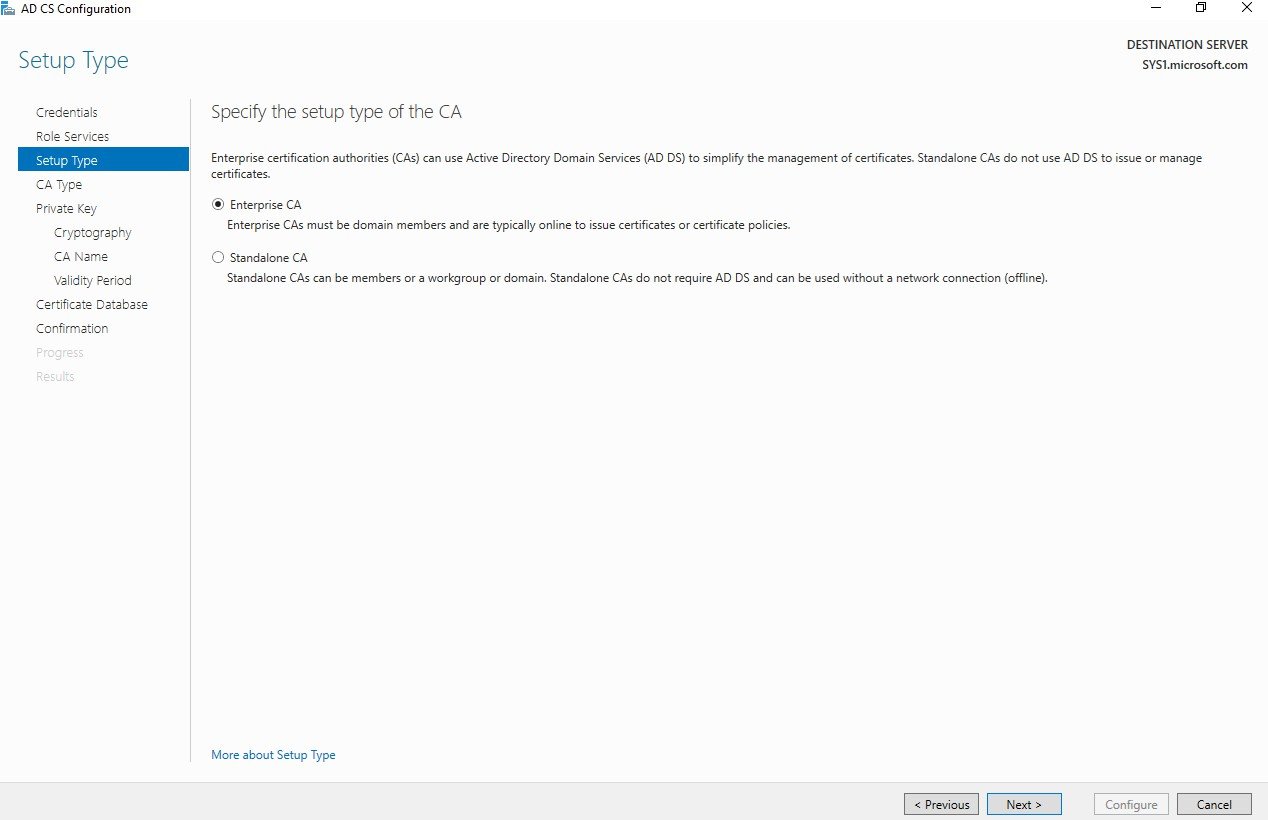
Step 18
In CA Type Page Select Root CA and Click Next
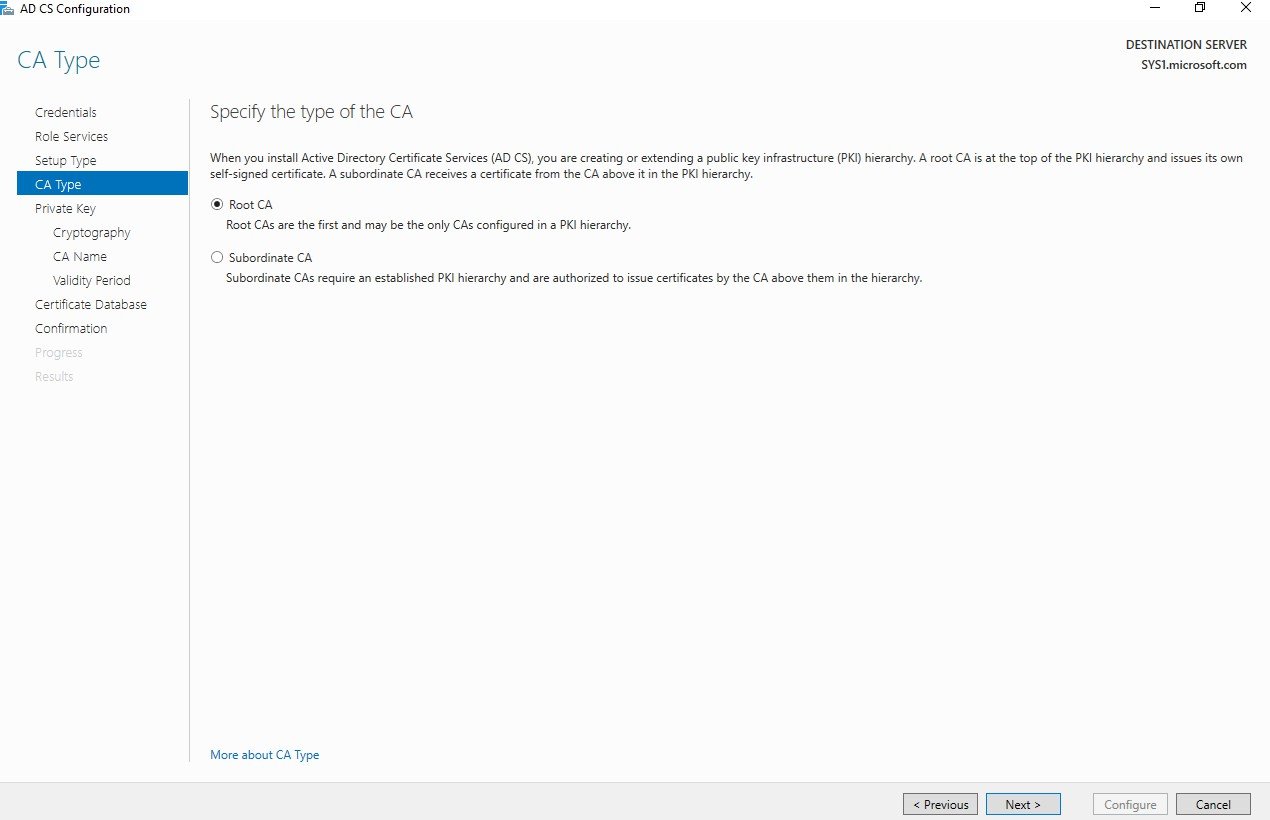
Step 19
In Private Key Select Create a New Private Key and Click Next
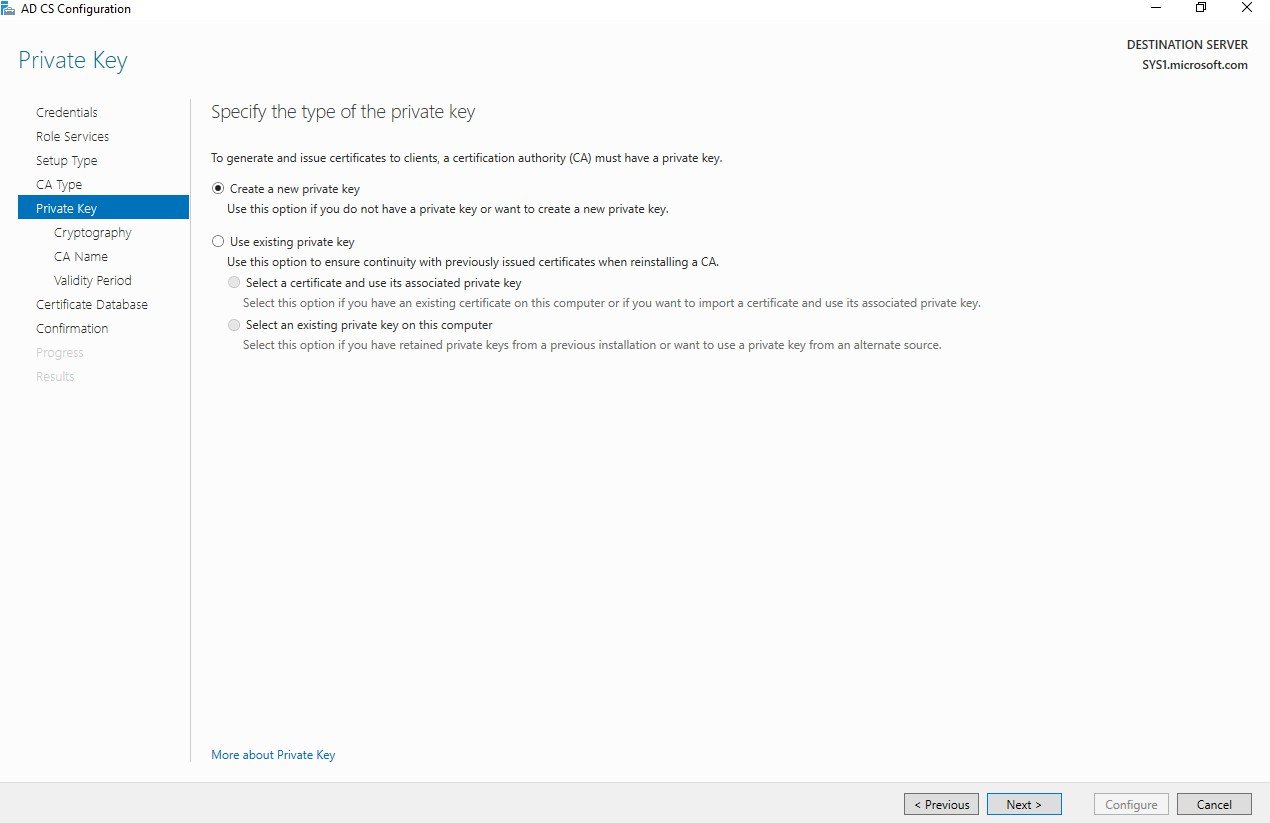
Step 20
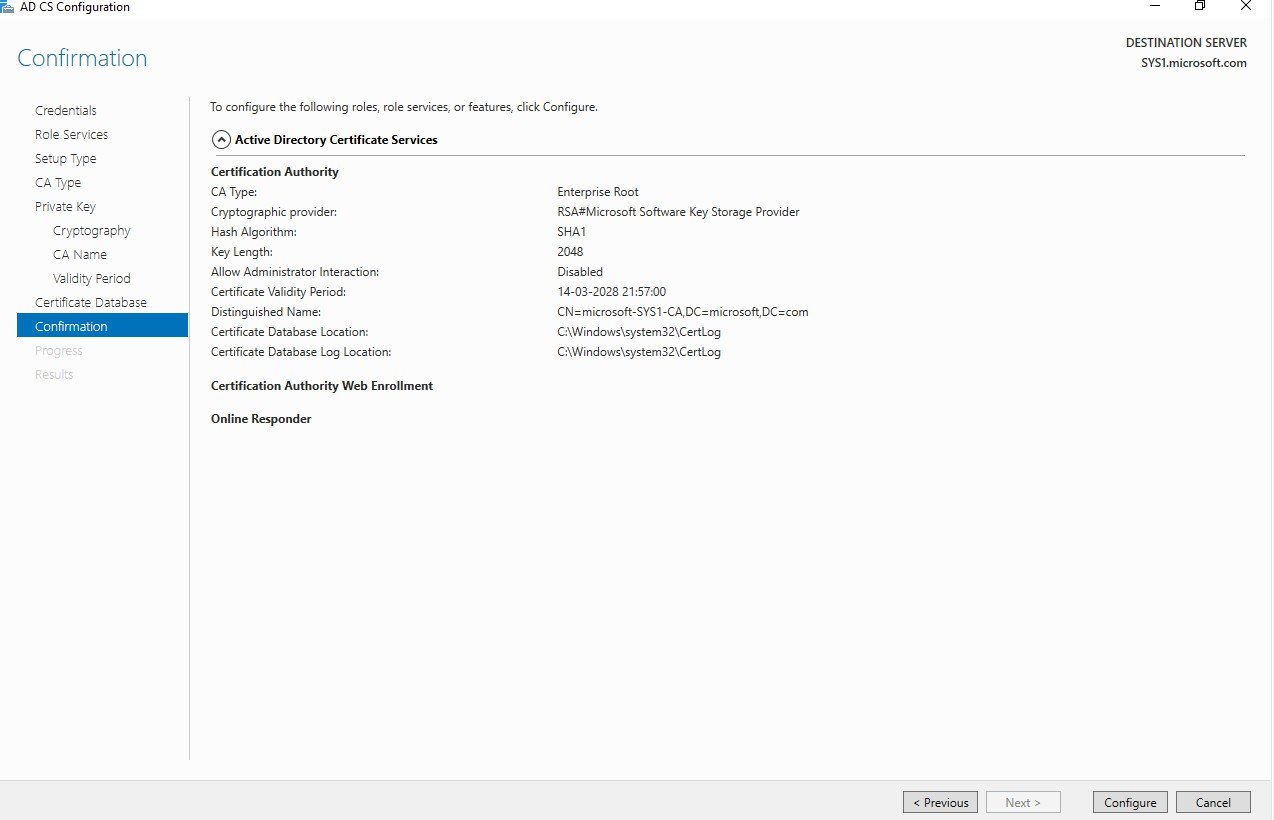
Select SHA1 à click Next
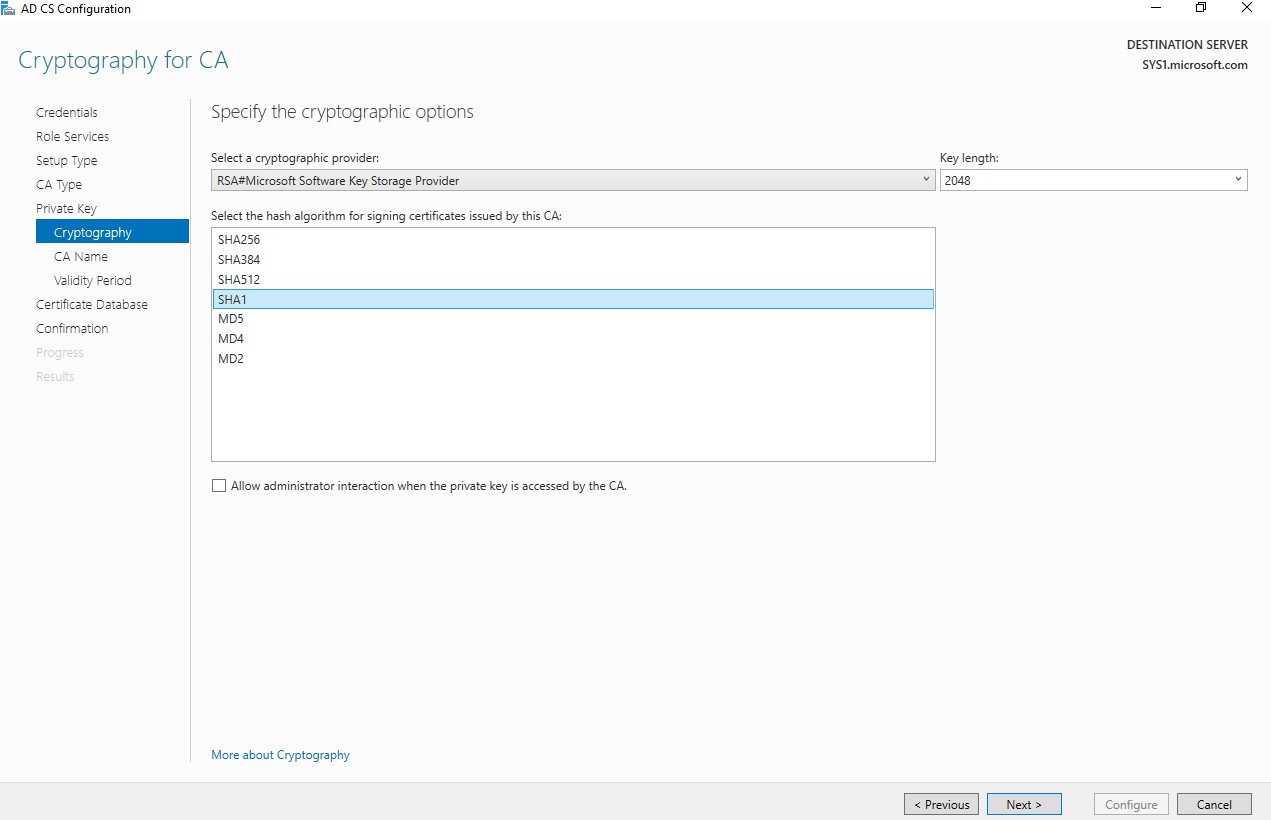
Step 21
In CA Name, Click Next
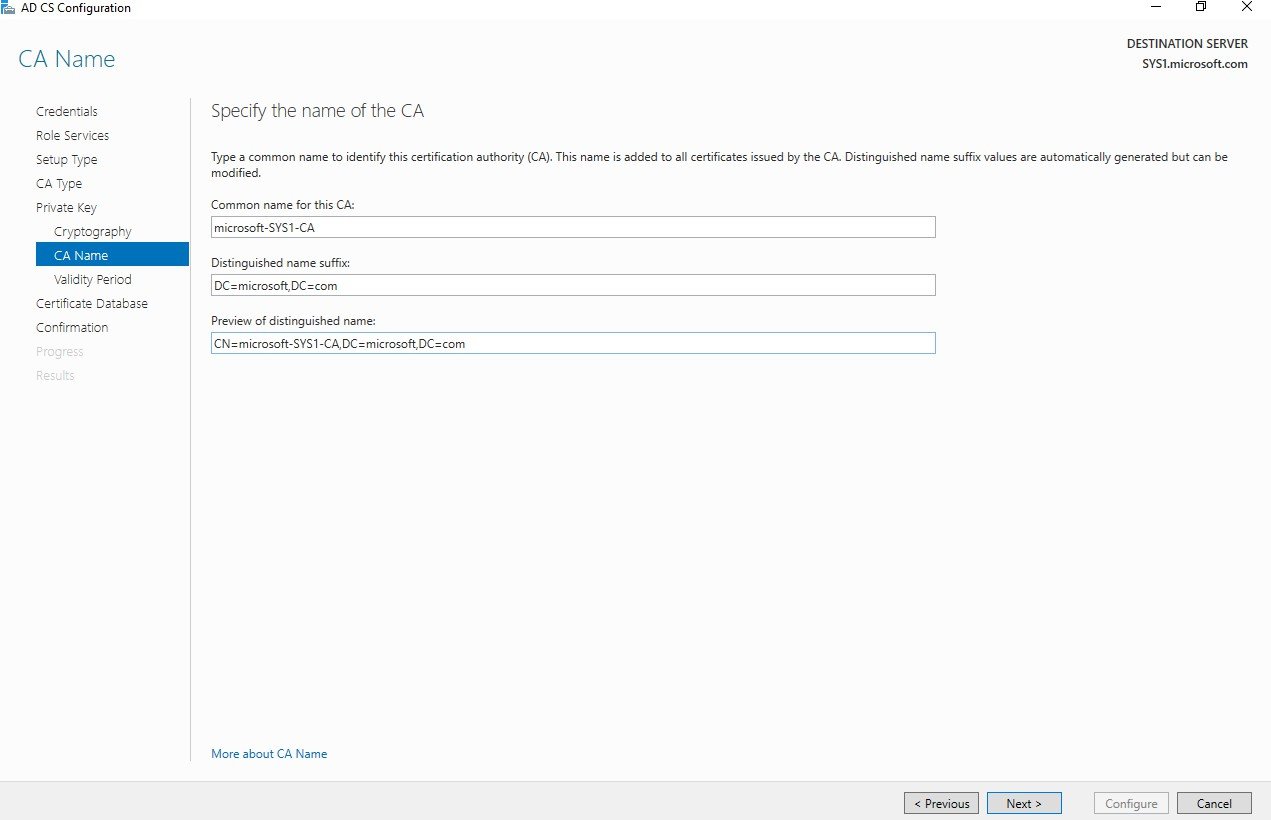
Step 22
In Validity Period, Click Next
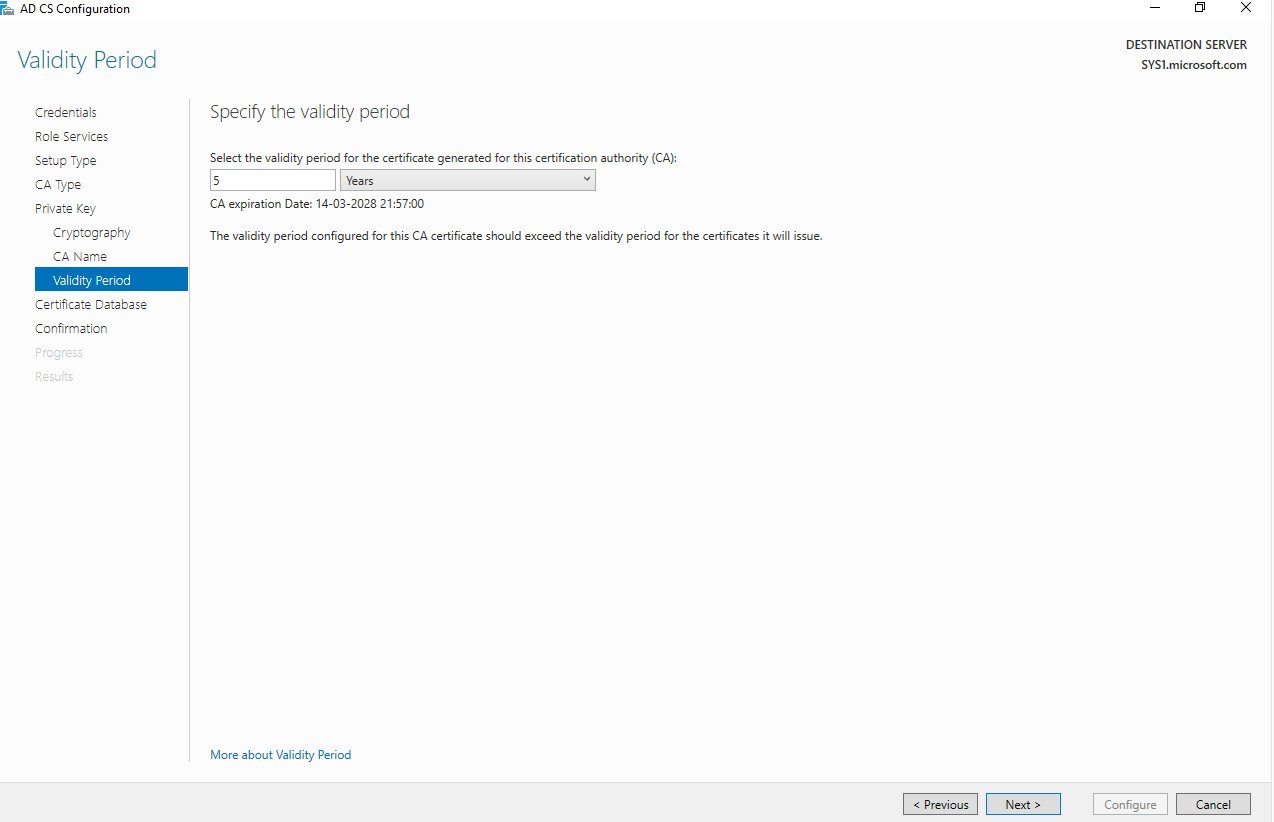
Step 23
In CA Database, Click Next
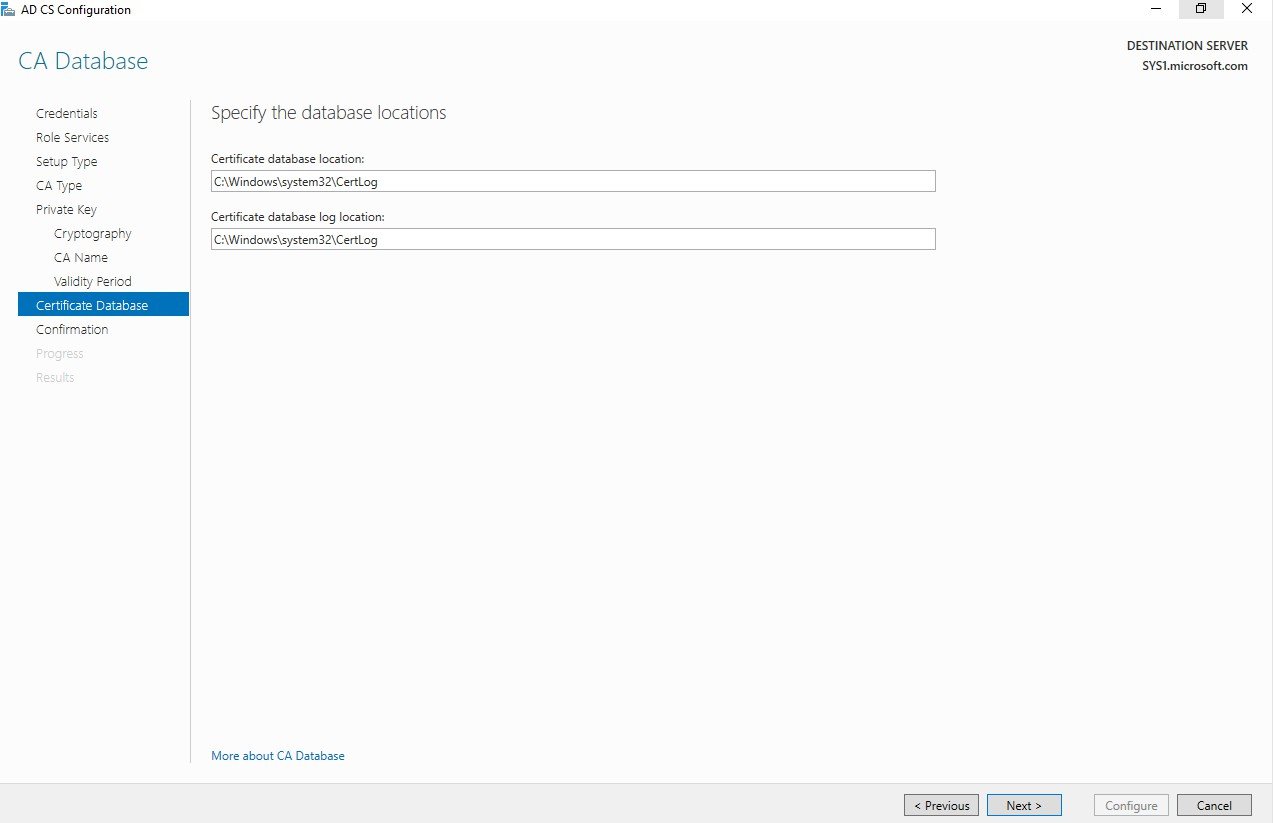
Step 24
Click Configure
Step 25
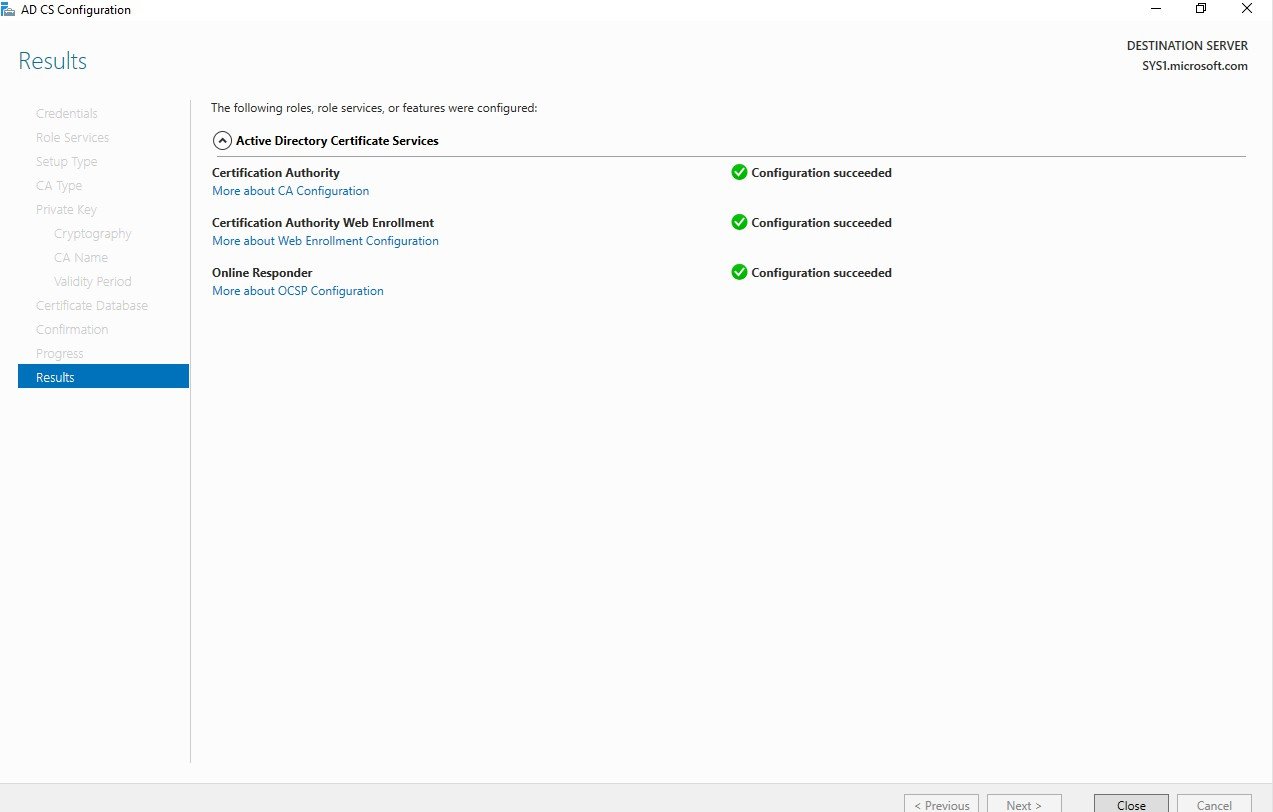
Click Close
Step 26
Click No
Step 27
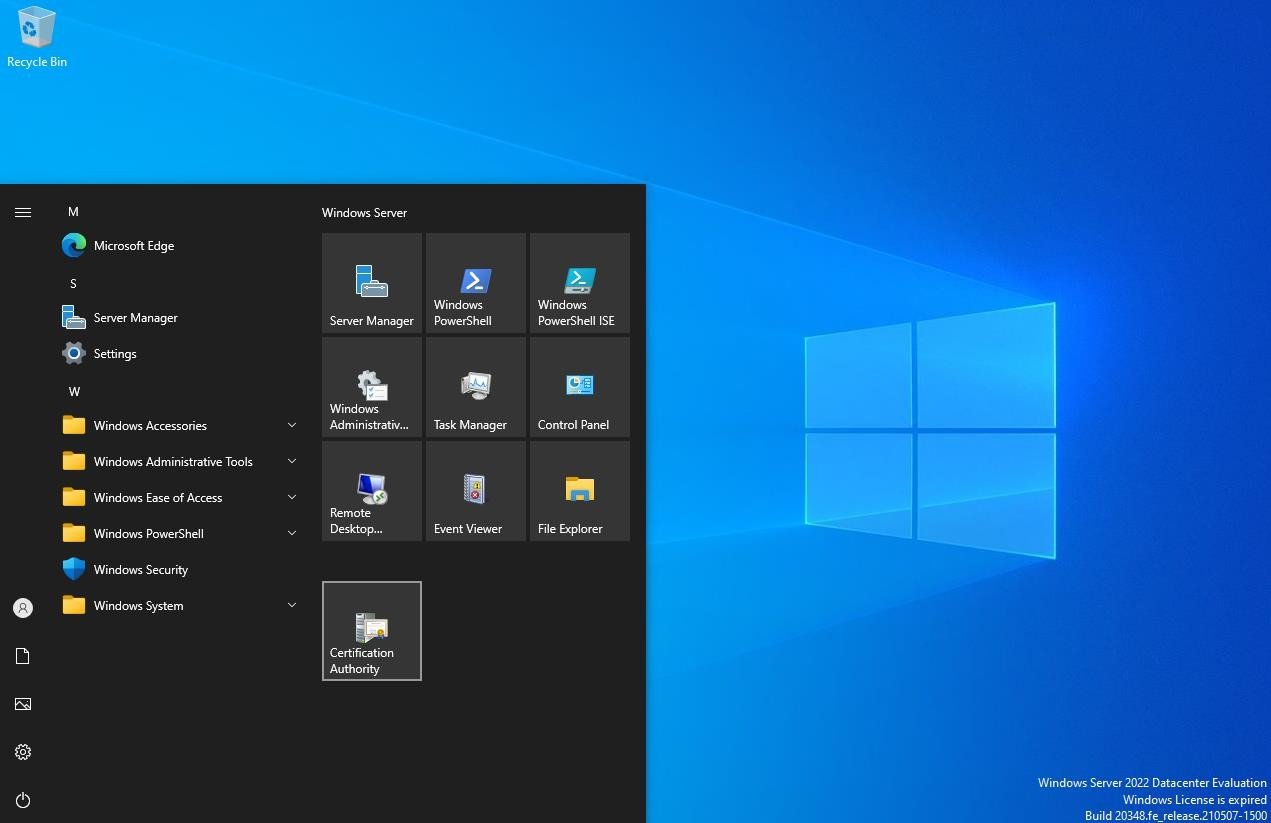
Click Start à click Certification Authority
Step 28
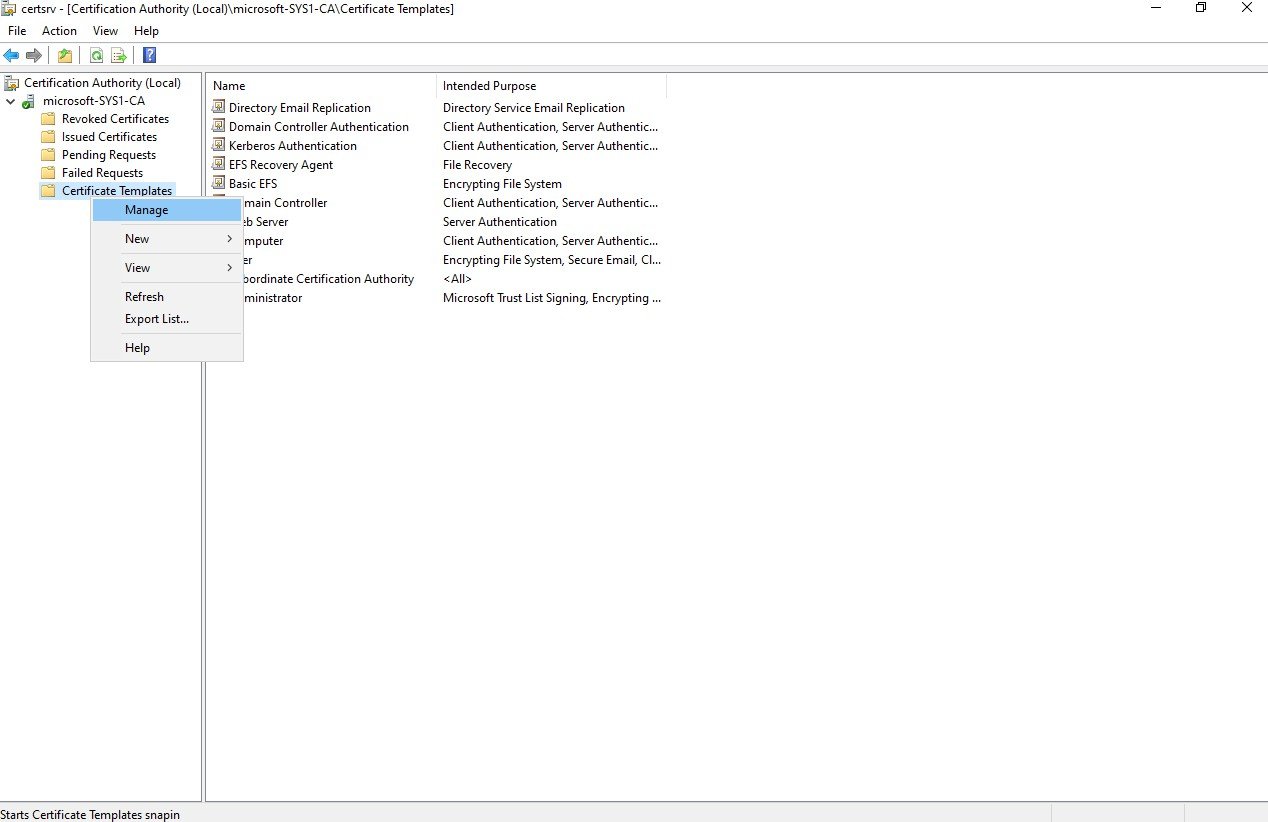
Expand Domain (Ex:Microsoft-SYS1-CA) à right click on Certificate Templates à click Manage
Step 29
Right click on User à click Duplicate Template
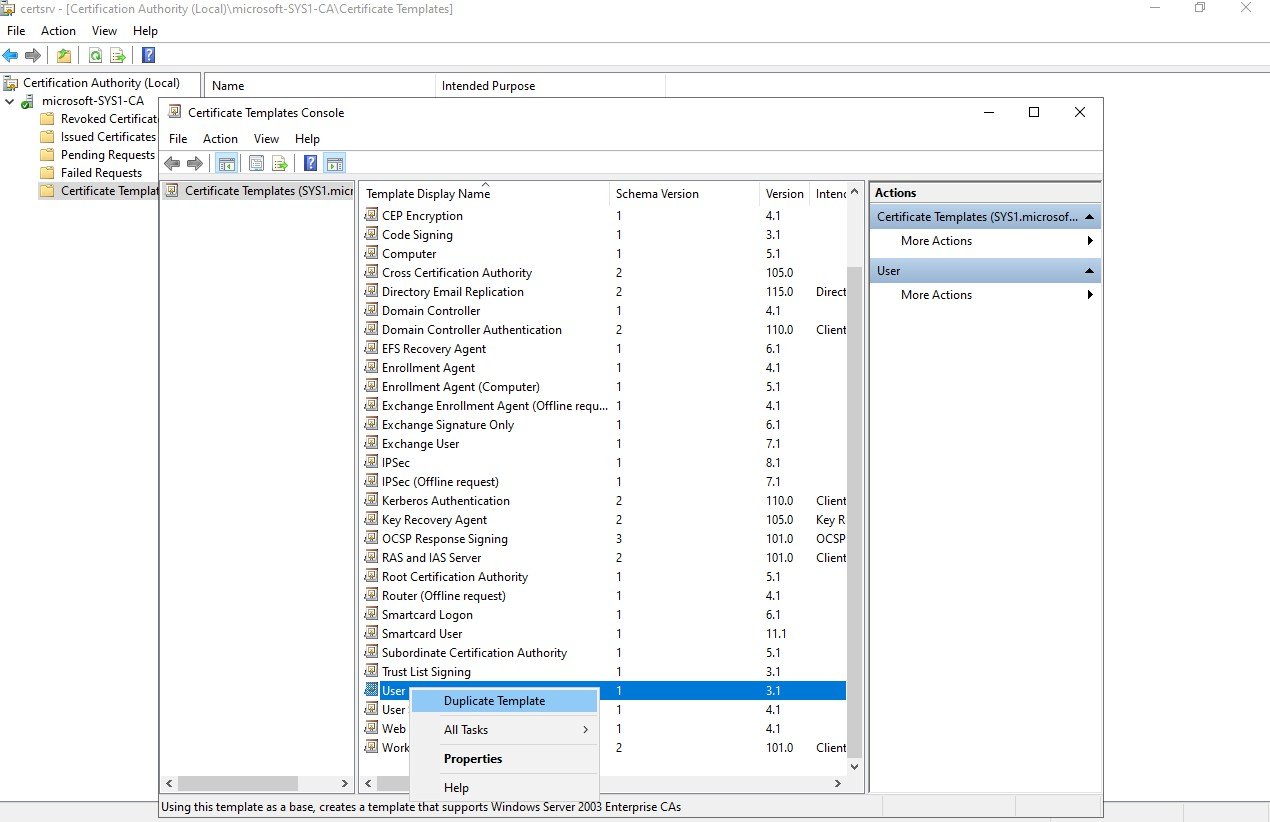
Step 30
Click General à Enter template display name (Ex: User Certificate) à check the box Do not automatically reenroll if a duplicate certificate exists in Active Directory.
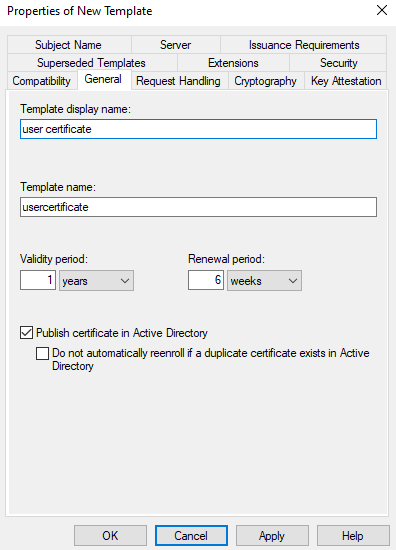
Step 31
Click Request Handling à Expand Purpose à Select Signature and Encryption
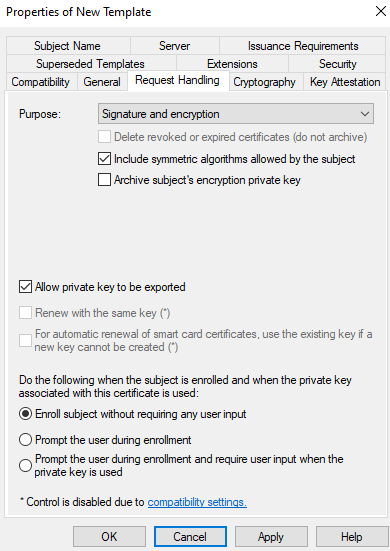
Step 32
Click Cryptography à check the box Microsoft Enhanced Cryptographic Provider v
Step 1
0 Microsoft Enhanced RSA and AES Cryptographic Provider & Microsoft RSA SChannel Cryptographic Provider
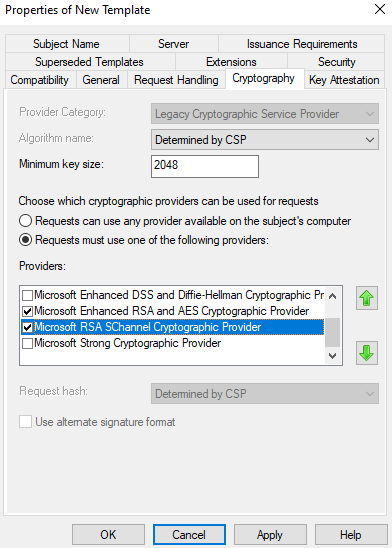
Step 33
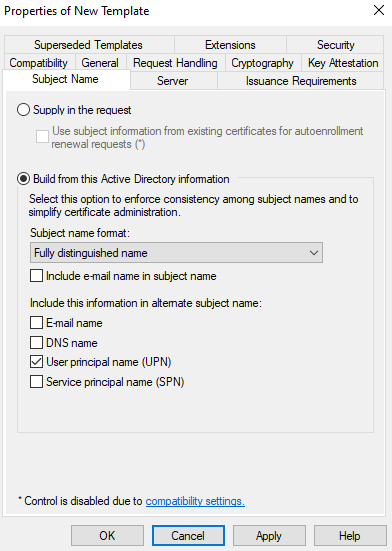
Click Subject Name à uncheck the box Email Name
Step 34
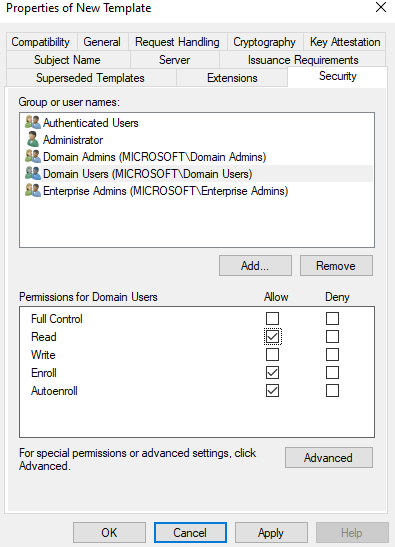
Click Security à select Domain Users à check the box Read, Enroll & Auto enroll àclick Apply à click Ok
Step 35
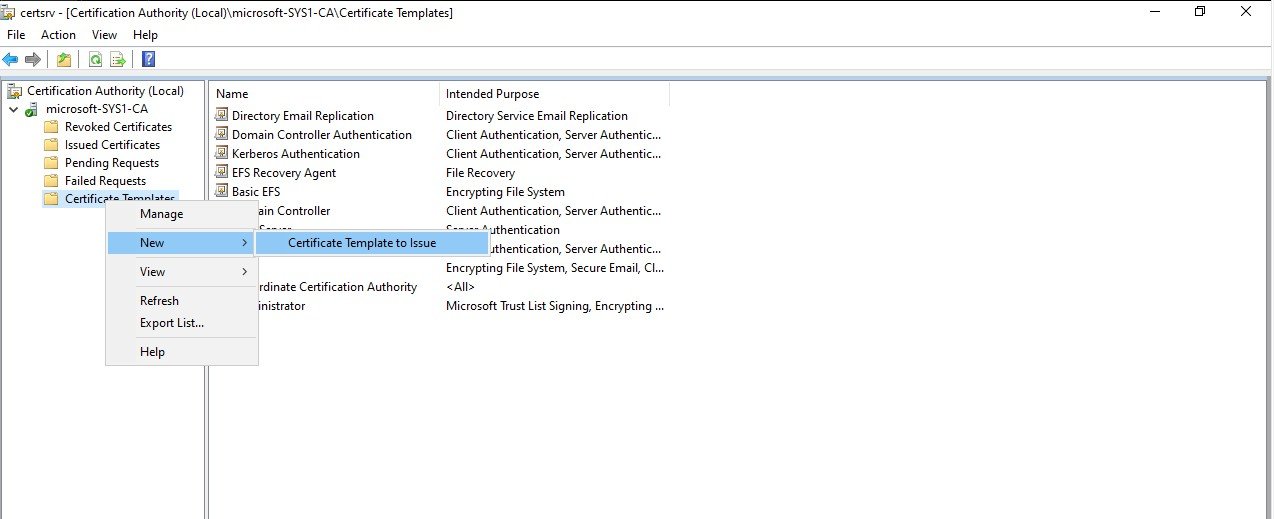
Right click on Certificate Templates à click New à click Certificate Template to Issue
Step 36
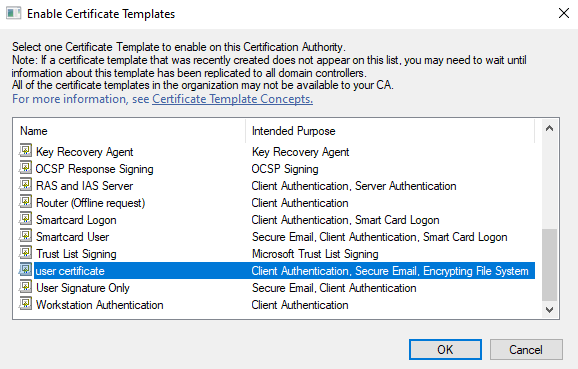
Select User Certificate à click Ok
Step 37
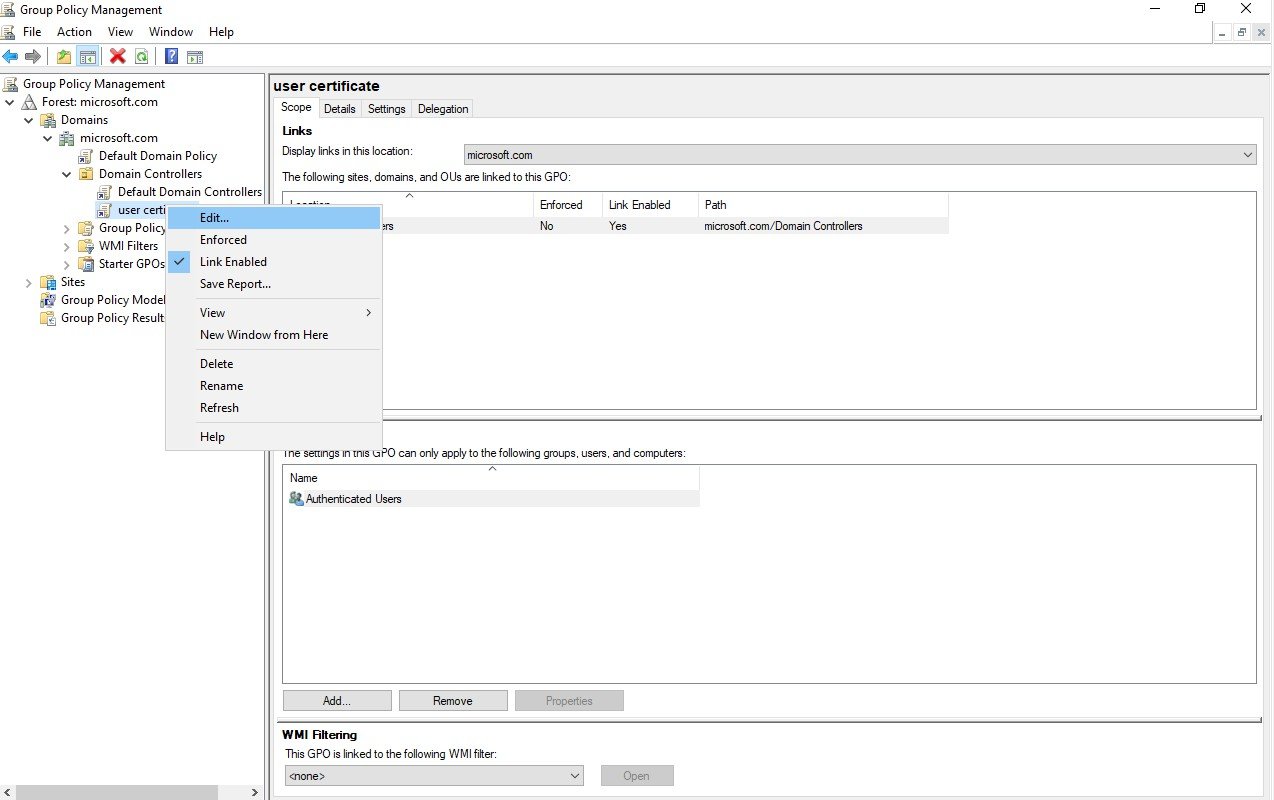
Go to Group Policy à expand Forest à expand Domains à right click on Domain Name (Ex:Microsoft.com) à create a GPO (Ex:User Certificate) à right click on GPO (Ex:User Certificate) à click Edit
Step 38
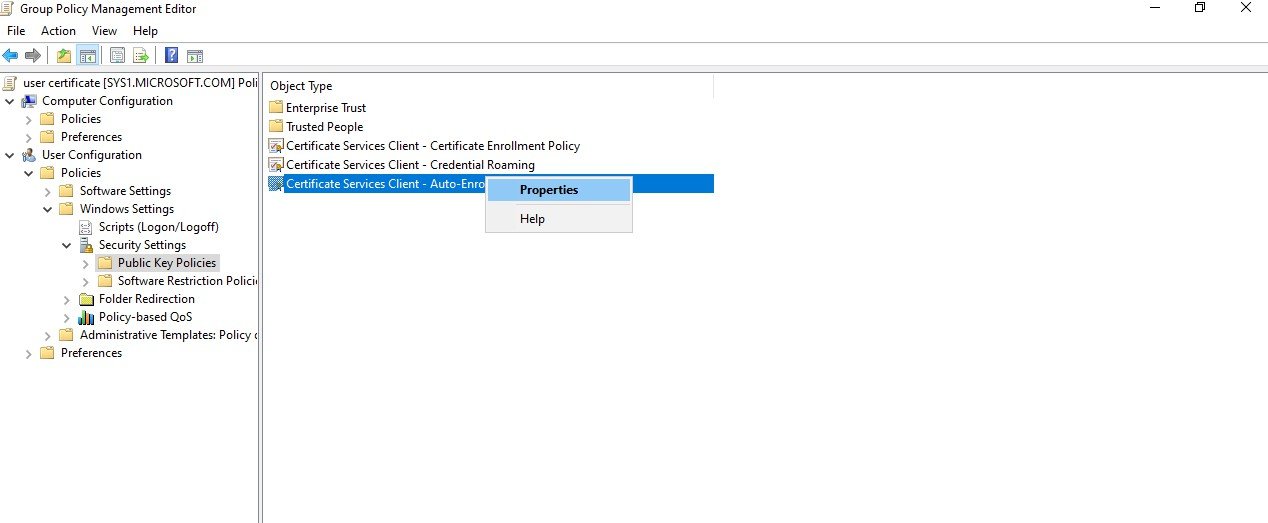
Expand User Configuration à expand Policies à expand Windows Settings à expand Security Settings à select Public Key Policies à right click on Certificate Services Client-Auto Enrollment à click Properties
Step 39
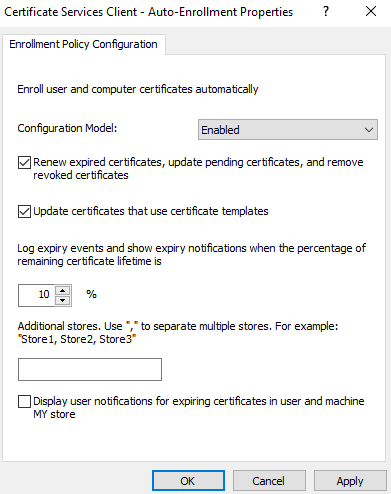
Expand Configuration Model à click Enabled à check the box Renew expired certificates à check the box Update certificates that use certificate templates à click Apply à click Ok
Step 40
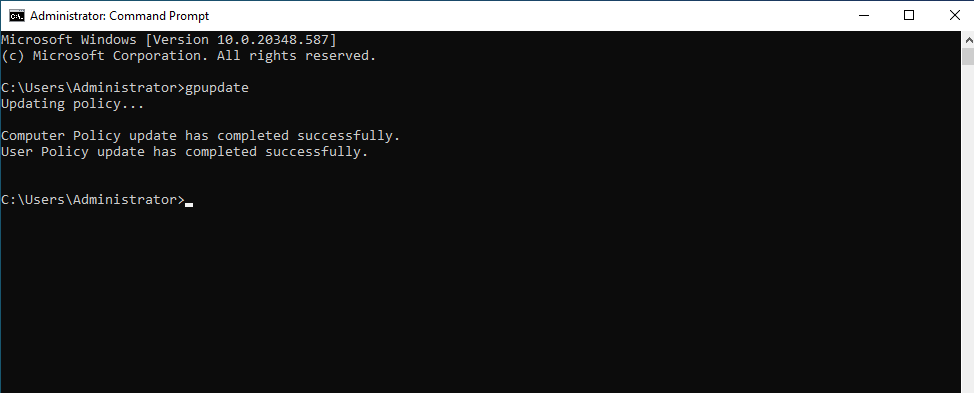
Open Command Prompt à type gpupdate
Step 41
In Command Prompt à type certutil -pulse
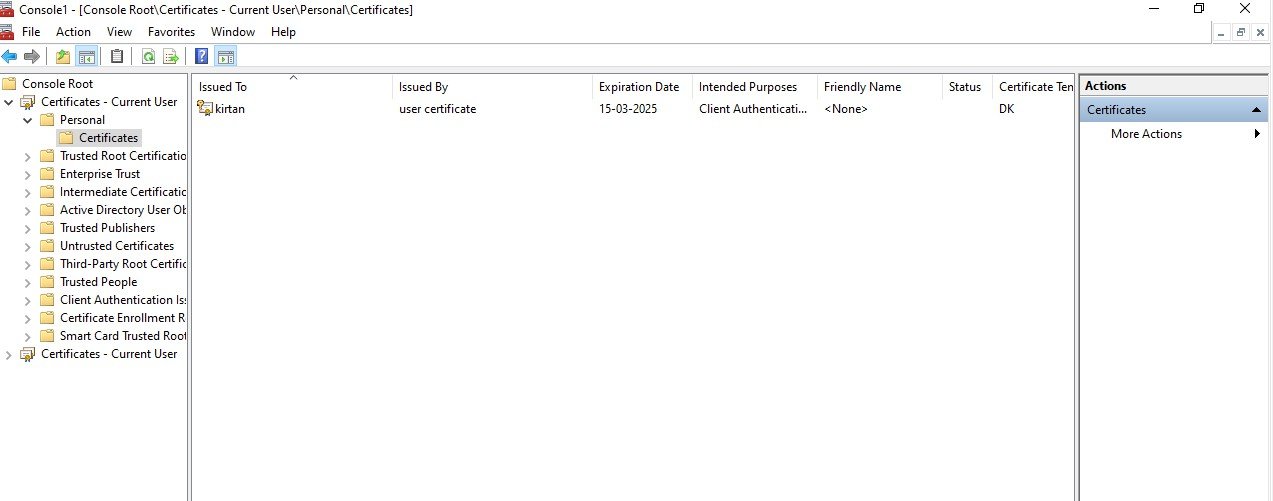
Verification
- 1. Logon to Member Server as User (EX:User1)
- 2. Go to MMC Console
- 3. Click File à click Add/Remove Snap
- 4. Select Certificates à select Certificates-Current User à click Ok
- 5. Expand Certificates à expand Personal à select Certificates & verify the certificate
- issued to User1