Prerequisites
- Before working on this lab, You must have
- A computer running windows server 2022 Domain Controller.
- A Member Server running windows server 2022 or Client Running Windows 10.
- Installing Windows Server Backup
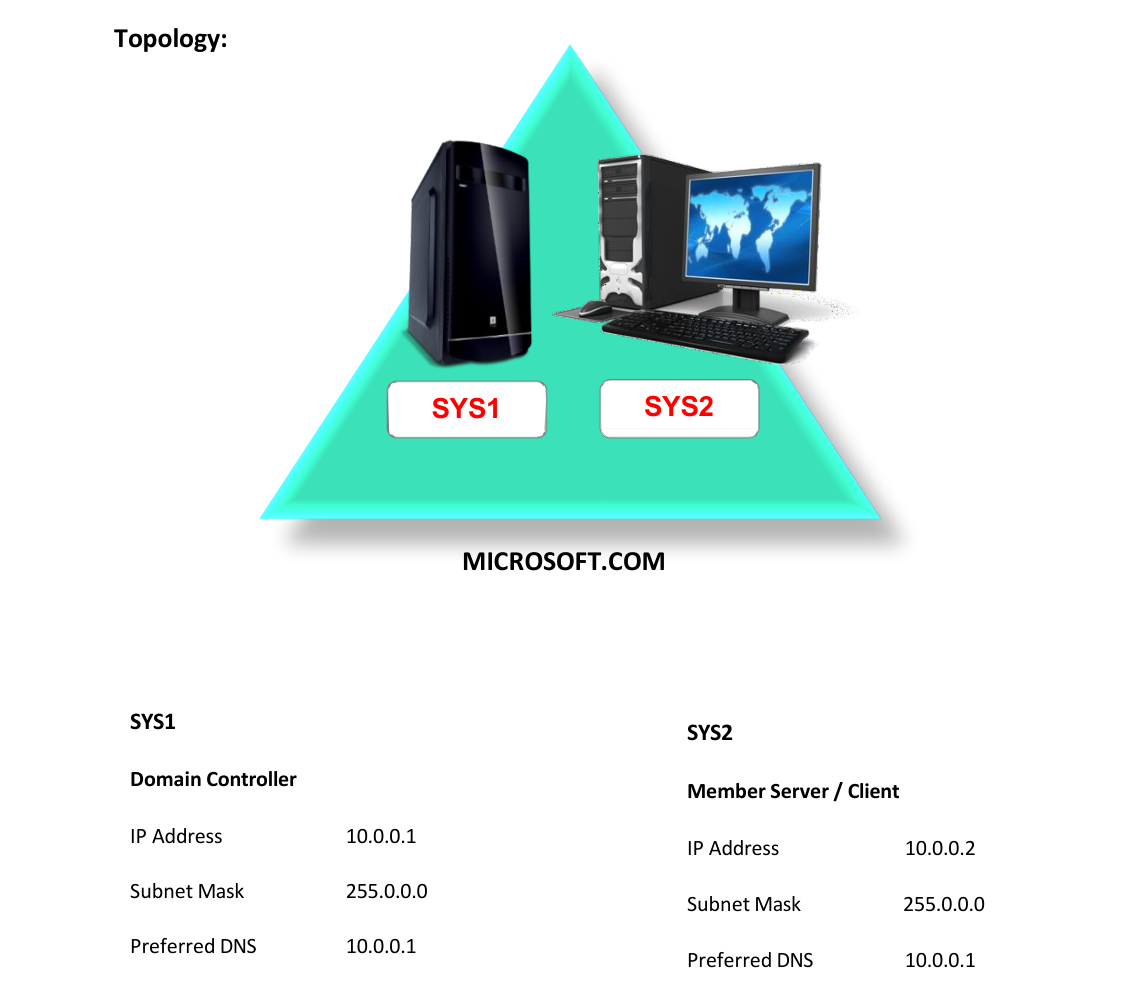
Network Topology
Step-by-Step Instructions
Step 1
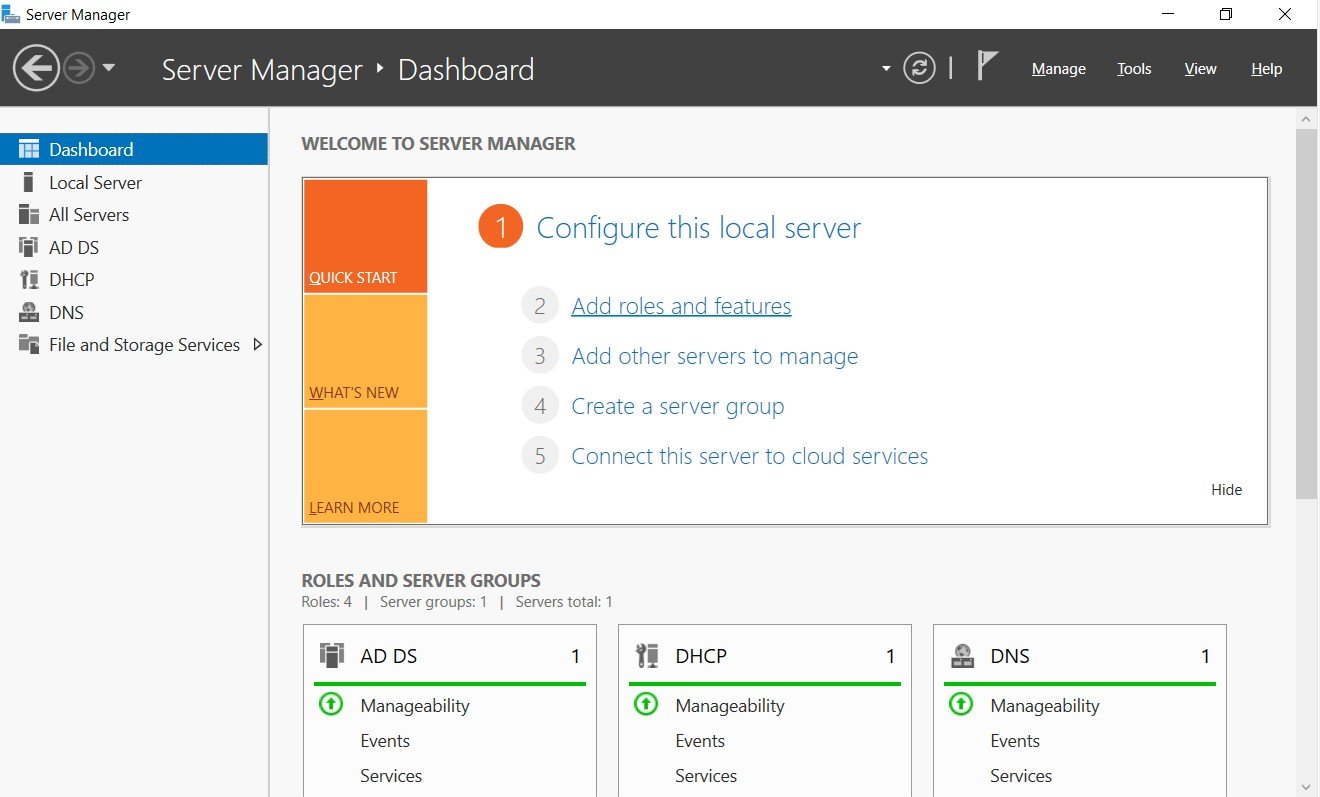
Login as Administrator, go to Server Manager Dashboard and click Add roles and features.
Step 2
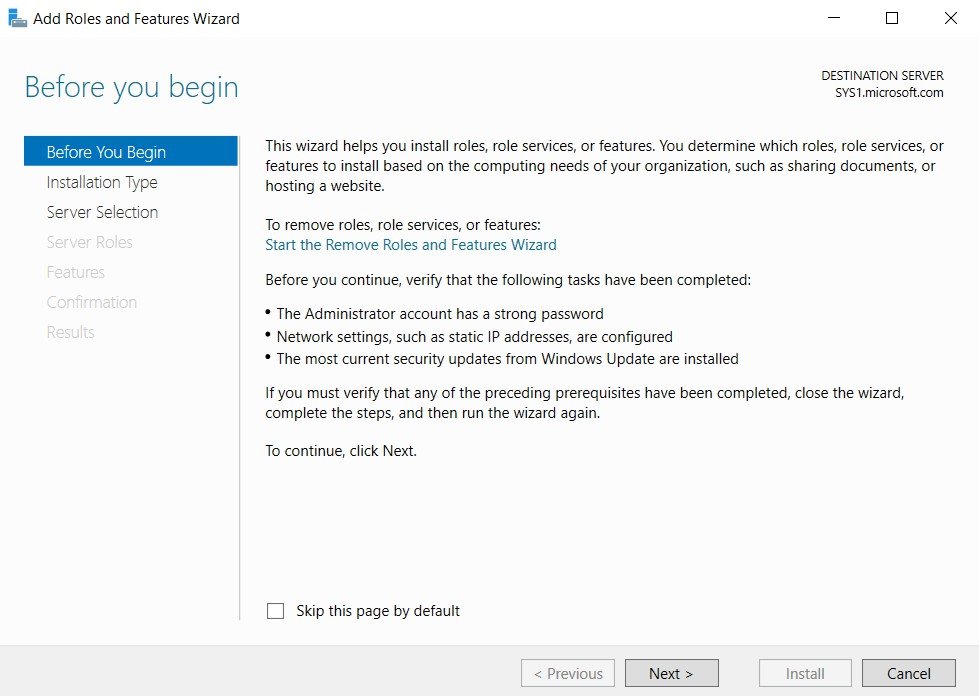
In Before you begin page, click Next.
Step 3
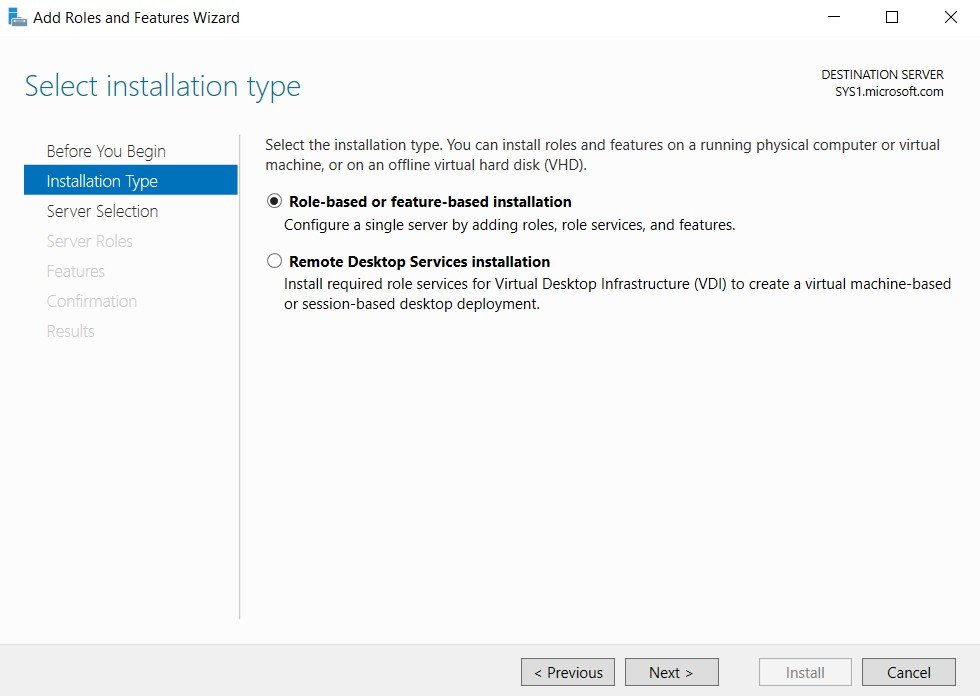
Select Role-based or feature-based installation, click Next.
Step 4
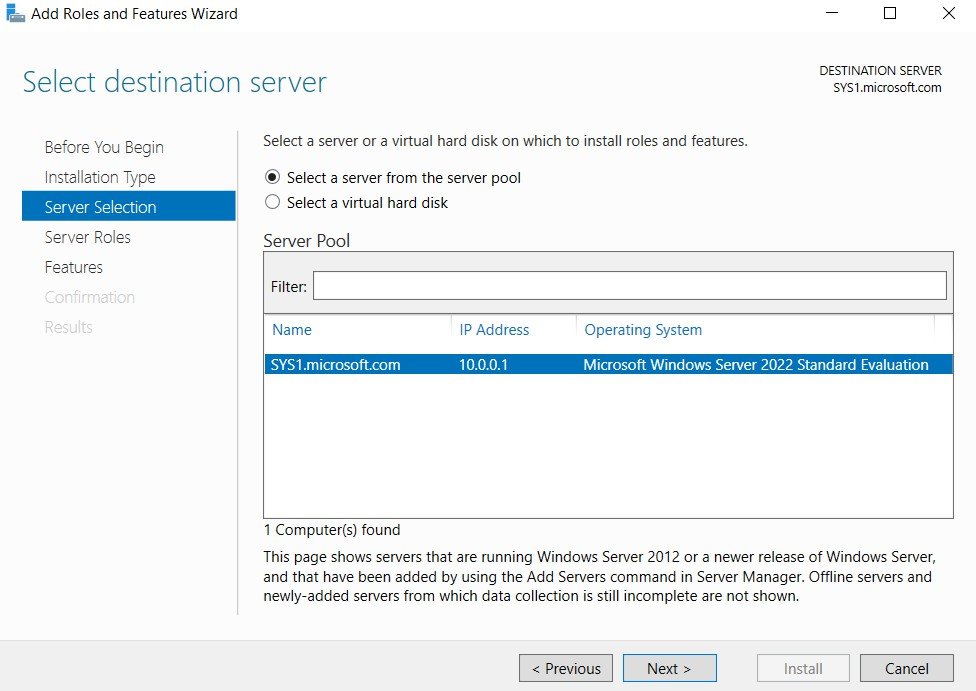
In Select destination server page, select a server (SYS1.Microsoft.com) from the server pool and click Next.
Step 5
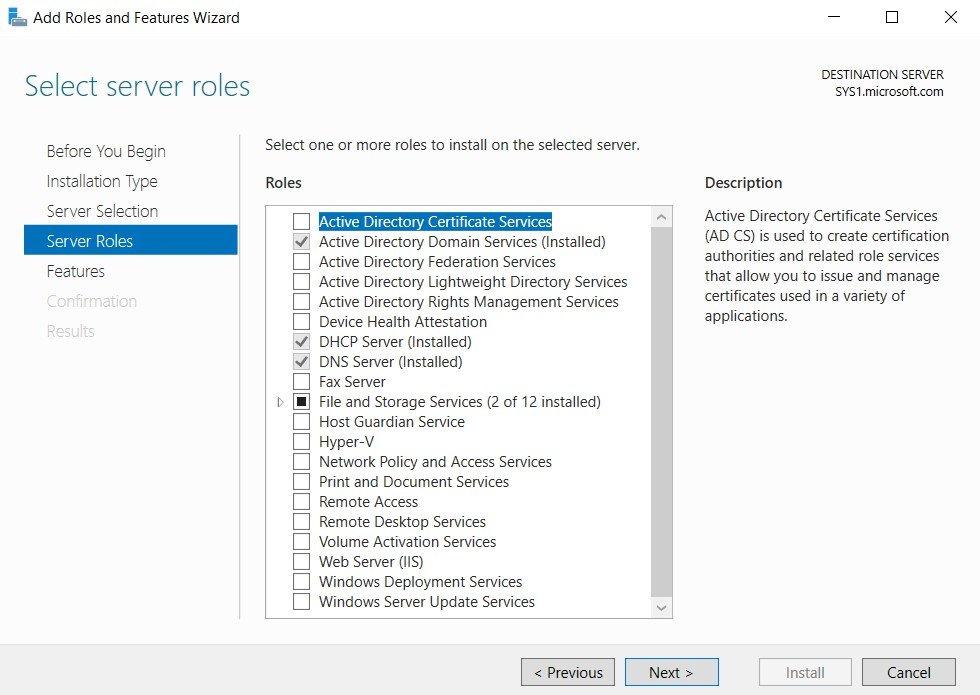
In Select server roles page, click Next.
Step 6
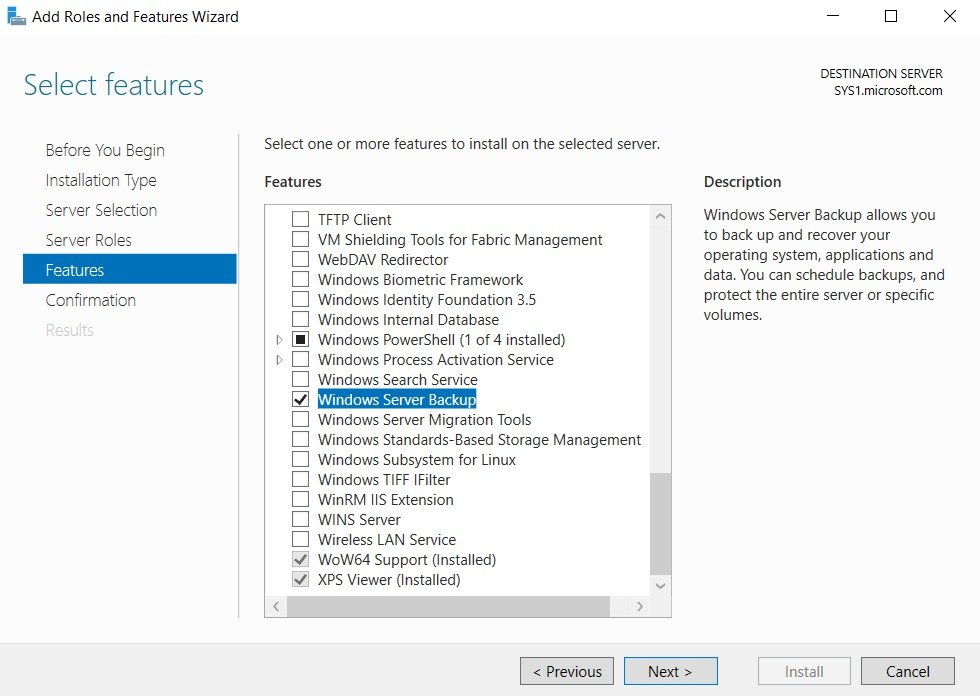
In Select features page, check the box Windows Server Backup and click Next.
Step 7
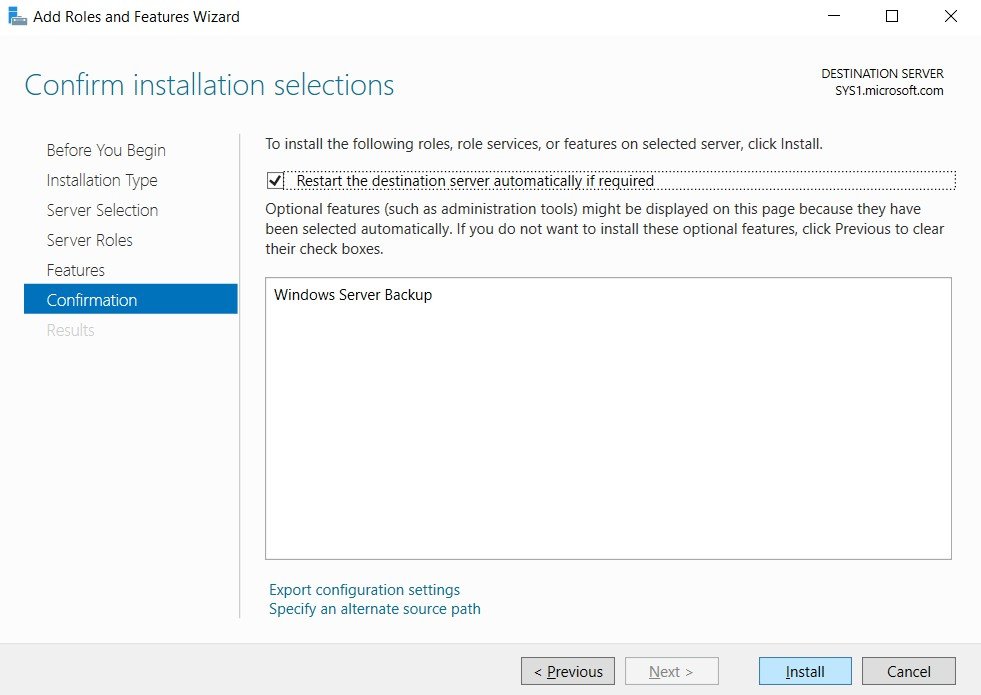
Check box Restart the destination server automatically if required, click Install.
Step 8
Click Close to complete the feature installation. How to Backup Data using Windows Server Backup
Step 1
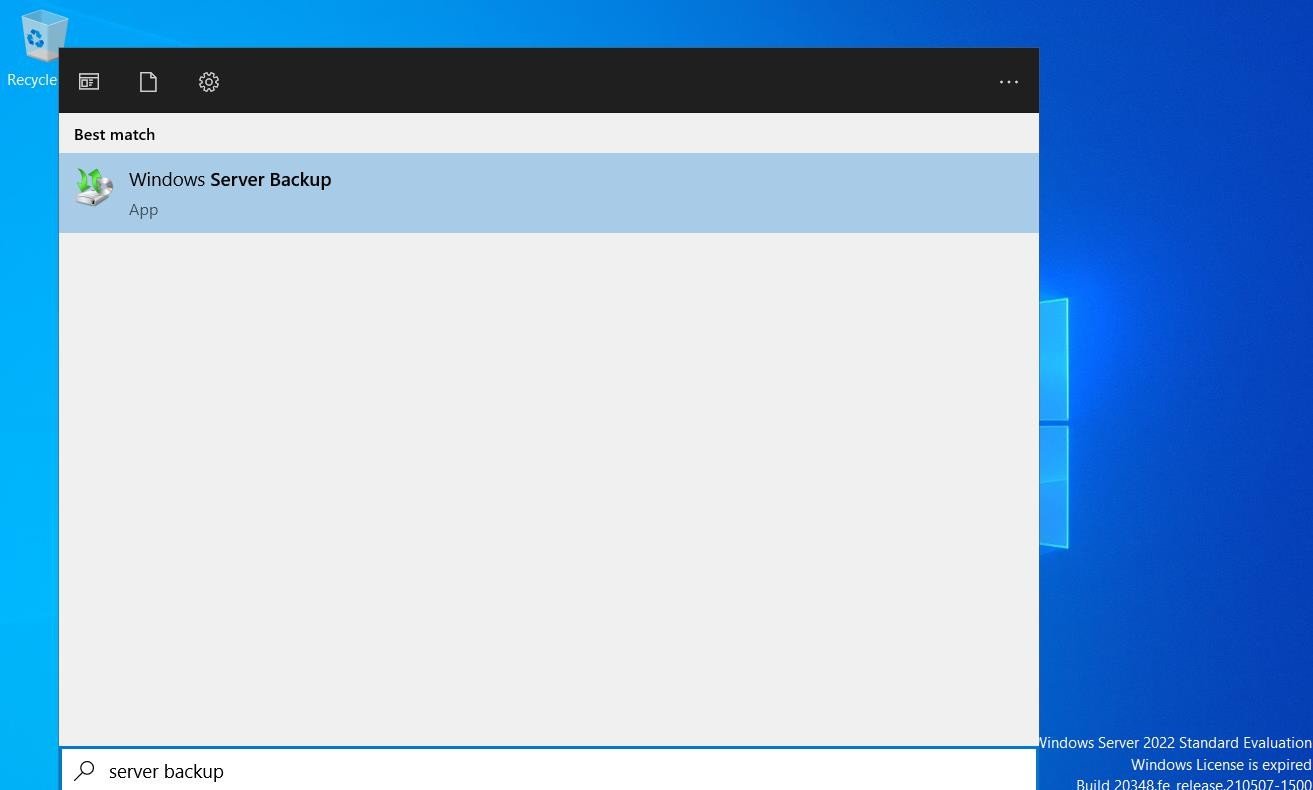
Go to Start, type Windows Server Backup in Search Apps, select Windows Server Backup.
Step 2
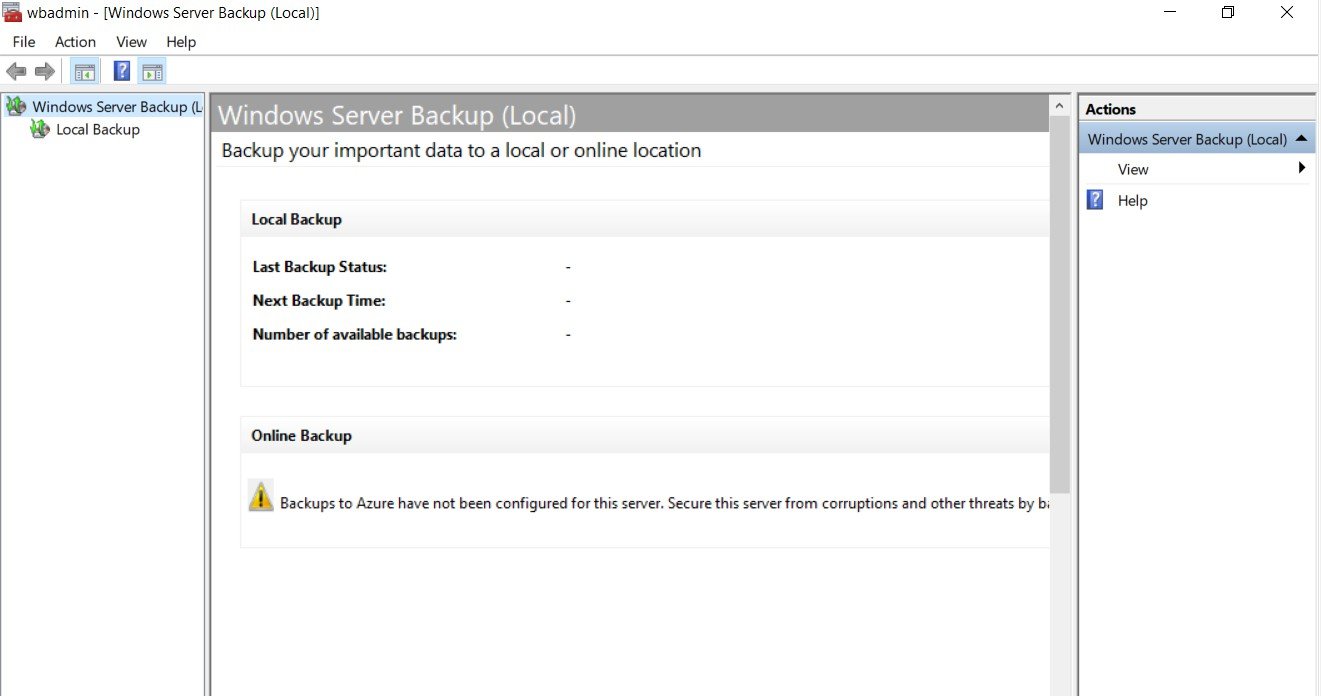
Select Windows Server Backup, (or) to use online backup click Continue under Online backup.
Step 3
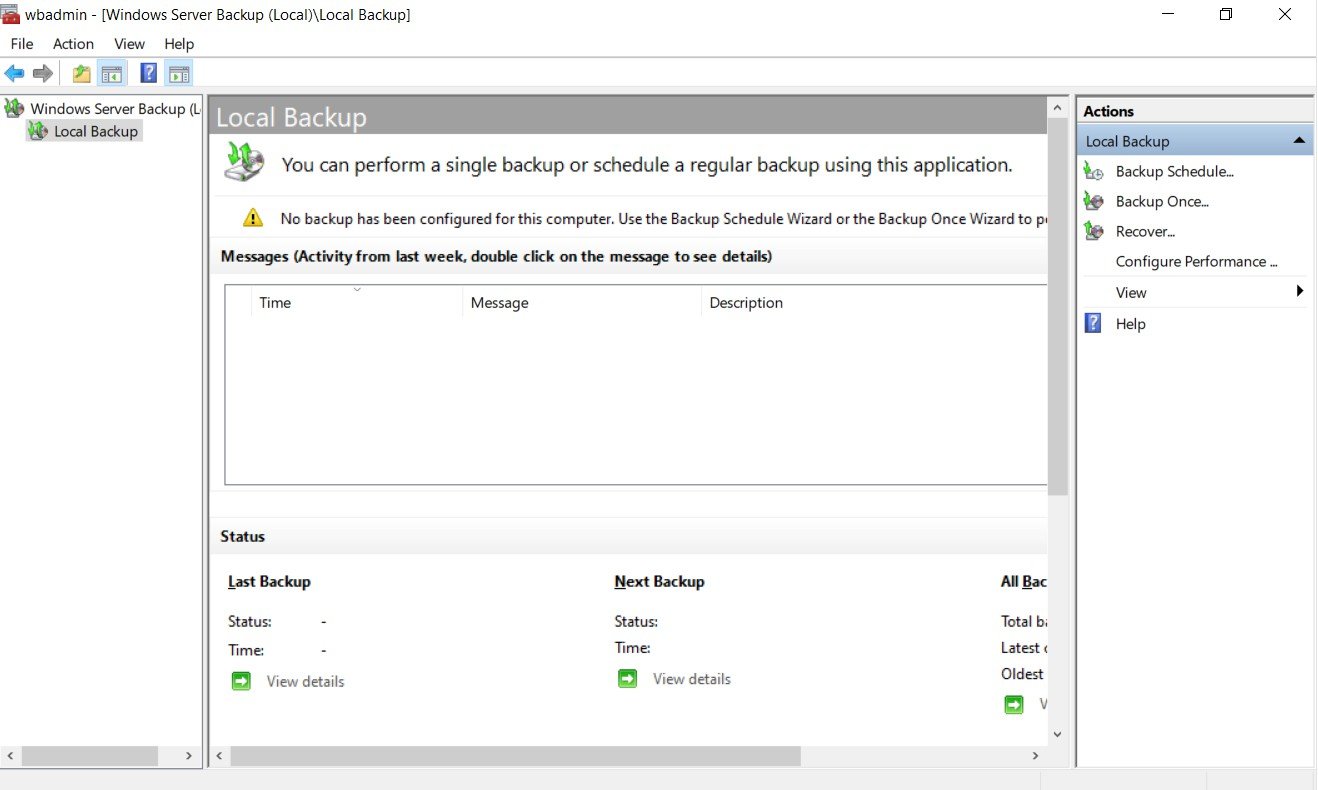
Select Local Backup, and click Backup Once.
Step 4
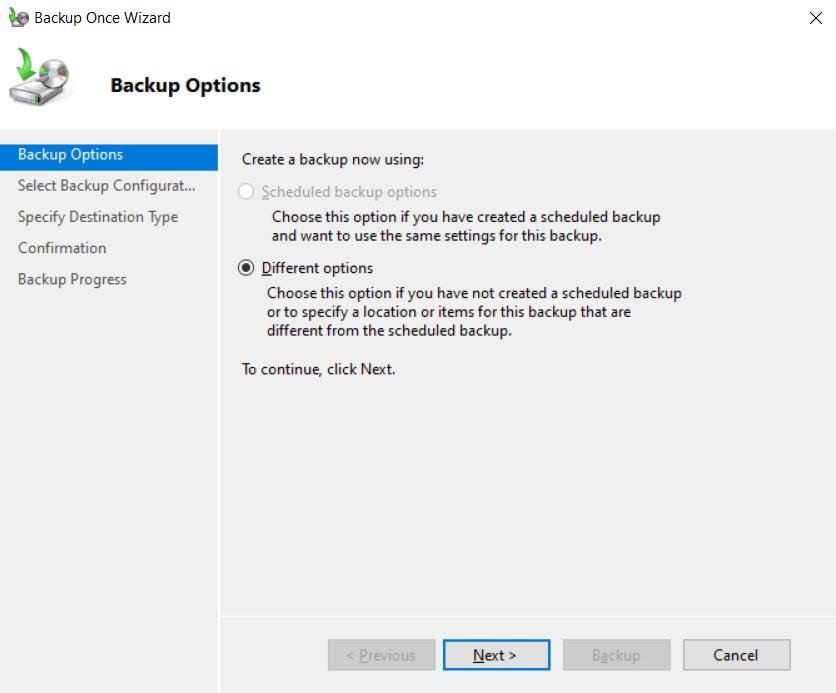
Select Different Options, click Next.
Step 5
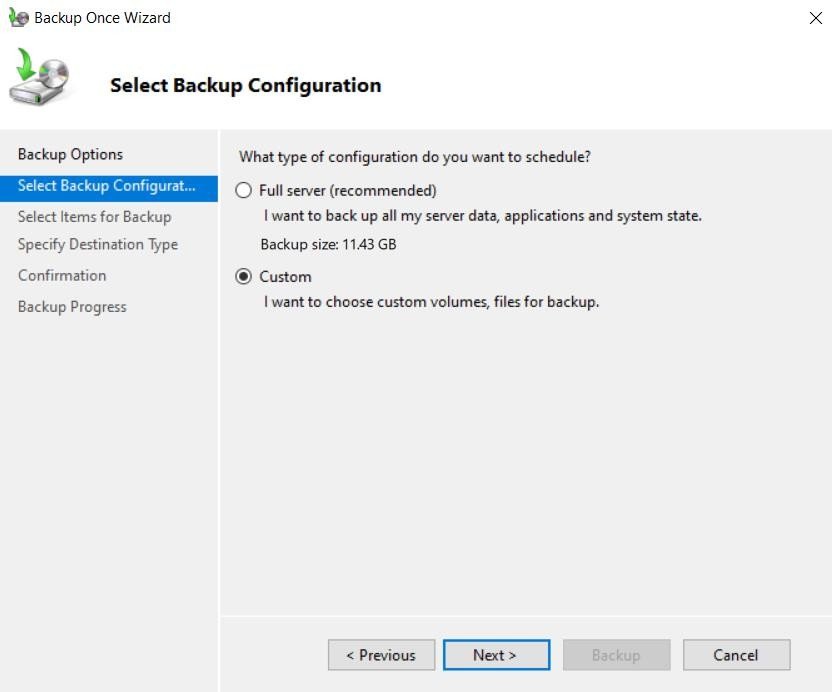
Select Custom, click Next.
Step 6
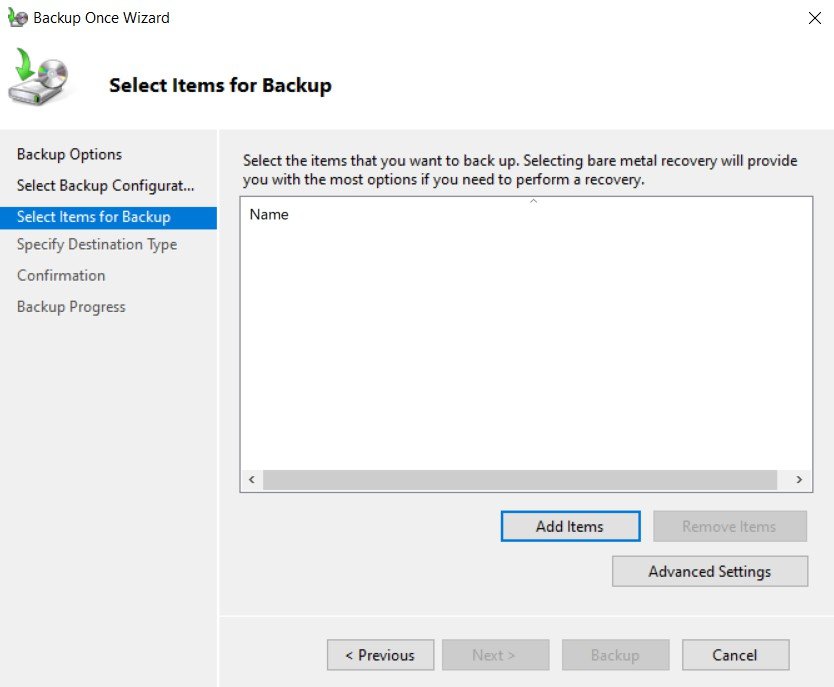
In Selects items for Backup, click Add Items.
Step 7
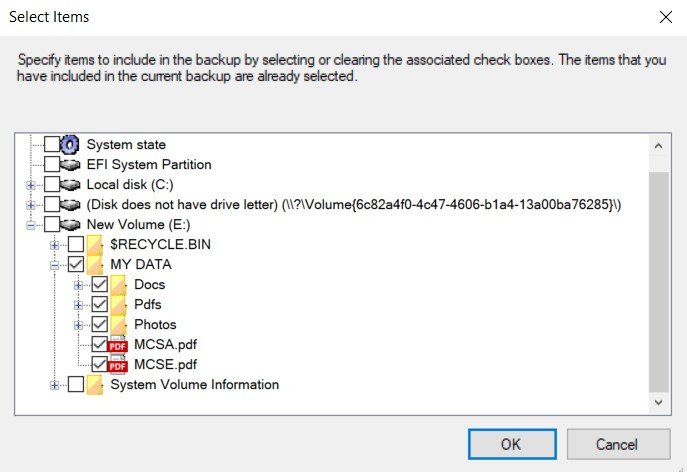
In Select Items window, check the box “MY DATA” folder, click OK.
Step 8
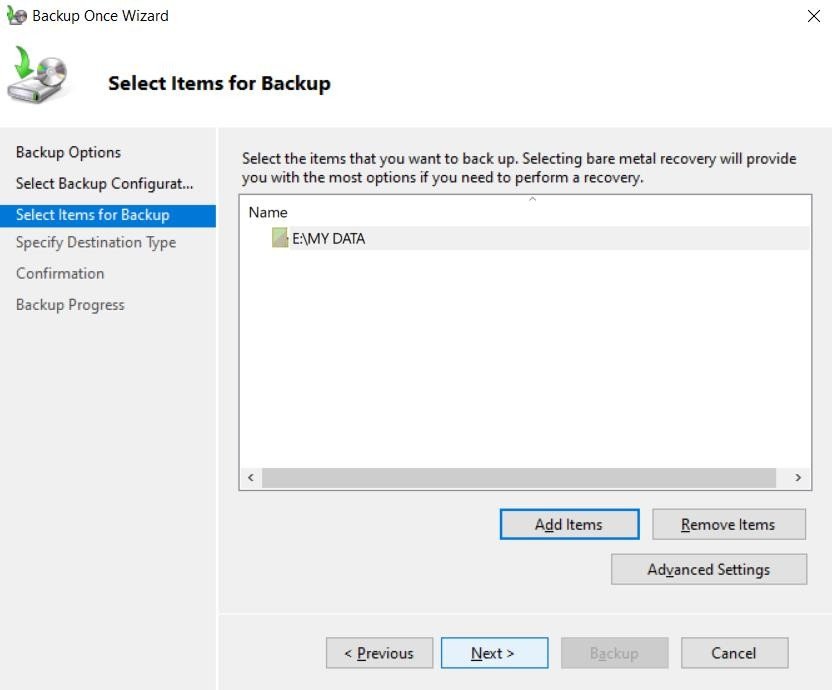
In Select Items for Backup page, click Next.
Step 9
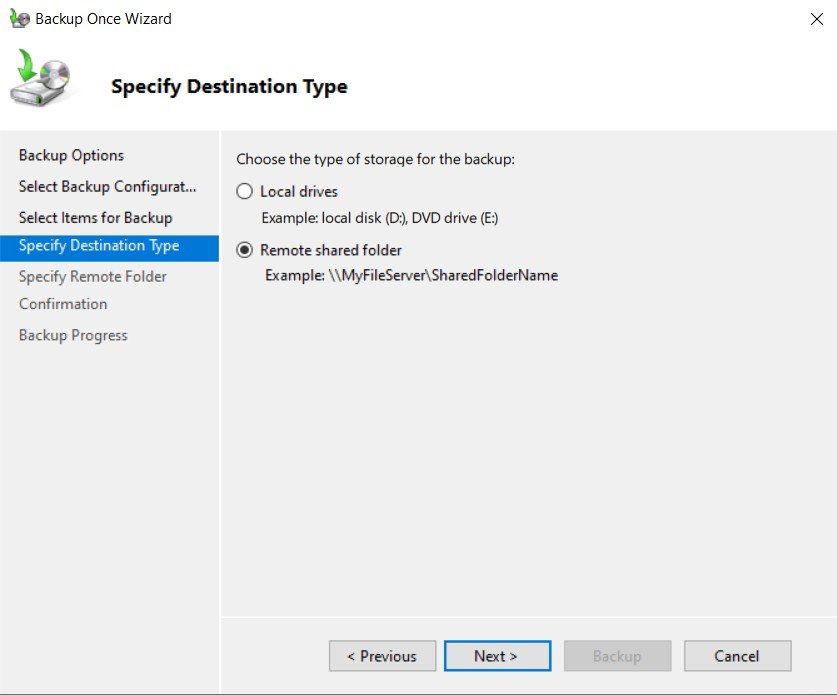
In Specify Destination Type page, select Remote shared folder, click Next.
Step 10
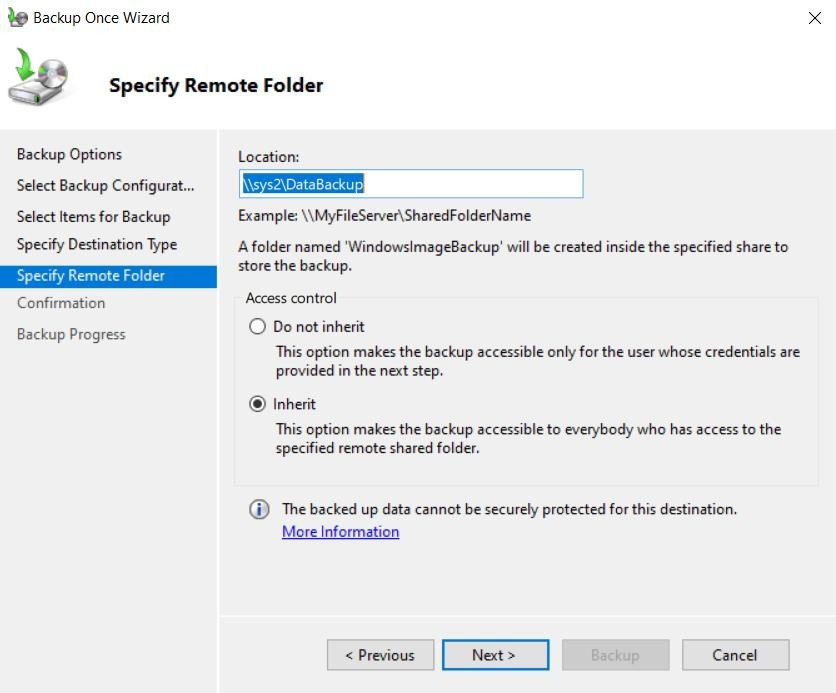
In Specify Remote Folder, Enter Location:\\PC_name\Shared_folder (\\sys2\DataBackup), click Next.
Step 11
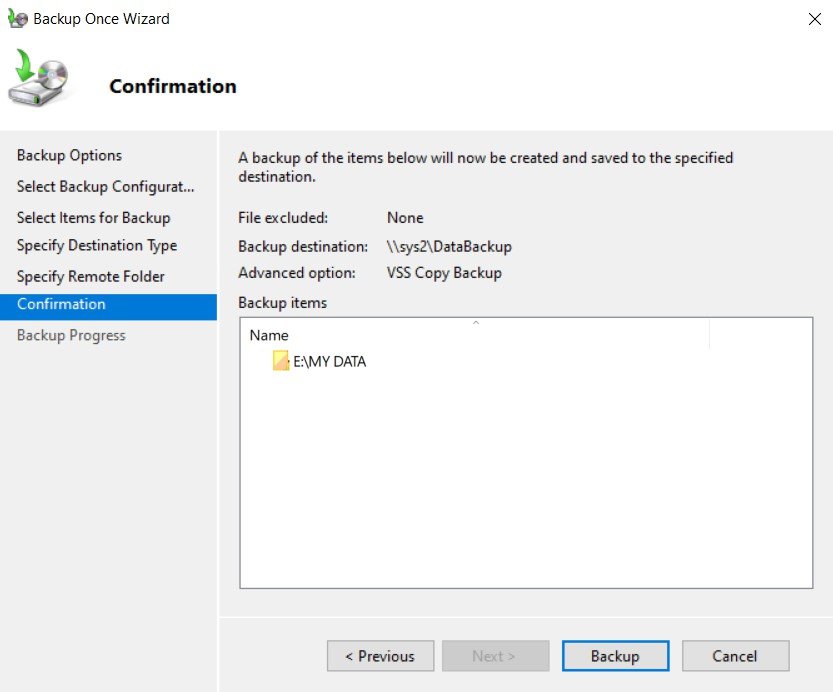
In Confirmation page, click Backup.
Step 12
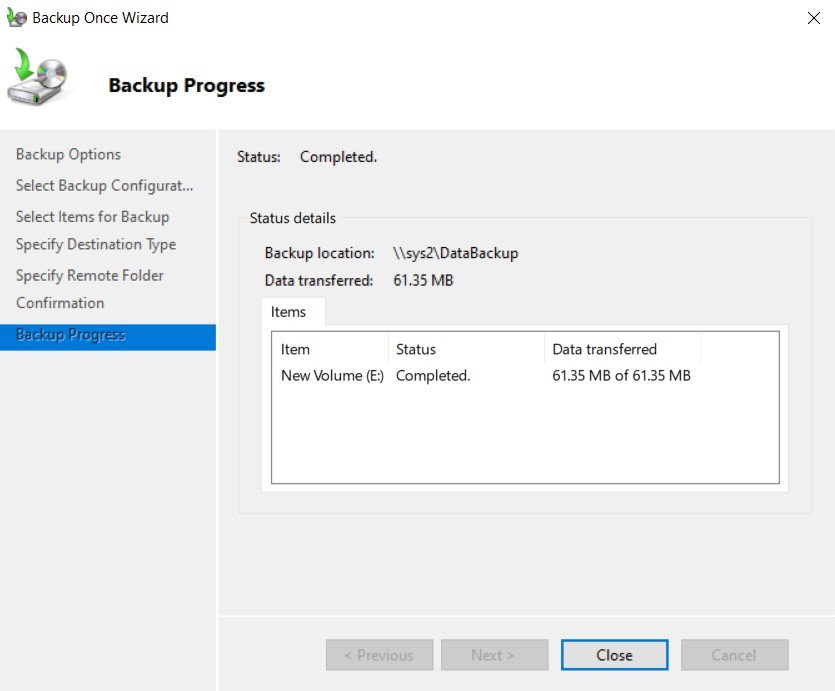
Finally click Close. How to Recover the Data from Backup File
Step 1
Before Restoration, go to the drive and delete the data. (only for Lab purpose)
Step 2
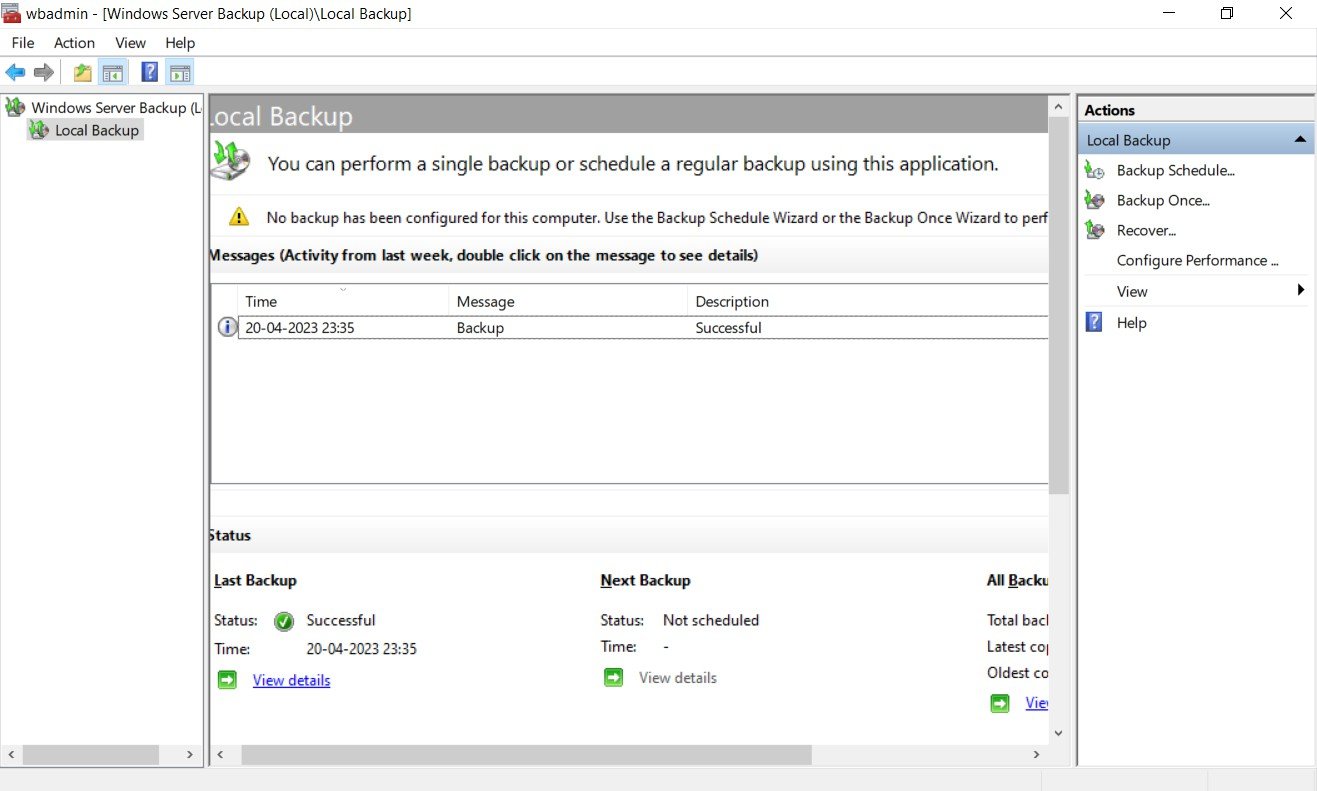
Go to Windows Server Backup, select Local Backup, and click Recover.
Step 3
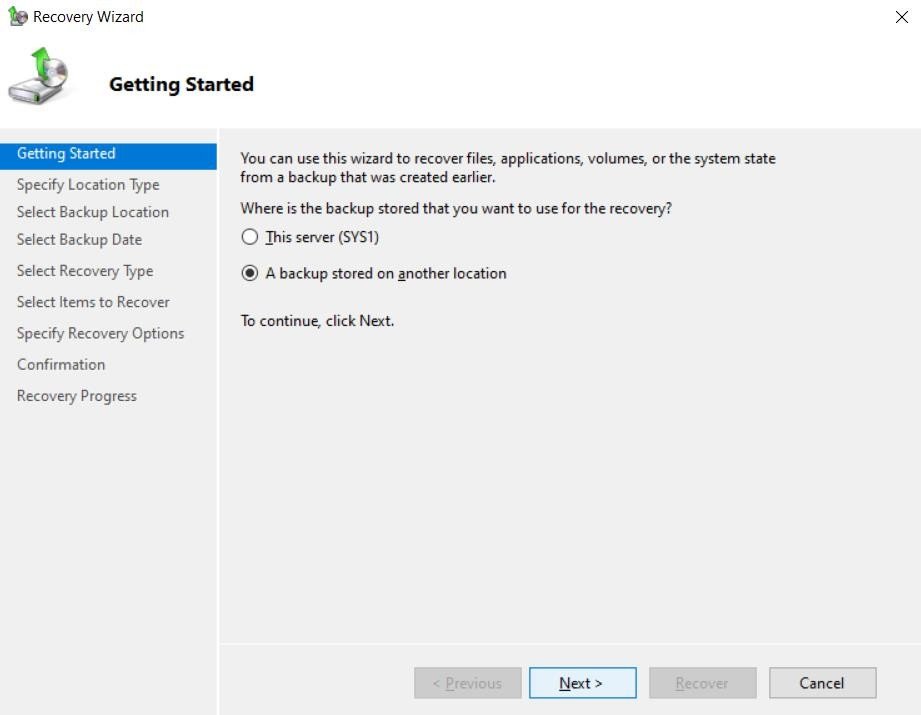
In Getting Started page, select A backup stored on another location, click Next.
Step 4
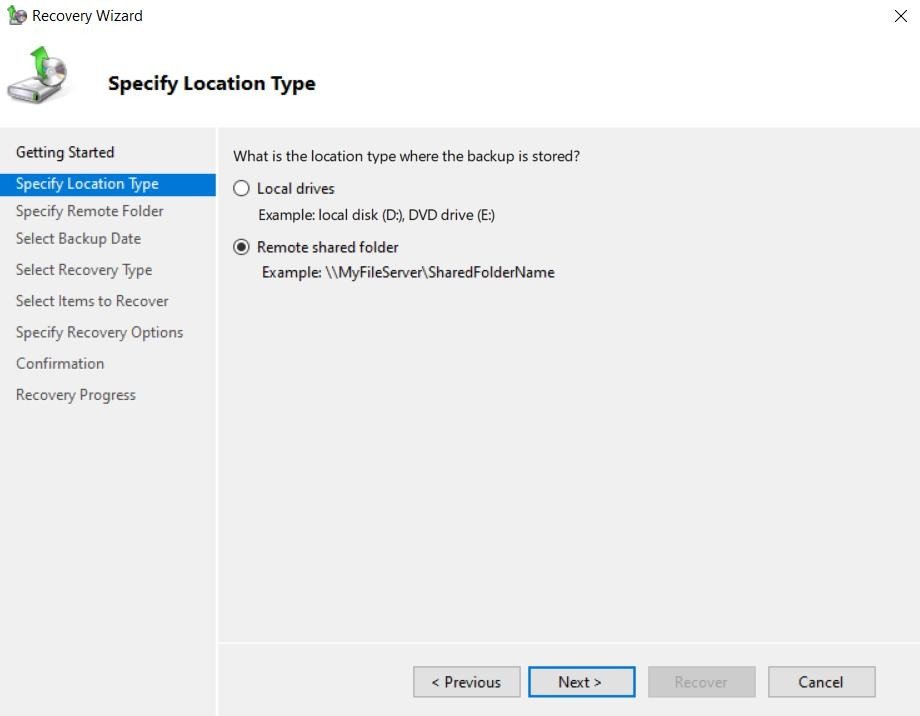
In Specify Location Type page, select Remote shared folder, click Next.
Step 5
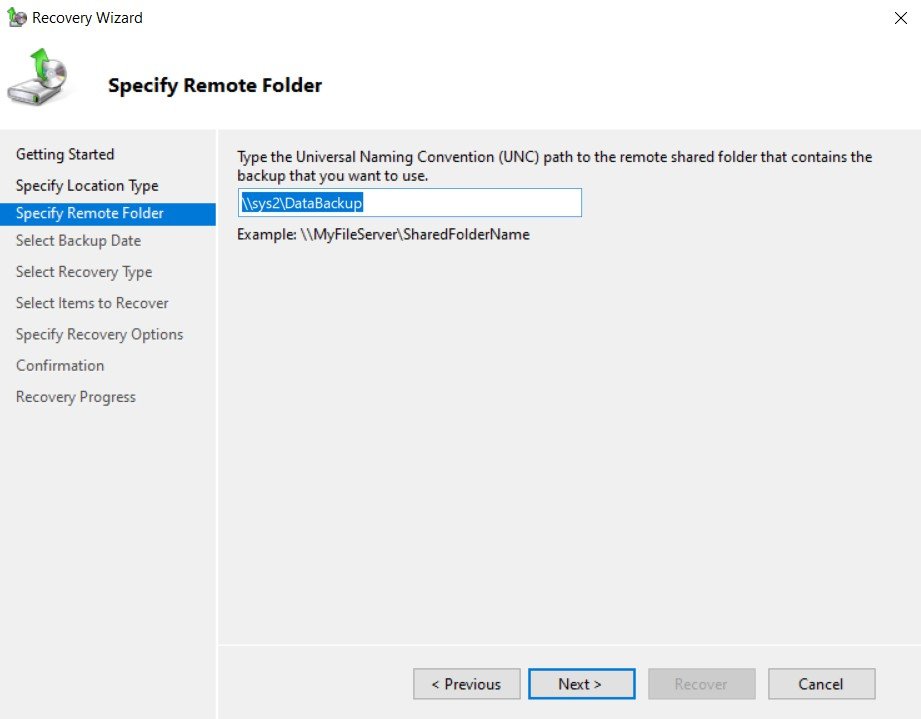
In Specify Remote Folder, Enter Location:\\PC_name\Shared_folder (\\sys2\DataBackup), click Next.
Step 6
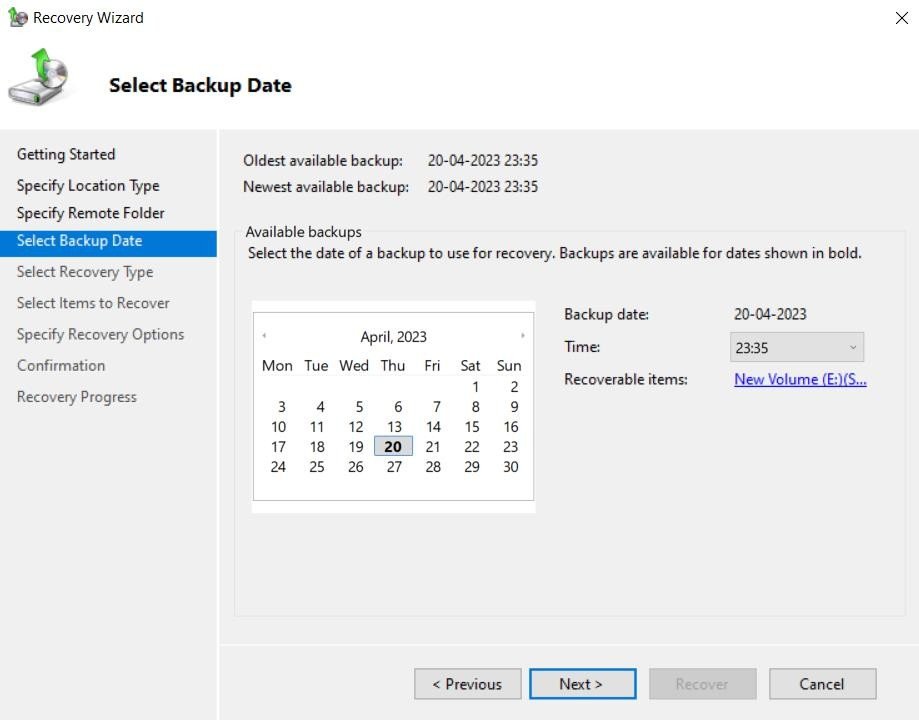
Select Date and Time of the Backup file to be restored, click Next.
Step 7
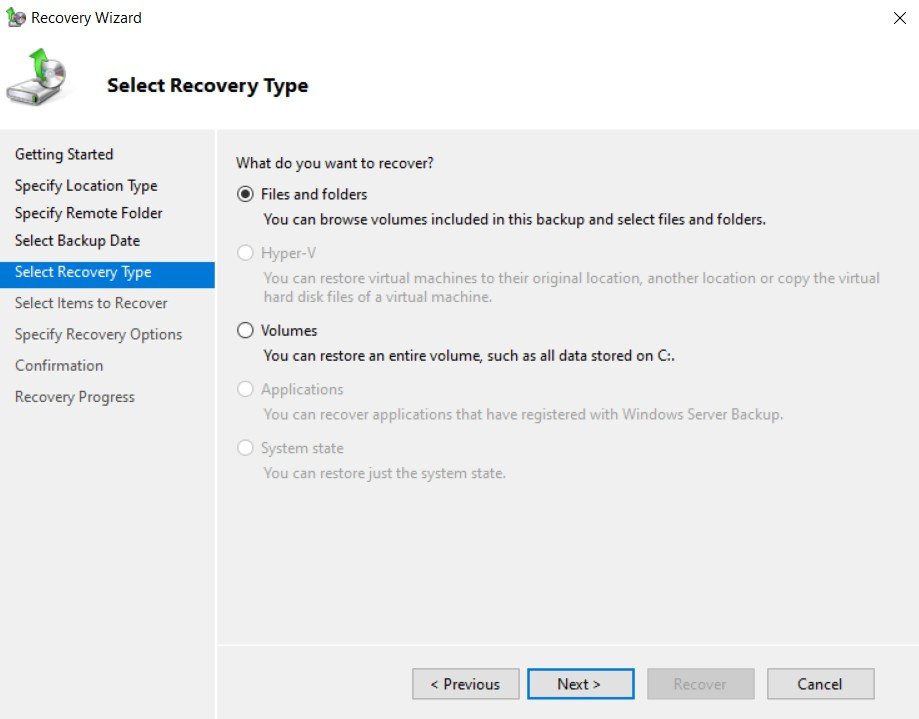
In select Recovery Type, select Files and folders, click Next.
Step 8
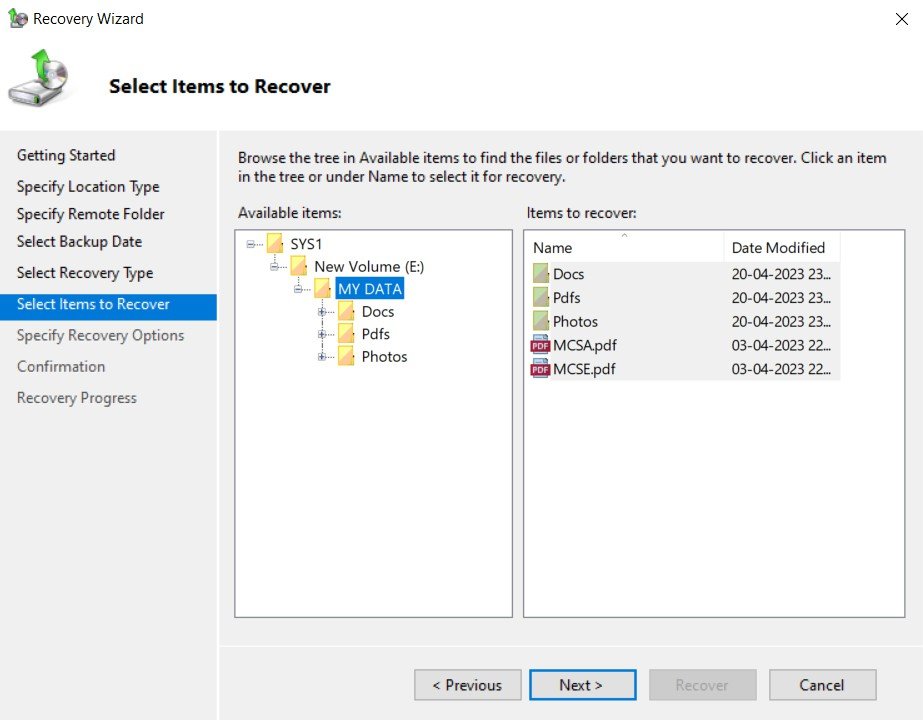
Select the folder or files to be recovered and click Next.
Step 9
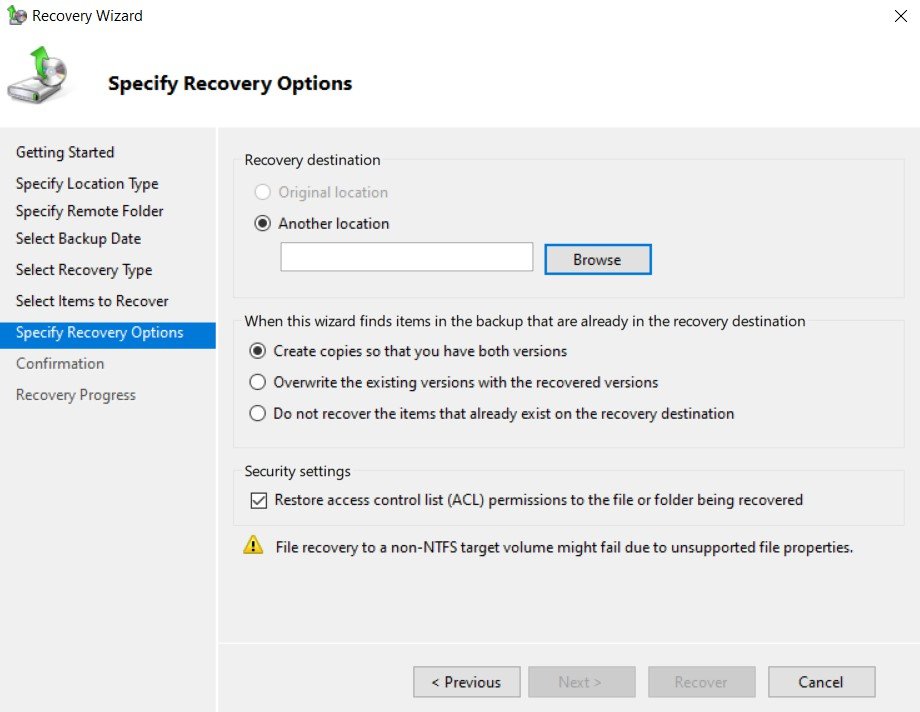
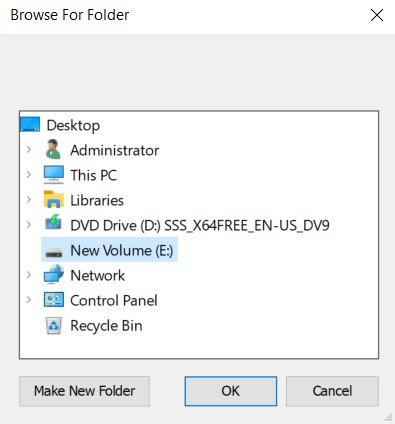
Select Another location, click Browse.
Step 10
Select Drive for recovered Data, Click Next.
Step 11
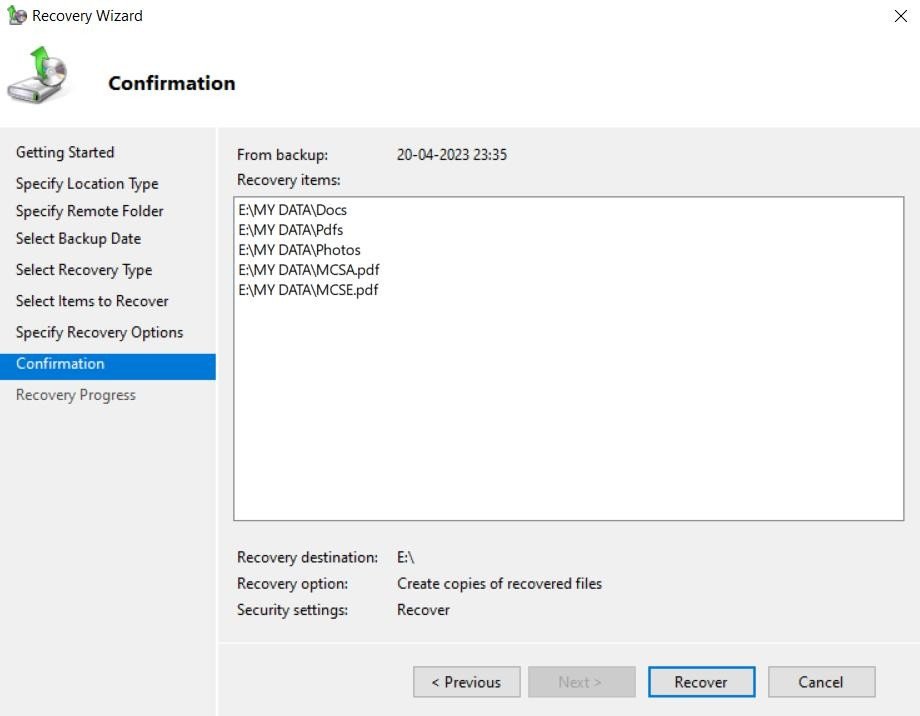
In Confirmation page, click Recover.
Step 12
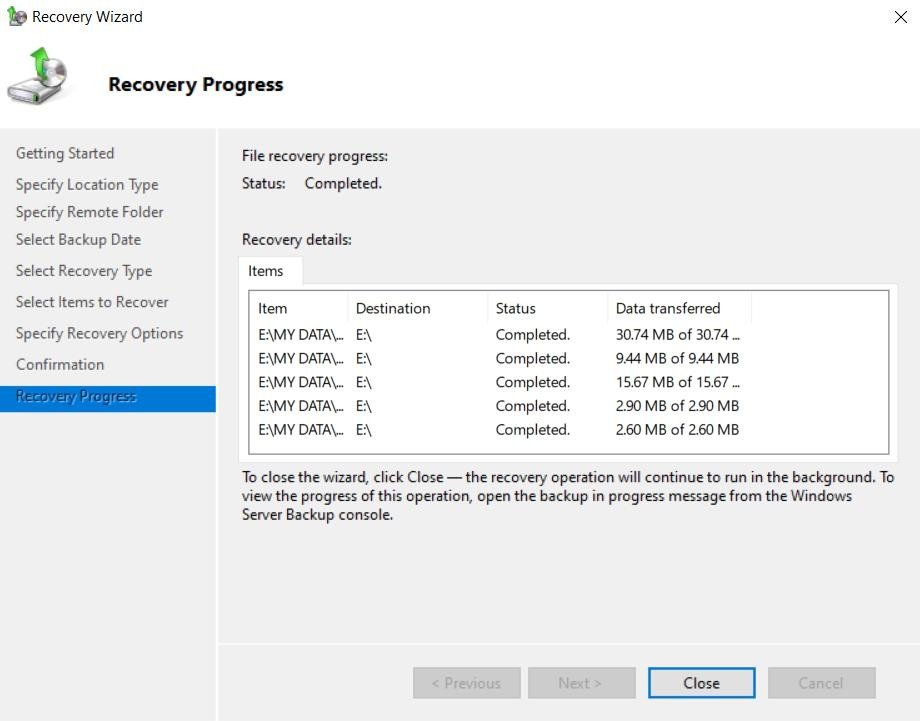
Click Close.
Verification
- 1. Go to the drive and verify for the folder and files.