Prerequisites
- Before working on this lab, You must have
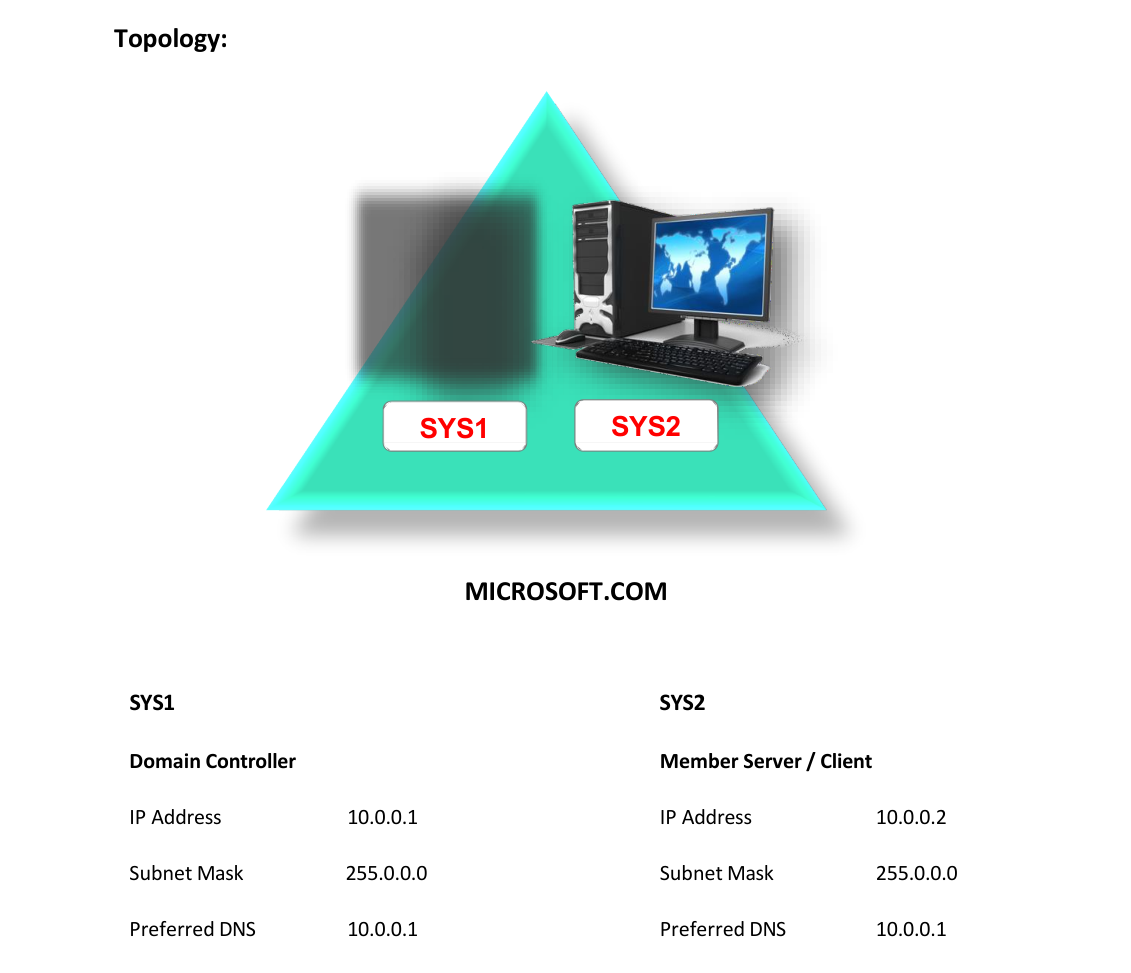
- A computer running windows 2022 server Domain Controller.
- A computer running running windows 2022 or client running windows 10
Network Topology
Step-by-Step Instructions
Step 1
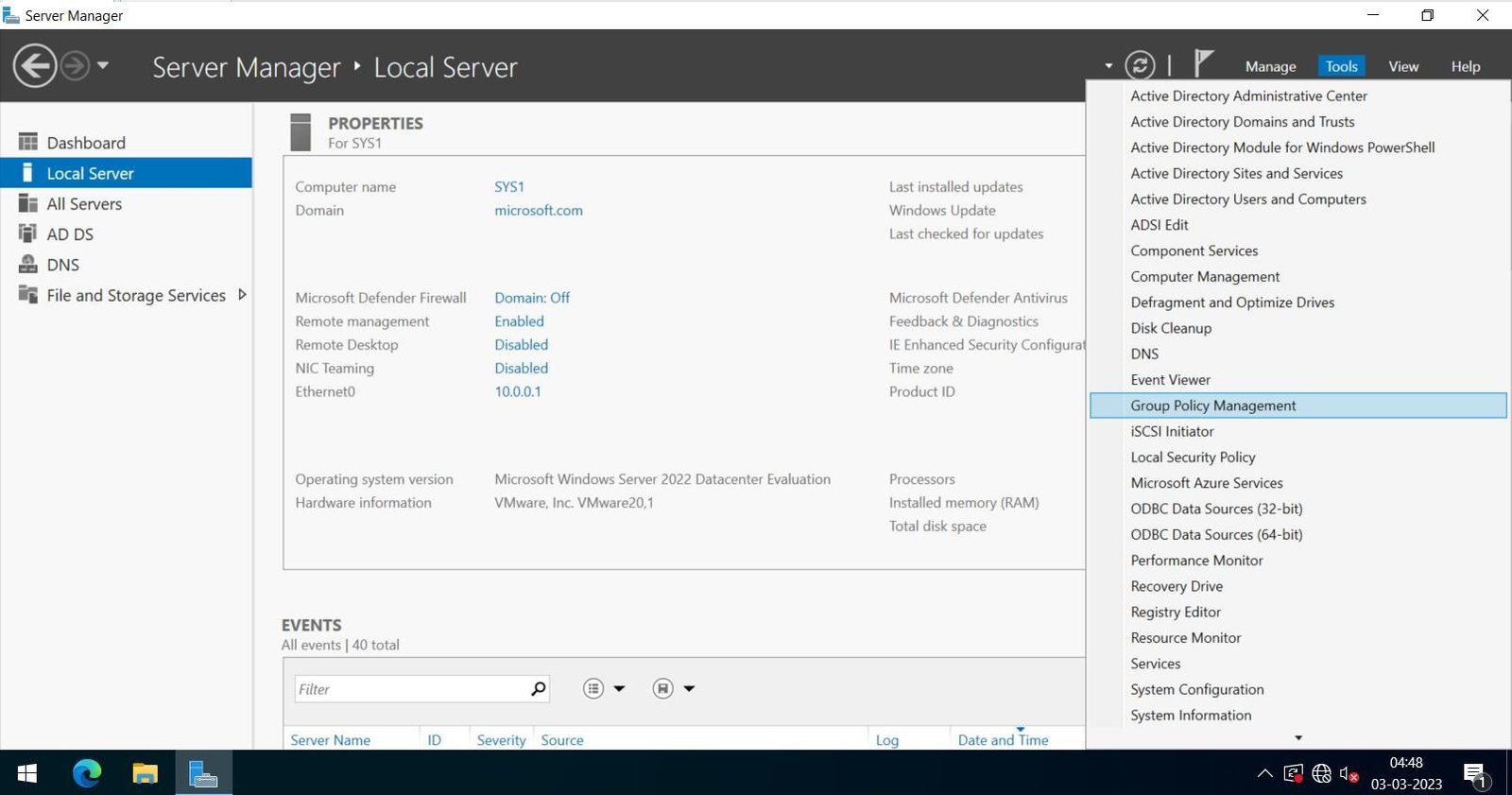
Log on to D.C as Administrator, click Press Windows Key to go to Start, select Group Policy Management.
Step 2
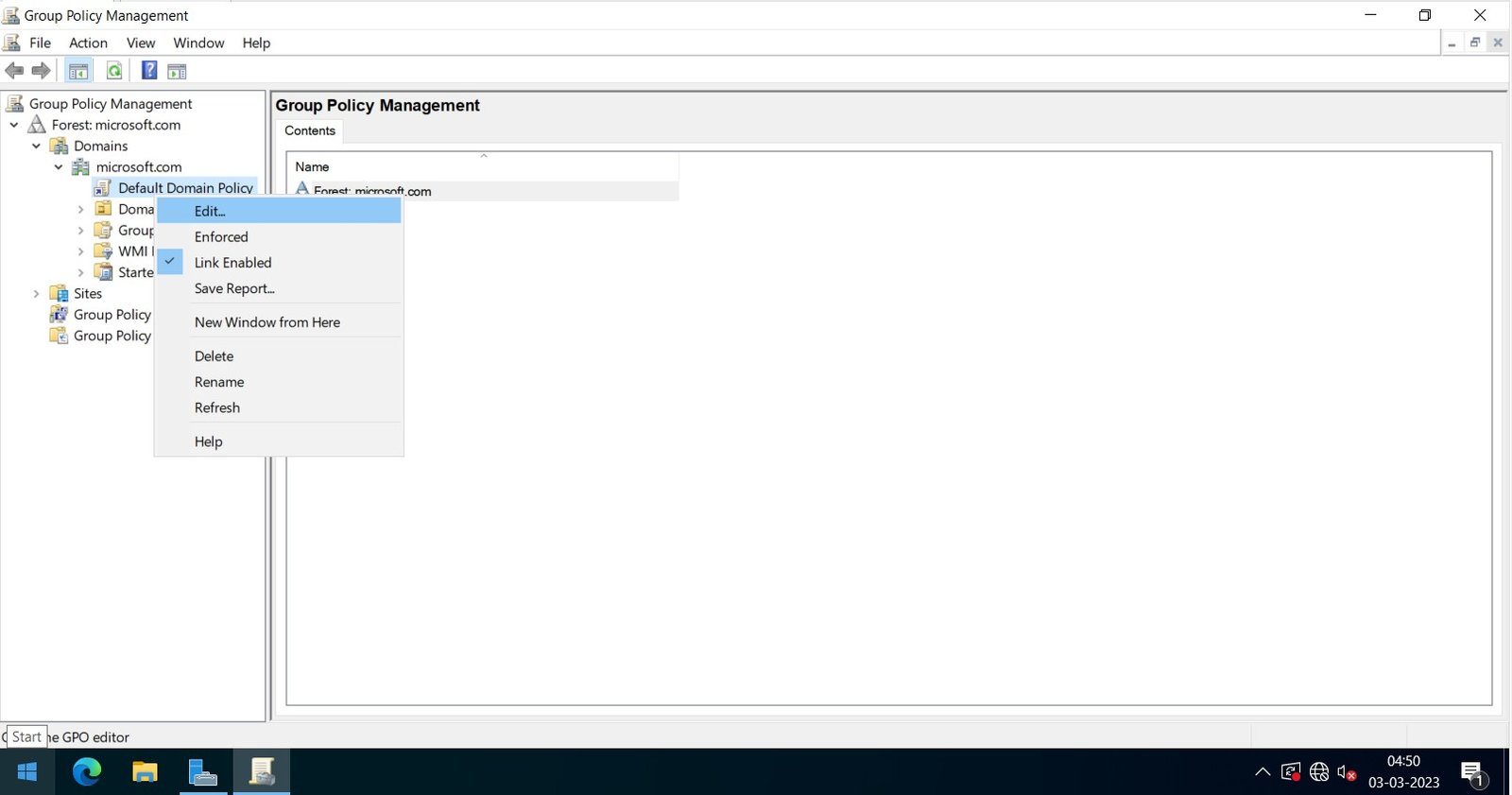
Expand Forest à Expand Domains à Expand Microsoft.com à right click Default Domain policy and select Edit.
Step 3
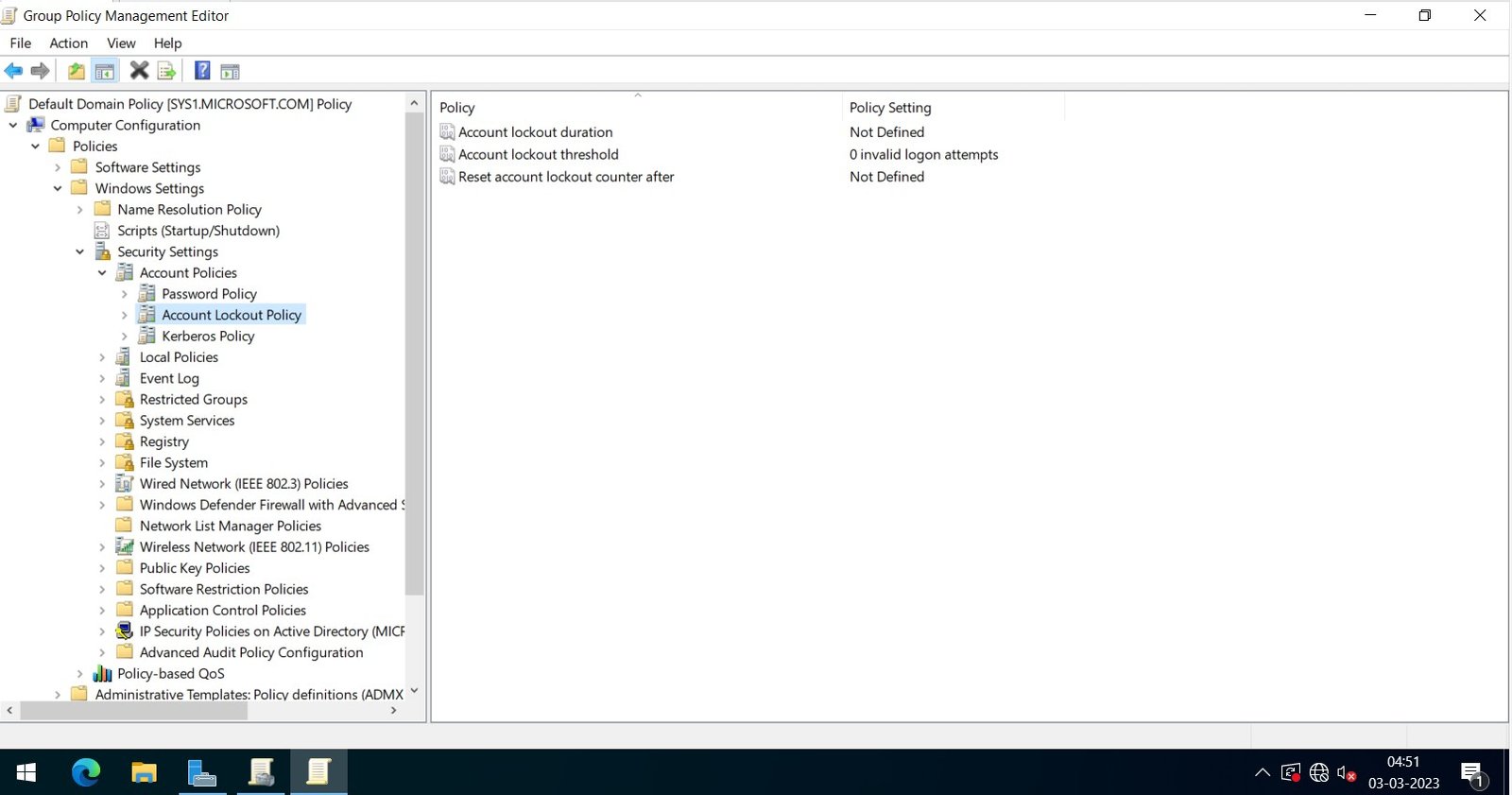
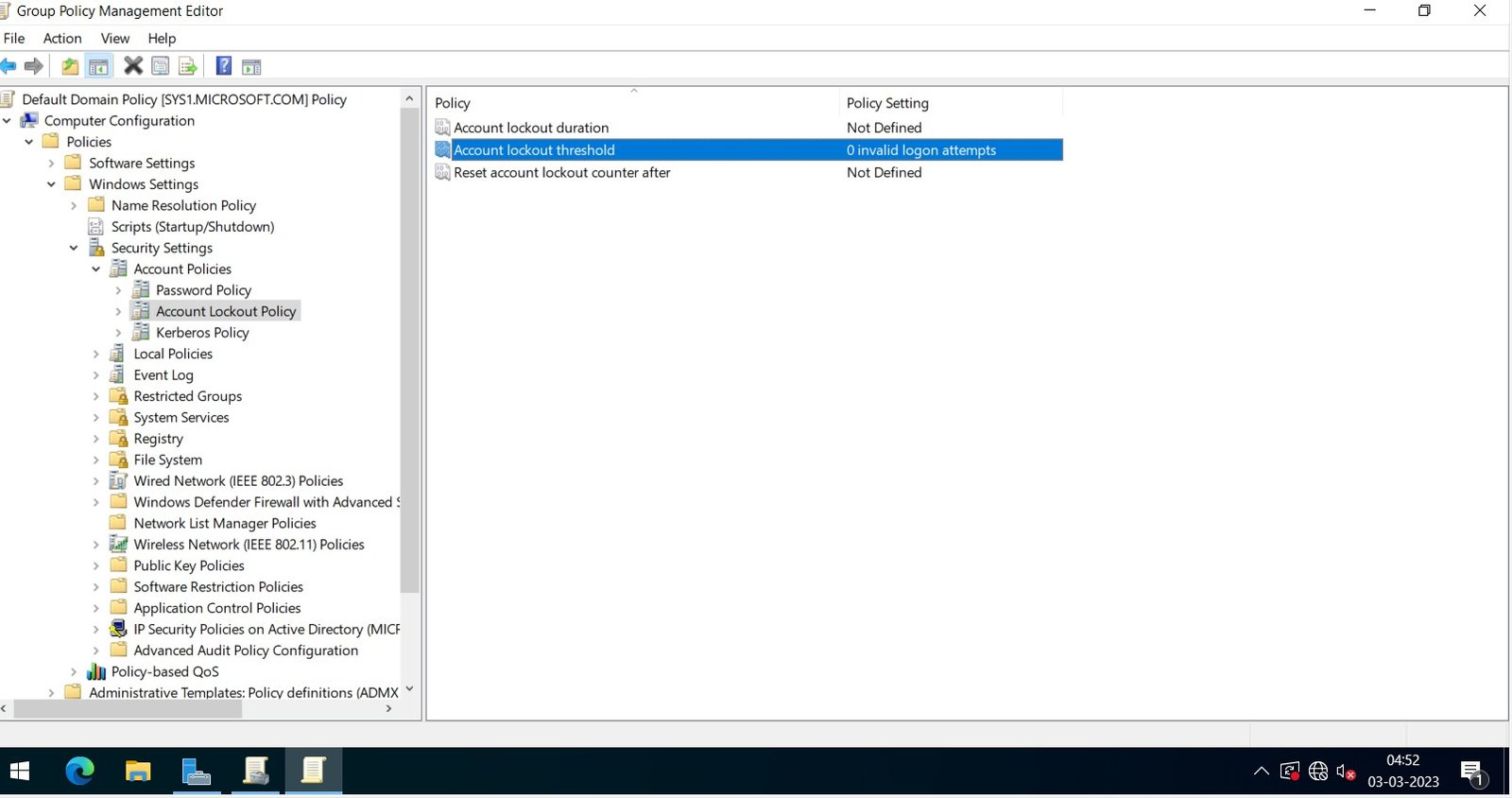
Expand Computer Configuration à Expand Policies à Expand Windows Settings à Expand Security Settings à Expand Account Policies à Open Account Lockout Policy.
Step 4
Double click, Account lockout threshold.
Step 5
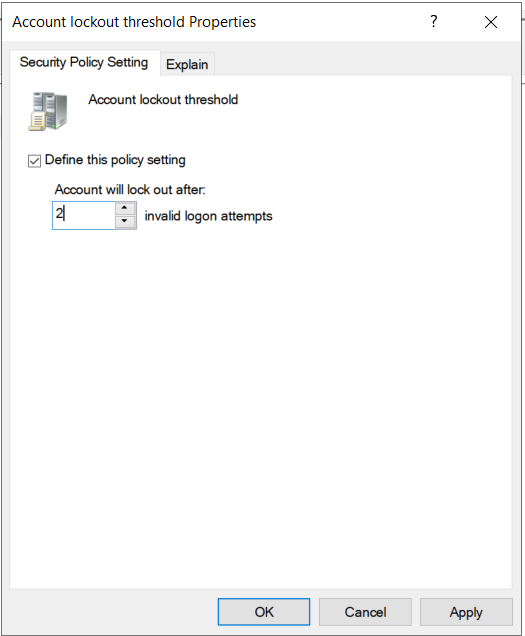
Enter the Value for Number of invalid logon attempts (Ex: 2)
Step 6
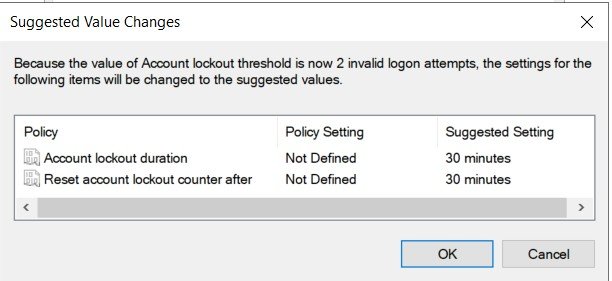
Set the Account lockout duration and click OK.
Step 7
Close the Group Policy Management Window.
Verification
- • Enter the password for user (User1) wrongly for 2 times while logging in
- and the user account will be locked.
- Unlocking the locked User Account Manually
- 1. Log onto D.C as Administrator, click Start à Programs Administrative
- Tools à Active Directory Users and Computers.
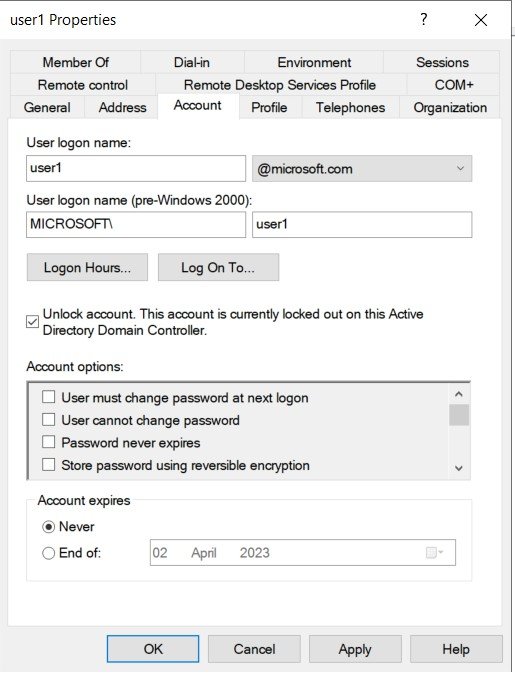
- 2. Right click the User (User1) and select Properties.
- 3. Check the box Unlock account à click Apply and OK.
- Log in as User (User1) in client or Member Server.