Prerequisites
- Before working on this lab, You must have
- A computer running windows 2022 server Domain Controller.
- A computer running running windows 2022 or windows 10
Network Topology
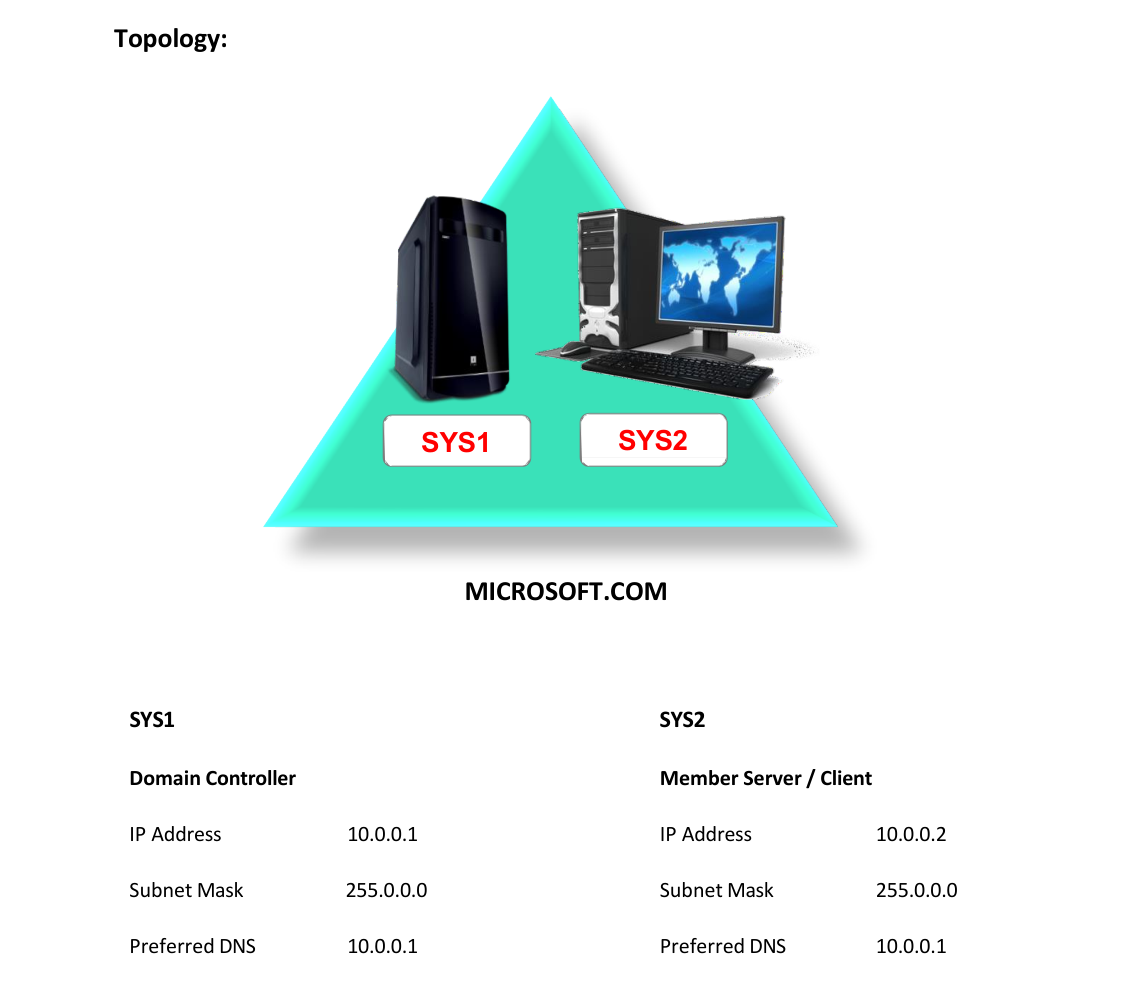
Step-by-Step Instructions
Step 1
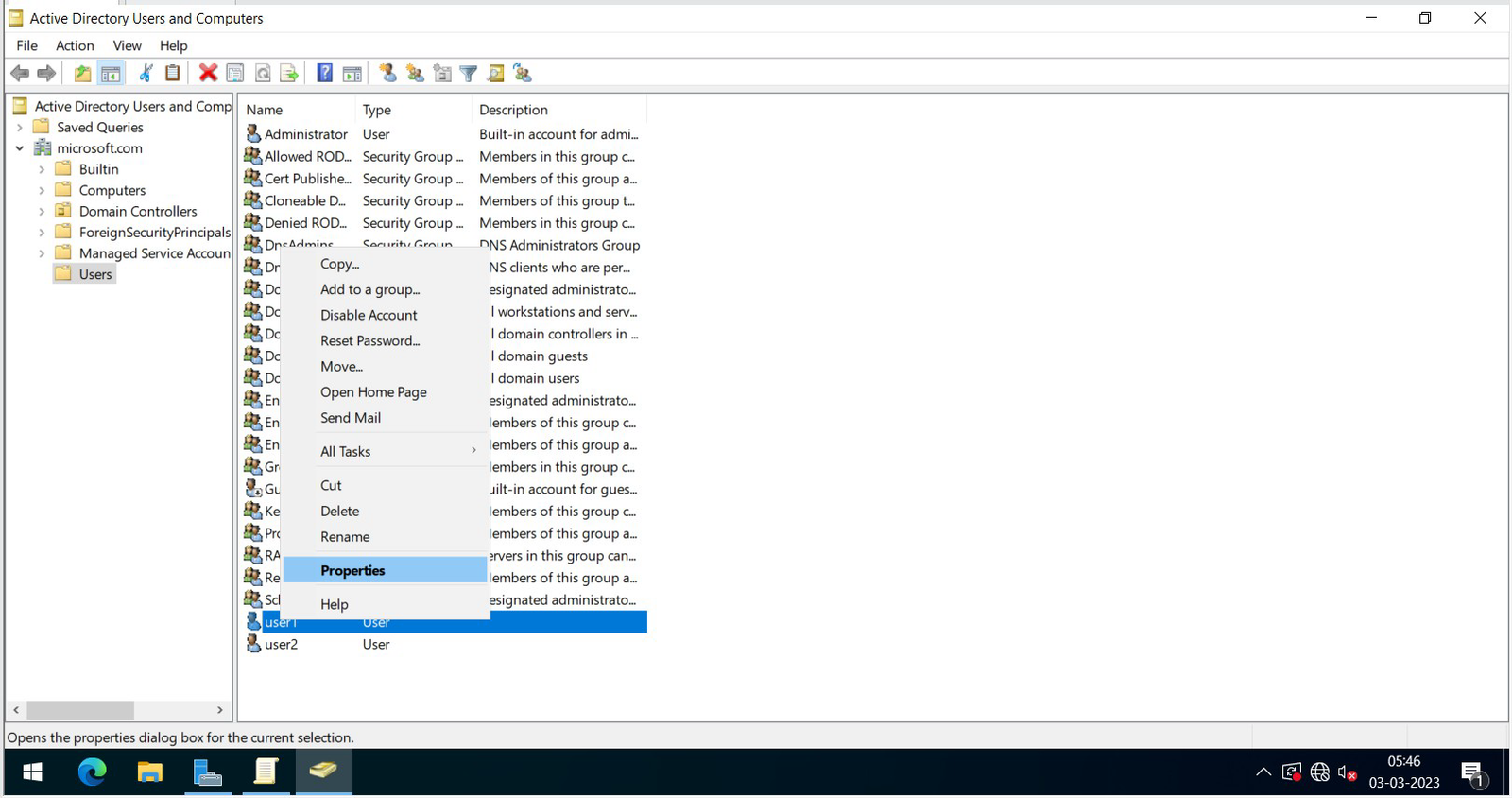
Log onto D.C as Administrator, click Start à Programs à Administrative Tools à Active Directory Users and Computers.
Step 2
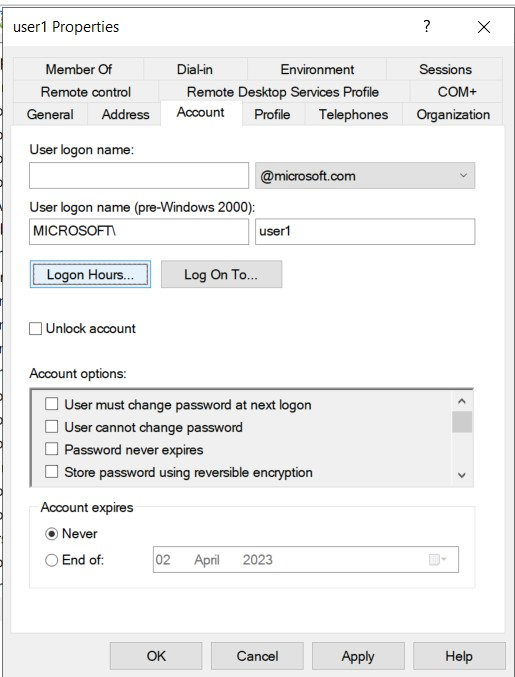
Right click the User (User1) and select Properties.
Step 3
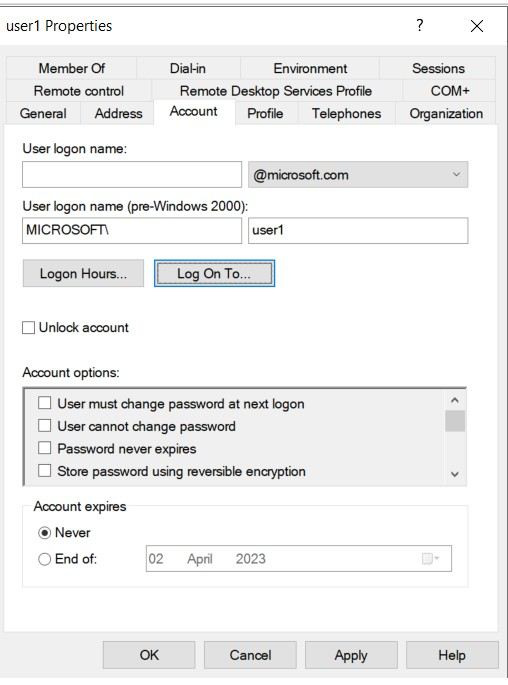
Select Account, click Log On To.
Step 4
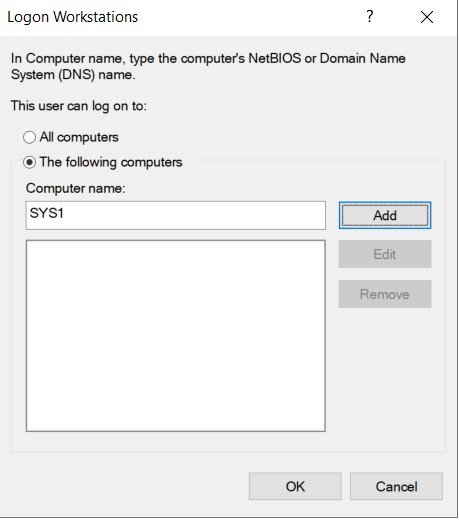
Select the following computers, Enter computer name (Ex: sys1), click Add and OK.
Step 5
Click Logon Hours.
Step 6
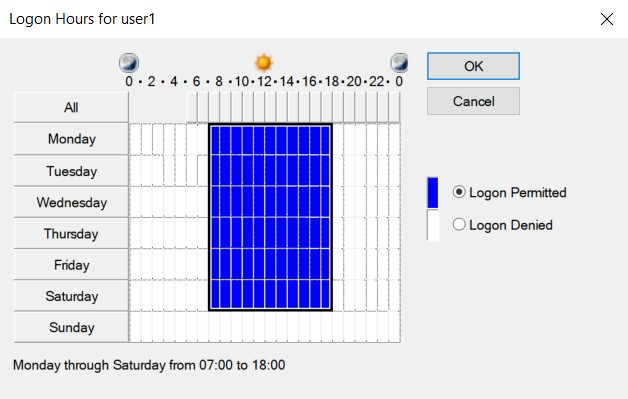
Select the timing and select Logon Permitted.
Verification
- • Try to Log in as User (User1) in client or Member server sys2.