Prerequisites
- Before working on this lab, You must have
- A Computer and Windows 10 Operating System Booted Drive.
Step-by-Step Instructions
Step 1
Restart the System and go to BIOS.
Step 2
Set the First Boot Device as DVD ROM.
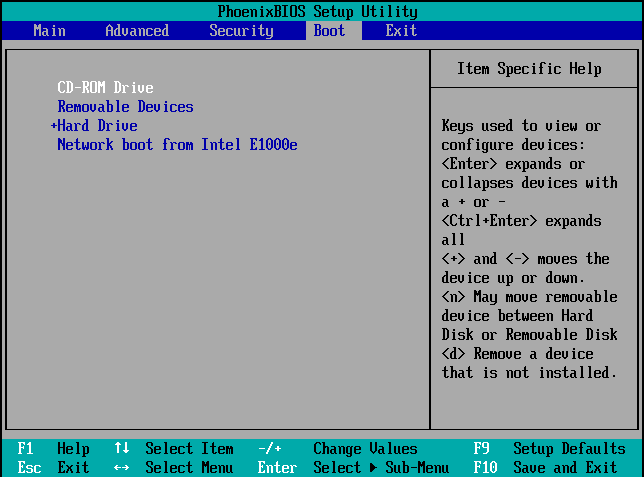
Step 3
Save the settings by Pressing F10 and click YES.
Step 4
Insert Windows 10 DVD and Restart the system.
Step 5
Press any key to boot from CD or DVD.
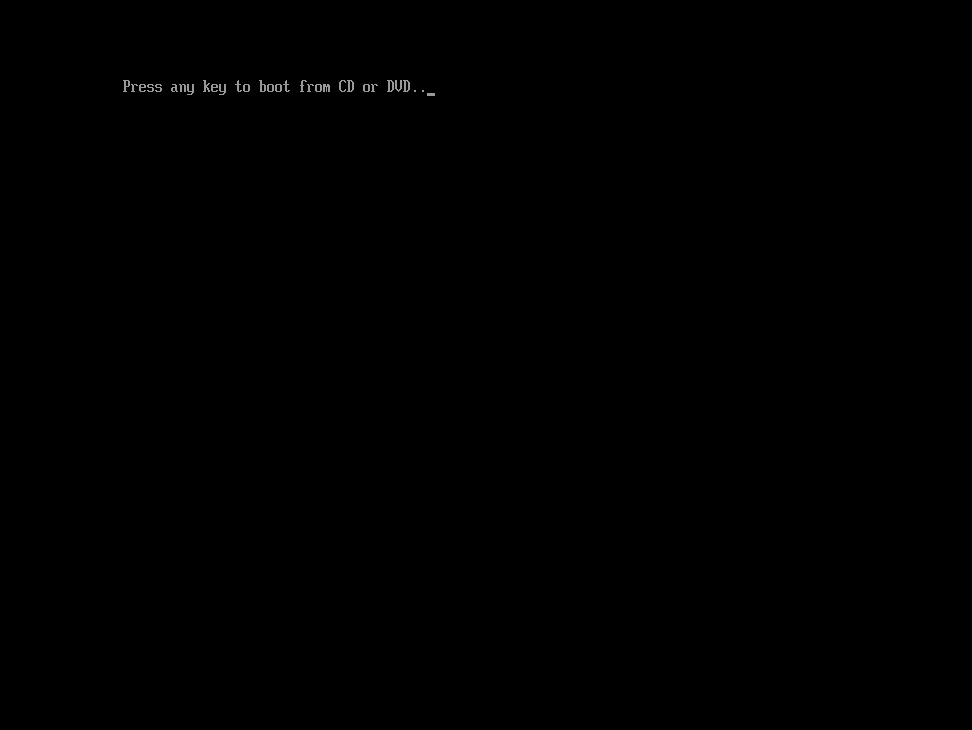
Step 6
System copies the files from DVD.
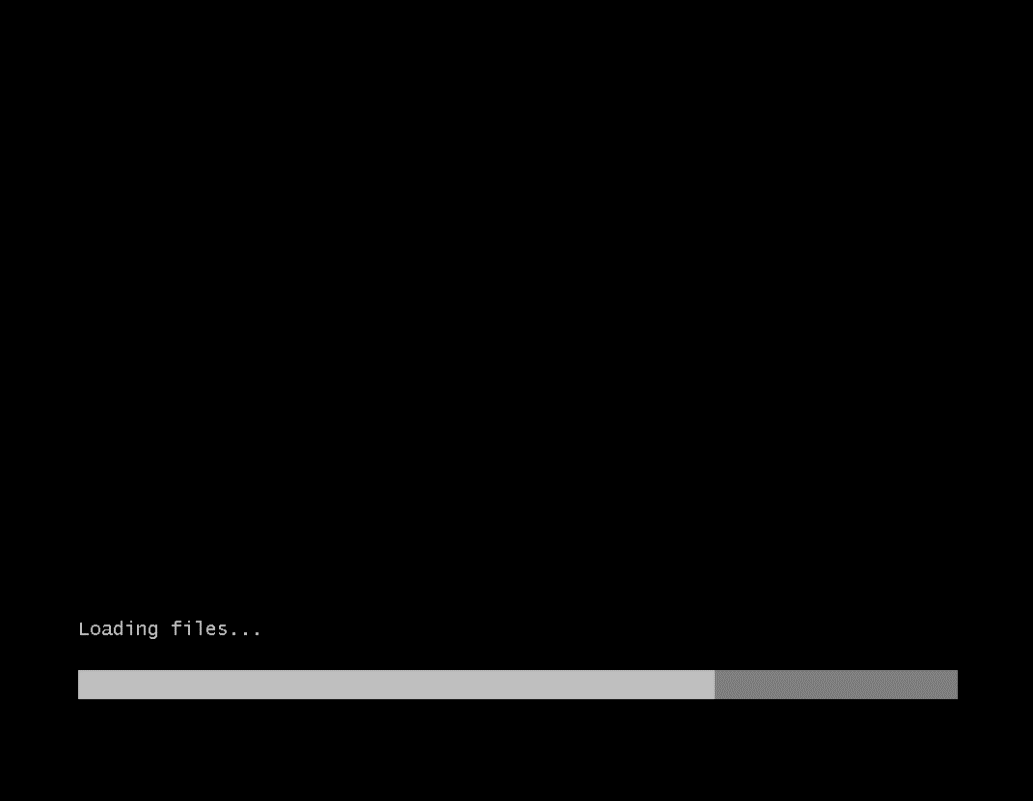
Step 7
Select the language to install English(india) and Click next.
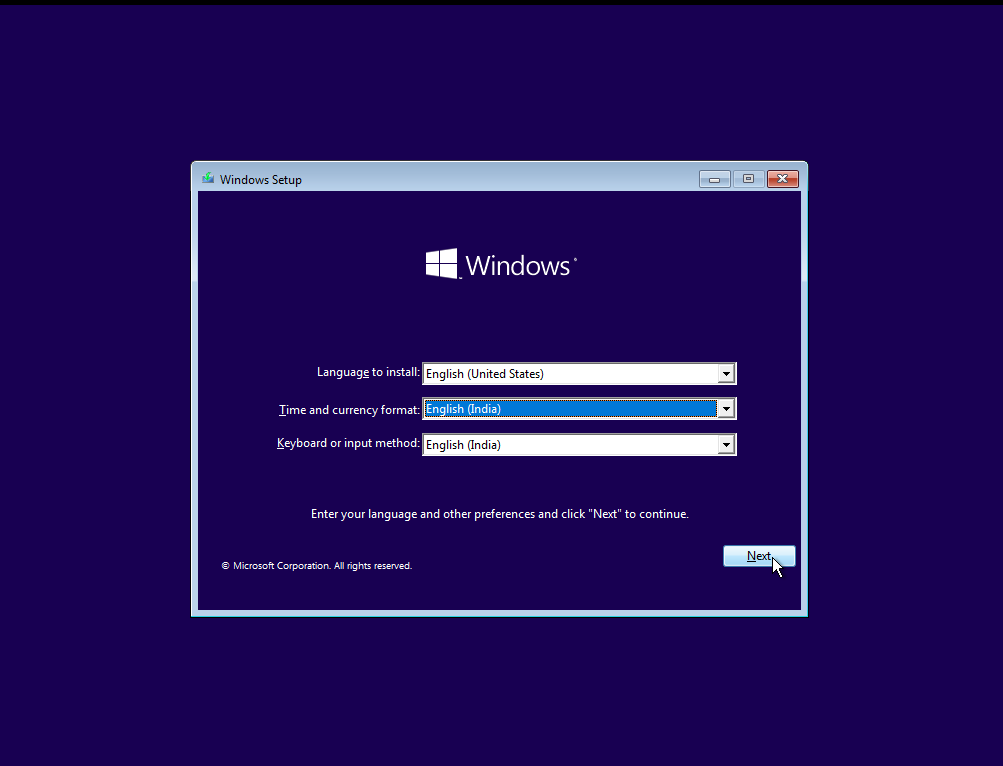
Step 8
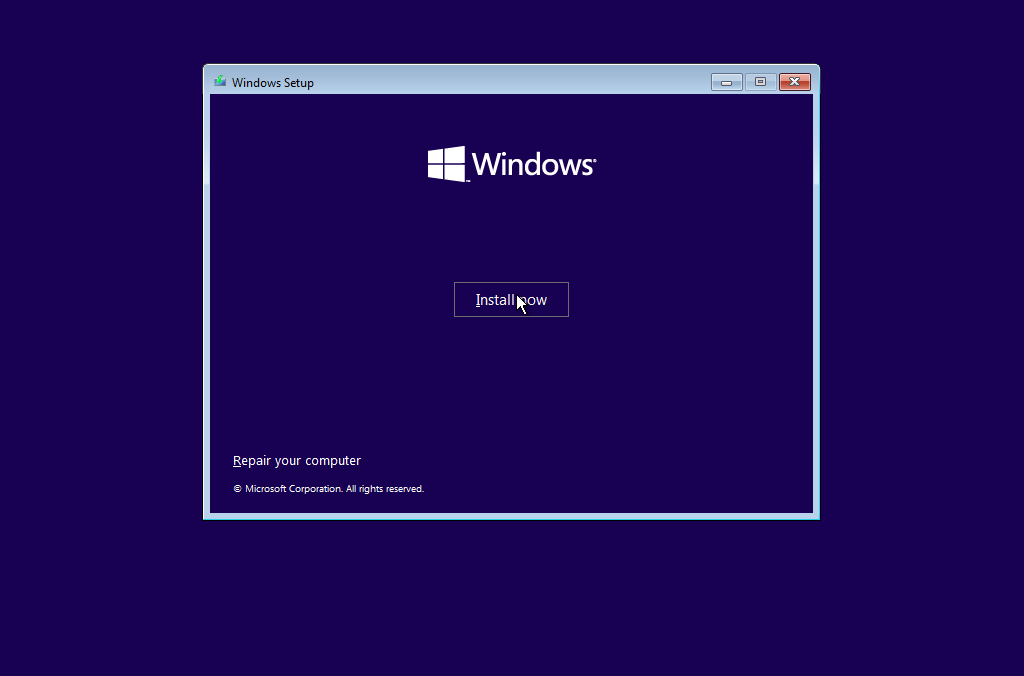
Click Install now.
Step 9
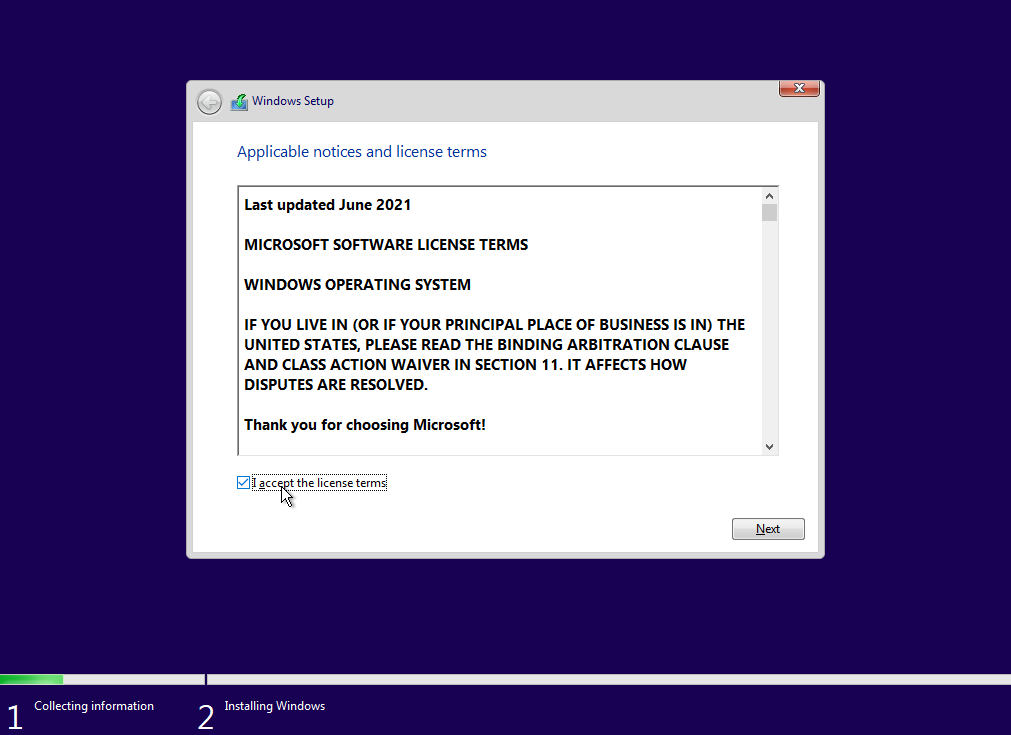
Check the box i accept the license terms.
Step 10
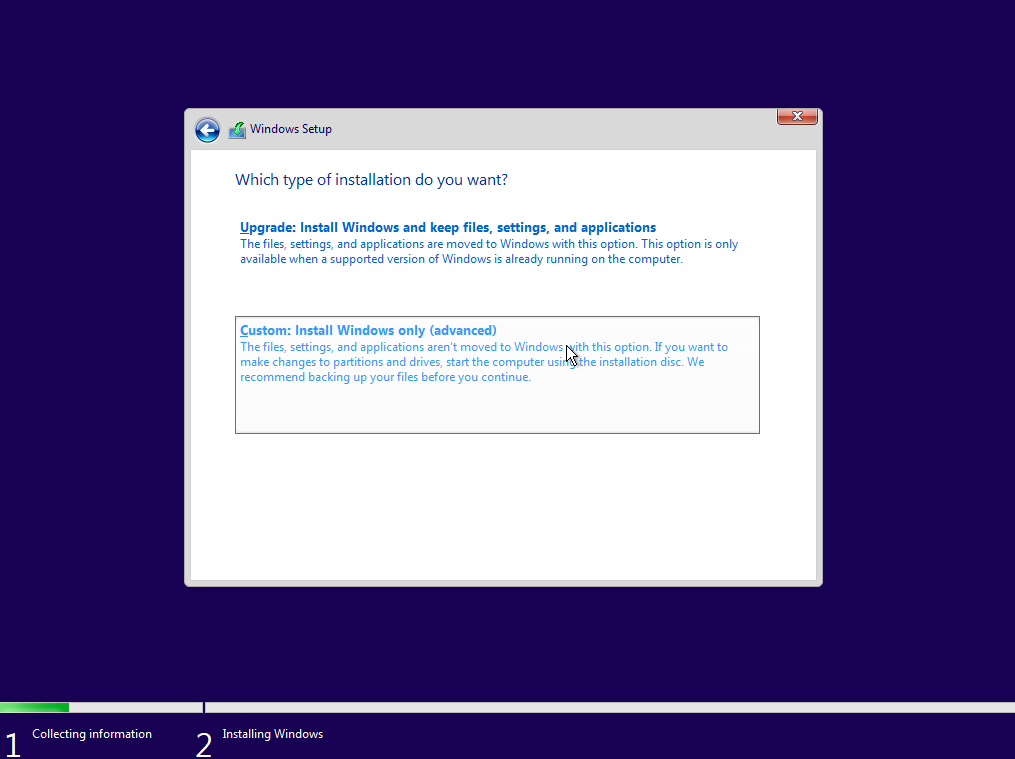
Select Custom Installation.
Step 11
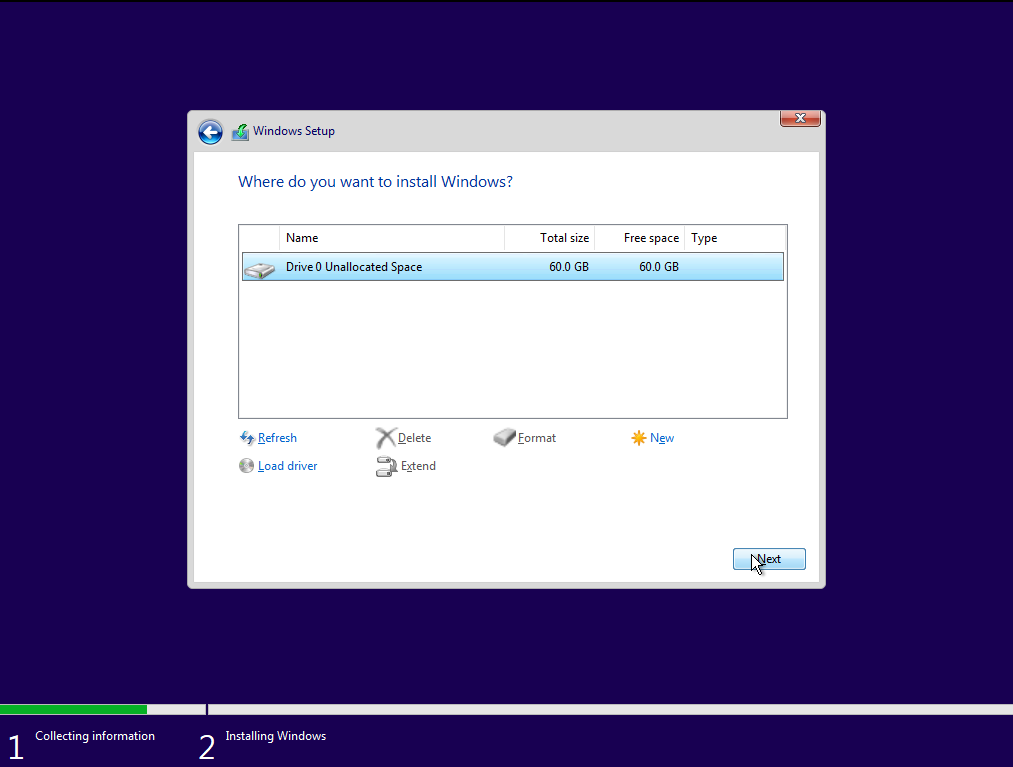
Select Drive And Click Next.
Step 12
Windows Installation will start.
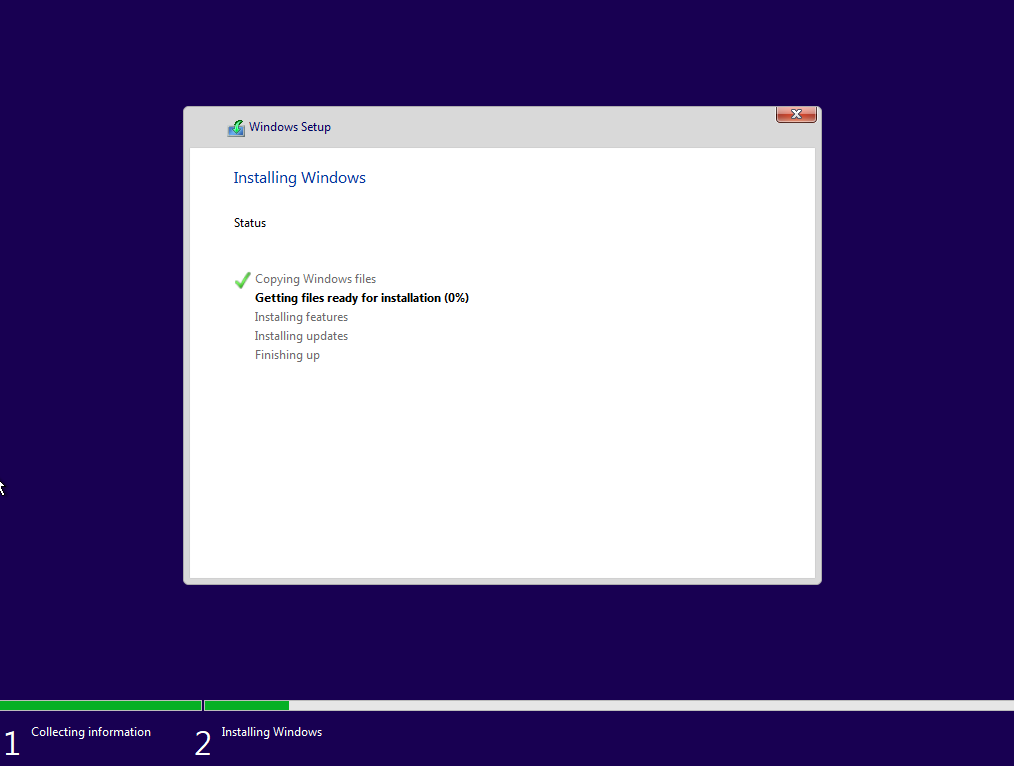
Step 13
System Restarts.
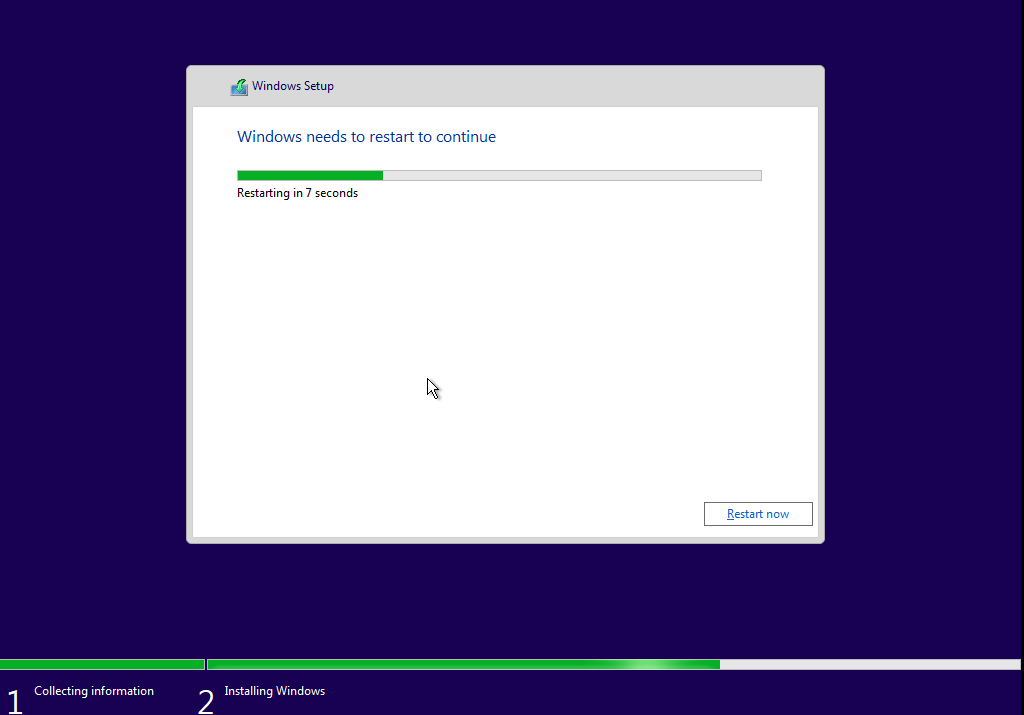
Step 14
Completes the Installation, and system will be restarted.
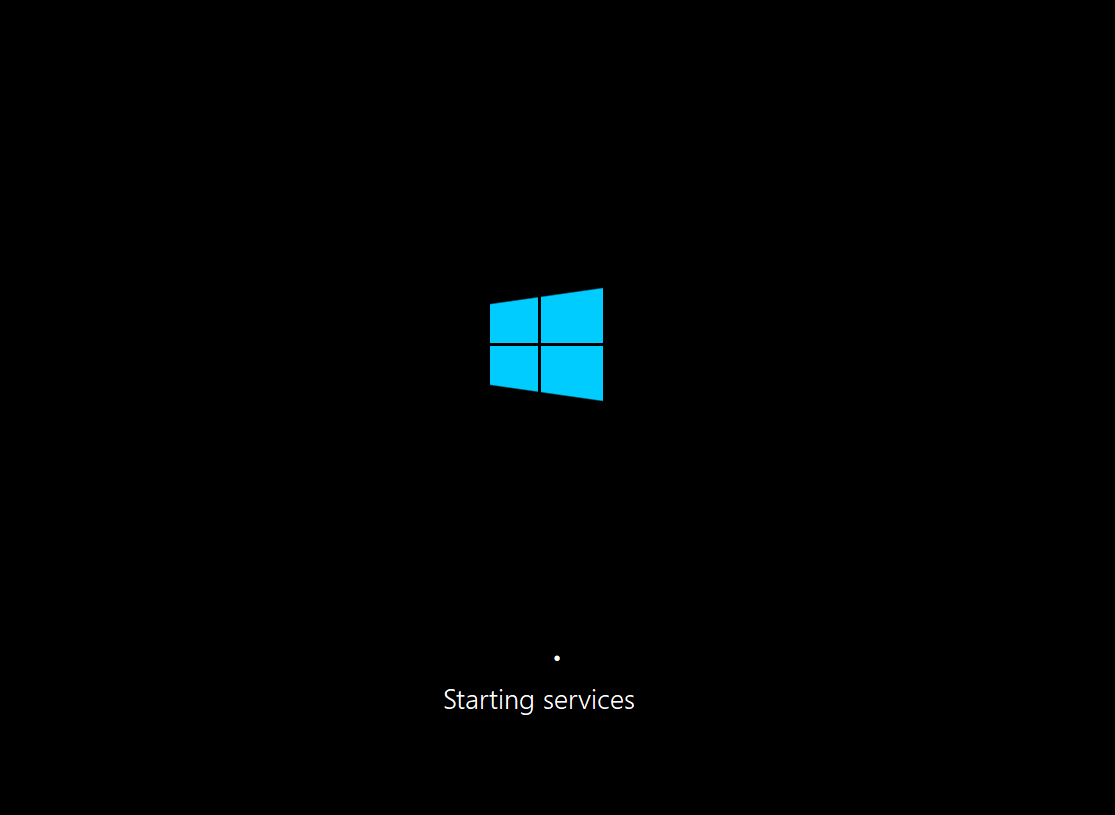
Step 15
Select Region India and press Yes.
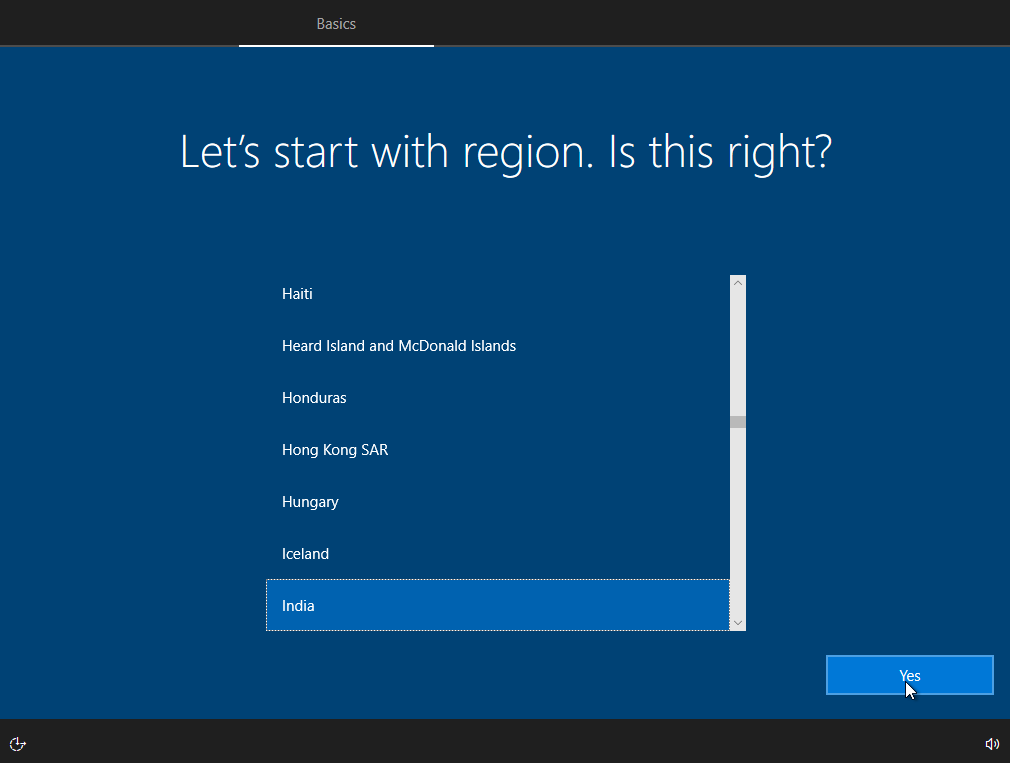
Step 16
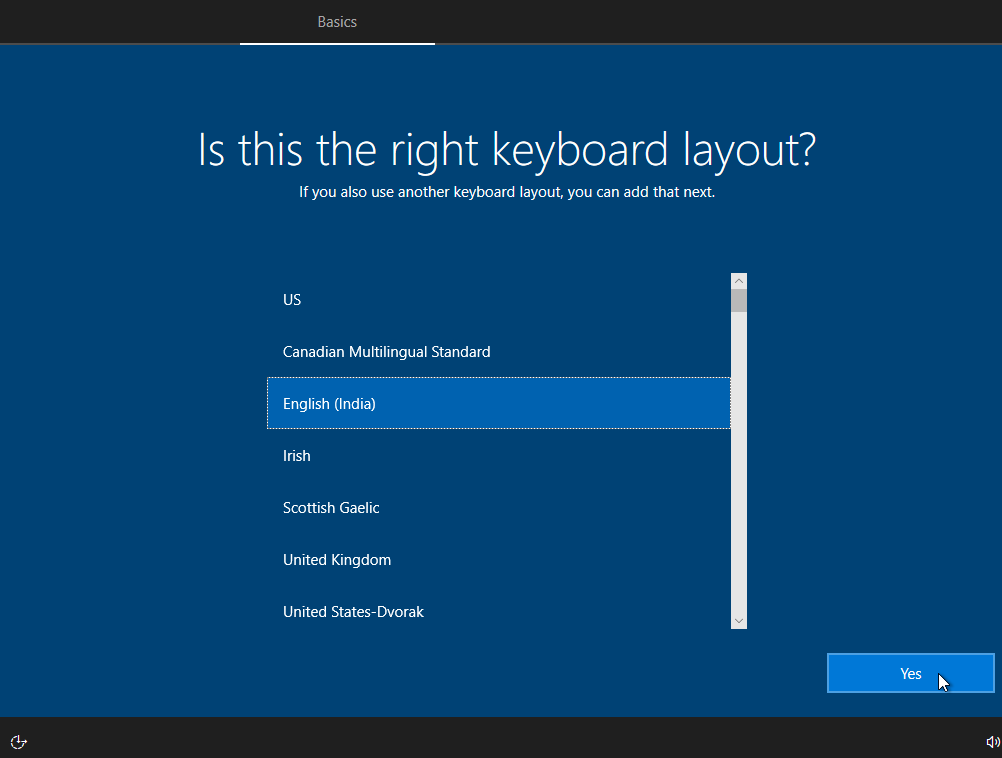
Select Keyboard Layout English (India) and Yes à skip
Step 17
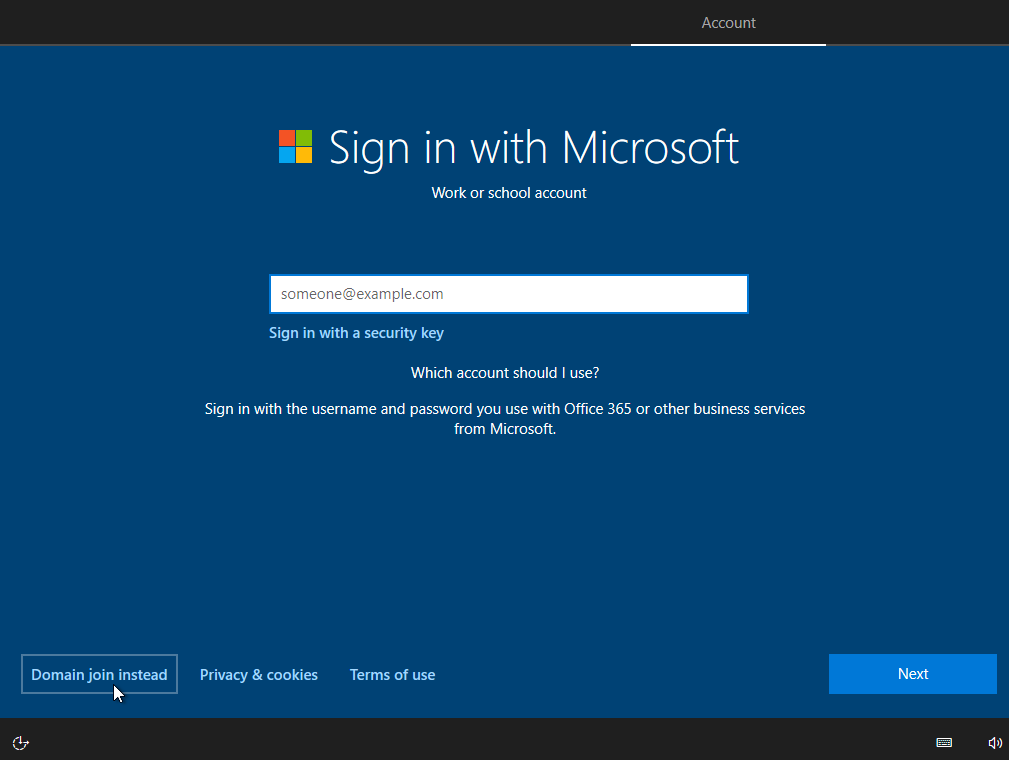
In sign in page Select Domain Join Instead. And Next.
Step 18
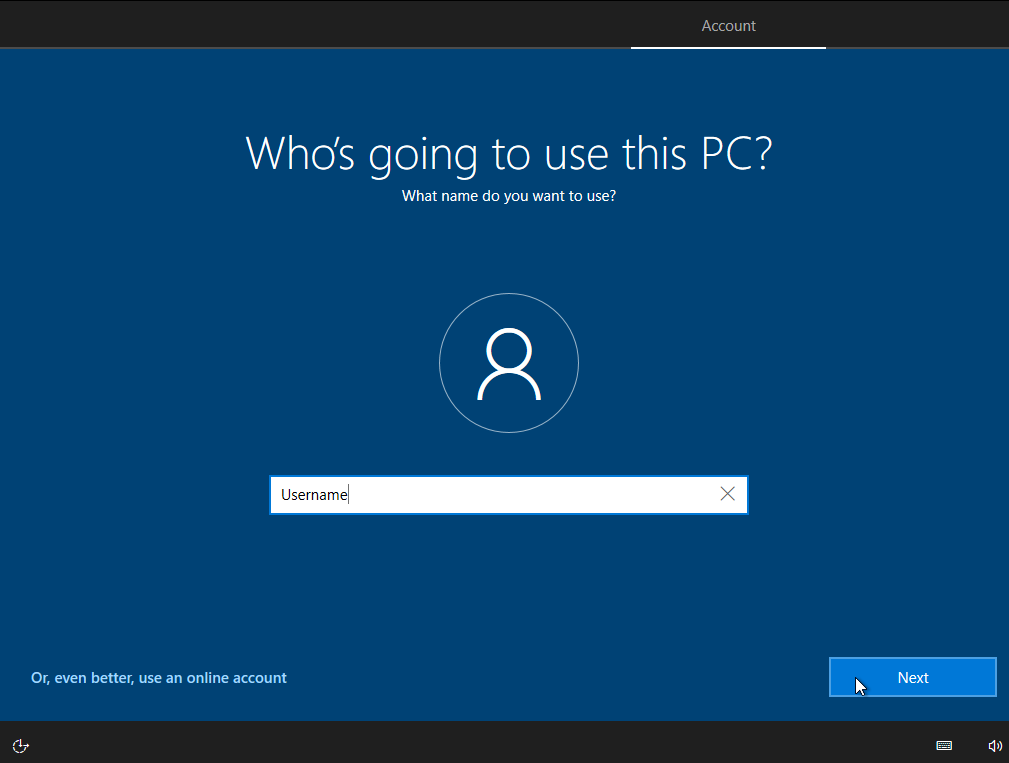
Create Username and Next.
Step 19
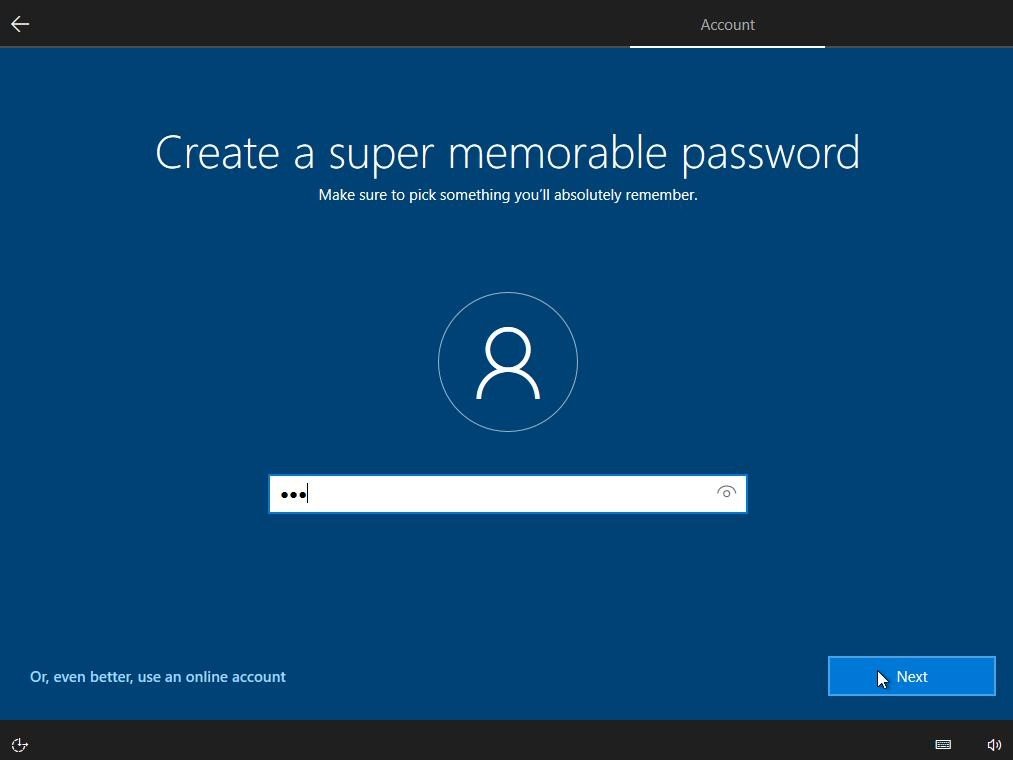
Create Password for User à Confirm password and click Next.
Step 20
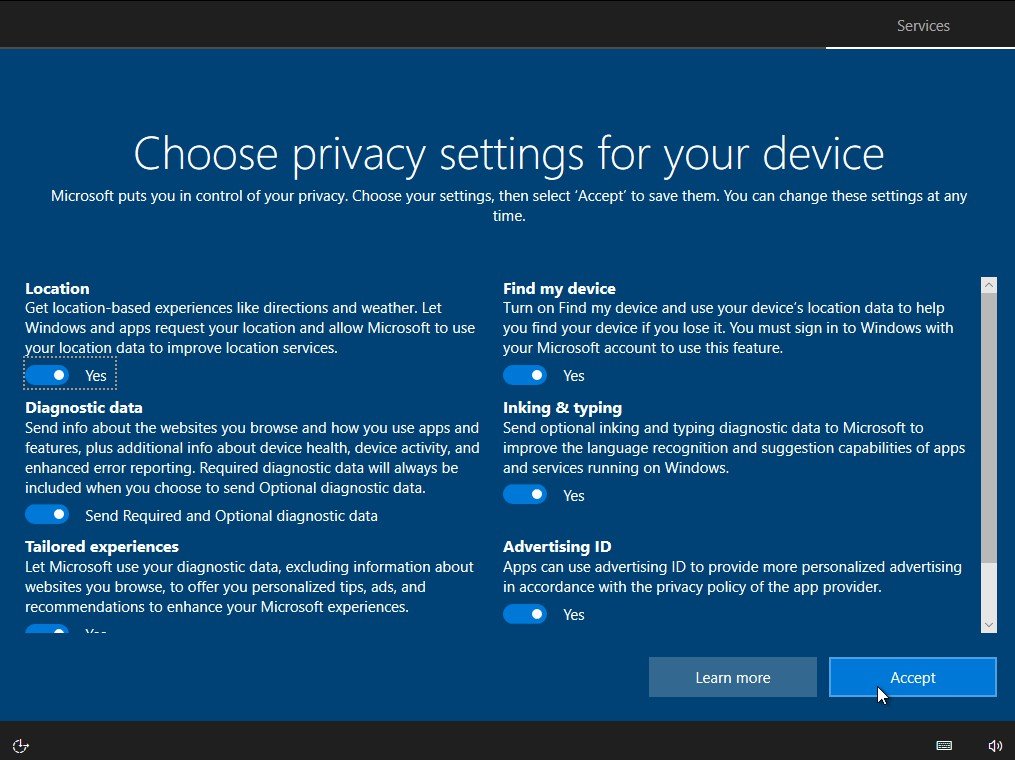
In Privacy Setting Select Accept.
Step 21
Windows Finalize the setting.

Step 22
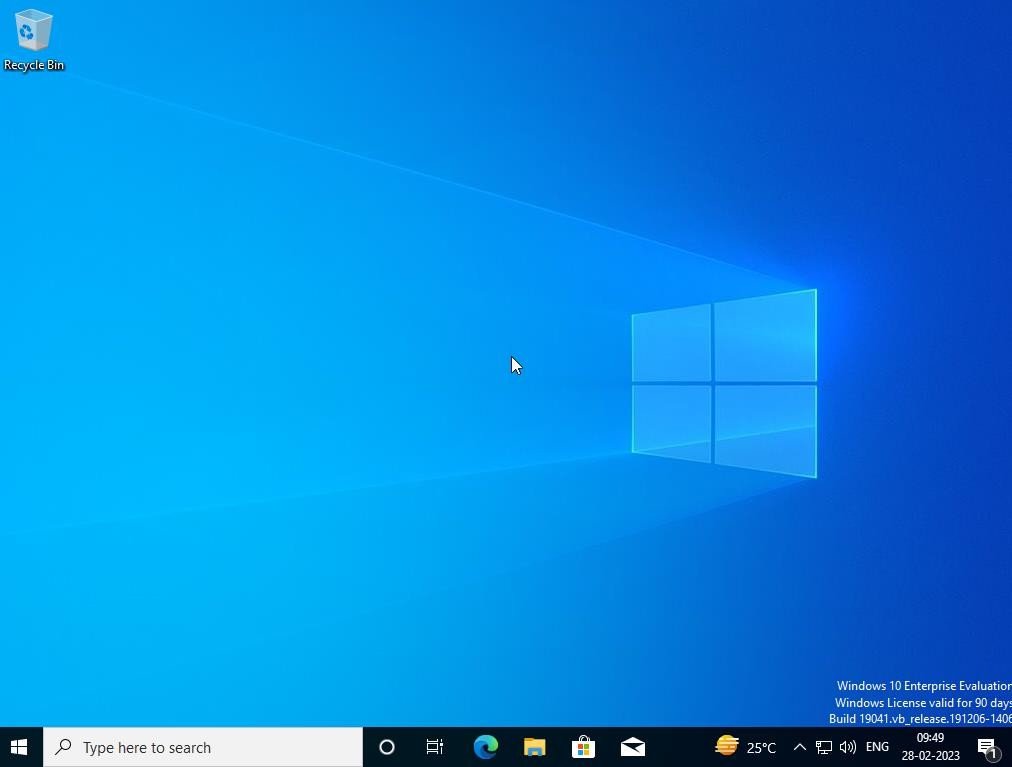
Finally Operating System is installed successfully.
Verification
Verify that your configuration works as expected. Open tools and check settings matching the parameters.