Prerequisites
- Before working on this lab, You must have
- A computer running windows 2022 server Domain Controller.
- A Member Server running windows 2022 server.
Network Topology
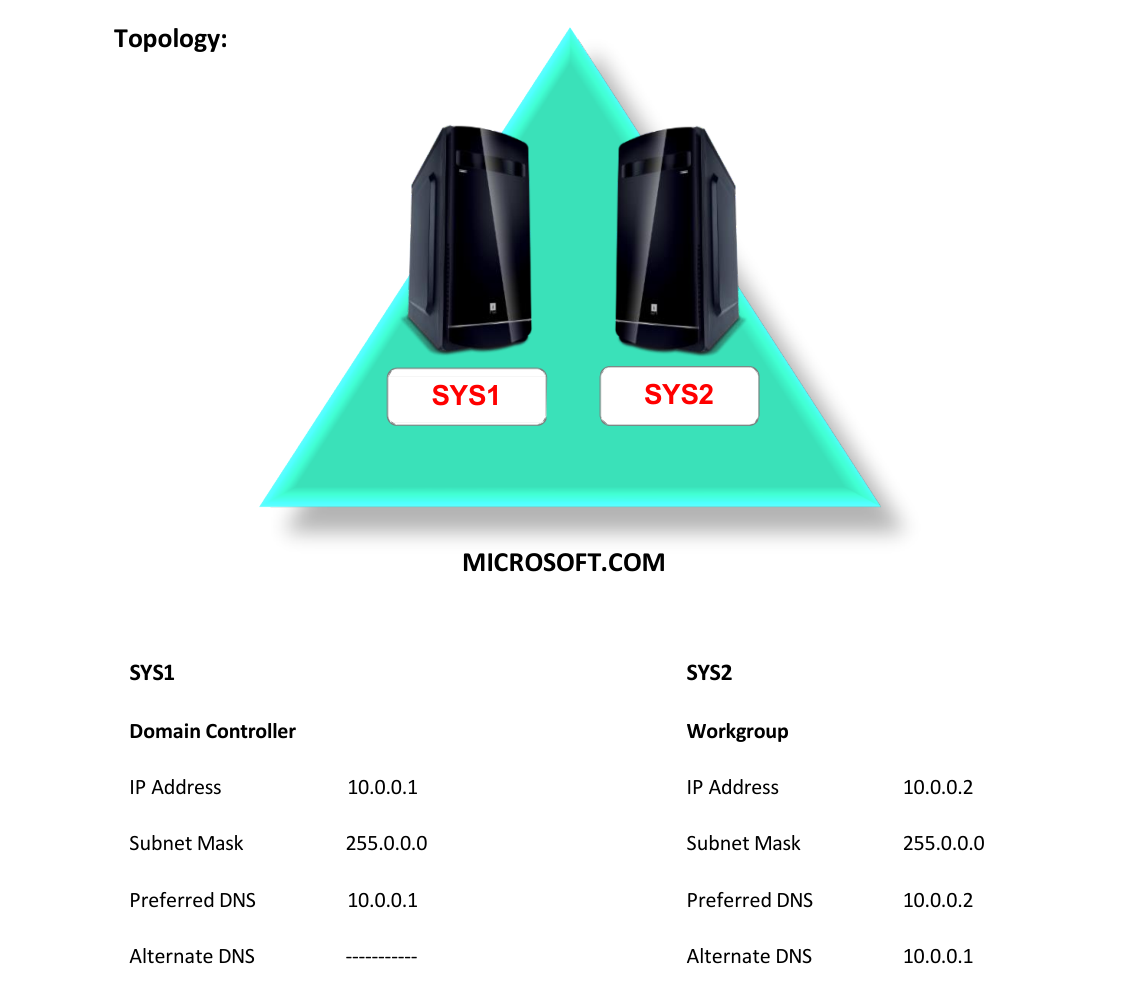
Step-by-Step Instructions
Step 1
Login as Administrator to the Workgroup Computer.

Step 2
Assign IP Address and preferred DNS Server Address.
Step 3
Click Server Manager. Additional Domain Controller Host Name : SYS2 IP Address :
Step 10
0.0.2 DNS Server :
Step 10
0.0.2 Alternate DNS :
Step 10
0.0.1 User Name : Administrator
Step 4
In Server Manager Dashboard, Click Add Roles and Features.
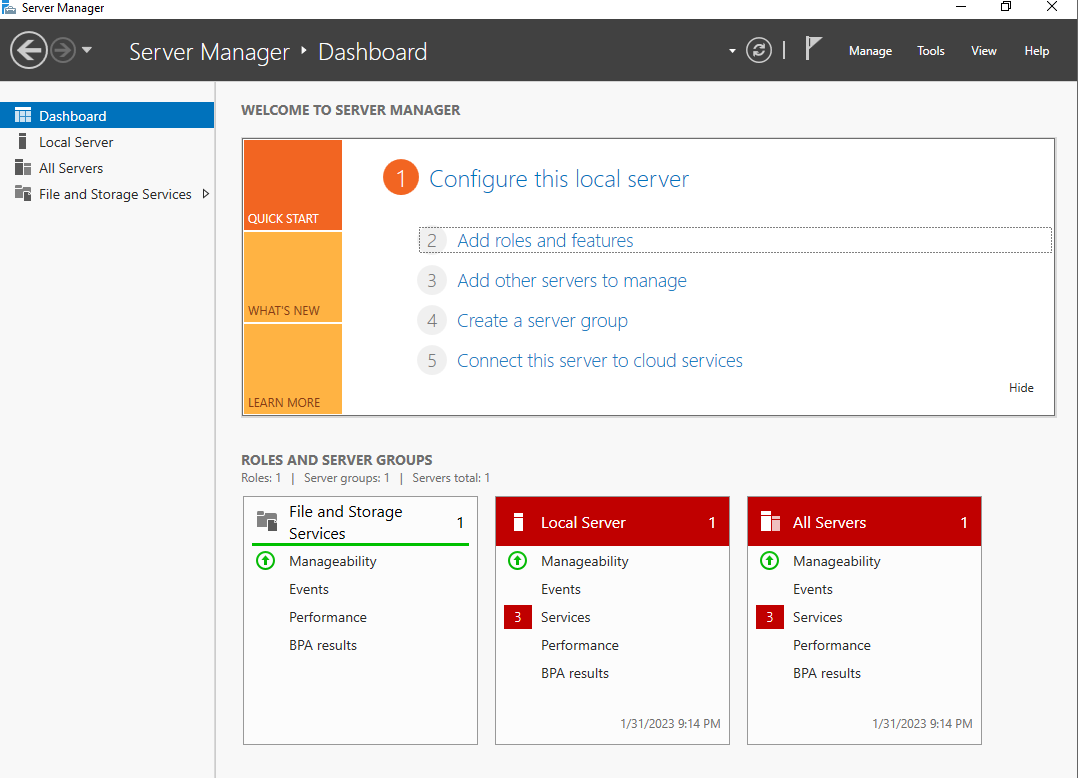
Step 5
In Before you begin page, click Next, In Select installation type, select Role-based or
feature-based installation, click Next.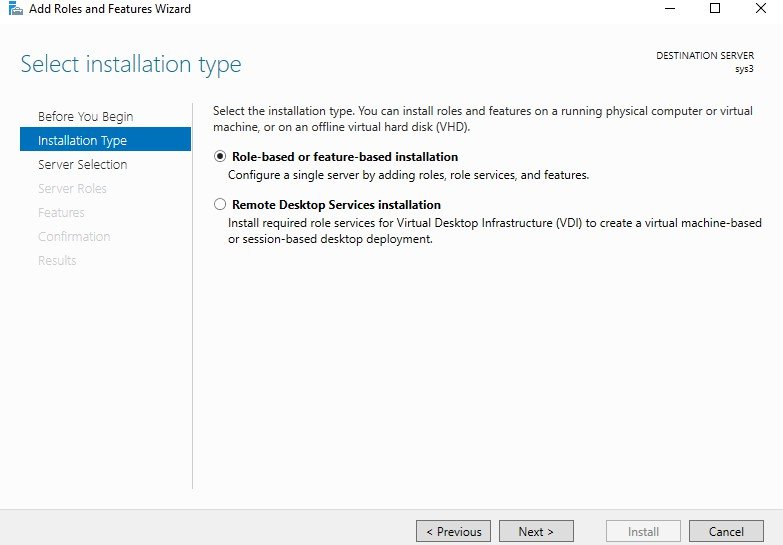
Step 6
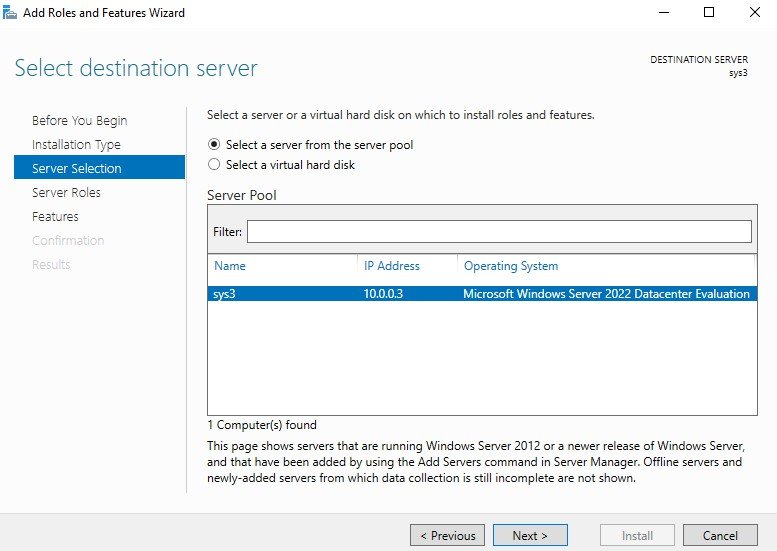
In Select destination server, from Server Pool select SYS2, click Next.
Step 7
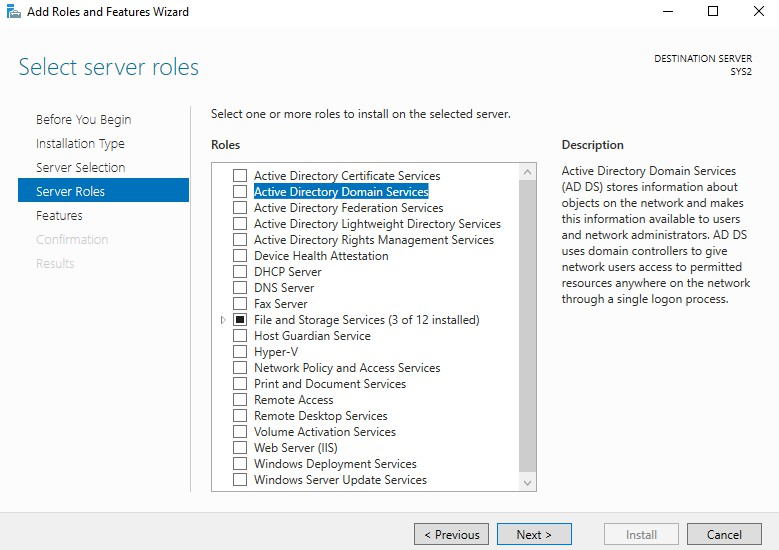
In Roles, check the box Active Directory Domain Services.
Step 8
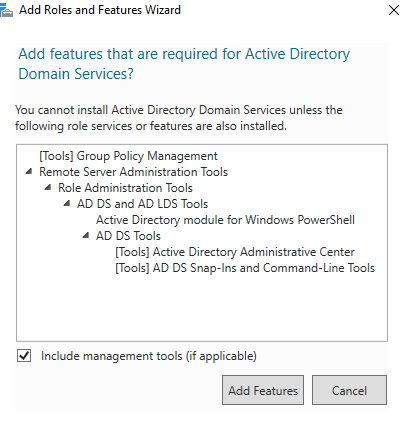
Click Add Features, to install the required features for Active Directory Domain Services. Click Next.
Step 9
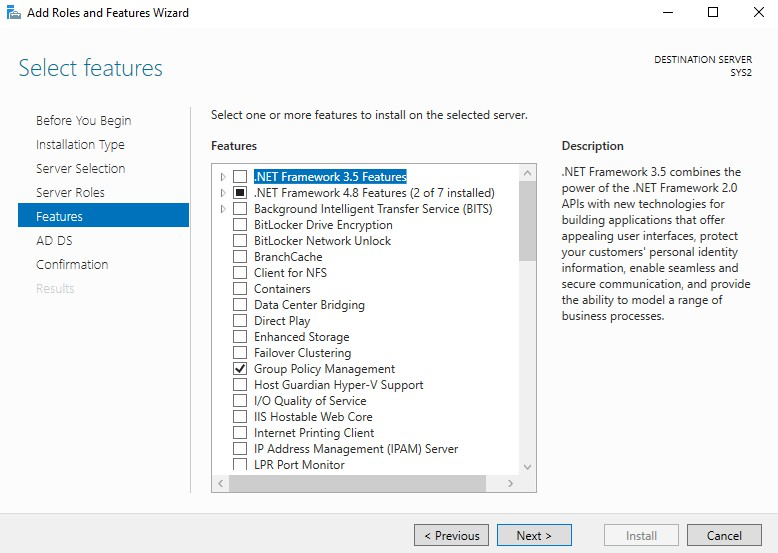
In Select features wizard, click Next.
Step 10
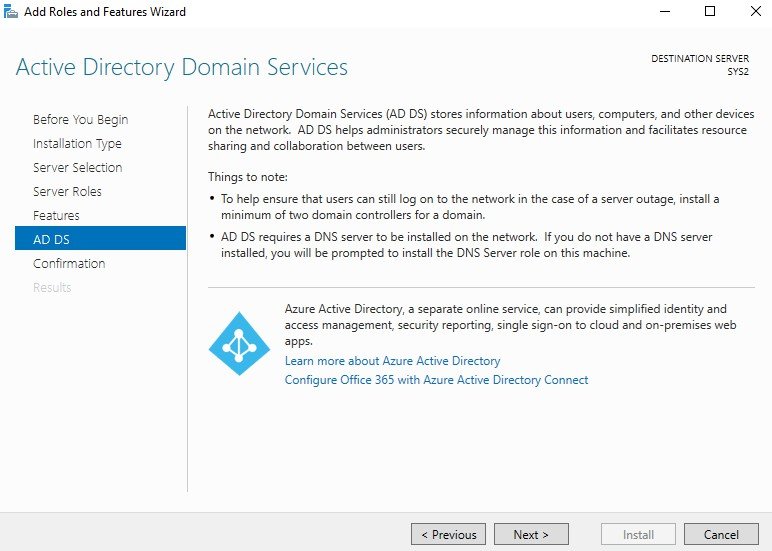
In Active Directory Domain Services wizard, click Next.
Step 11
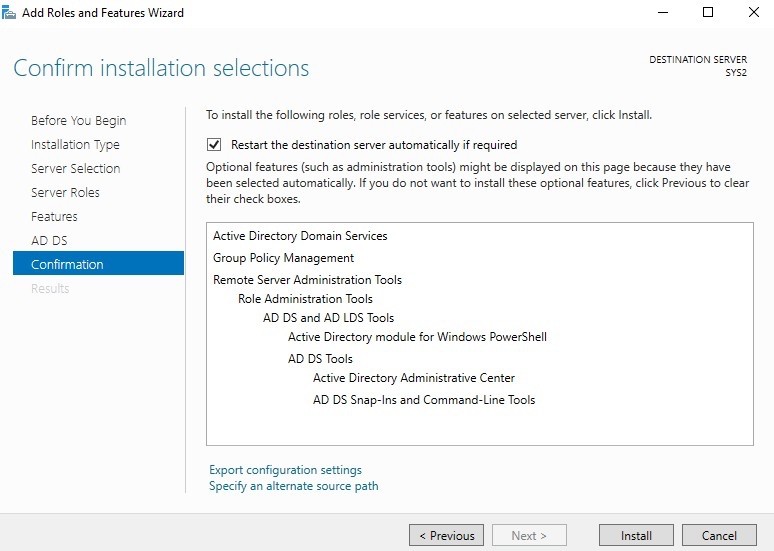
Check the box Restart the destination server automatically if required. Click Install.
Step 12
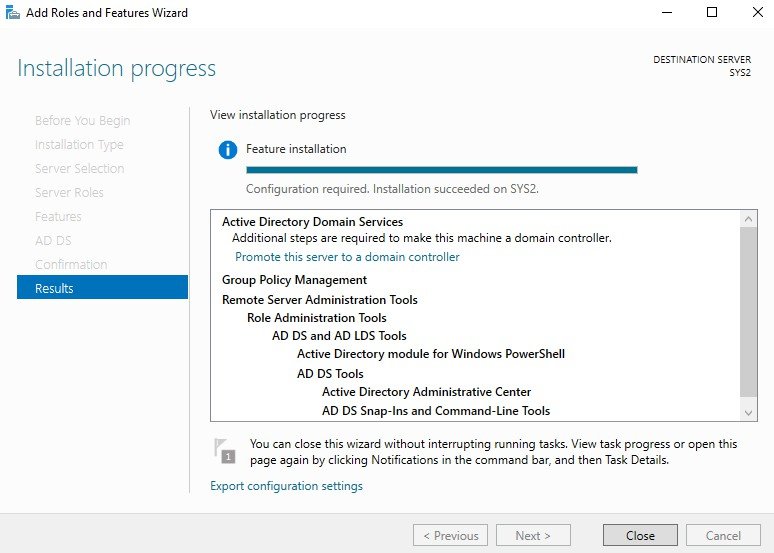
Click Promote this server to a domain controller.
Step 13
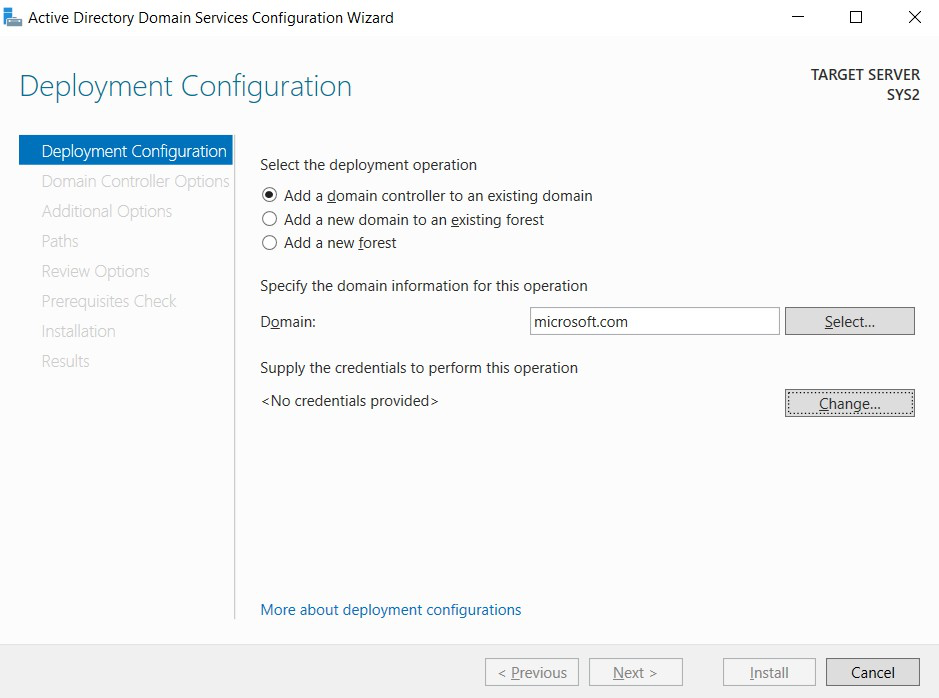
In Deployment Configuration wizard, select Add a domain controller to an existing domain, enter the Domain (Ex: Microsoft.com) and click Change.
Step 14
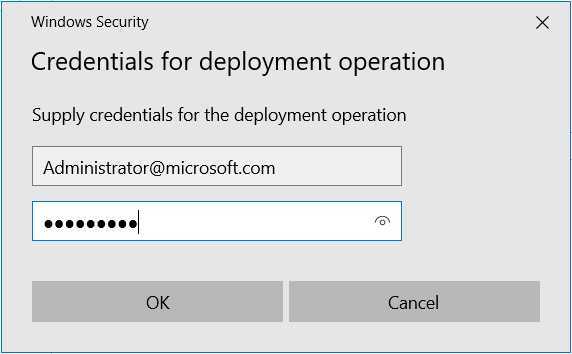
Enter User Name: Administrator@microsoft.com and Password, click OK.
Step 15
Click Next.
Step 16
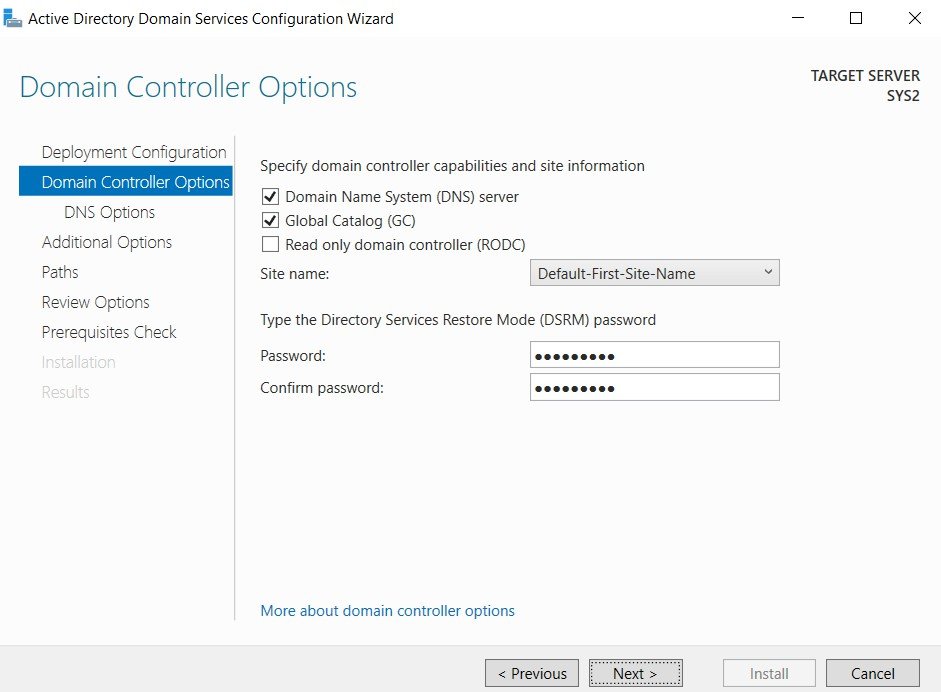
In Domain Controller Options, review the default settings, and type the Directory Services Restore Mode Password and Confirm password and click Next.
Step 17
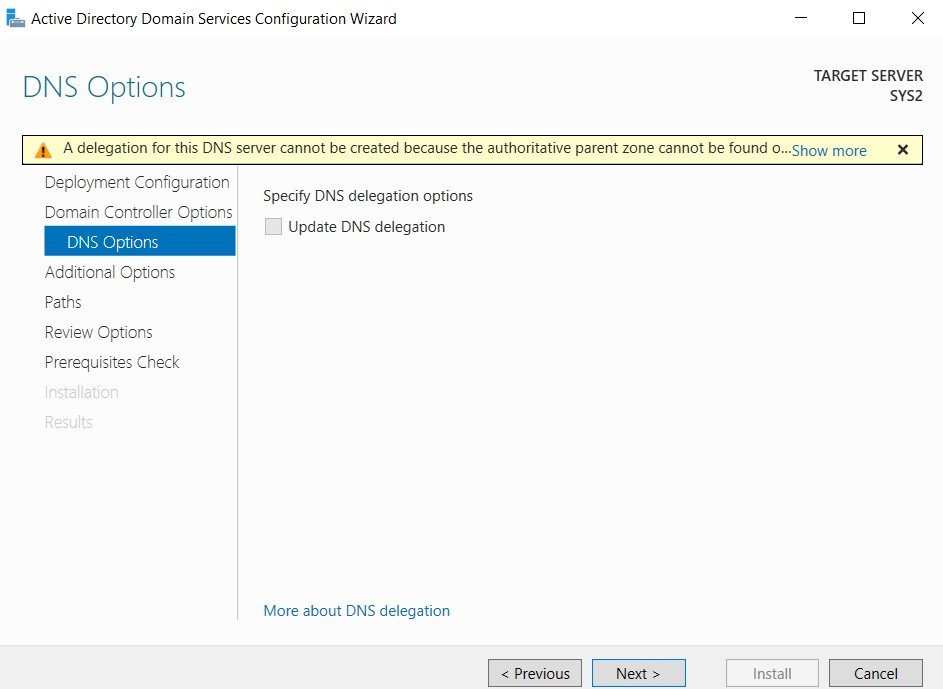
On DNS Options page, click Next.
Step 18
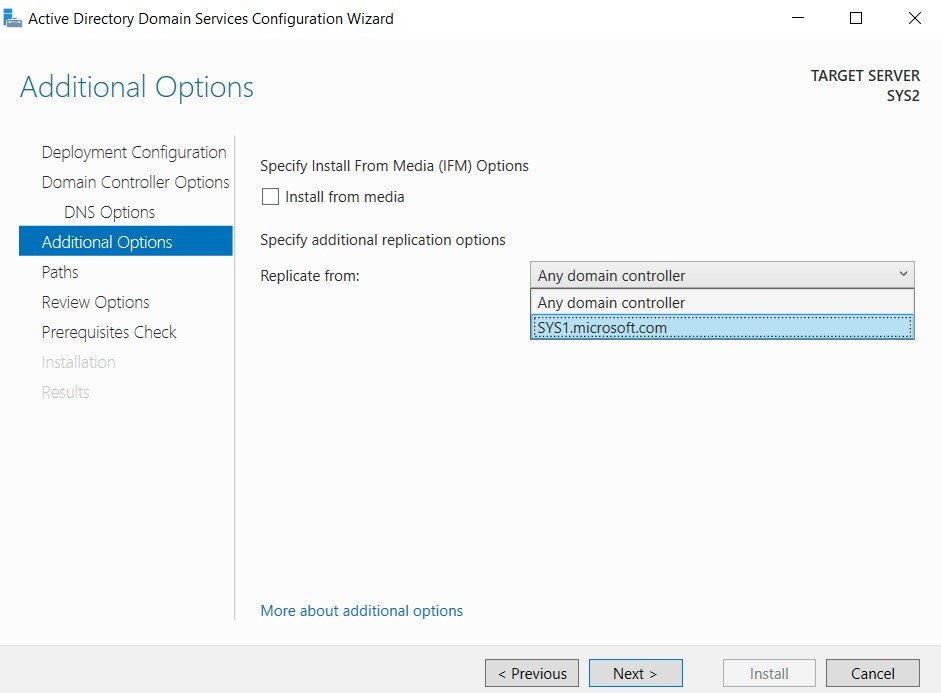
In Additional Options Page, select Replicate from Sys1.Microsoft.com, click Next.
Step 19
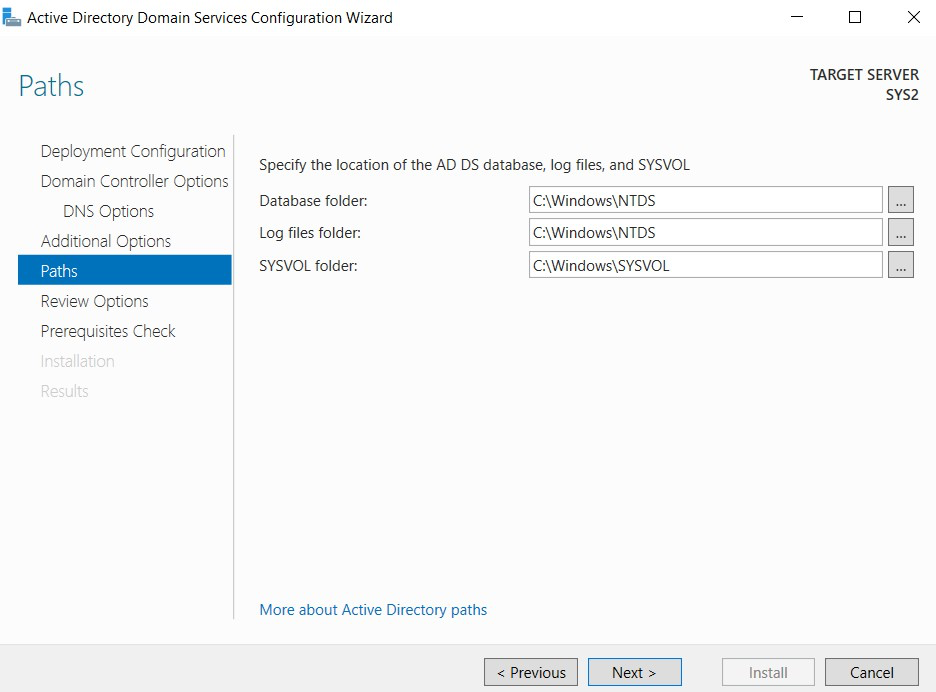
Verify the location of the AD DS database, log files, and SYSVOL, Click Next.
Step 20
Review the Summary and click Next.
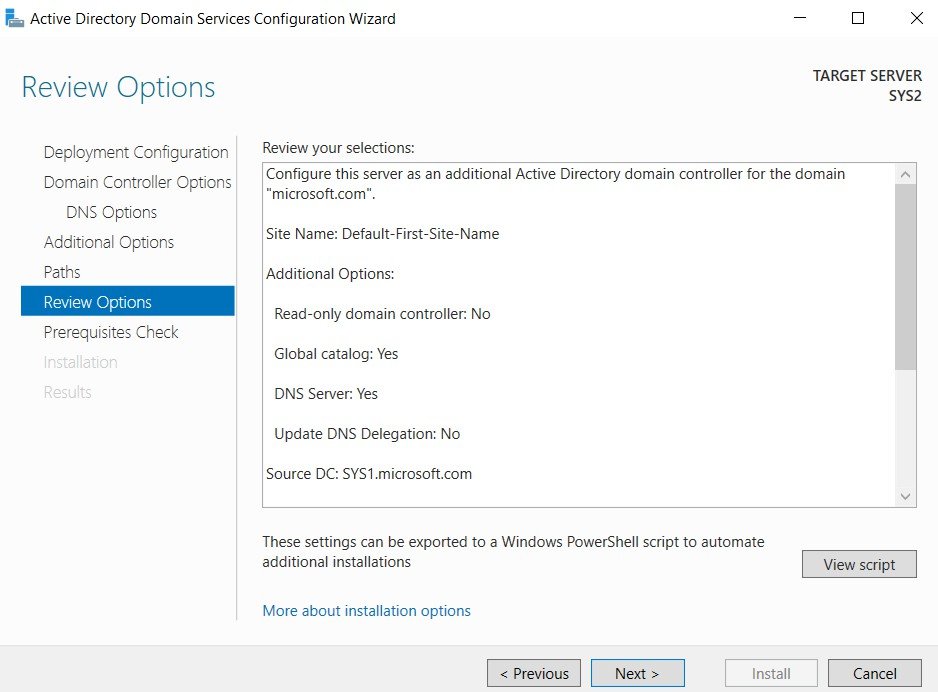
Step 21
Click Install to begin installation.
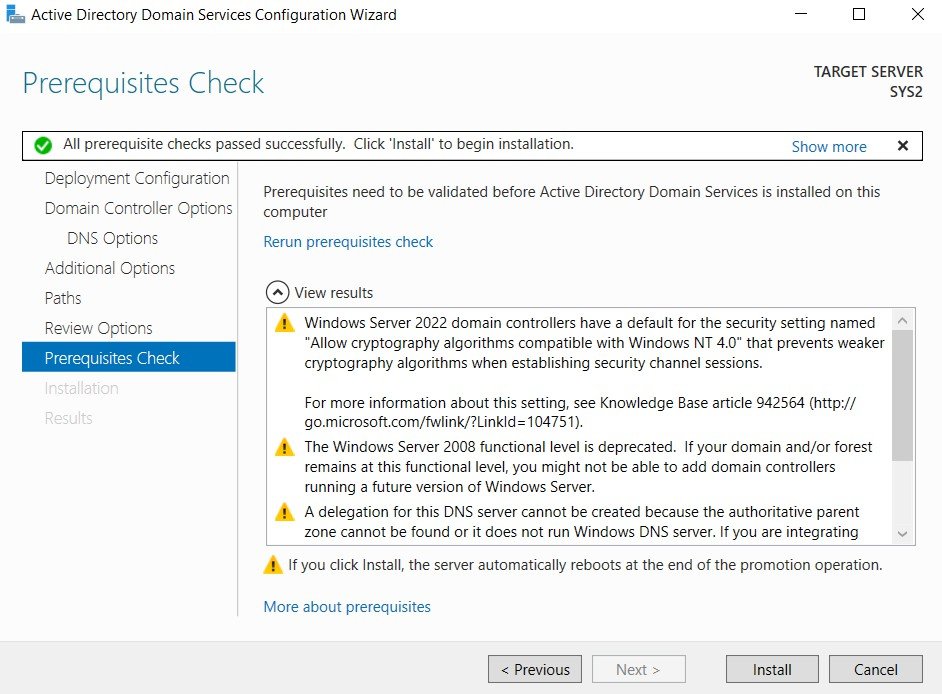
Step 22
The computer restarts as a part of Active Directory Domain Services installation.
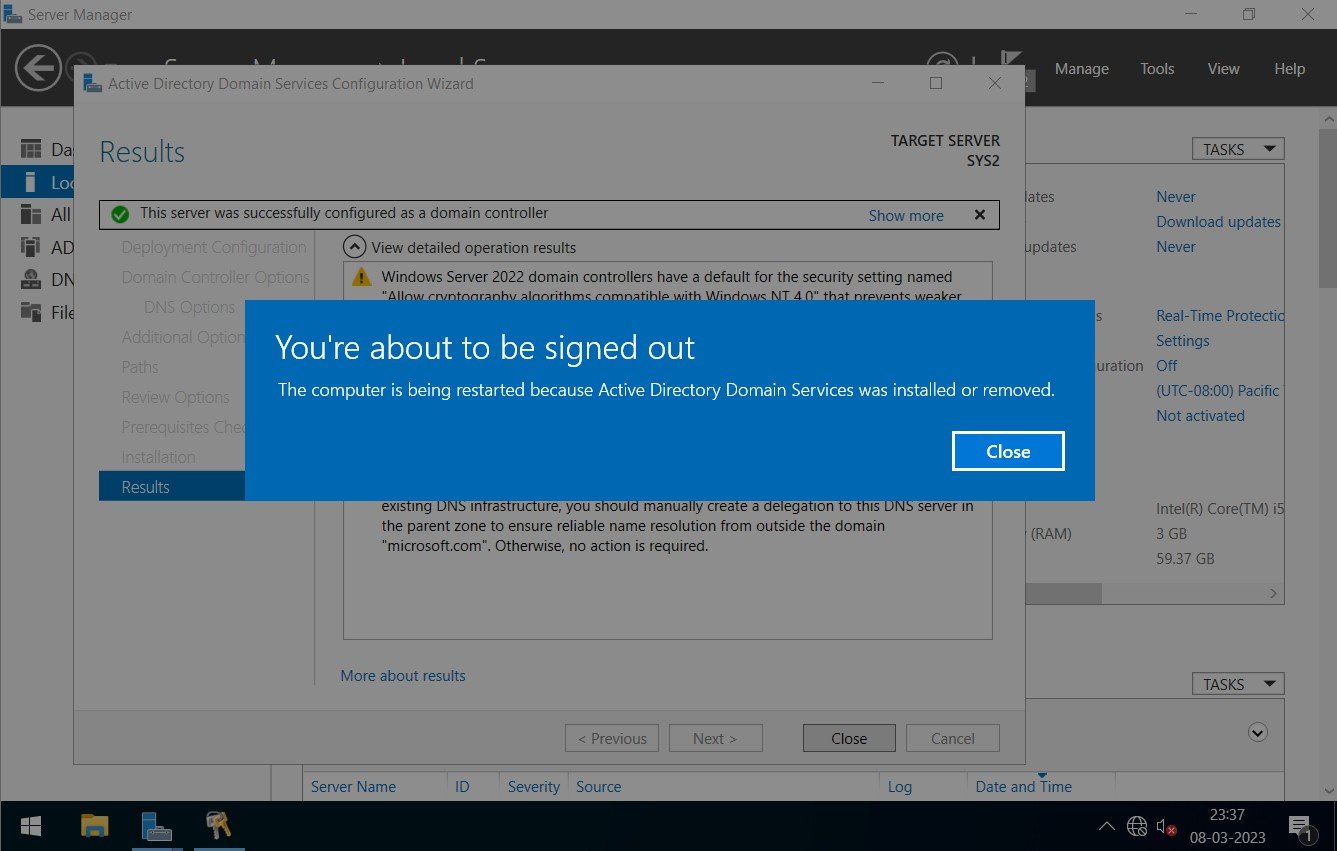
Step 23
After restarting the computer Active directory will be installed.
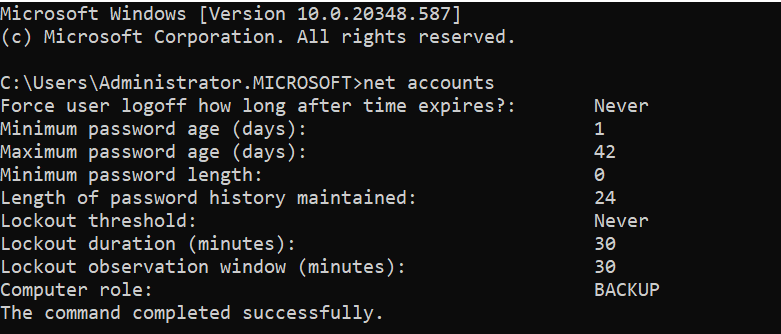
Verification
- 1. Click Start à Run and type CMD.
- 2. Type NET ACCOUNTS and verify for Backup in Computer role.