Prerequisites
- Before working on this lab, You must have
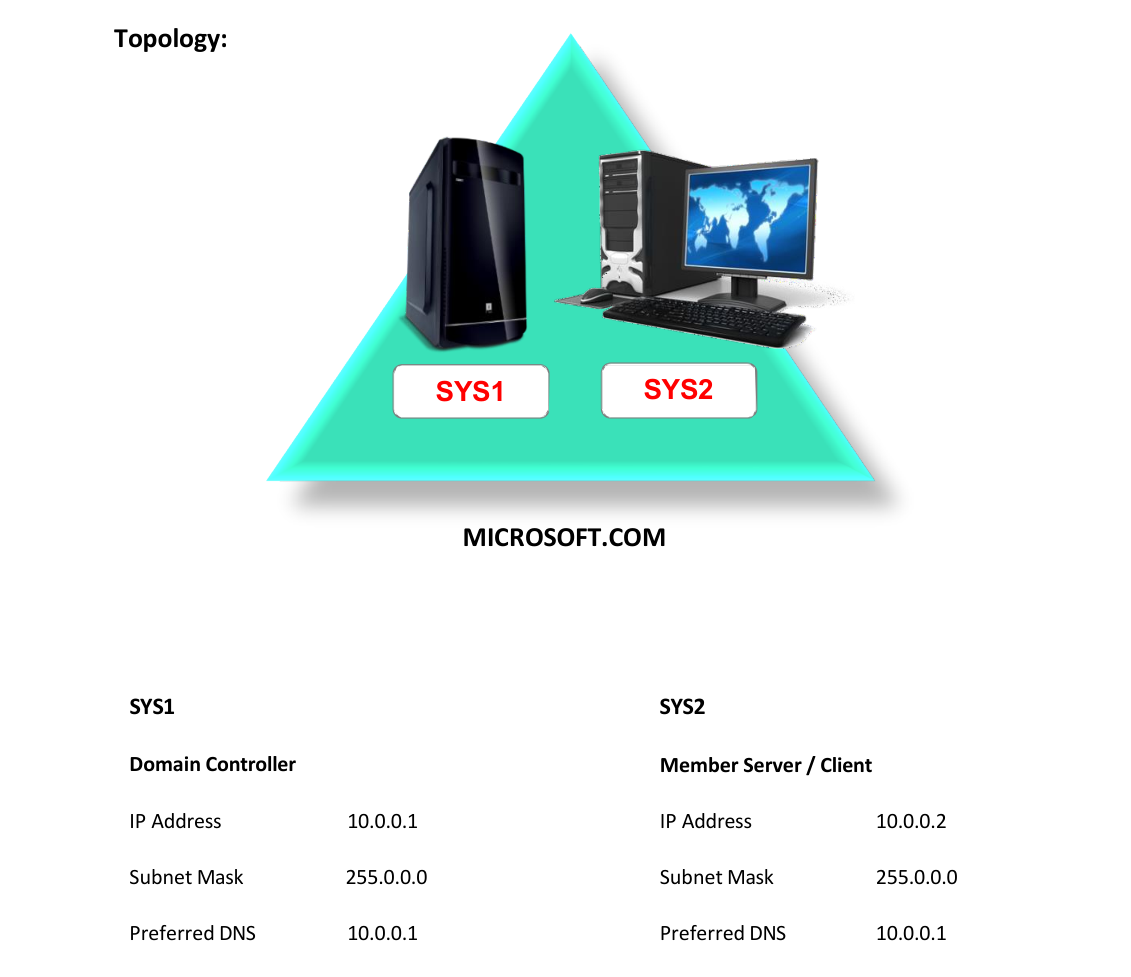
- A computer running windows 2022 server Domain Controller.
- A computer running running windows 2022 or windows 10
Network Topology
Step-by-Step Instructions
Step 1
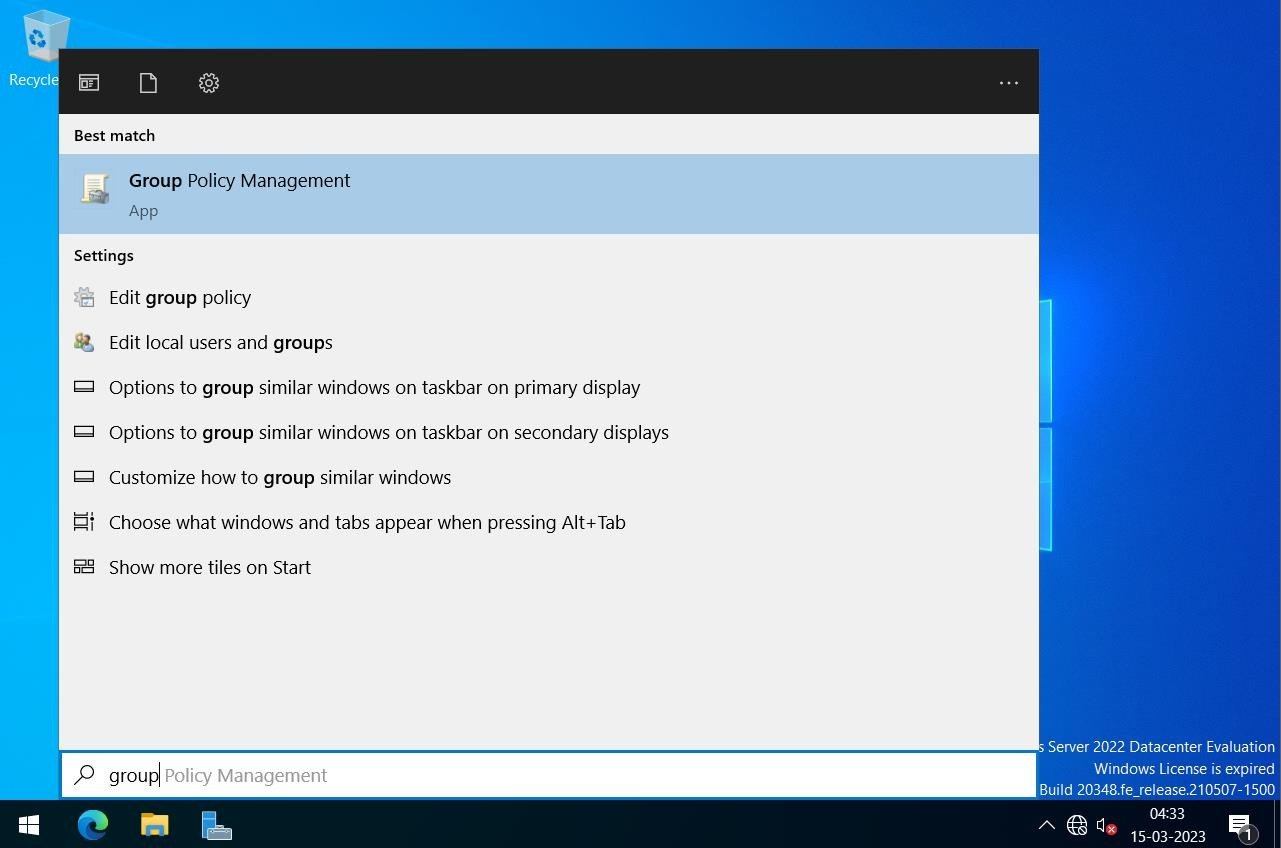
Press Windows Key to go to Start, select Group Policy Management.
Step 2
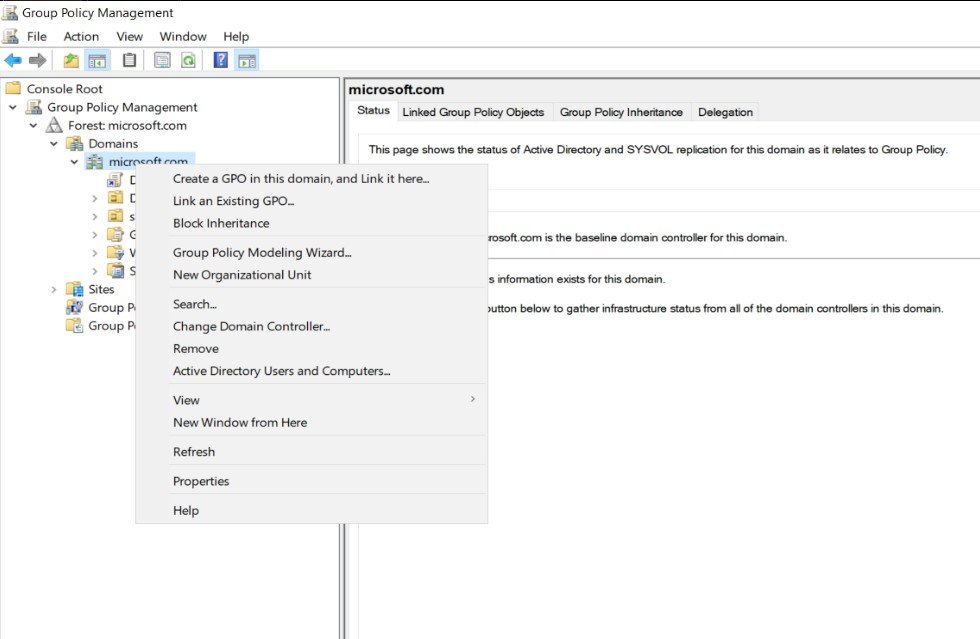
Right click Domain name (MICROSOFT.COM) and select Create a GPO in this domain and Link it here.
Step 3
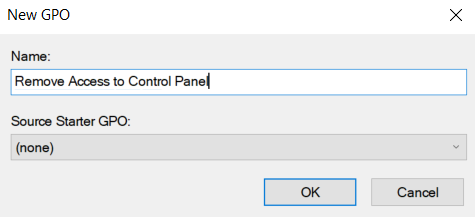
Enter New GPO Link name Ex: Remove Access to Control Panel and click OK.
Step 4
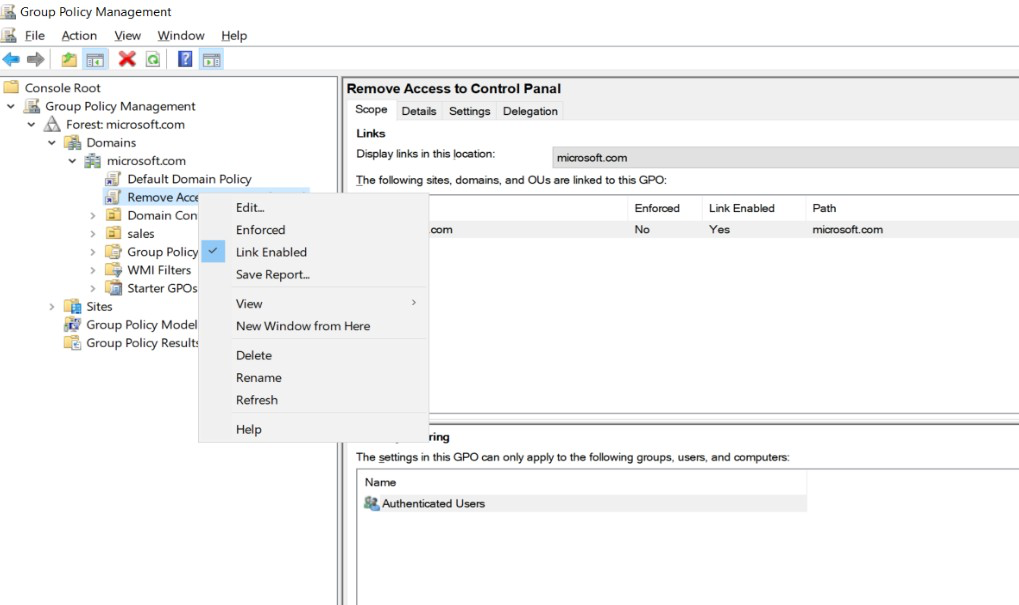
Select the Created GPO à Right Click Created GPO à Select Edit.
Step 5
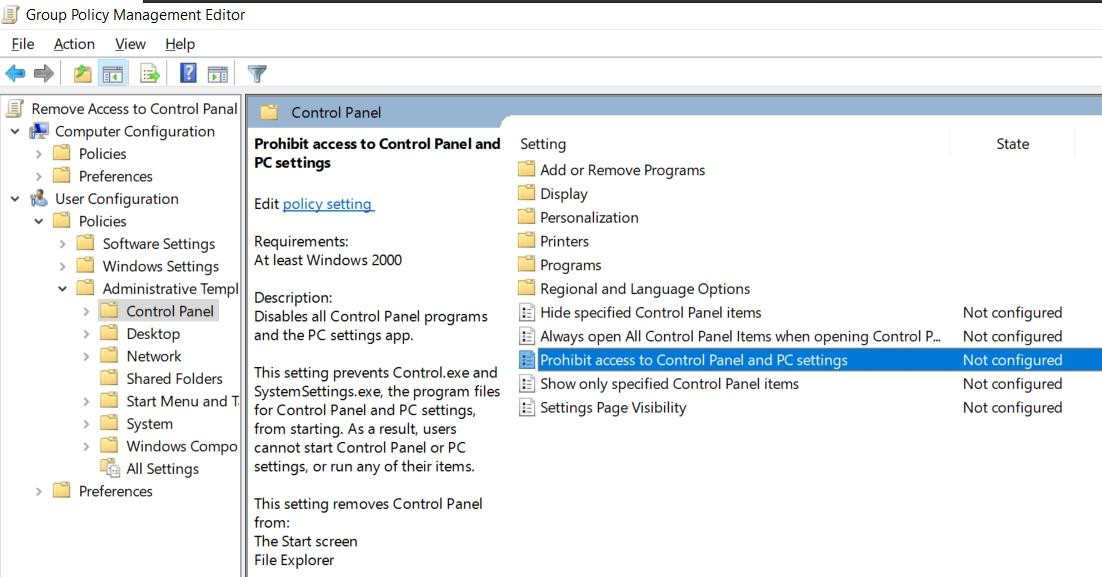
In the Group Policy Management editor window, Go to User Configuration à Policies à Administrative Templates à Control Panel
Step 6
Select a policy (Prohibit Access to Control Panel and PC Settings) right side of the screen, Right Click and select Properties.
Step 7
Select Enabled option and click Apply and OK
Verification
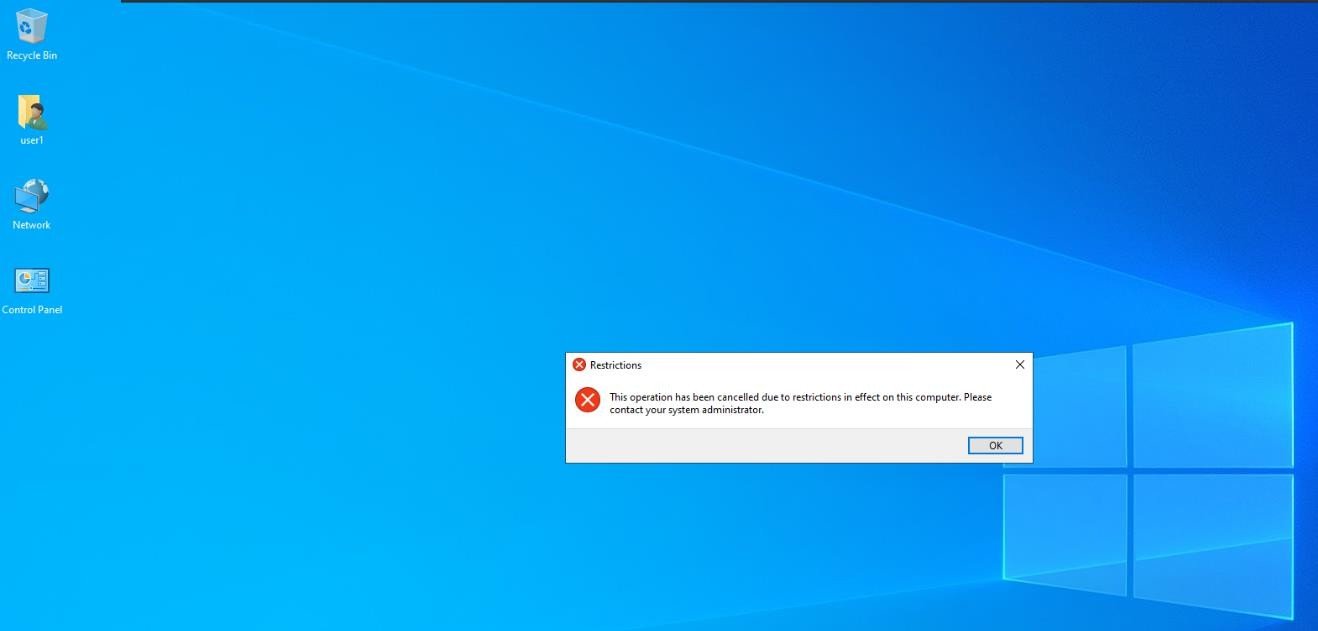
- 1. Login as User (S1) to Client or Member Server and try to access Control Panel.