Prerequisites
- Before working on this lab, You must have
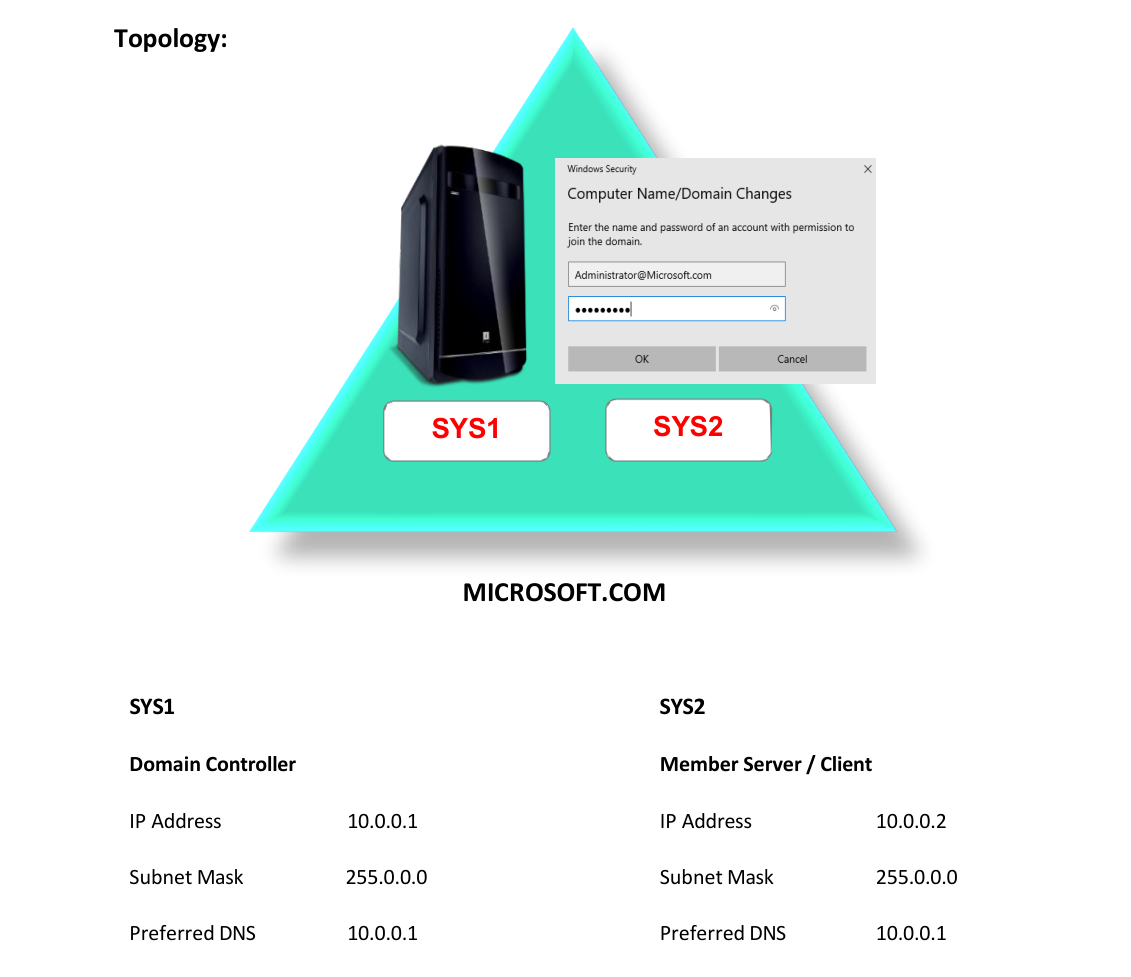
- A computer running windows 2022 server Domain Controller.
- A computer running running windows 2022 or windows 10
Network Topology
Step-by-Step Instructions
Step 1
Go to Start, Group Policy Management à Right click Group Policy Objects à Select New.
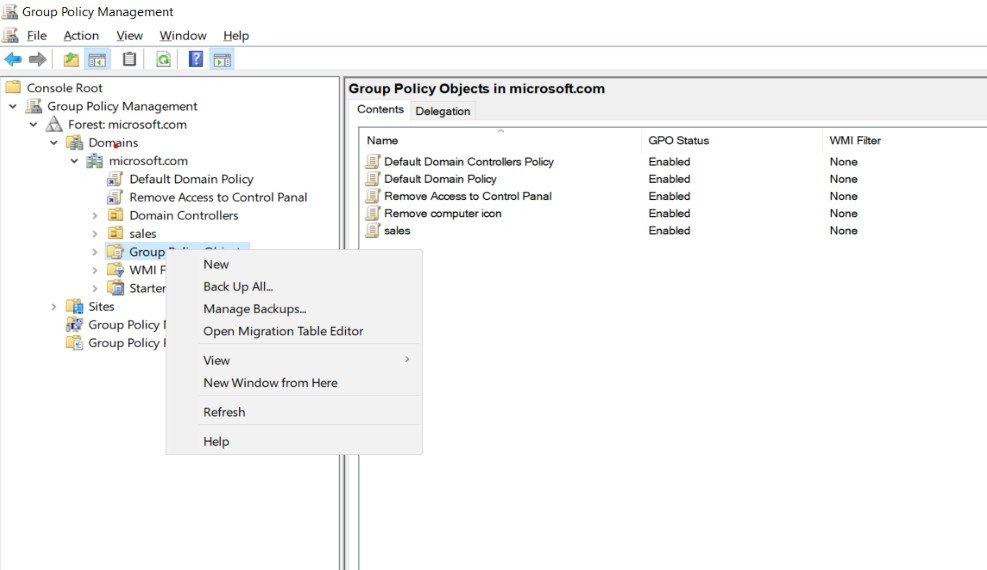
Step 2
Enter New GPO Link name Ex: Remove Recycle Bin and click OK.
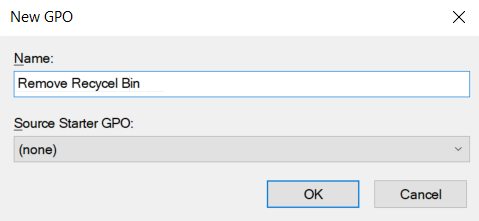
Step 3
Select the Created GPO à Right Click Created GPO à Select Edit.
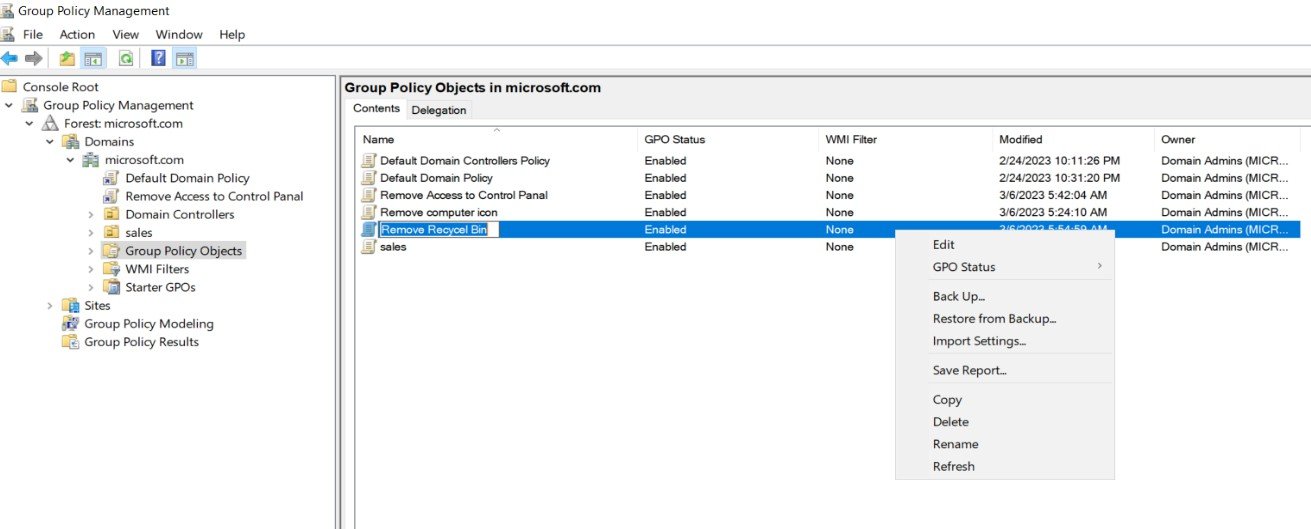
Step 4
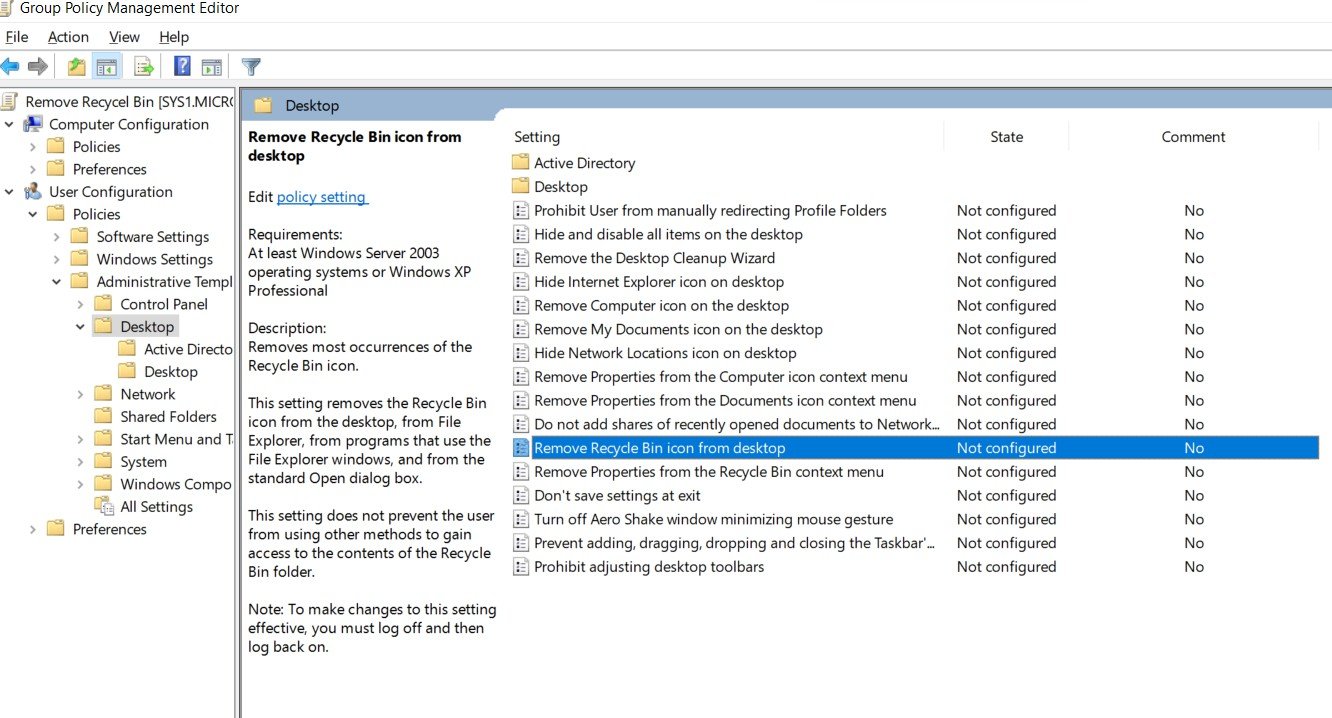
Select User Configuration à Policies à Administrative Templates à Desktop, select Remove Recycle Bin icon from desktop.
Step 5
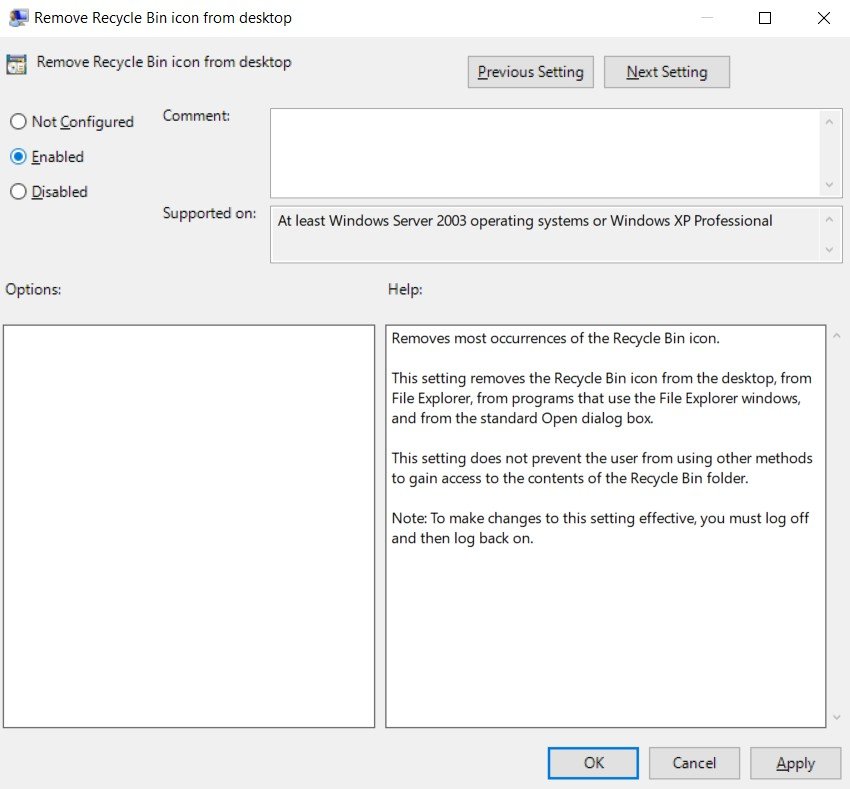
Right click Remove Recycle Bin icon from desktop à Properties, select Enabled à OK àClose.
Step 6
Right click Sites select Show Sites check Default-First-Site-Name à click OK à Right Click
Default-First-Site-Name à select Link an Existing GPO....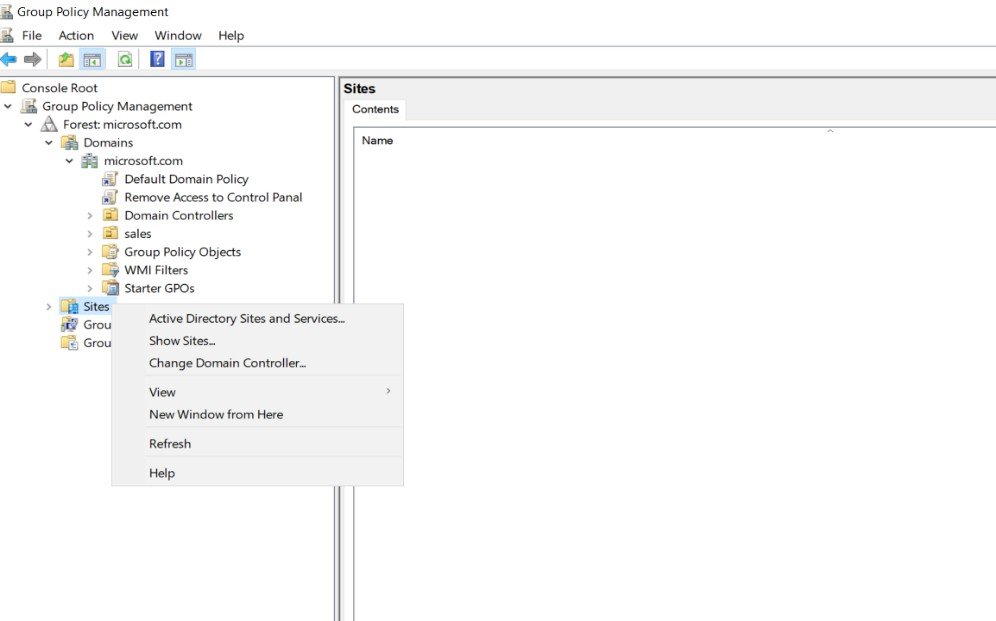
Step 7
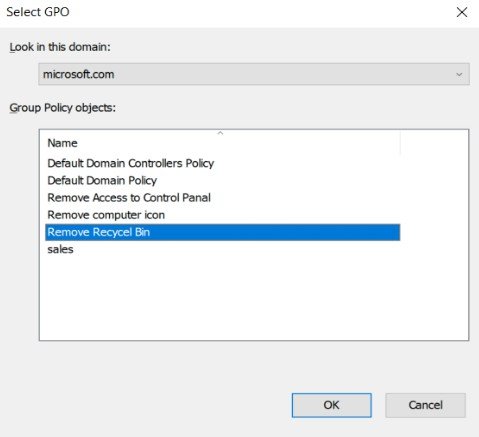
Select an existing GPO, (Remove Recycle Bin) click OK.
Verification
- 1. Login as a user to Client or Member Server, and Verify for the changes.