Prerequisites
- Before working on this lab, You must have
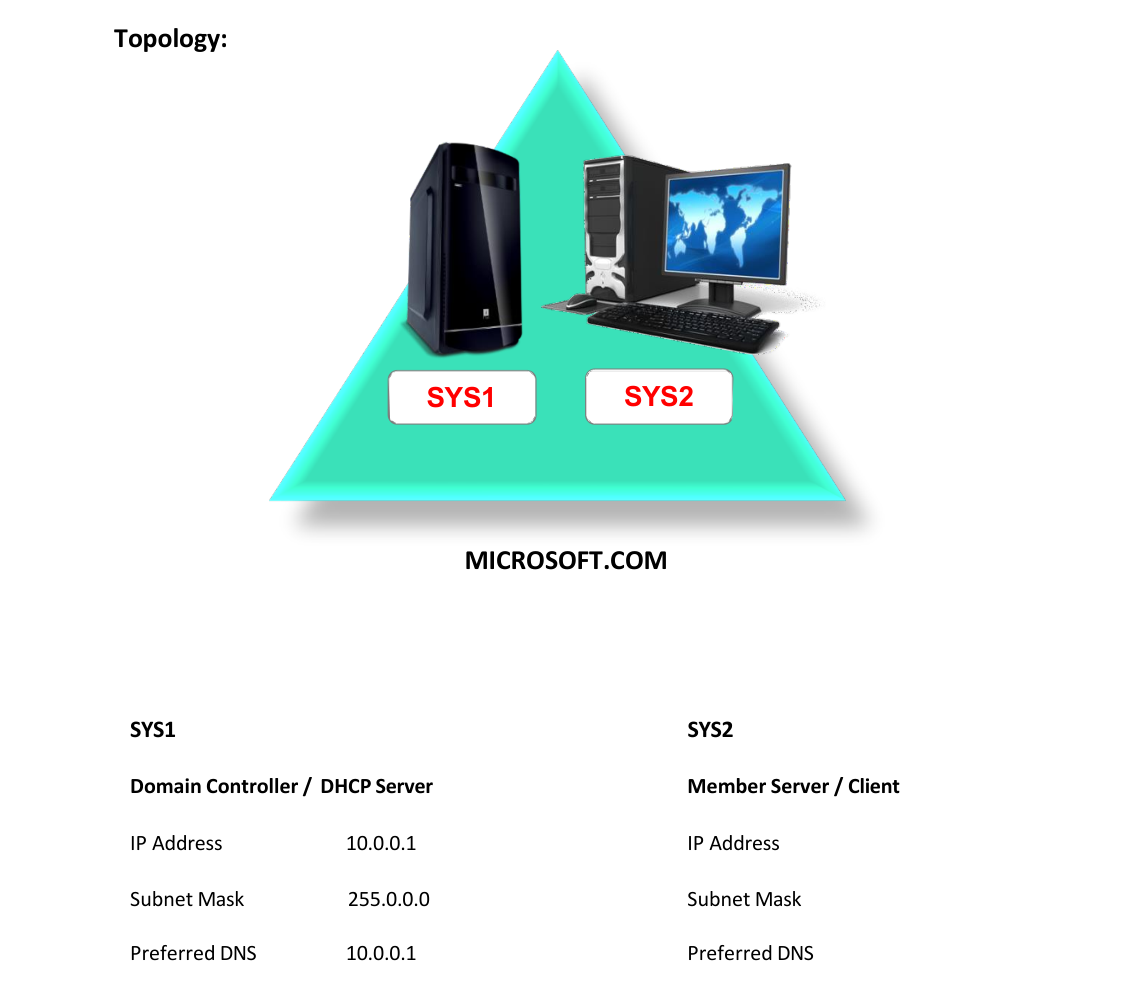
- A computer running windows server 2022 Domain Controller.
- A Member Server running windows server 2022 or client running windows 10.
Network Topology
Step-by-Step Instructions
Step 1
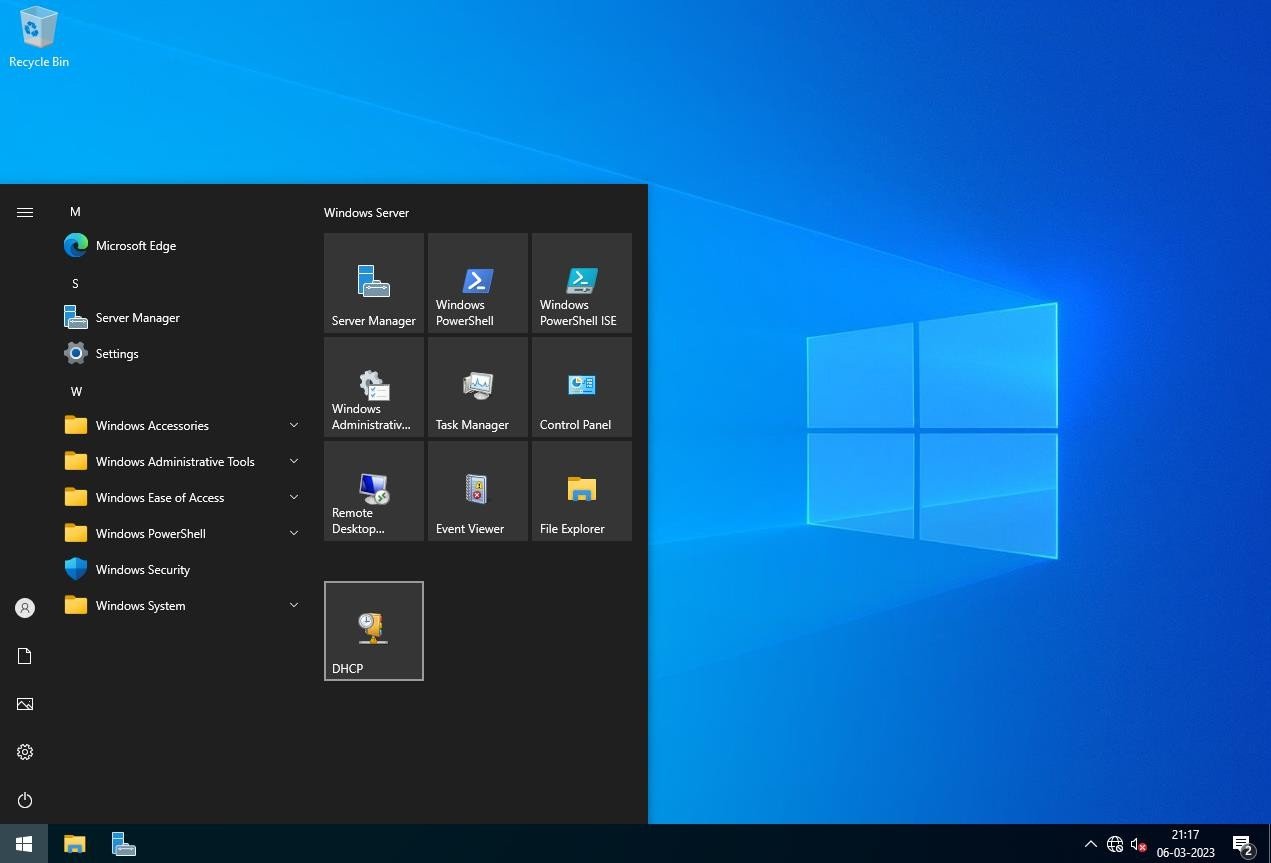
Go to Start, select DHCP.
Step 2
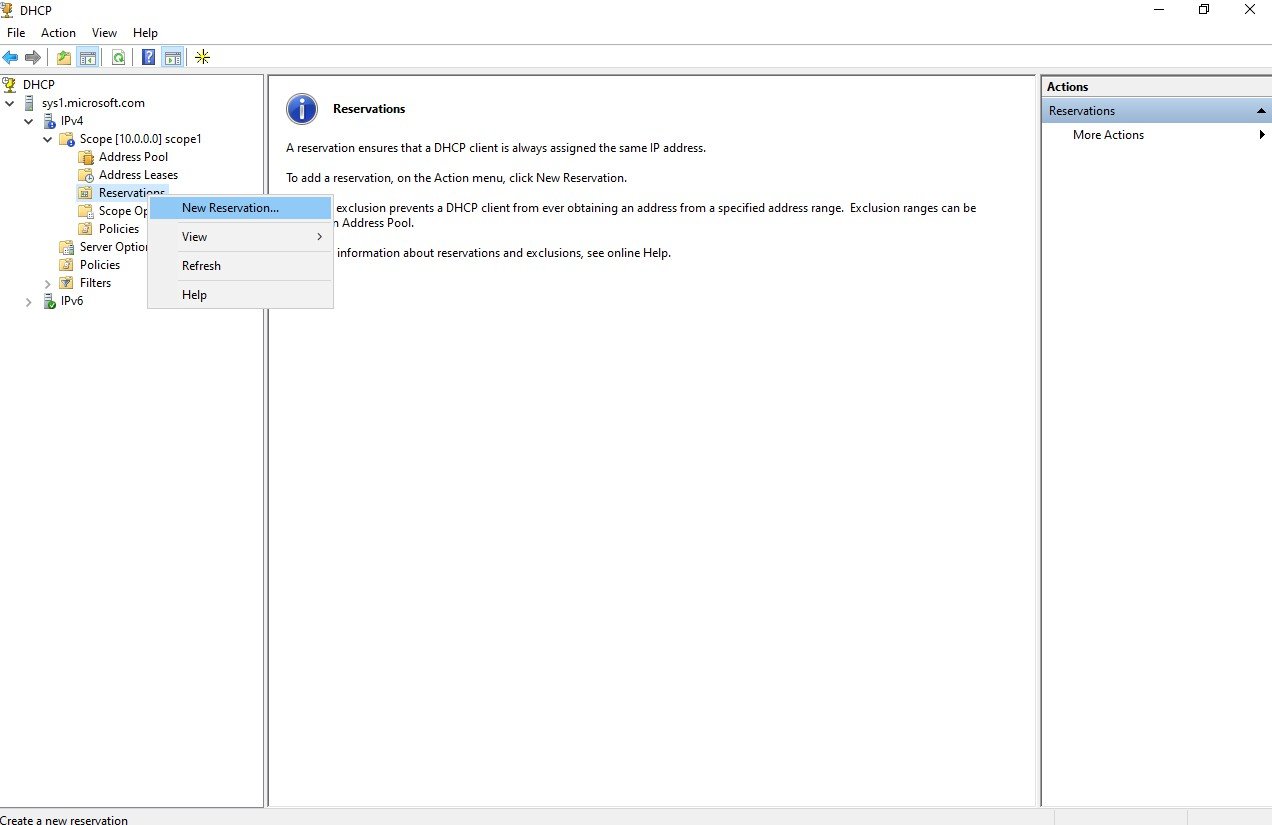
In the left pane of the DHCP Console, expand the Scope à Right click Reservation à Select New Reservation
Step 3
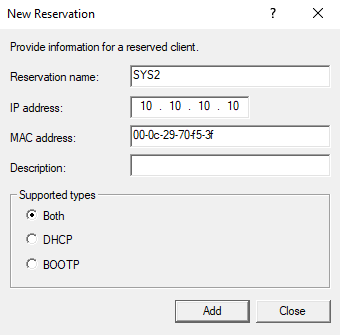
Type in a name for the reservation in the “Reservation name” text box. Then, in the “IP address” text box, mention the IP address that you want to be reserved. Then, enter the MAC address of the network adapter of the computer for which the reservation is being made in the box provided à click add à click Close. Note: To Know the MAC or Physical address of the client type Ipconfig /all or getmac in command prompt of client computer. Check the output in the client computer (SYS2).
Step 1
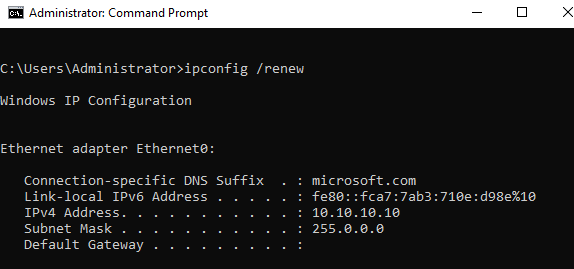
In the command prompt type Ipconfig /release and Ipconfig /renew.
Verification
Verify that your configuration works as expected. Open tools and check settings matching the parameters.