Prerequisites
- Before working on this lab, You must have
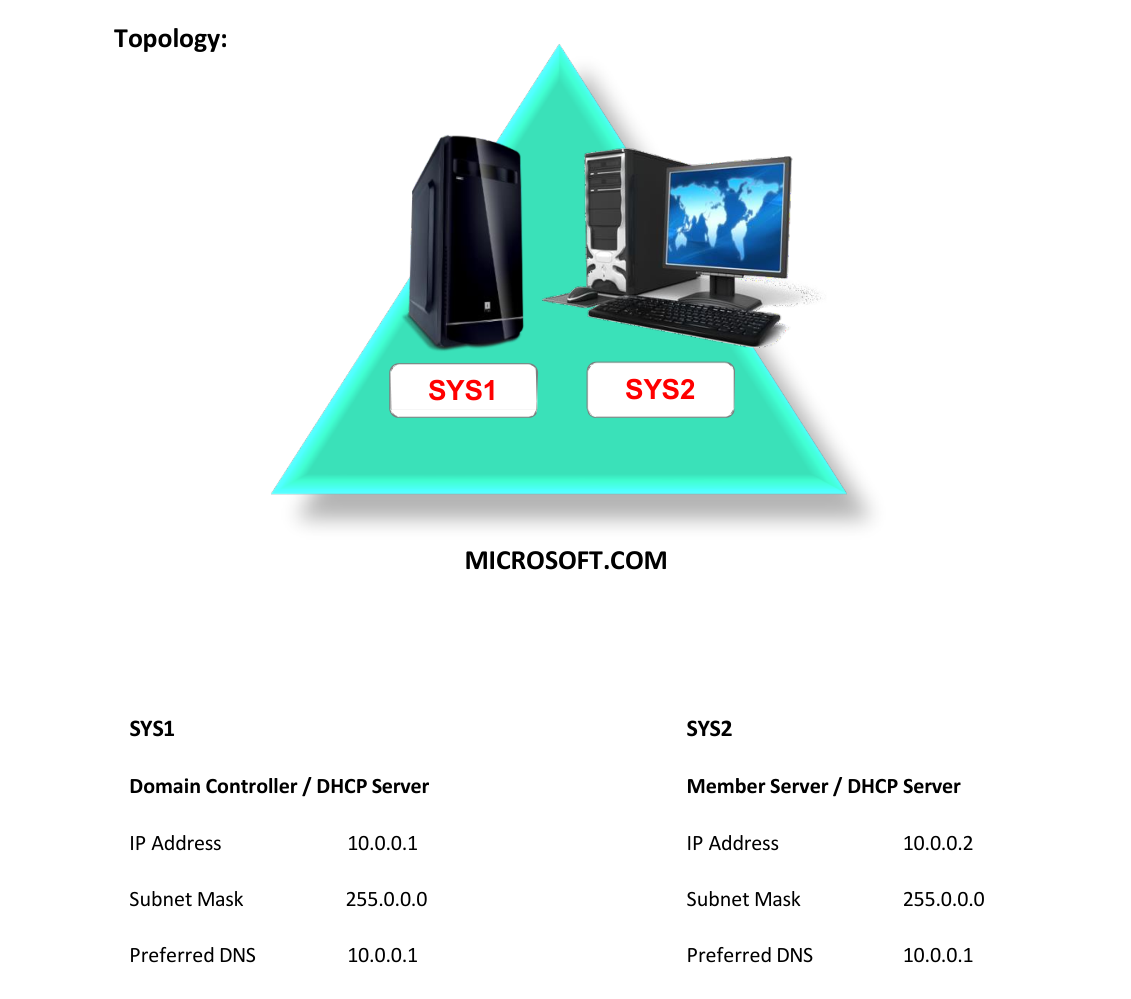
- A computer running windows server 2022 Domain Controller.
- A Member Server running windows server 2022.
Network Topology
Step-by-Step Instructions
Step 1
Install DHCP Server Role on SYS2 and Do not Authorize the Server.
Step 1
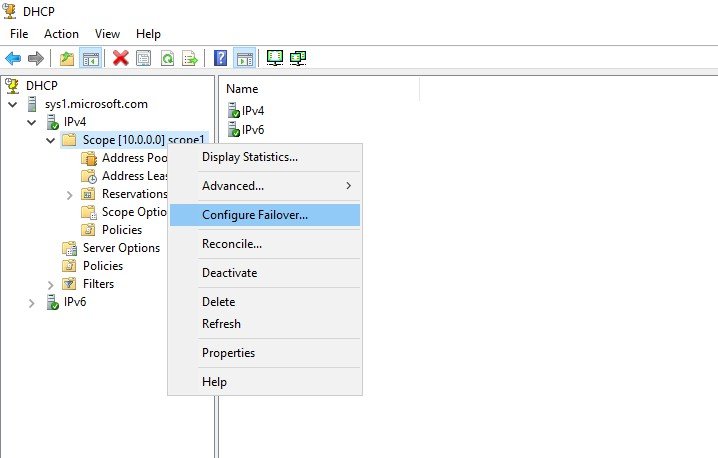
Go to DHCP console à In left pane, expand Server name à Expand IPv4 à right click Scope à select Configure Failover
Step 2
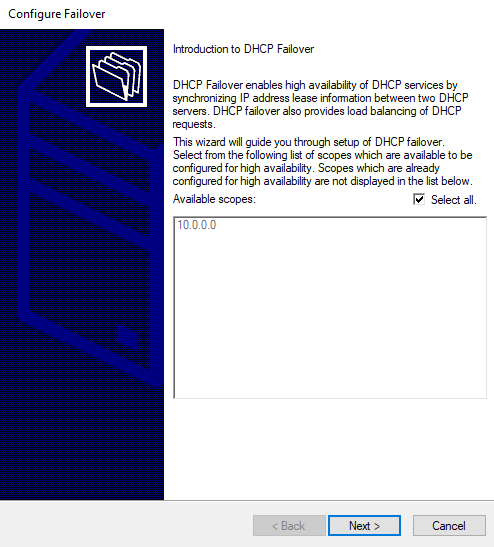
In Introduction to DHCP Failover wizard, click Next.
Step 3
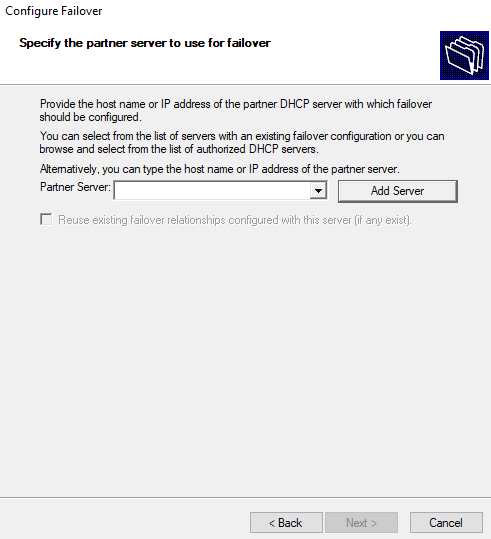
Click Add Server to add the Failover Server.
Step 4
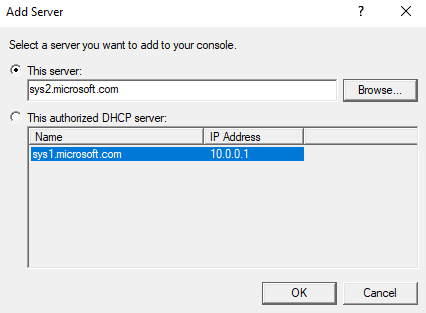
In Add Server, Browse and Select the server (sys2.microsoft.com), click OK.
Step 5
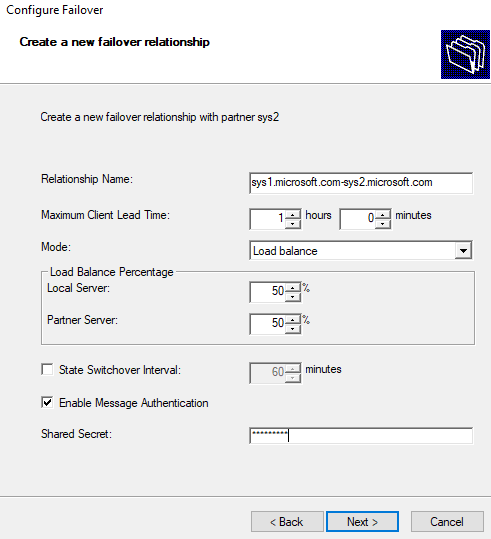
Select the Mode, Enable Message Authentication and enter Shared Secret, Next.
Step 6
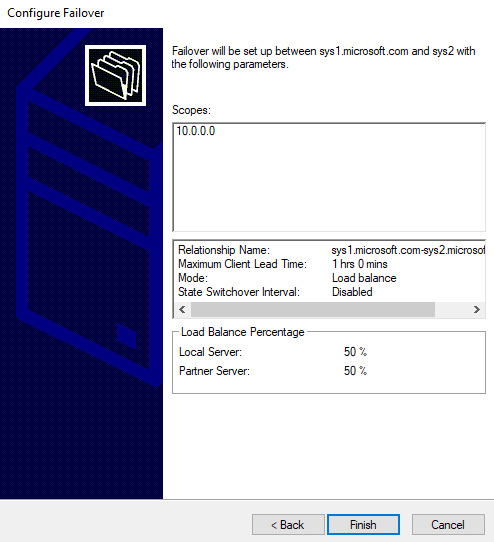
To Complete the Failover, click Finish.
Step 7
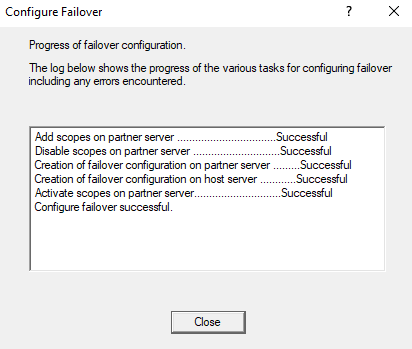
Verify the Summary to be Successful.
Step 1
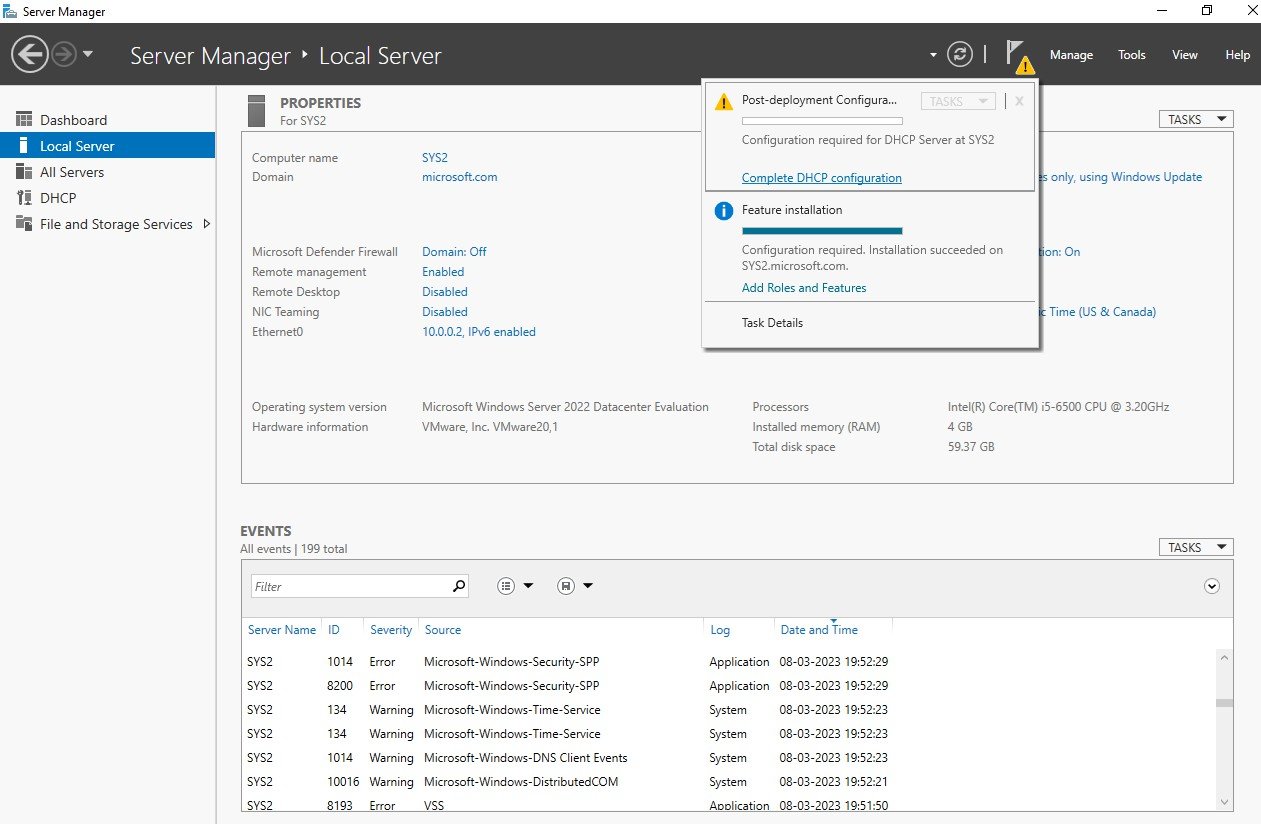
Go to Server Manager Dashboard, select notification flag, Complete DHCP Configuration.
Step 2
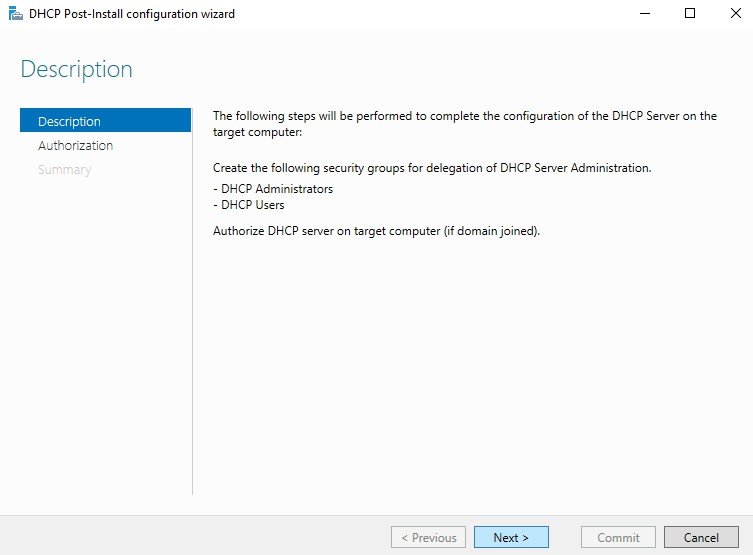
In DHCP Post-Install configuration wizard, click Next.
Step 3
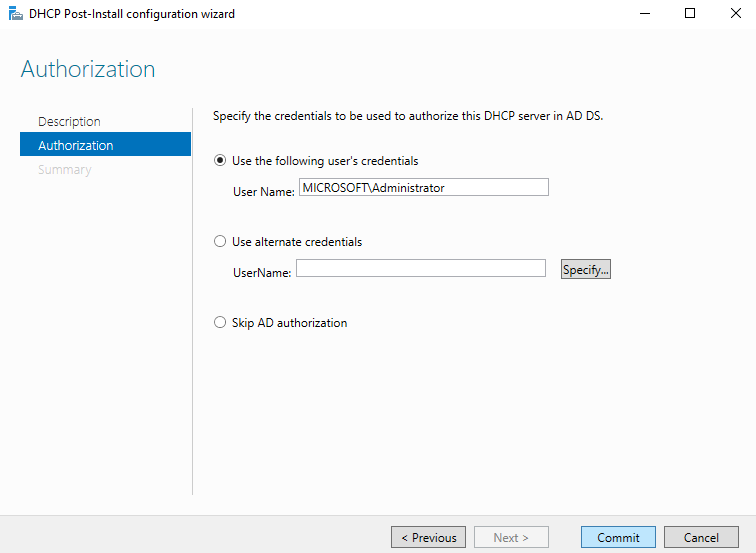
Click Commit, to Authorize the DHCP server sys2.microsoft.com
Step 4
Verify the summary and click Close.
Verification
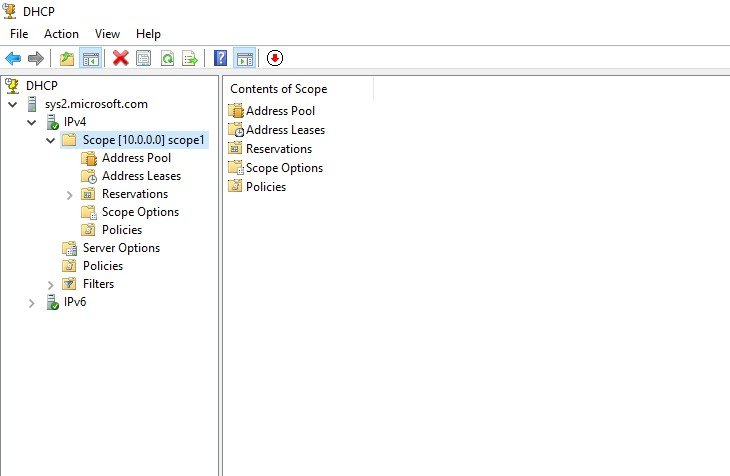
- 1. Goto DHCP console and verify the scope replicated from SYS1