Prerequisites
- Before working on this lab, You must have
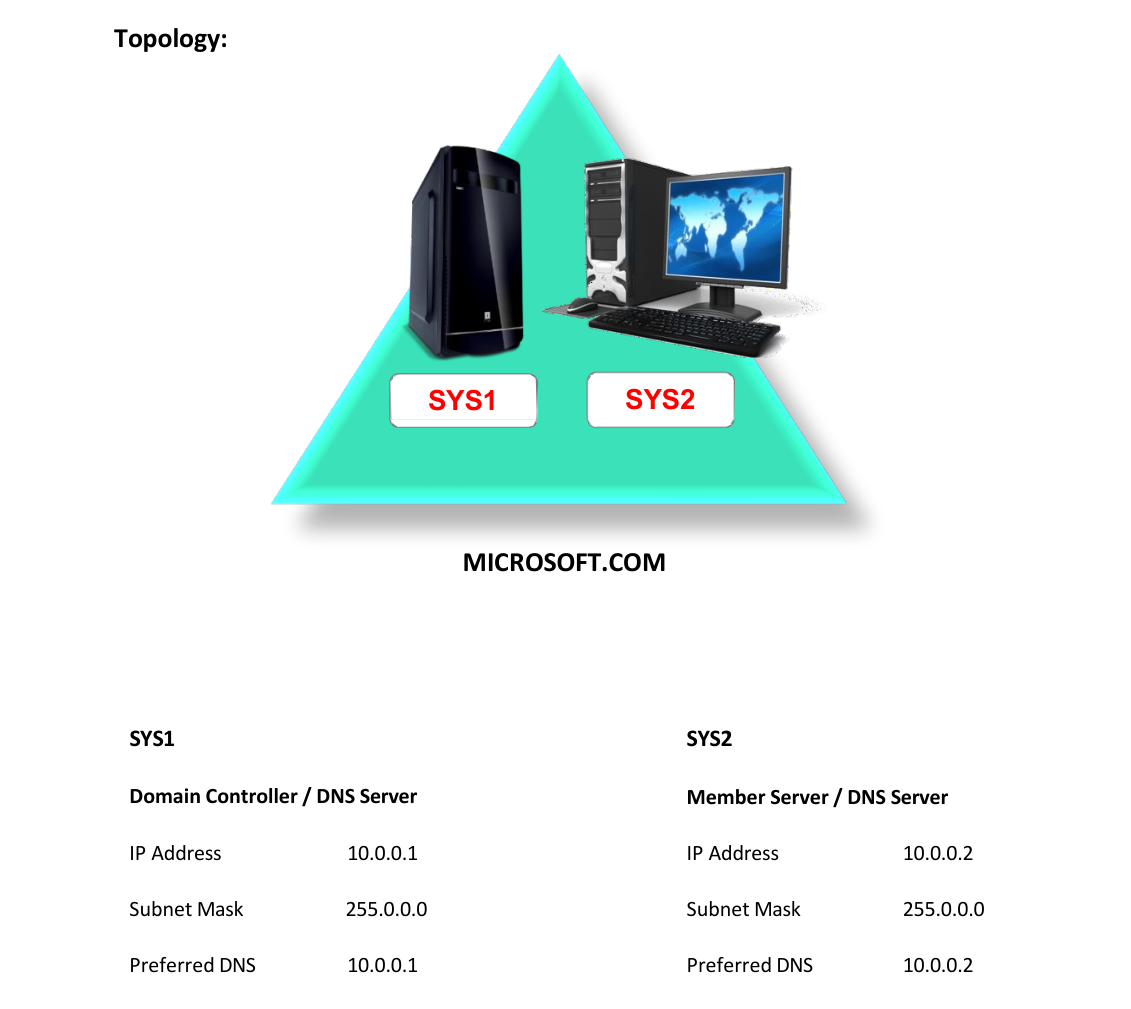
- A computer running windows server 2022 Domain Controller.
- A Member Server running windows server 2022.
Network Topology
Step-by-Step Instructions
Step 1
Go to Start, select DNS.
Step 2
In the DNS dialog box, expand the DNS server's name in the left pane, right click Forward Lookup Zones à select New Zone
Step 3
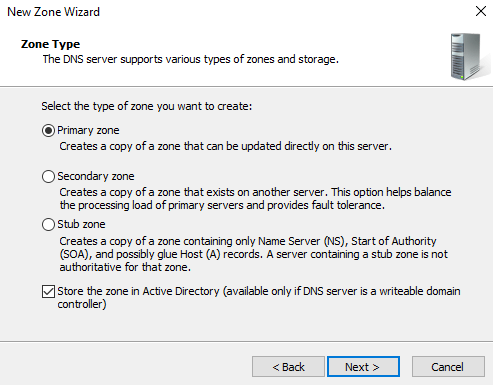
Click Next à Accept the default option of “Primary Zone” and Select the check box for "Store the zone in Active Directory" à click Next.
Step 4
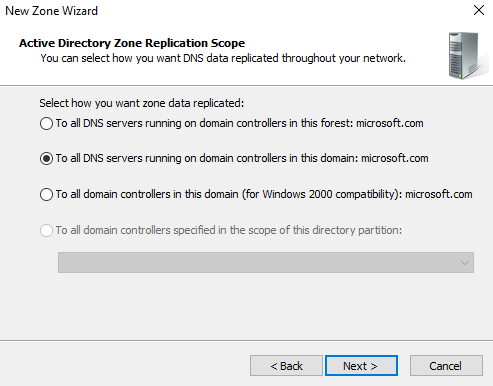
In AD Zone Replication Scope, Select the “To all DNS servers in Active directory domain” à click Next.
Step 5
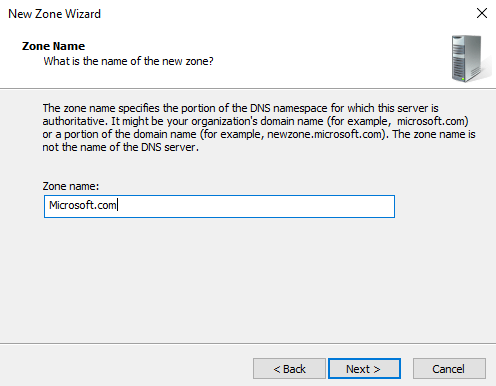
Give the Zone Name same as the Domain Name (Ex: Microsoft.com), click Next.
Step 6
Select “Allow only secure and dynamic update” à click Next à Finish.
Verification
- 1. Verify for the Service records in Microsoft.com zone.
- NOTE: Service records are available only for the zone with the domain name.
- 2. In DC by default the service records are created in the DNS server in the zone with
- domain name.
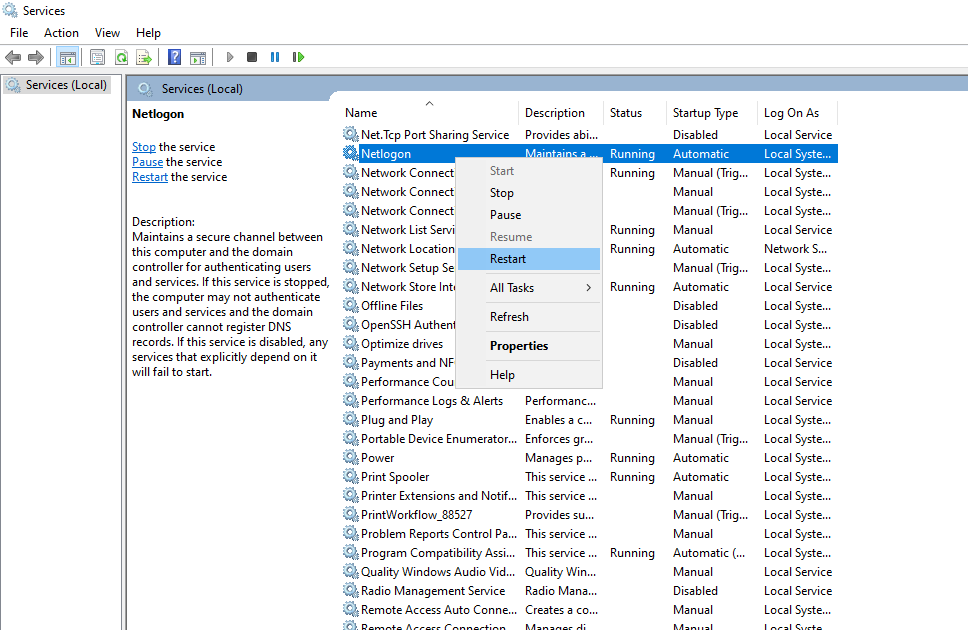
- Note: To get the missing records restart the services Netlogon and DNS Server.
- 3. Go to Start, type Services in Search Apps, and select Services
- 4. Right click Netlogon and click Restart, Right click DNS Server and click Restart.