Prerequisites
- Before working on this lab, You must have
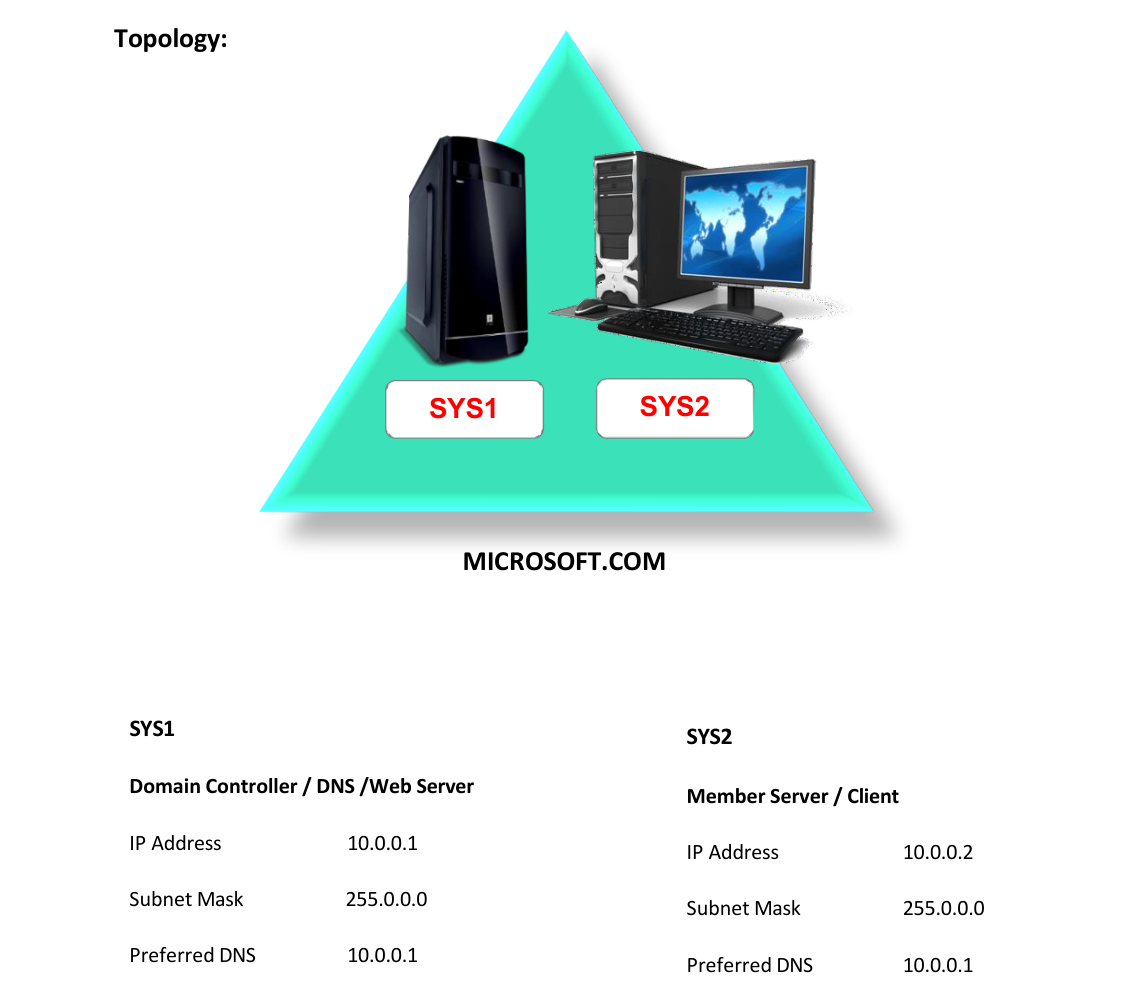
- A computer running windows server 2022 Domain Controller.
- A Member Server running windows server 2022 or Client Running Windows 10.
Network Topology
Step-by-Step Instructions
Step 1
Go to Start, select Internet Information Services Manager.
Step 2
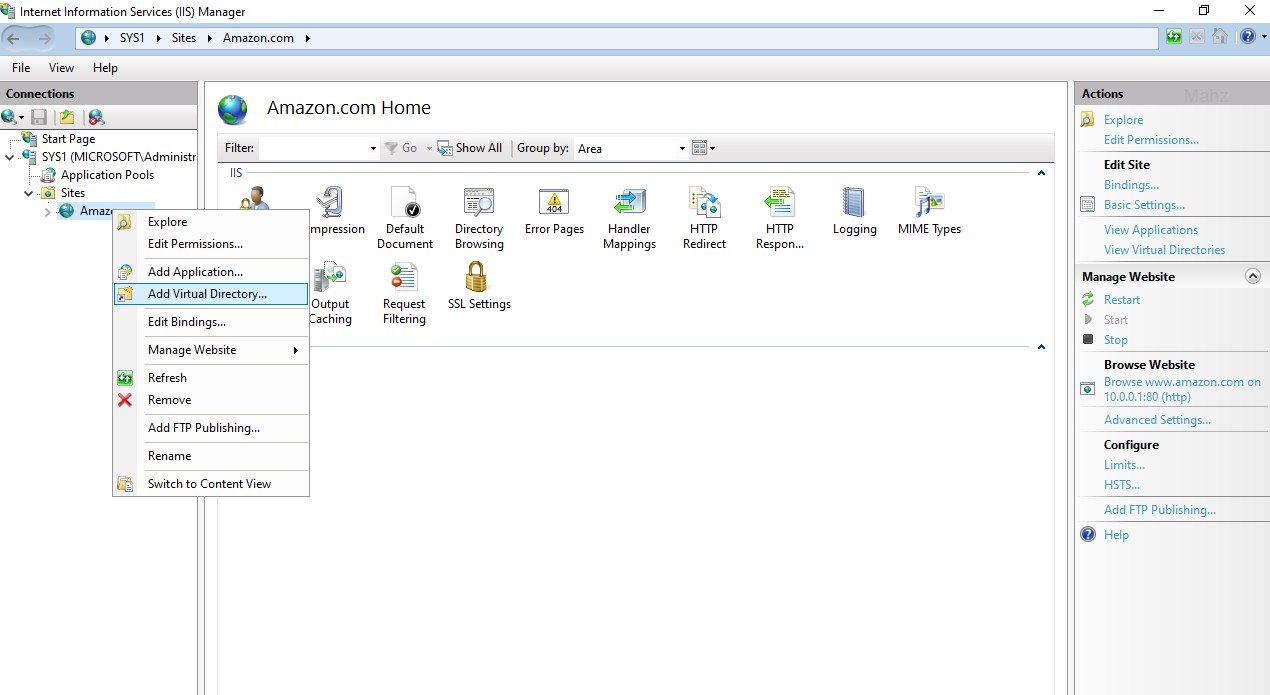
Expand the system name, Select the Web Site (Amazon) for which you want to create Virtual Directory à Right click and select Add Virtual Directory.
Step 3
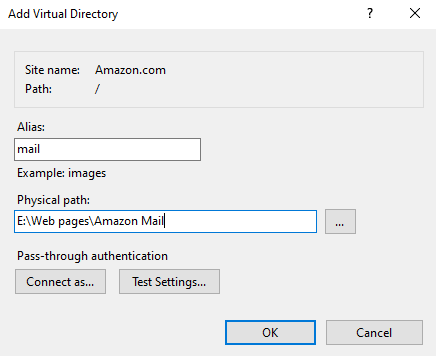
Specify the Alias name to the Virtual Directory (Ex: Mail), and Browse to select the physical path Ex:(E:\Web pages\Amazon Mail) à click OK.
Step 4
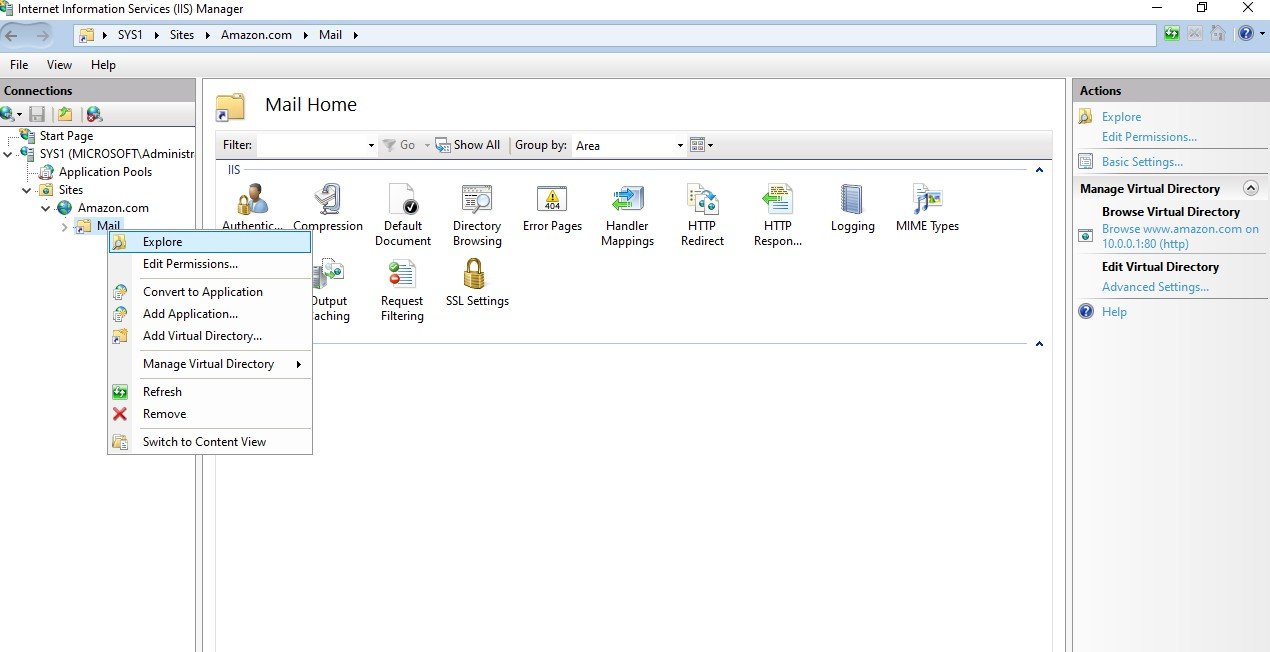
Virtual Directory will be created.
Step 5
Add the Default Document for the Virtual Directory à OK
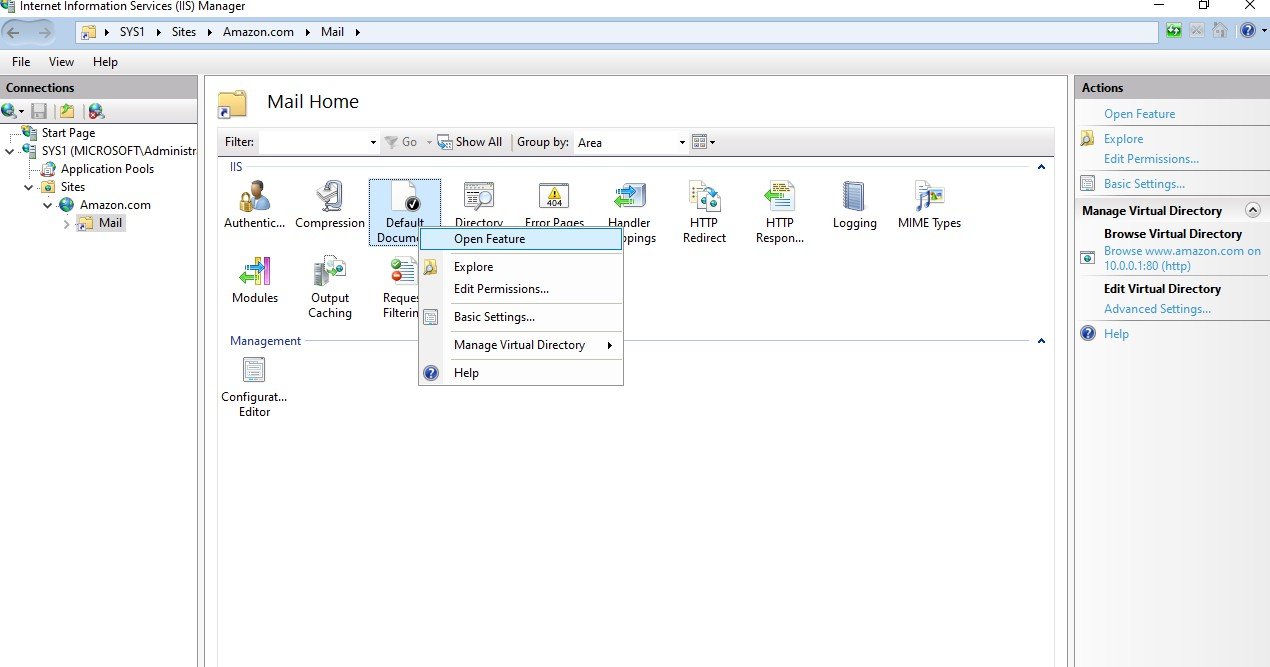
Step 6
To access the virtual directory specify the syntax in Internet Explorer Ex: http://www.amazon.com/Mail
http://websitename/virtualdirectoryname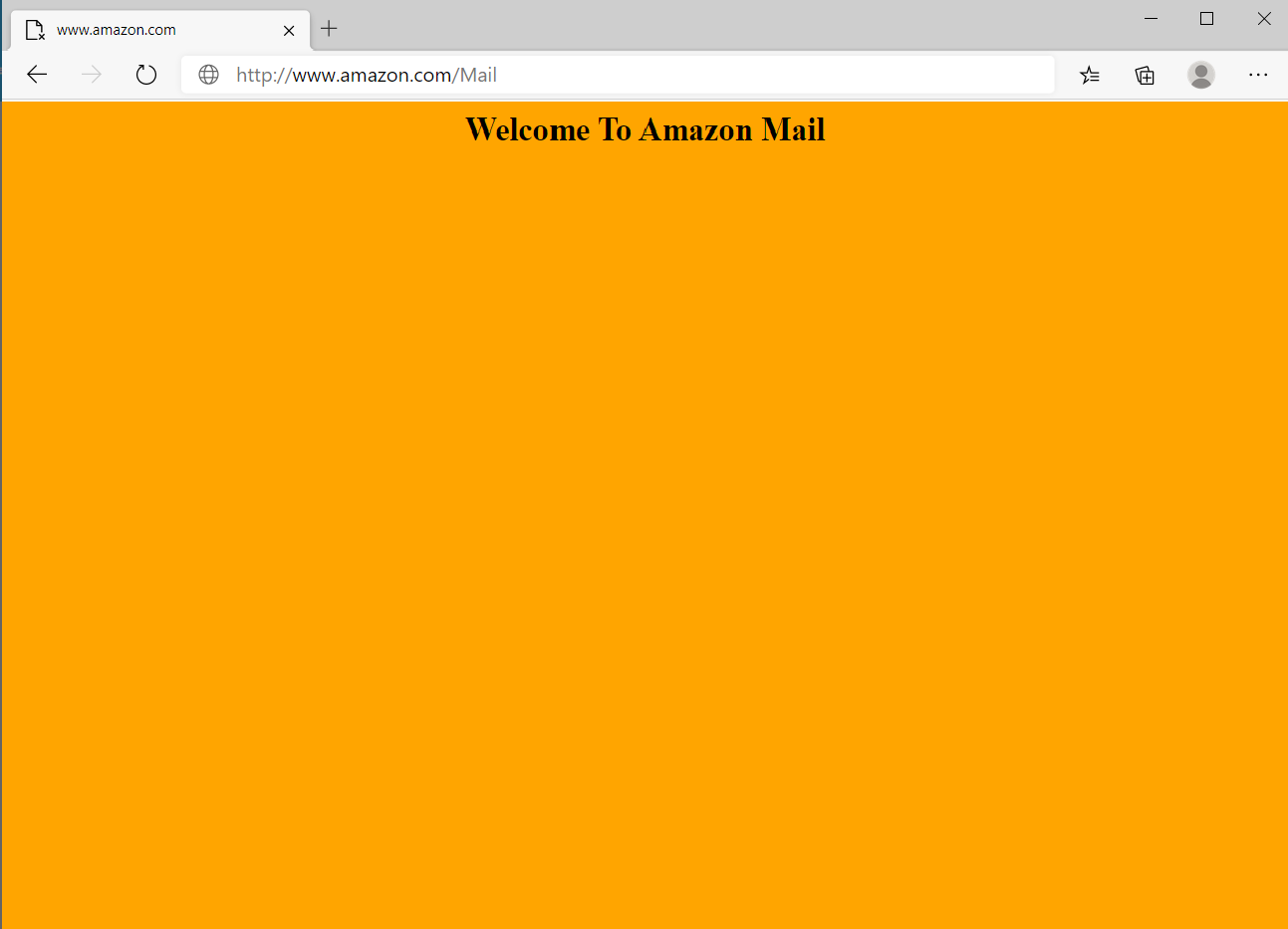
Verification
Verify that your configuration works as expected. Open tools and check settings matching the parameters.