Prerequisites
- Before working on this lab, You must have
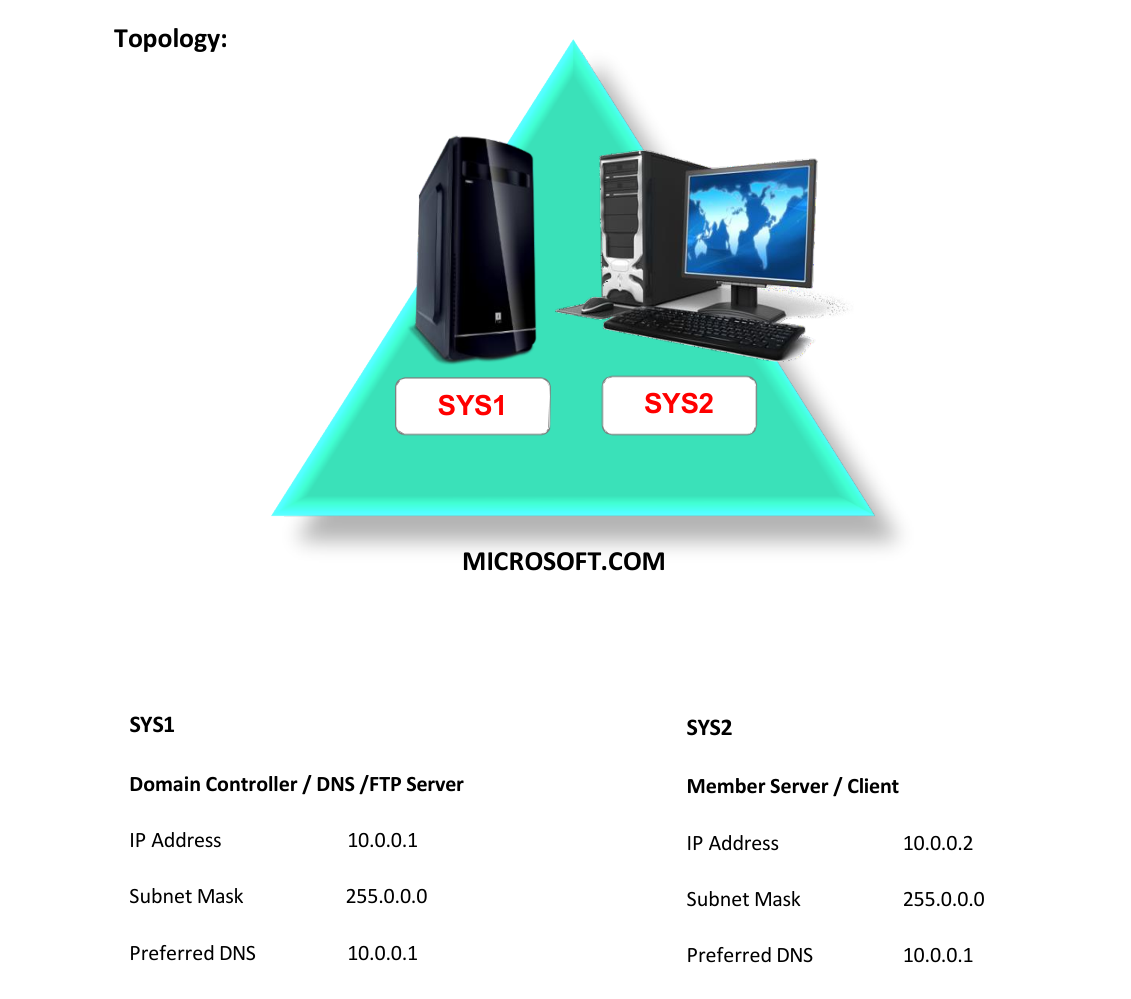
- A computer running windows server 2022 Domain Controller.
- A Member Server running windows server 2022 or Client Running Windows 10.
Network Topology
Step-by-Step Instructions
Step 1
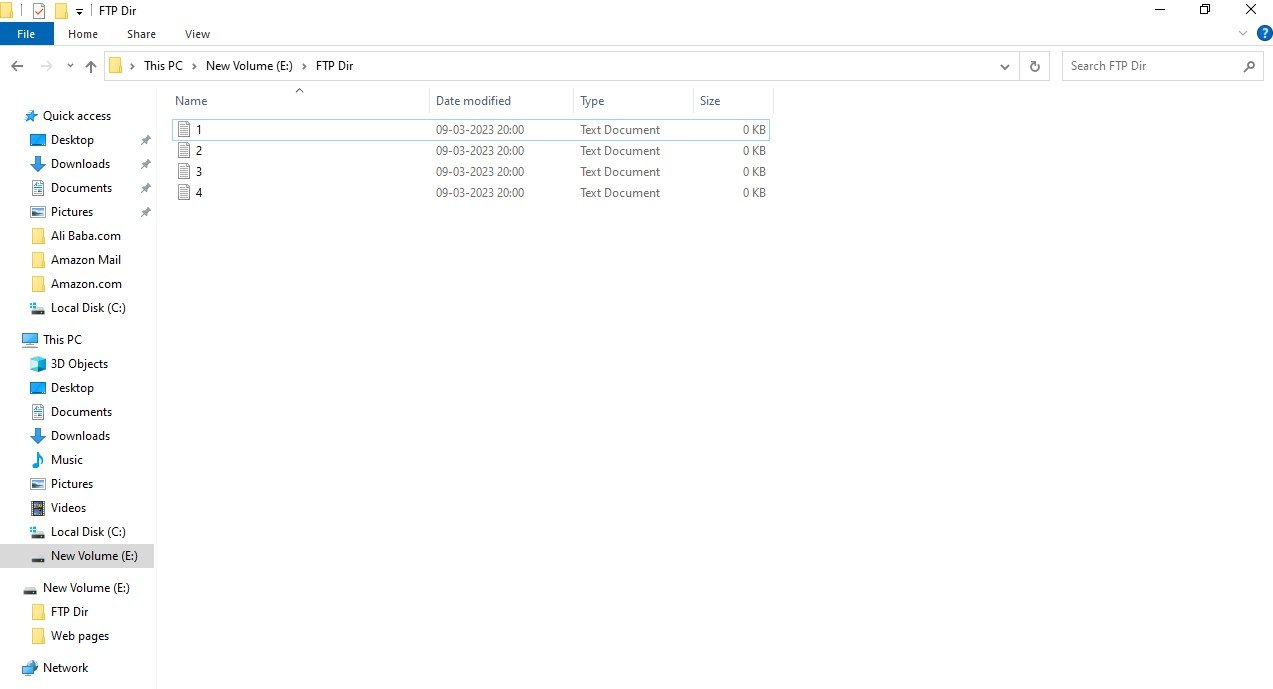
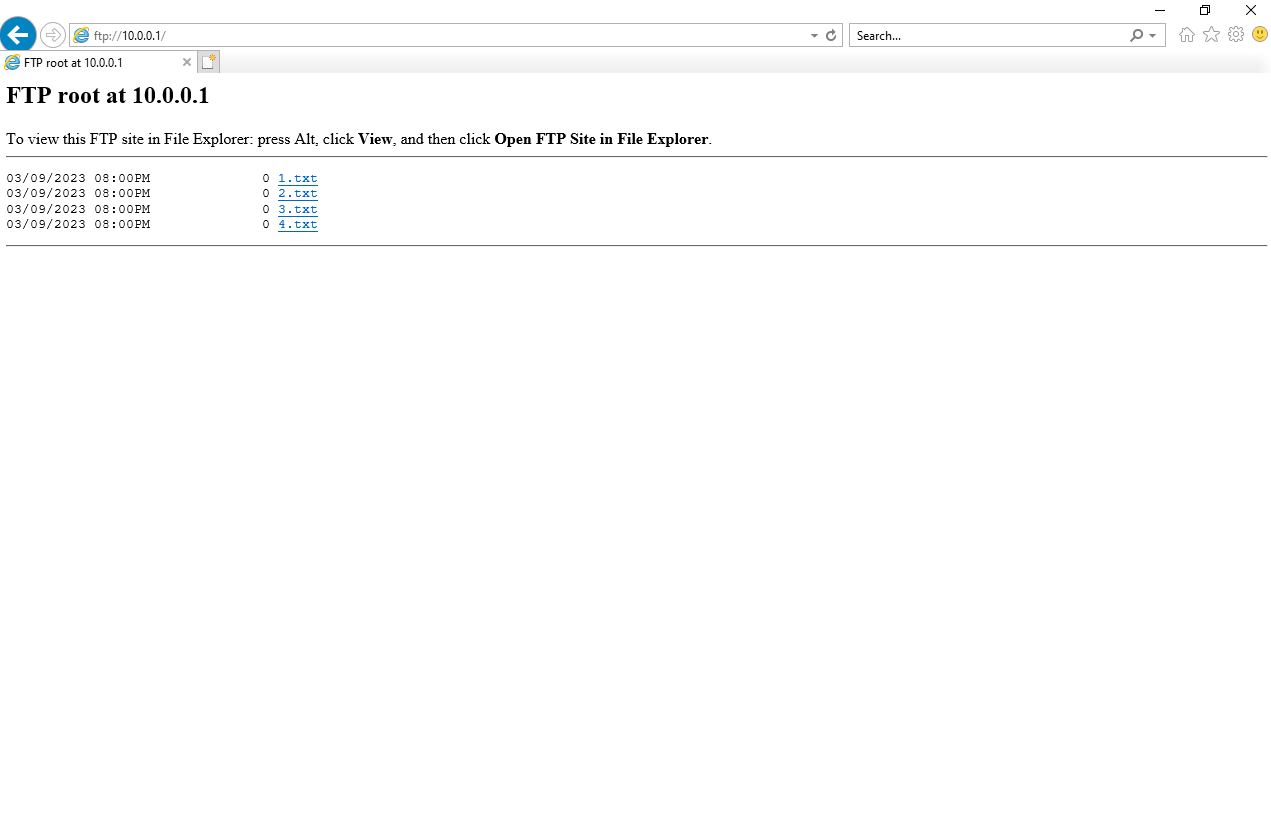
Open any drive and create a folder (Ex: FTP Dir) à Open the folder and create some files Ex: 1.txt, 2.txt, 3.txt, 4.txt.
Step 2
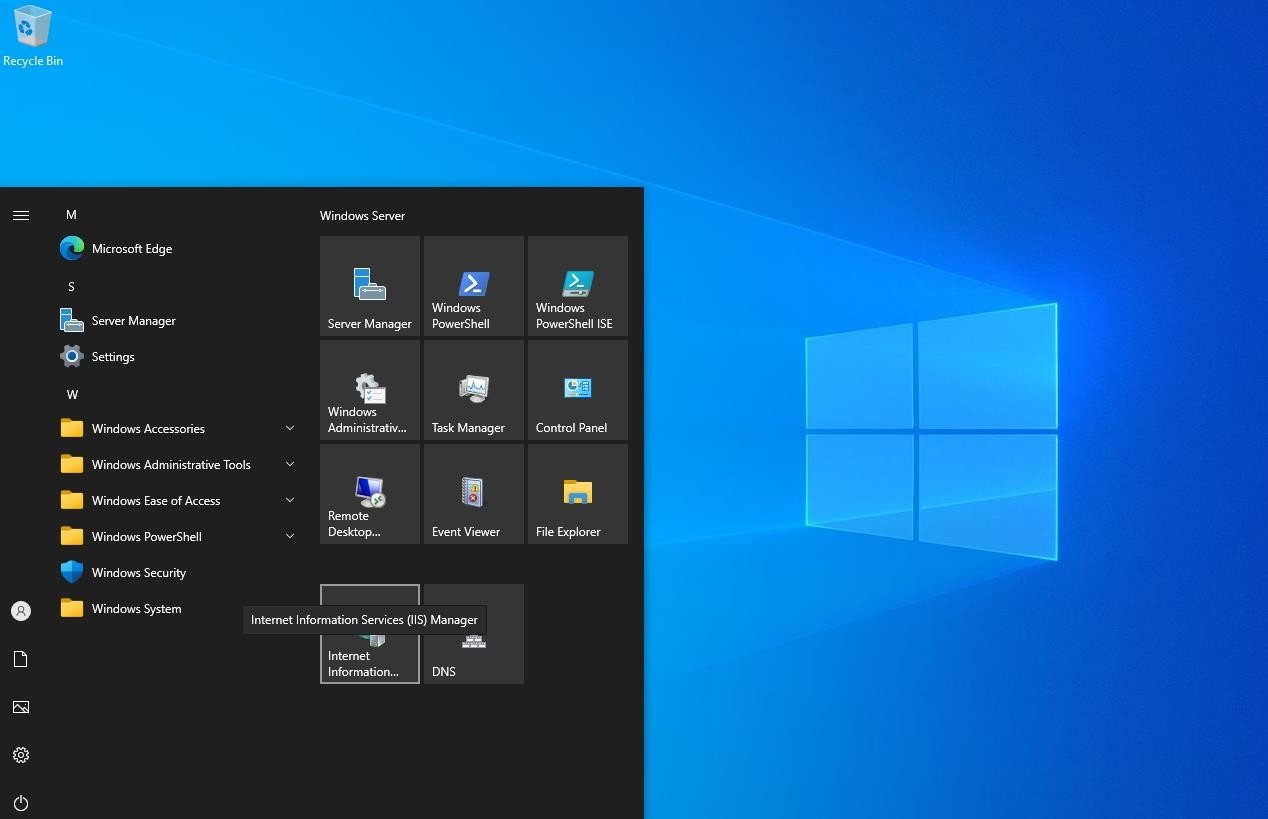
Go to Start, select Internet Information Services (IIS) Manager.
Step 3
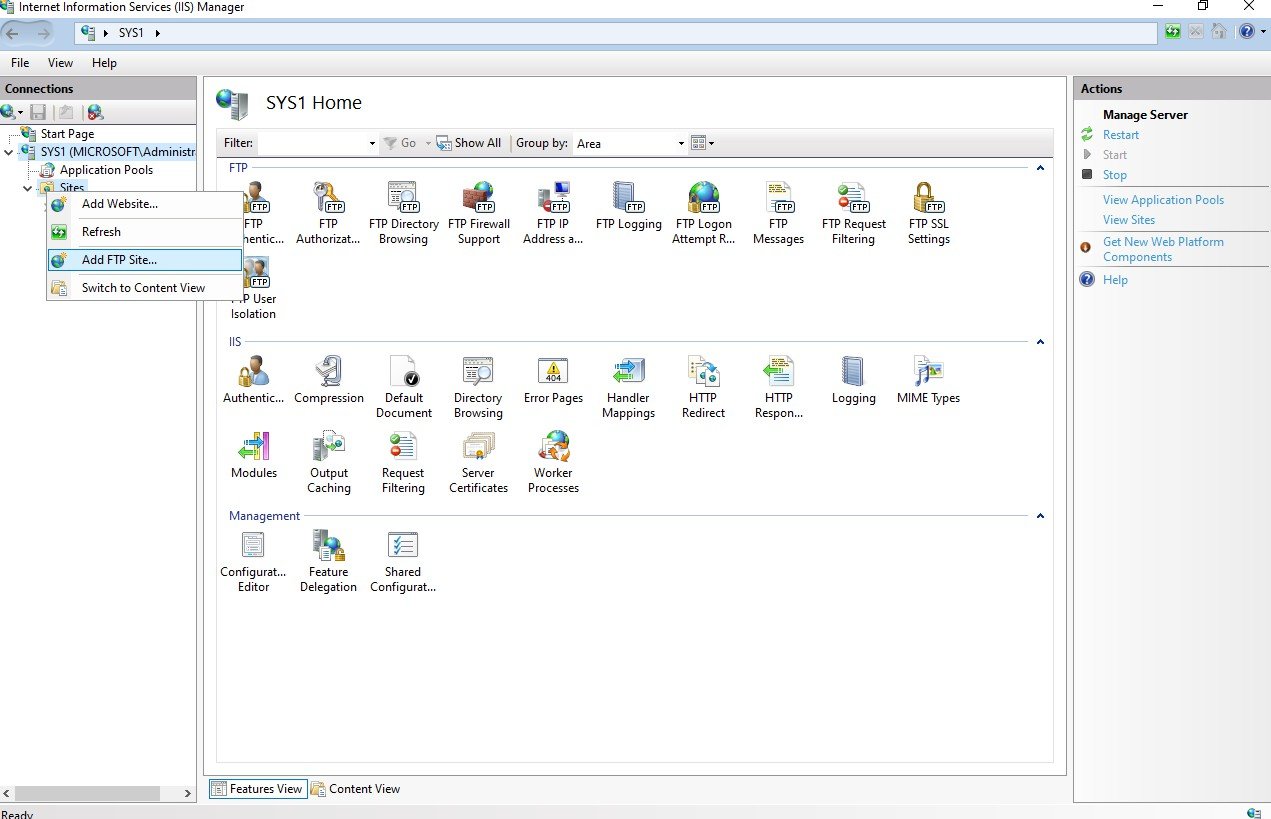
In the left pane of the Internet Information Services dialog box à Expand the server à Right click on Sites and select ADD FTP Site
Step 4
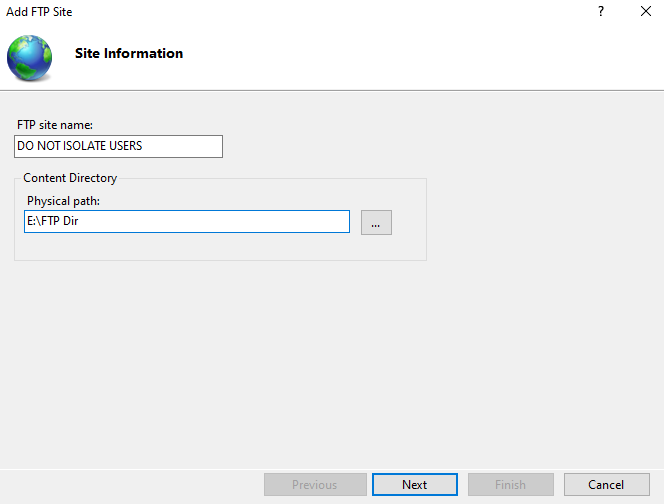
In Site Information screen, enter the FTP site name, and enter the path to the home folder (Content Directory) you want to assign to this FTP site. This can be either a local path or a UNC path of the shared folder à you can browse for this folder if you need to à click Next.
Step 5
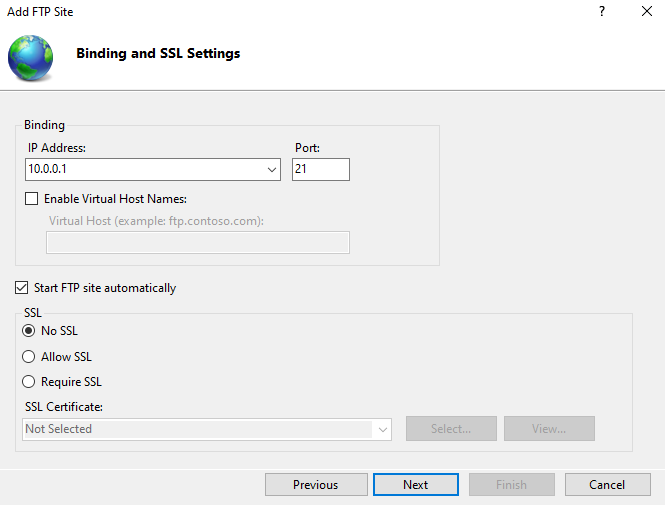
In the Bindings and SSL Settings dialog box select the IP address and port no. and select “NO SSL”.
Step 6
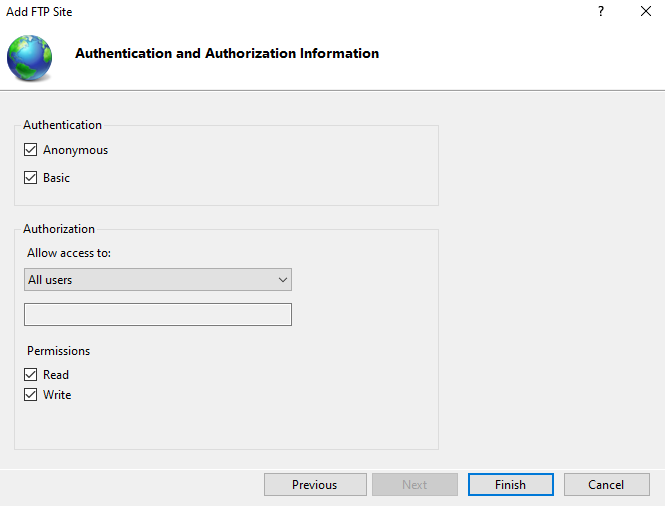
In Authentication and Authorization Information dialog box, Check the box for Anonymous and Basic, Select All Users, Check the box for Read and Write à click Finish.
Step 1
Go to any Computer 2 à Open Internet Explorer and type ftp://ftp_ip_address and Press Enter. Ex: ftp://10.0.0.1
Verification
- Accessing the FTP site from the Client systems