Prerequisites
- Before working on this lab, You must have
- A computer running windows server 2022 Operating System Hyper-V host.
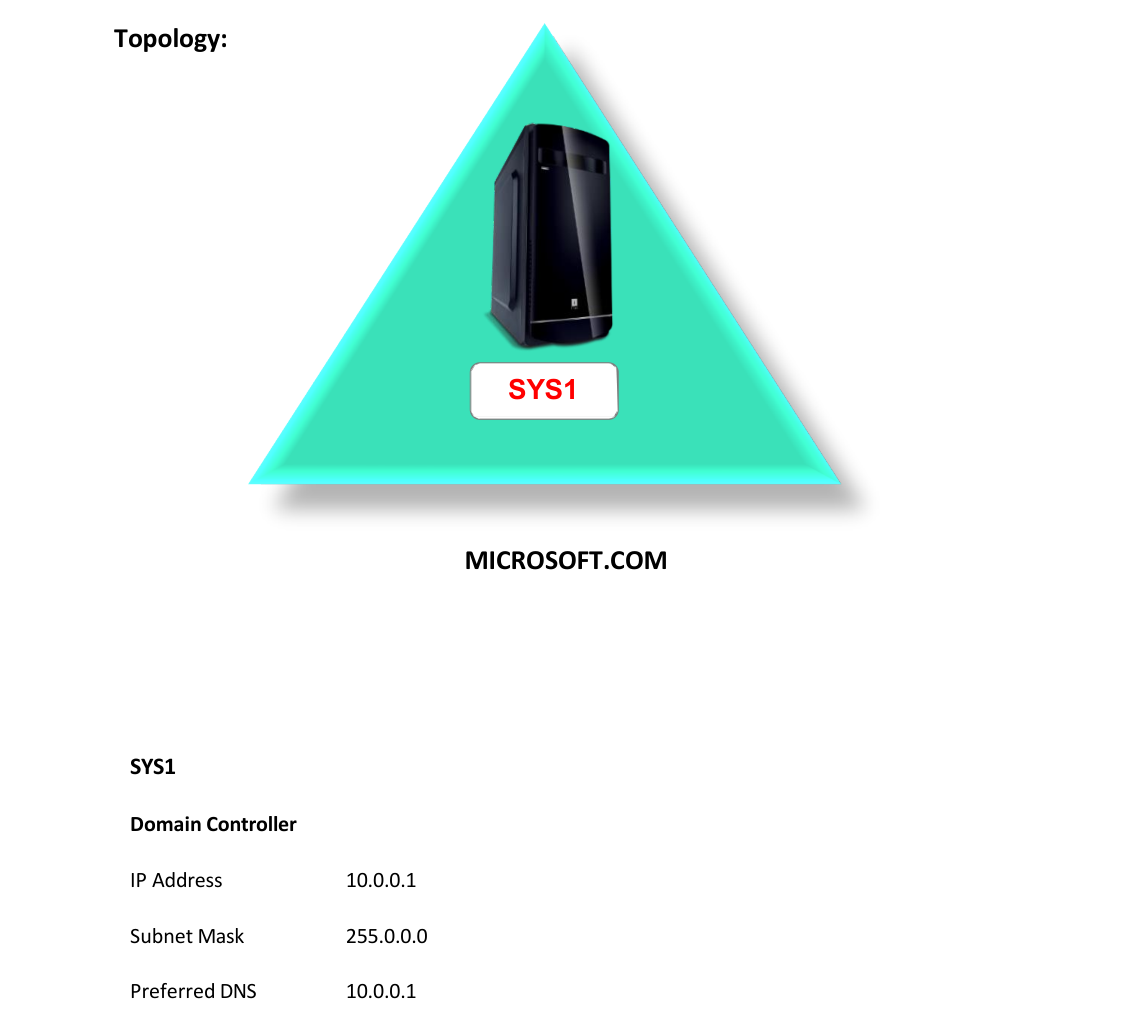
Network Topology
Step-by-Step Instructions
Step 1
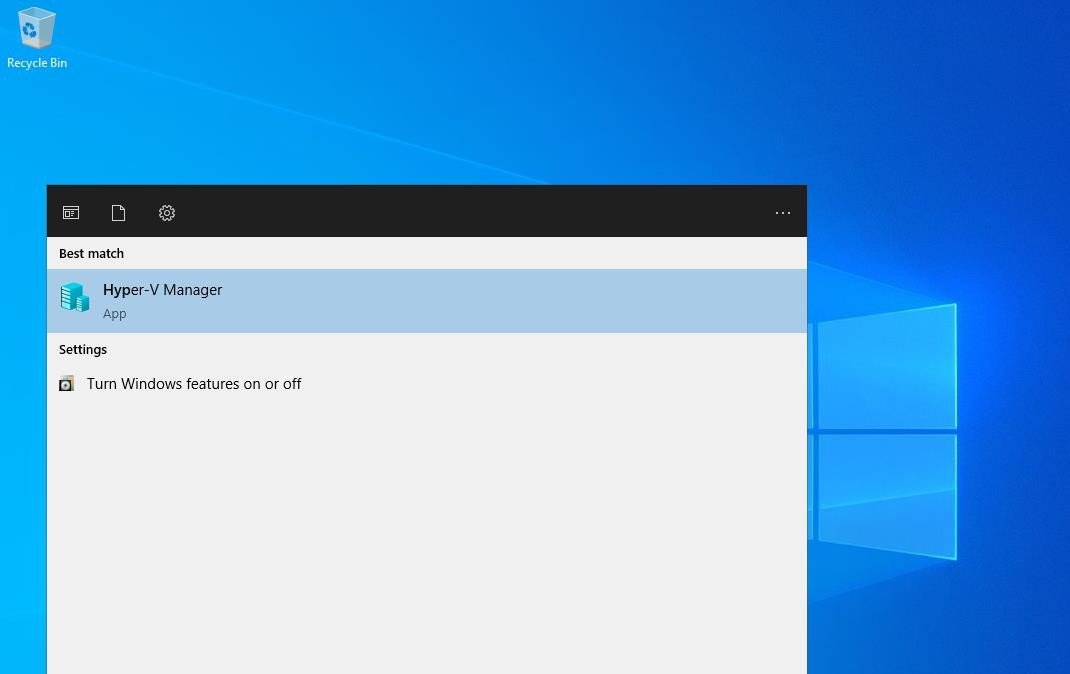
Go to Start, select Hyper-V Manager.
Step 2
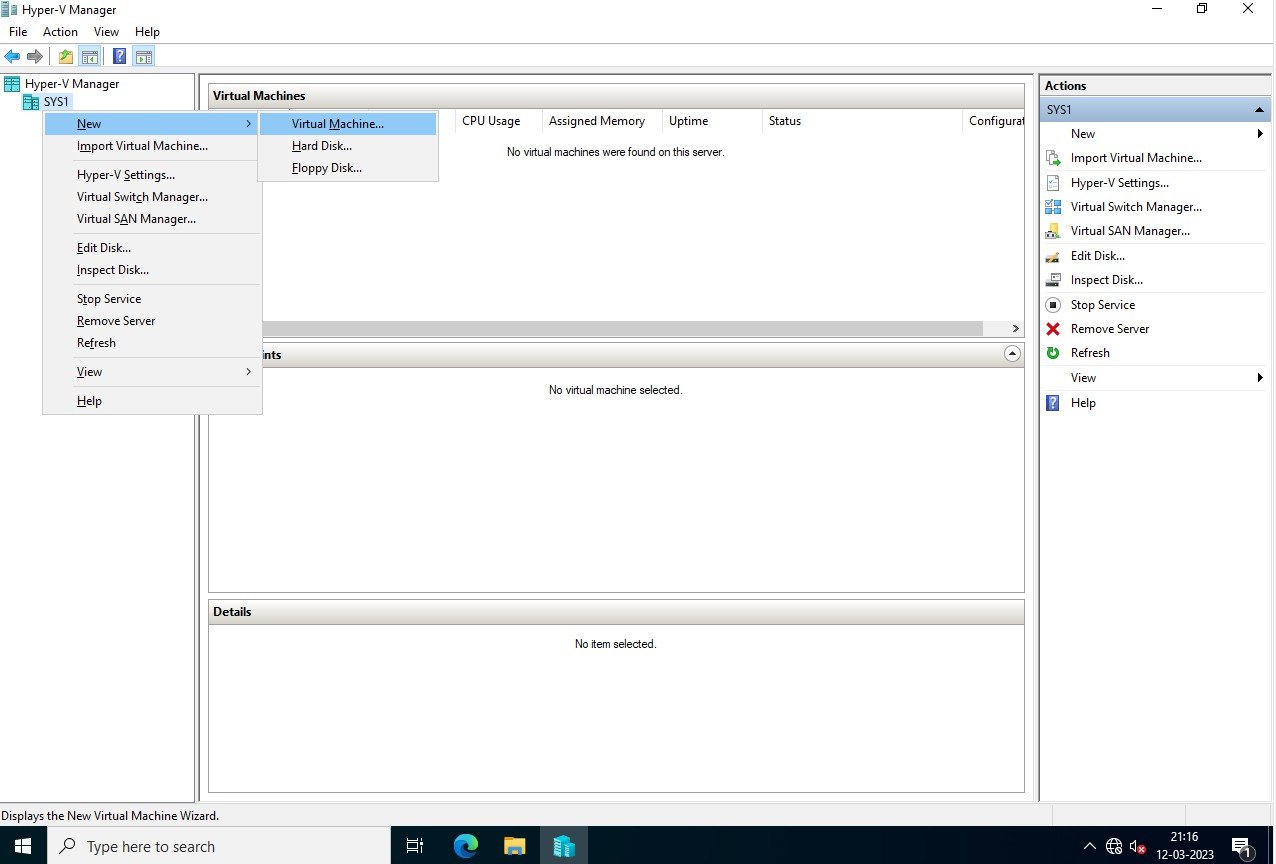
In Hyper-V Manager, right click on Server Name (SYS1) and select New Virtual Machine.
Step 3
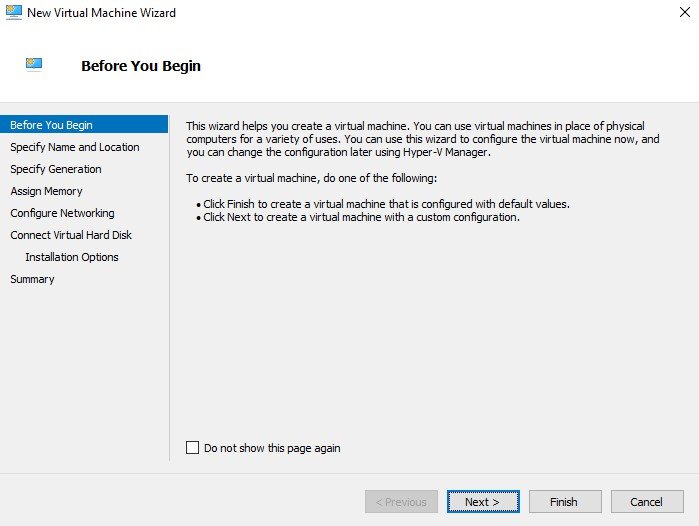
In Before you begin page, click Next.
Step 4
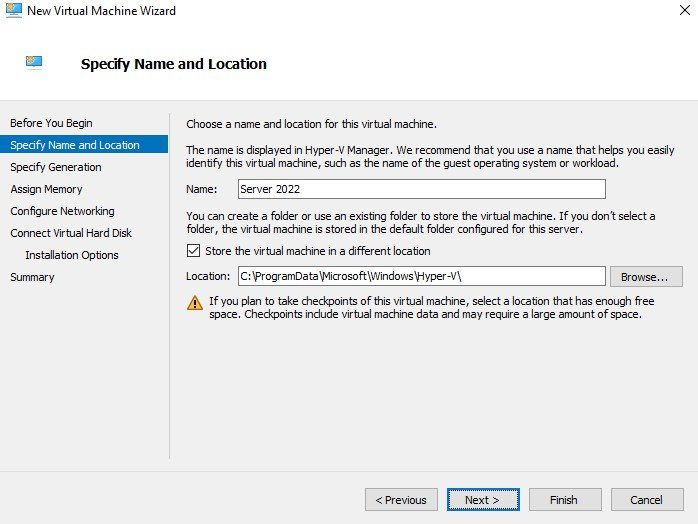
Enter Name and Location for the Virtual Machine (Ex: Win 2022) and click Next.
Step 5
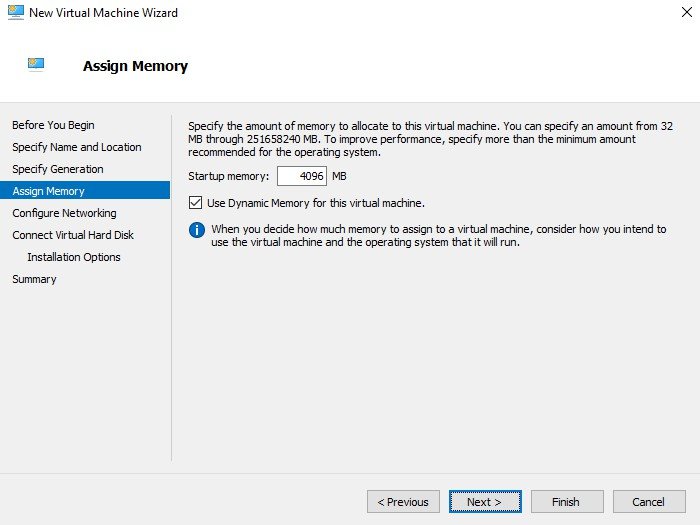
In Assign Memory Page, Enter the amount of RAM for the virtual machine (Ex: 4096 MB) and select Use Dynamic Memory for this virtual machine.
Step 6
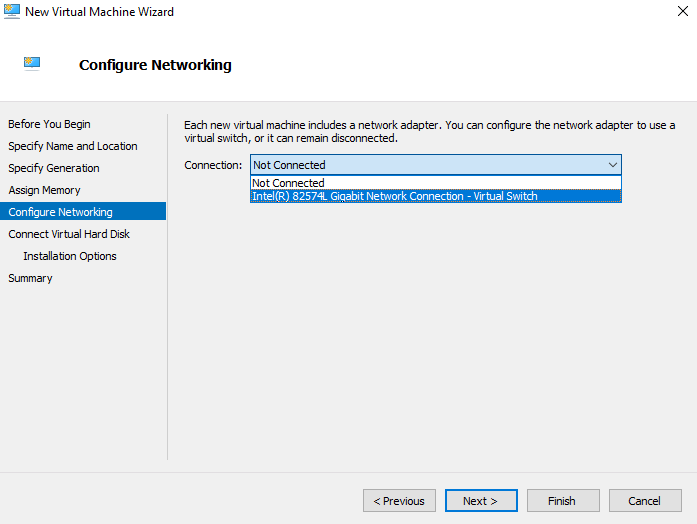
In Configure Networking Page, select Virtual Switch Adapter click Next.
Step 7
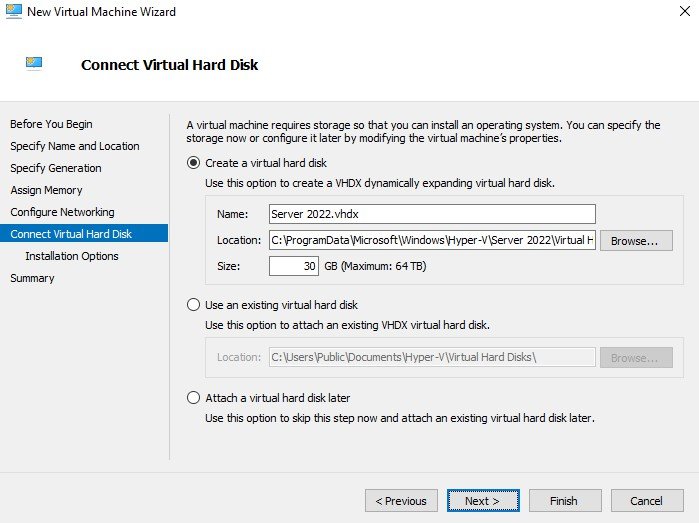
In Connect Virtual Hard Disk Page, select Create a virtual hard disk and enter the Name, Location and Size of the virtual hard disk. Click Next.
Step 8
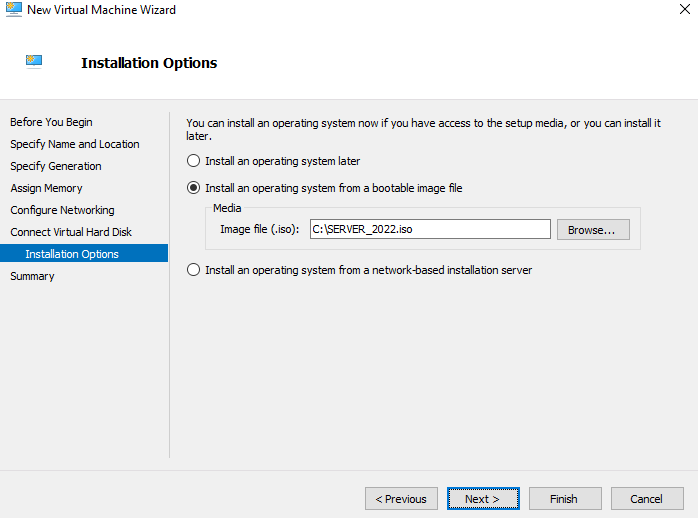
In Installation Options, select Install an operating system from a boot CD/DVD-ROM, click Next.
Step 9
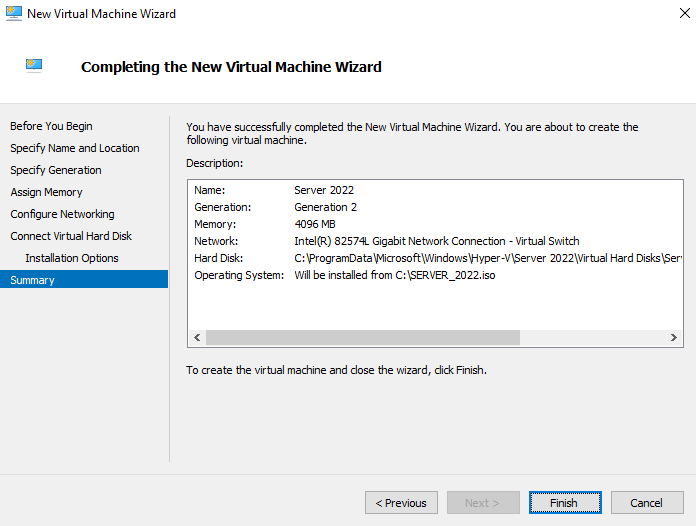
In Completing the New Virtual Machine Wizard, click Finish.
Step 10
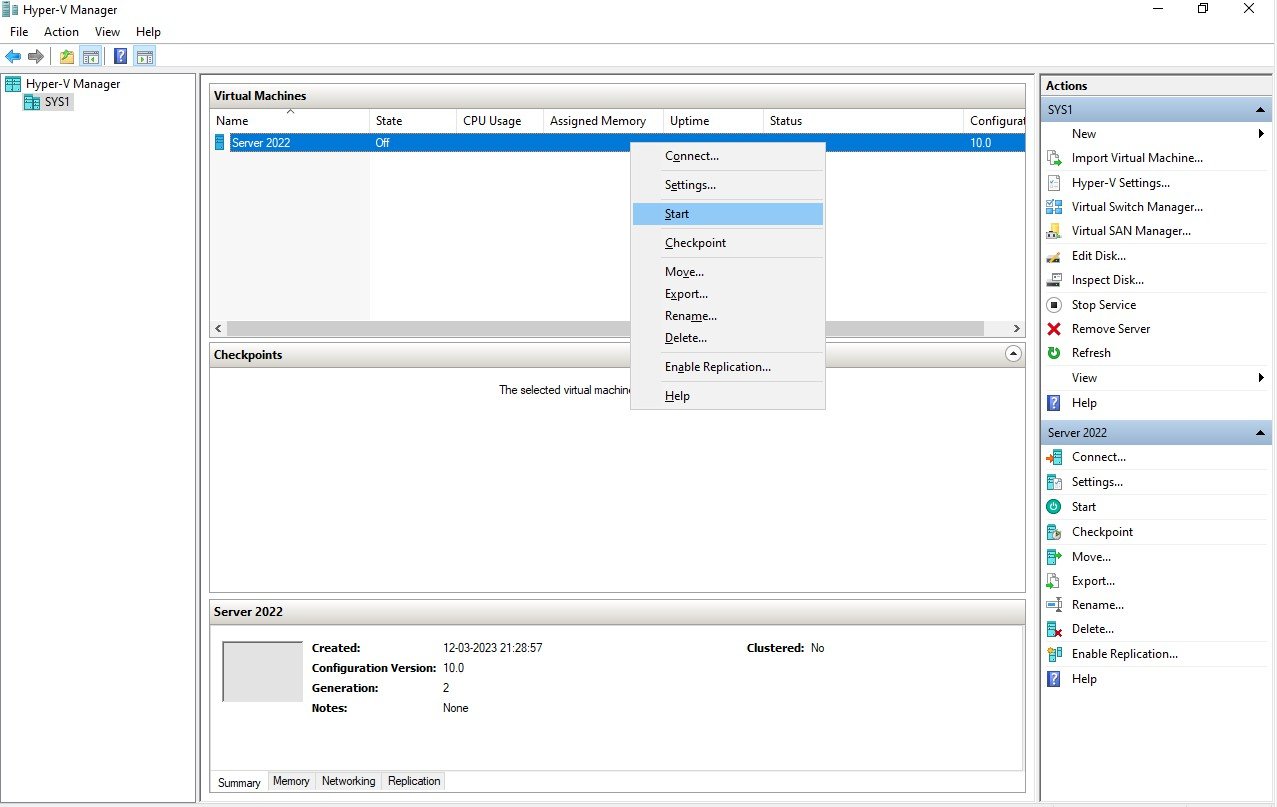
In Hyper-V Manager console, right click virtual machine (Ex: win 2022), click Start.
Step 11
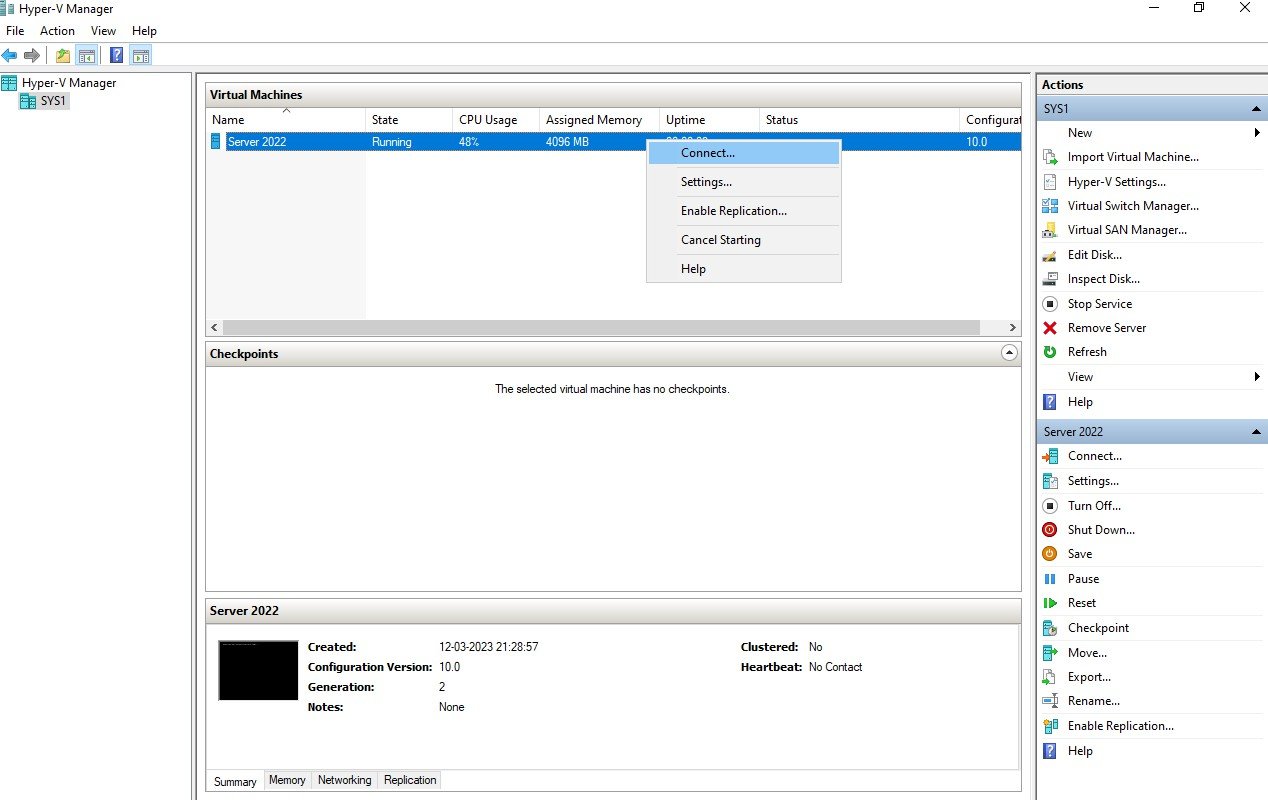
Right click virtual machine (Ex: win 2022), click Connect.
Step 12
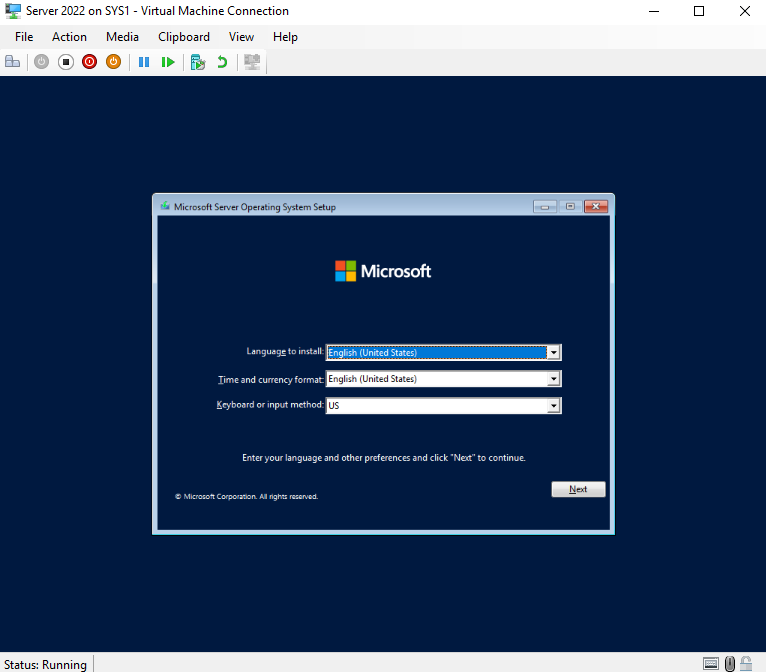
Install the Operating System on Virtual Machine.
Verification
Verify that your configuration works as expected. Open tools and check settings matching the parameters.