Prerequisites
- Before working on this lab, You must have
- A Computer Running Windows Server 2022 Domain Controller.
- 2 Computer Running Windows Server 2022 With Minimum 2 NIC Cards.
- A Computer Running Windows Server 2022 Web Server.
Network Topology
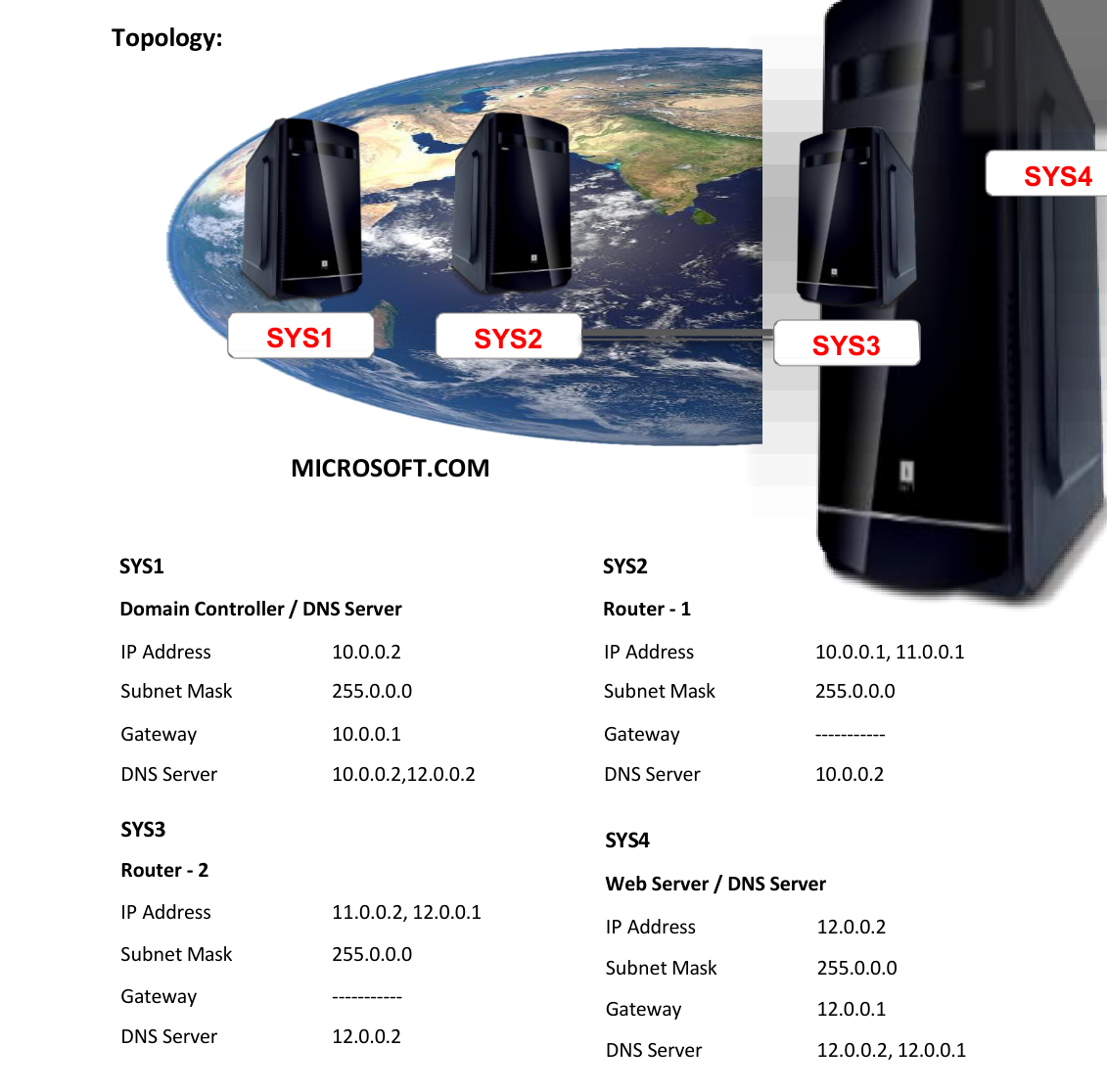
Step-by-Step Instructions
Step 1
ON ROUTER-1:
Step 1
Go to Routing and Remote access à Expand System name à Expand IPv4
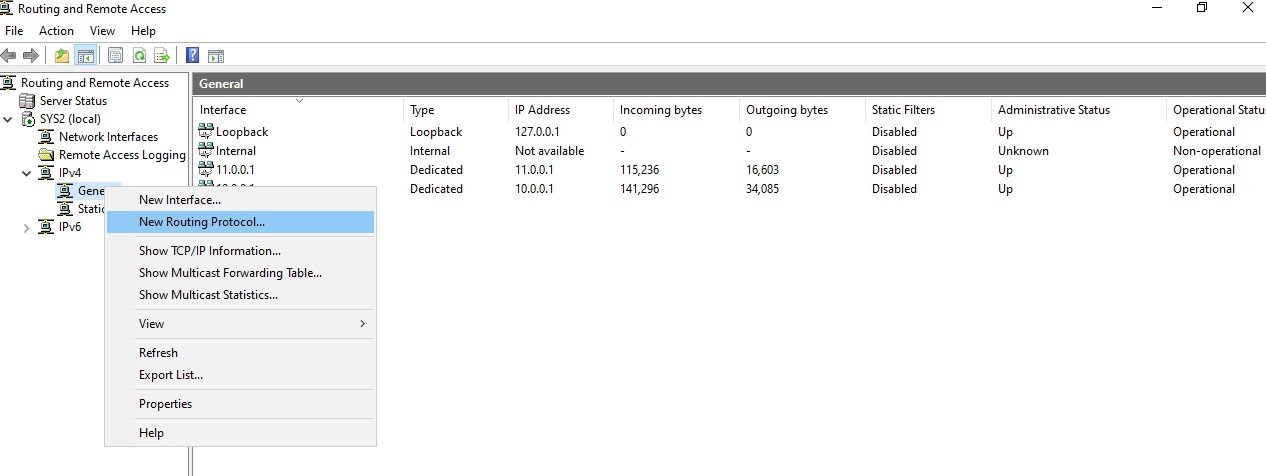
Step 2
Right click on General à Select New Routing Protocol
Step 3
Select NAT à click OK
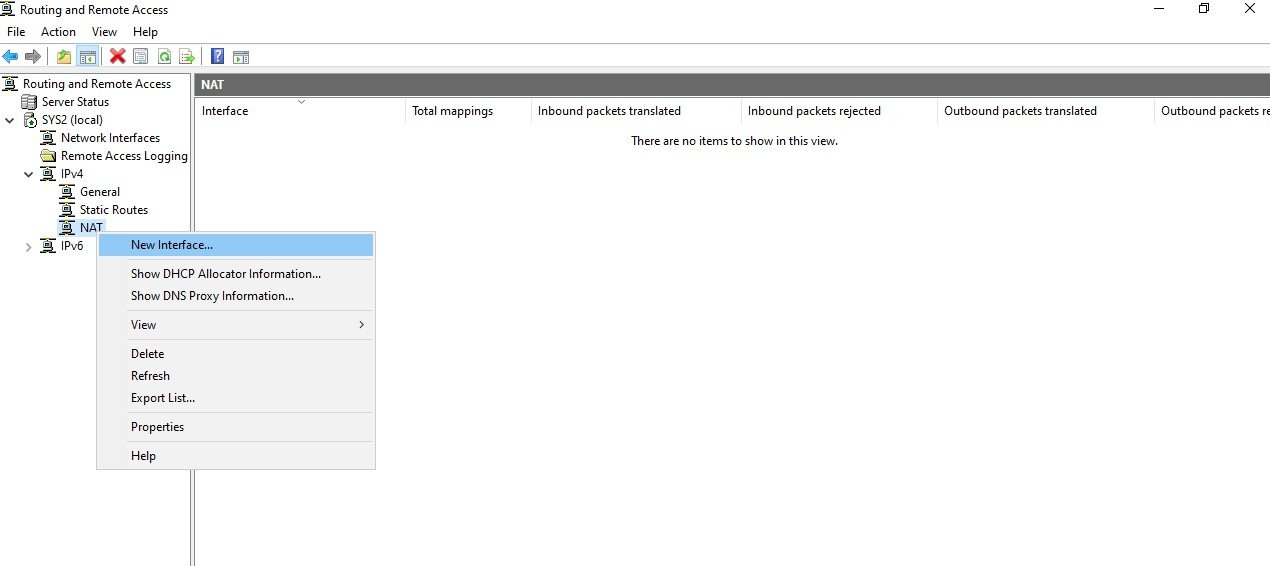
Step 4
Right click on NAT à Select New interface
Step 5
Select LAN interface à click OK
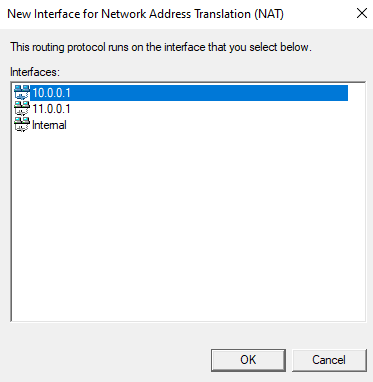
Step 6
Select Private Interface à Click OK.
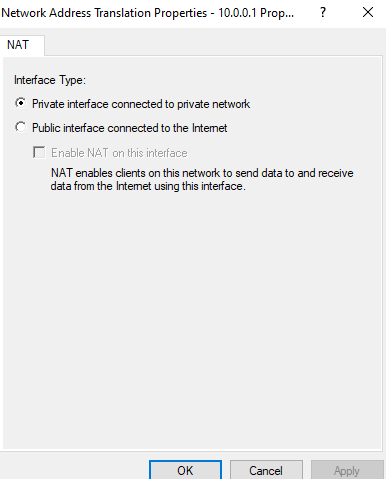
Step 7
Again Right click on NAT à Select New interface
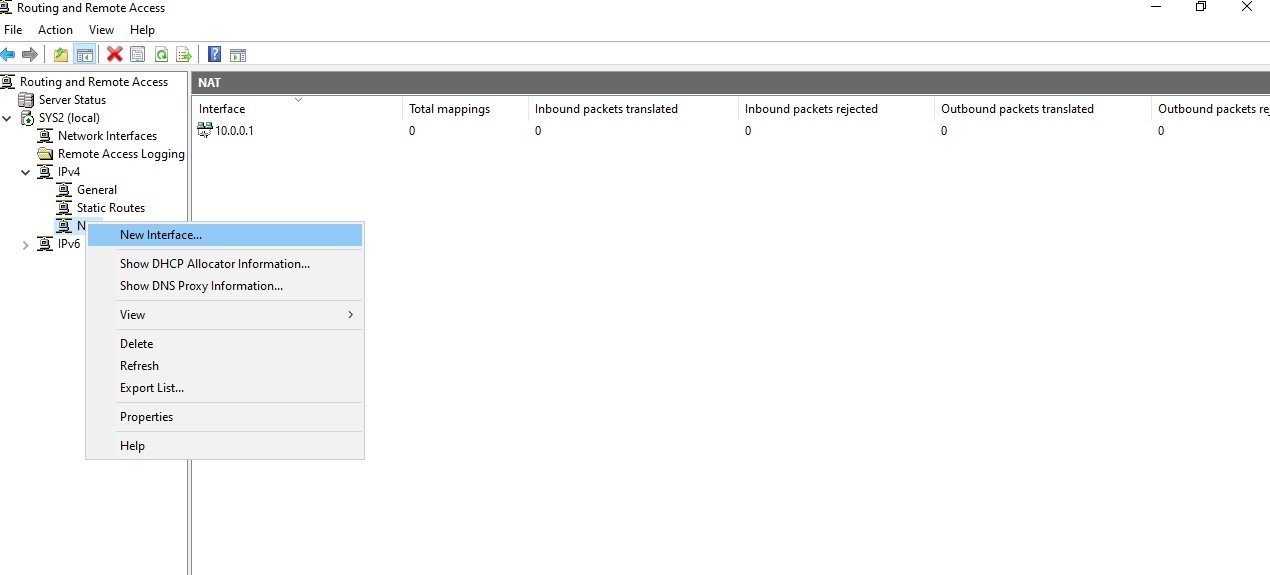
Step 8
Select WAN Interface (11.0.0.1) à click OK
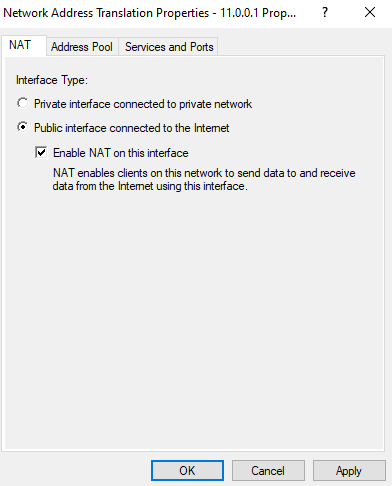
Step 9
Select Public interface, Select Enable NAT à click OK.
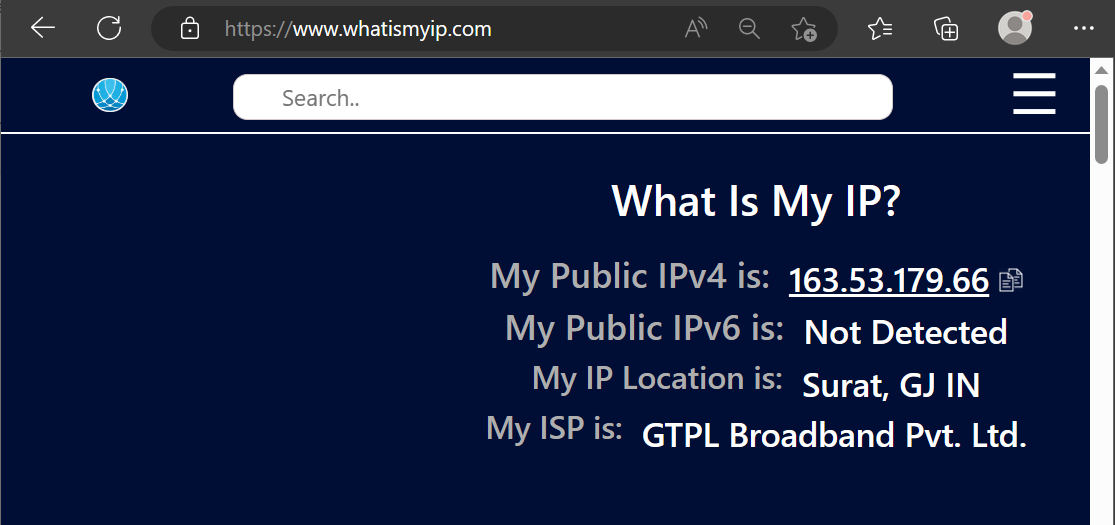
Verification
- Before NAT :
- On Private à Open Internet Explorer & access http://www.whatismyip.com the IP
- address is shown as 10.0.0.2 Private IP.
- 10.0.0.2
- After NAT :
- On Private à Open Internet Explorer & access http://www.whatismyip.com the IP
- address is shown as 11.0.0.1 Public IP.
- 11.0.0.1