Prerequisites
- Before working on this lab, You must have
- A Computer Running Windows Server 2022 Domain Controller.
- A Member Server with minimum 2 NIC cards.
- A computer running windows 2022 server or windows 10.
- Configuring VPN Server
Network Topology
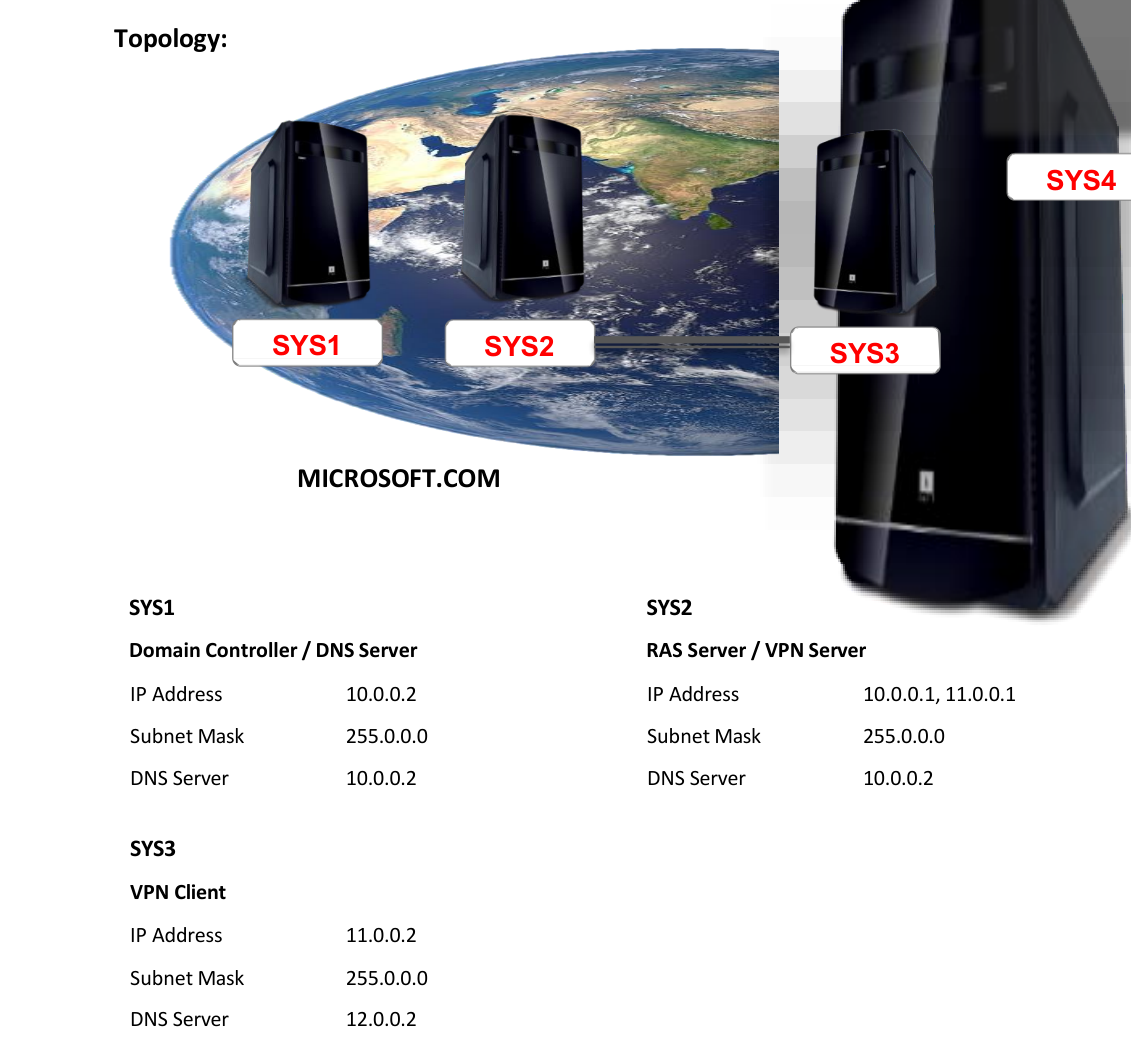
Step-by-Step Instructions
Step 1
Go to Start, select Routing and Remote Access.
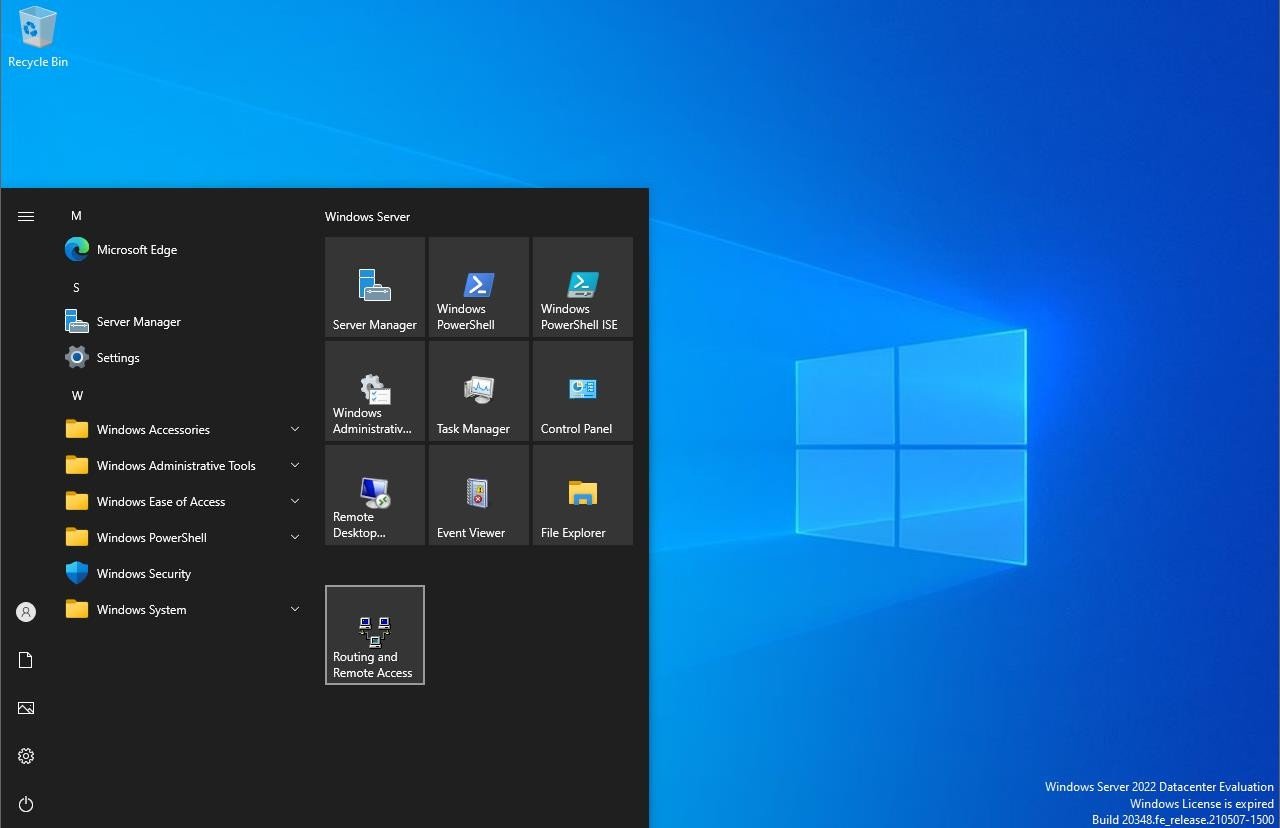
Step 2
Right click on system name Configure and Enable Routing and Remote Access.
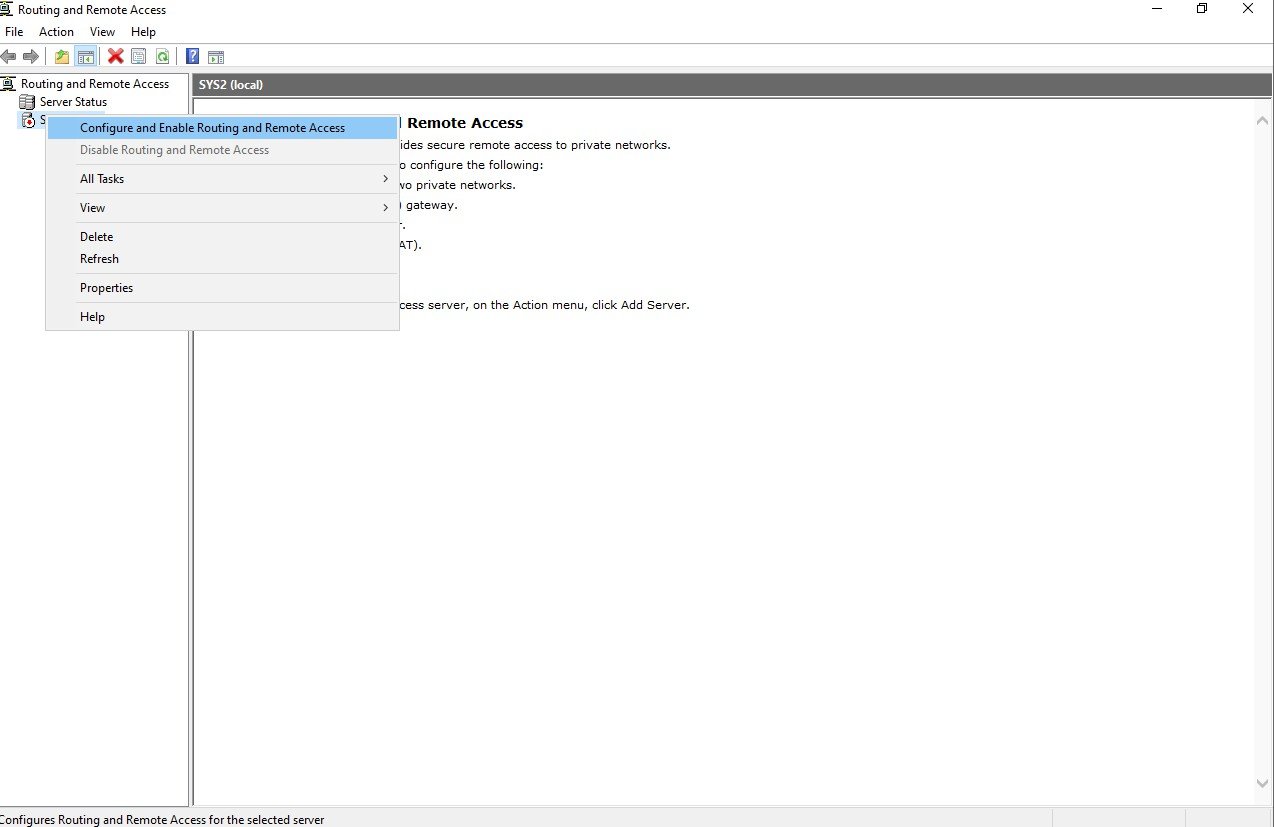
Step 3
In Welcome wizard, click Next
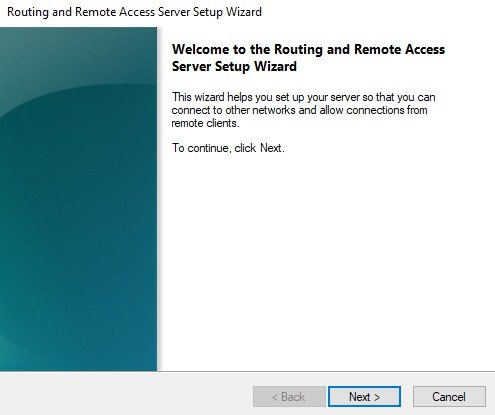
Step 4
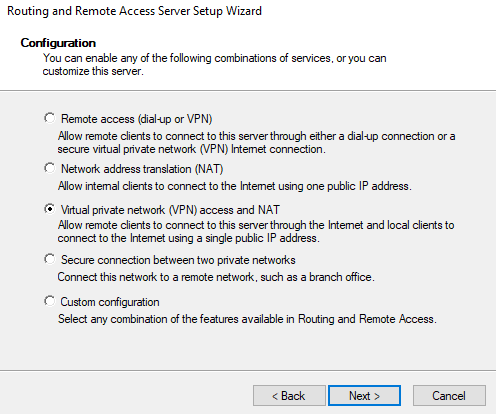
Select Virtual private network (VPN) access and NAT à click Next.
Step 5
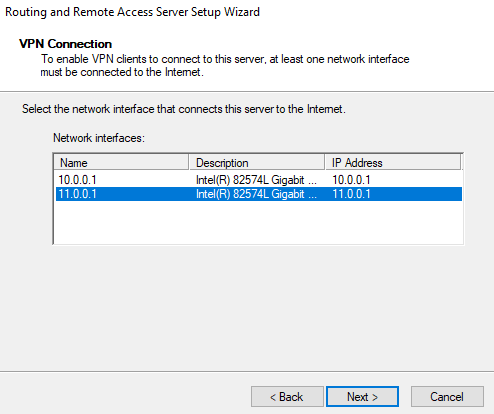
Select Public interface (Ex: 11.0.0.1) à click Next.
Step 6
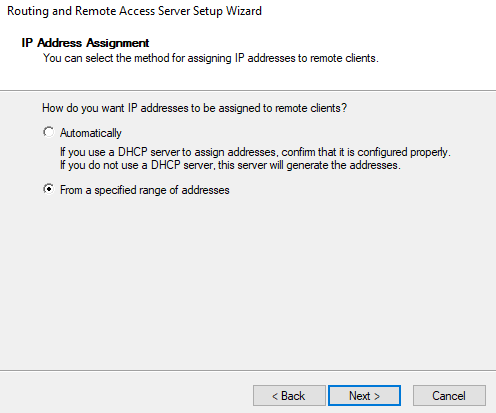
Select From a specified range of address (if DHCP is not configured in the private network, select automatically if DHCP is configured), click Next.
Step 7
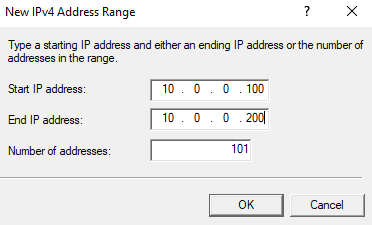
Enter the IP Address range to be leased to VPN Clients (Ex: 10.0.0.100 to 10.0.0.200), click OK.
Step 8
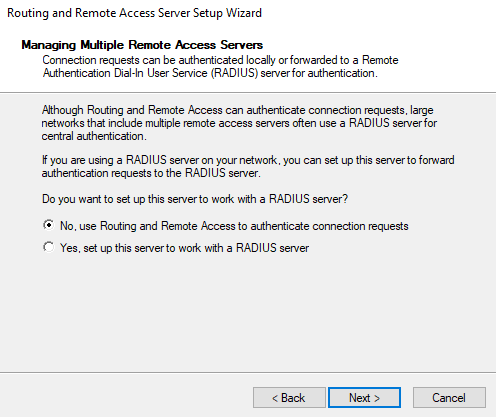
Select No, use Routing and Remote Access to authenticate connection requests (if VPN Server is Member Server), click Next.
Step 9
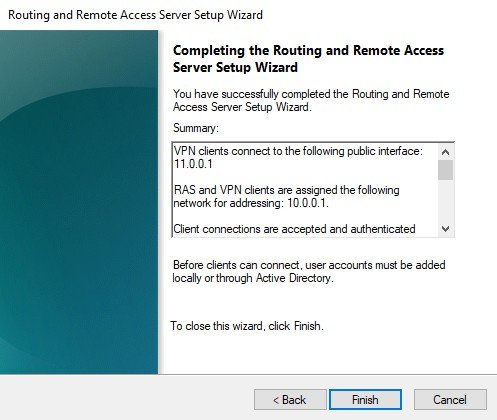
Click Finish
Step 10
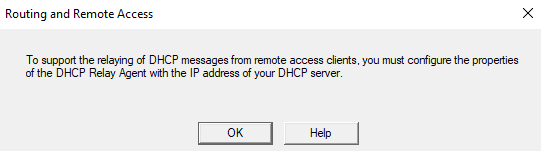
Click Start service Establishing VPN Connections SYS3 — CONFIGURATION
Step 1
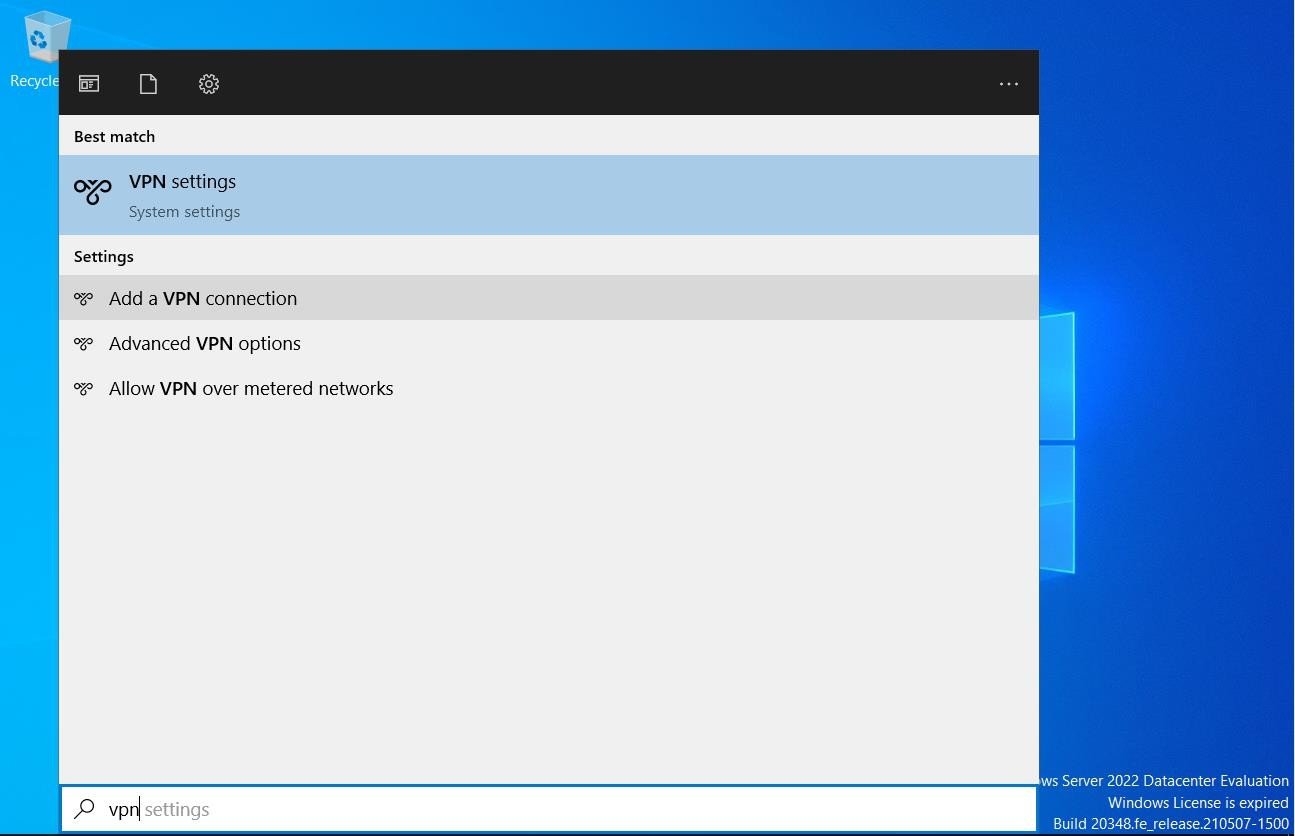
Logon to RAS Client (SYS3), Go to Start menu and Search VPN
Step 2
Select Add a VPN Connection
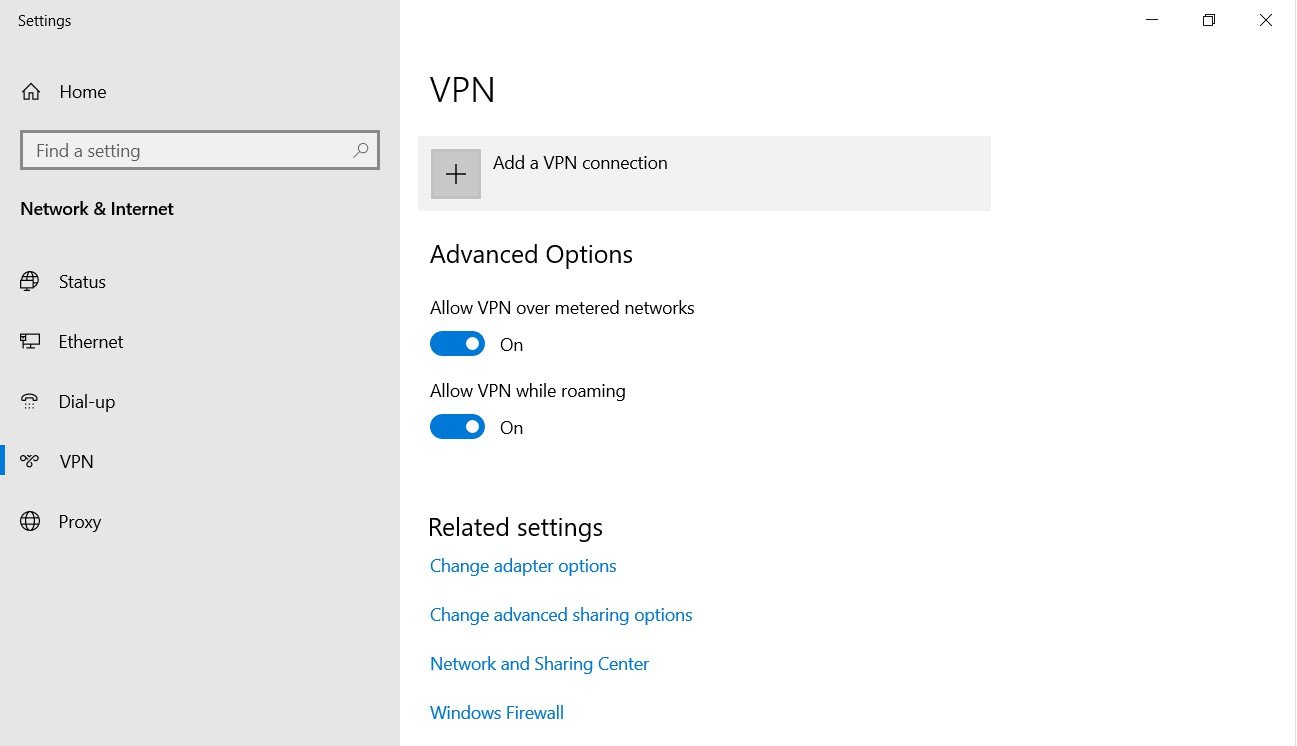
Step 3
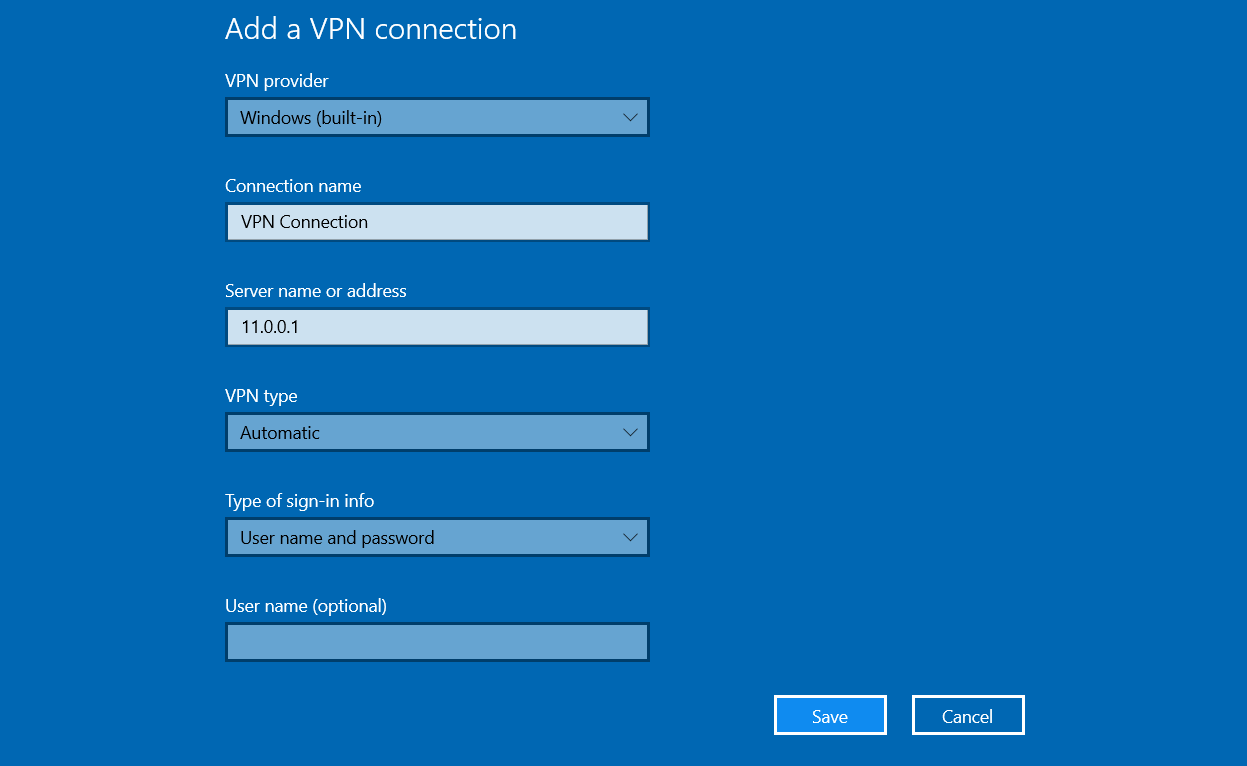
In Add a VPN Connection Page select VPN Provider as Windows (built-in), Connection Name: VPN Connection , Server Name or Address : 11.0.0.1 and Click Save.
Step 4
Go to Network & Internet Setting and Select VPN Connection à click Connect.

Step 5
Enter Network Authentication, (Ex: Administrator@microsoft.com ) and Password click OK

Step 6
Connection is created successfully.

Step 7
Go to Command prompt & type Ipconfig /all to view the IP Address of the Client computer.
Step 8
Now try to access the LAN Network.
Step 9
Go to Start à Run à type \\LAN computer IP address\Drive$ or Share folder name Ex:\\10.0.0.2\c$
Verification
Verify that your configuration works as expected. Open tools and check settings matching the parameters.