Prerequisites
- Before working on this lab, You must have
- A computer running windows server 2022 Domain Controller.
- A Member Server running windows server 2022 or Client Running Windows 10.
Network Topology
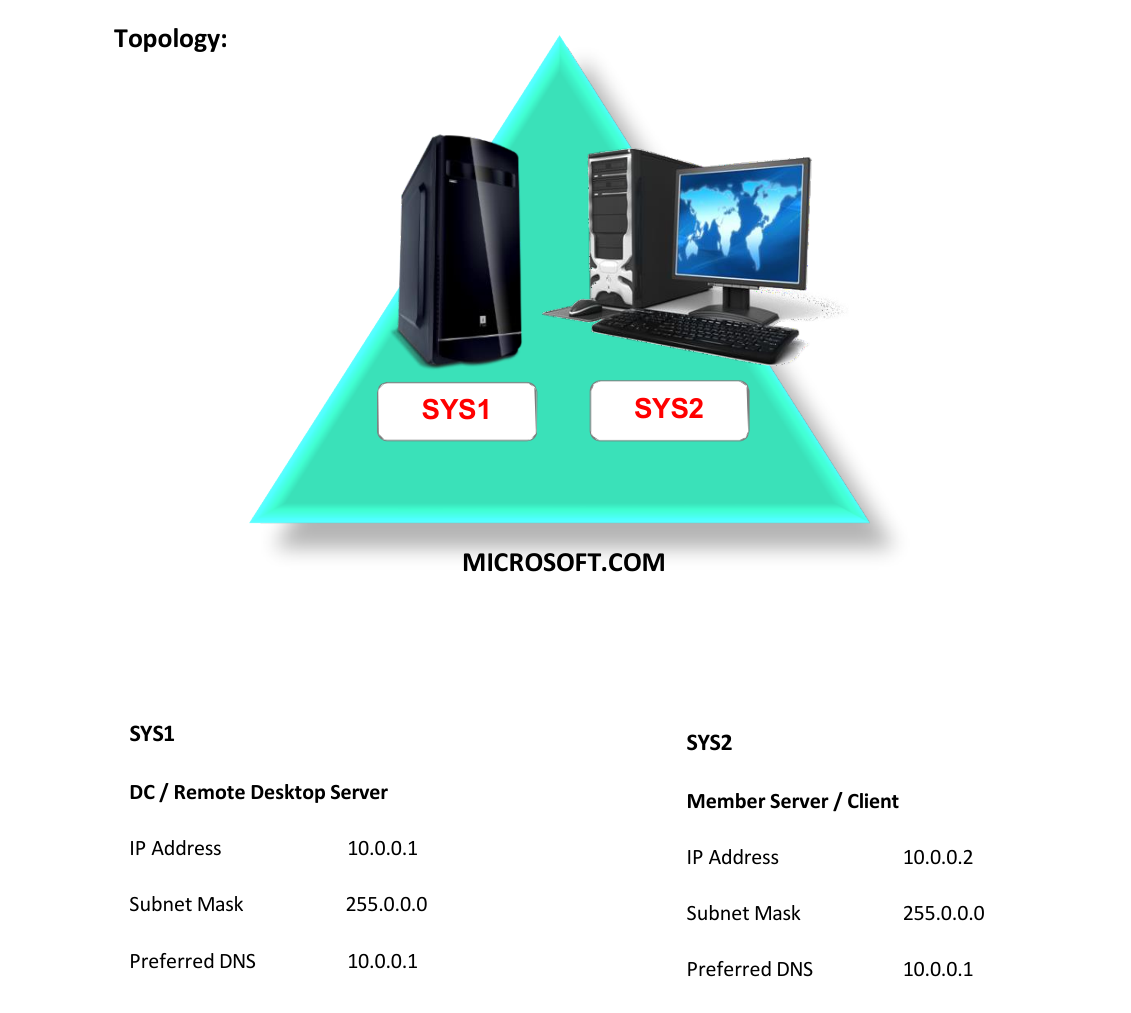
Step-by-Step Instructions
Step 1
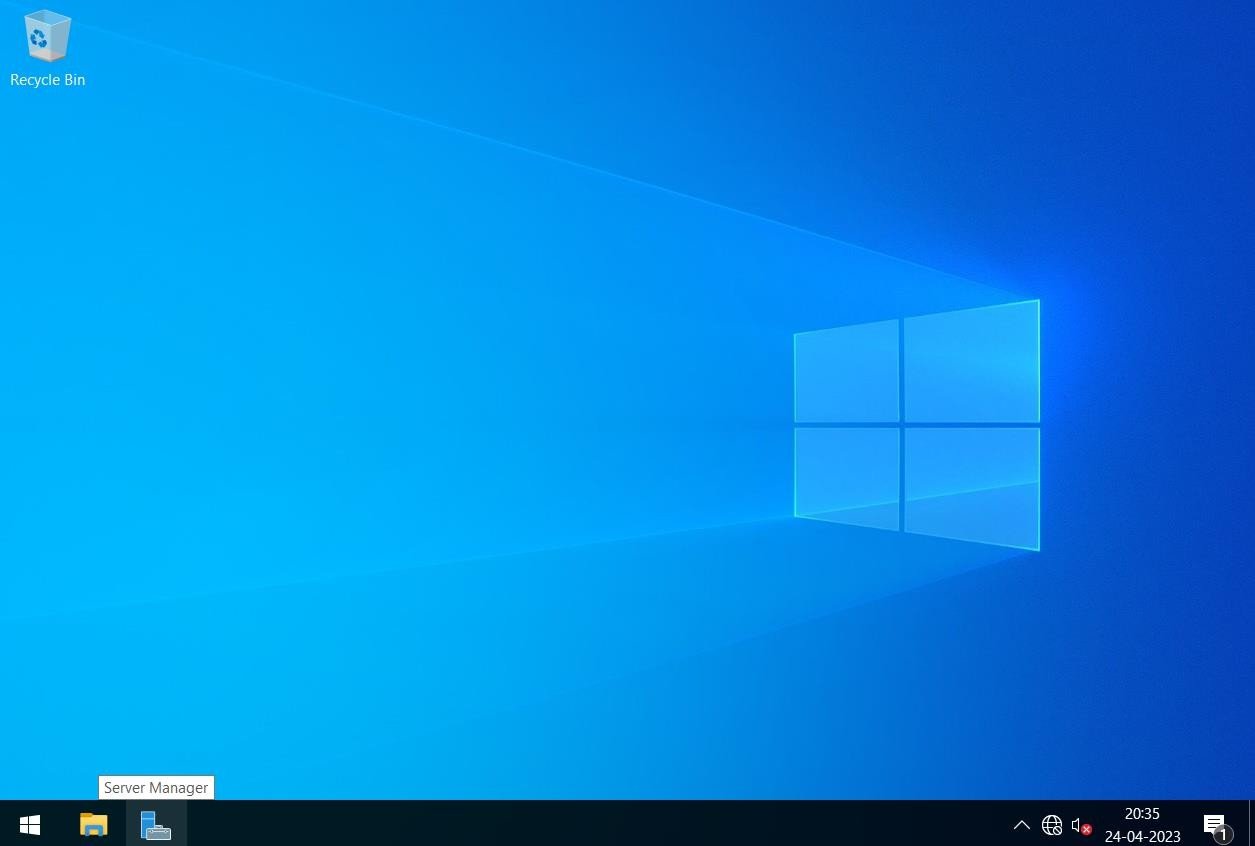
Select Server Manager Remote Desktop Server
Step 2
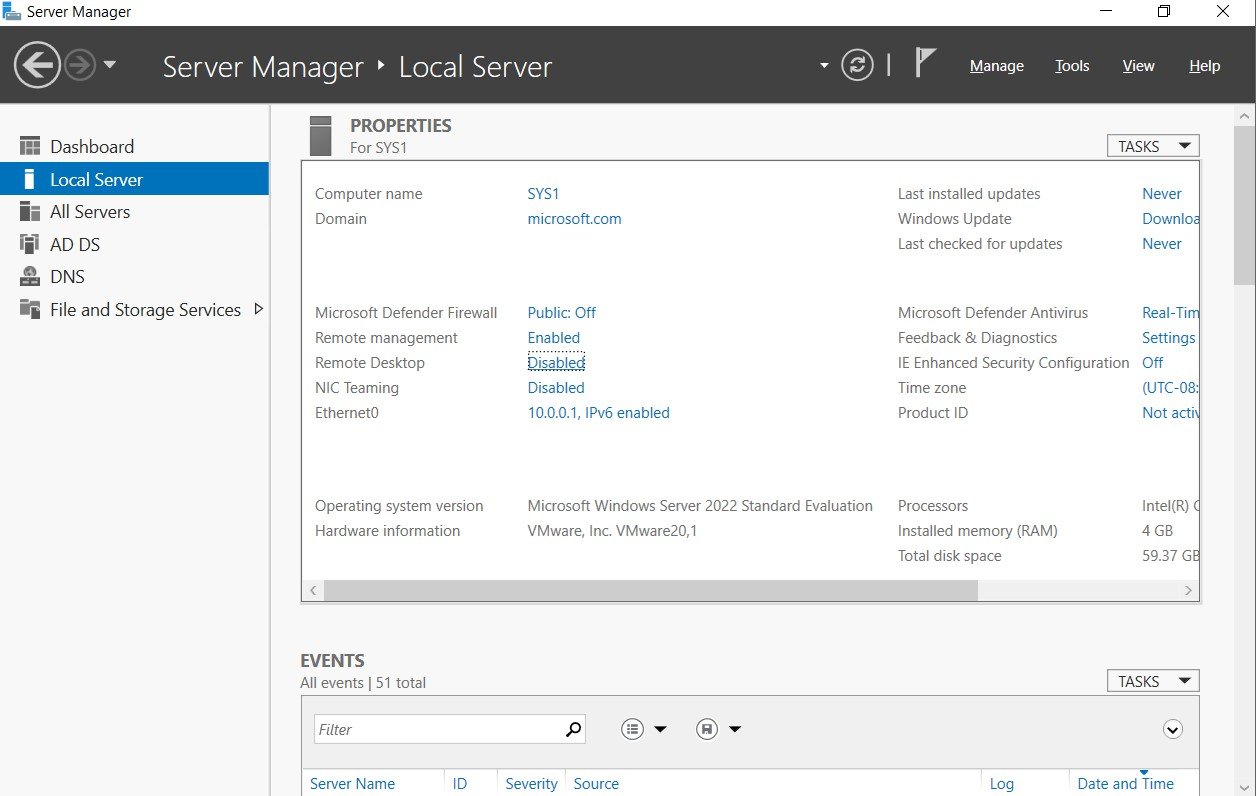
Select Remote Desktop.
Step 3
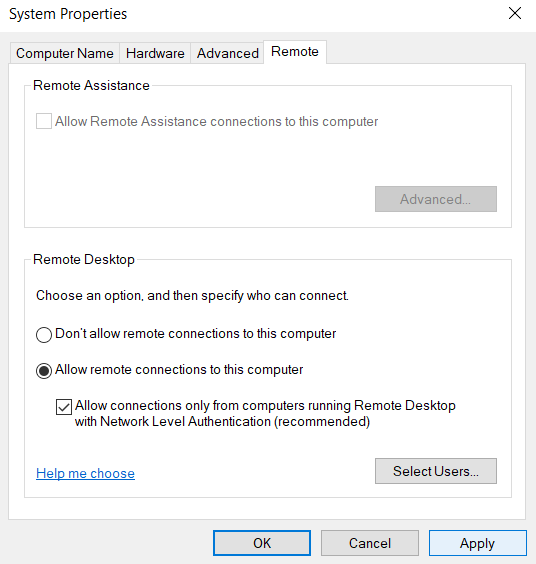
Check the box “Allow Connections from computers running any version”. Go to Terminal in Client (SYS2)
Step 1
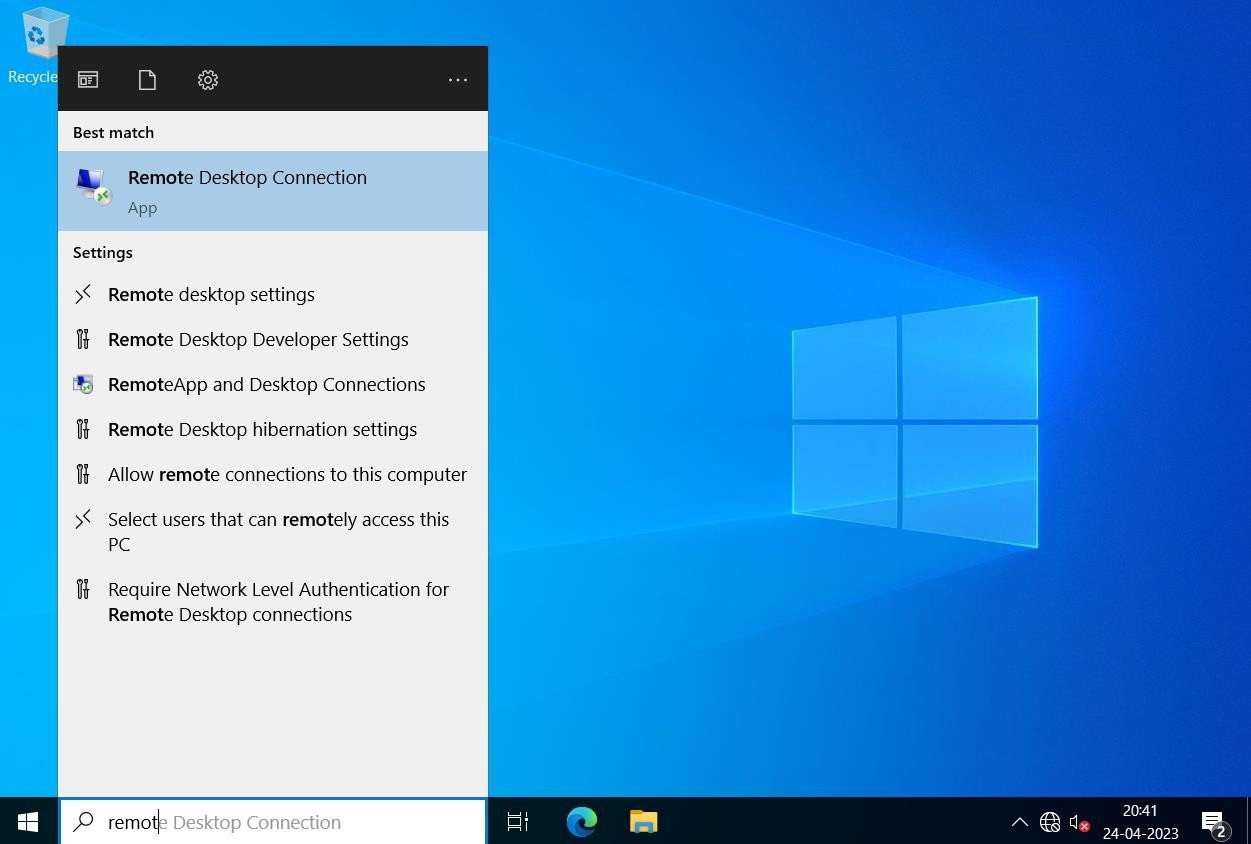
Go to Start, Type Remote Desktop Connection in search , select Remote Desktop Connection. www..in
Step 2
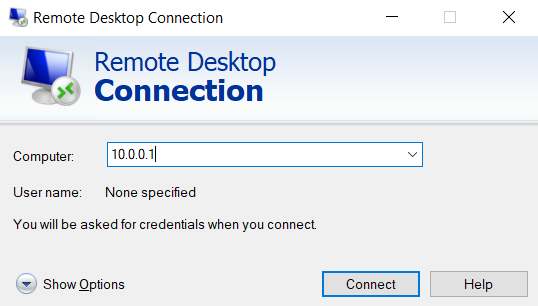
Specify the IP Address 10.0.0.1 or computer name of terminal server à click Connect.
Step 3
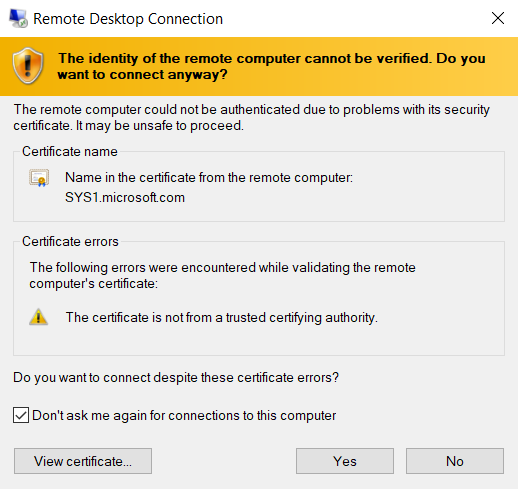
Specify username as Administrator and type the password à click OK Click Yes www..in
Step 4
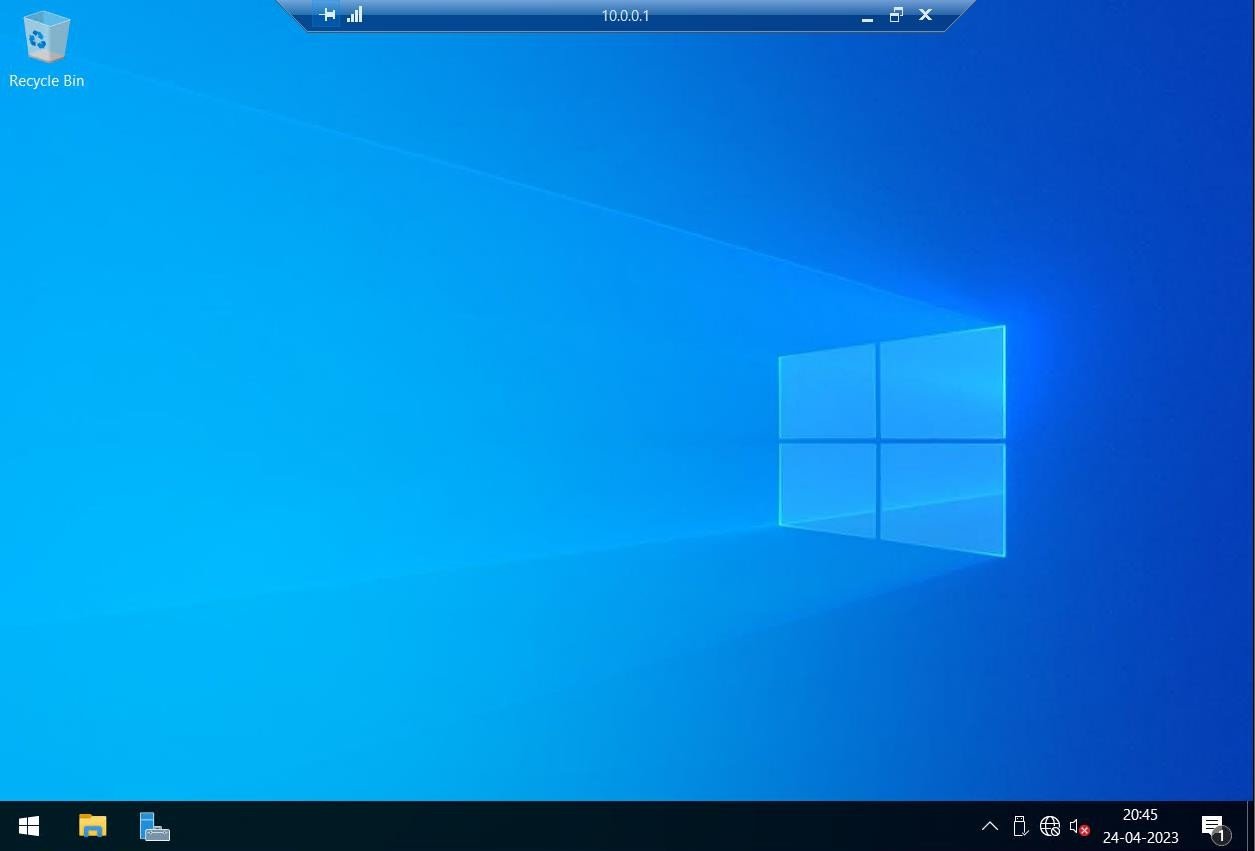
The Administrator will connect to the Terminal Server Remotely. www..in
Verification
Verify that your configuration works as expected. Open tools and check settings matching the parameters.